Web application firewall StyleBook
NetScaler Web App Firewall is a web application firewall (WAF) that protects web applications and sites from both known and unknown attacks, including all application-layer and zero-day threats.
NetScaler ADM now provides a default StyleBook with which you can more conveniently add standard and advanced application firewall configurations to existing virtual servers on NetScaler instances.
Deploy standard application firewall configurations
Perform the following steps to deploy the standard application firewall and IP reputation policy on existing LB virtual servers in your NetScaler instances.
-
In NetScaler® ADM, navigate to Applications > Configurations > StyleBooks and do the following:
-
Search for the StyleBook with the name as
waf-basic.
-
Click Create Configuration.
The ADM opens as a user interface page with all the parameters defined in the StyleBook.
-
-
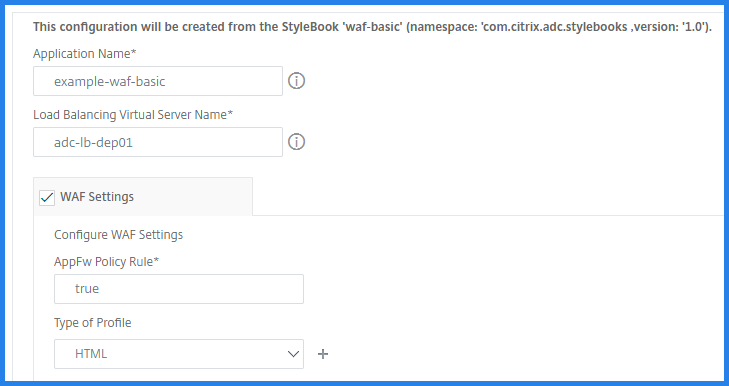
Specify the values for the following parameters:
-
Application Name - Name of the application.
-
Load Balancing Virtual Server Name - Name of the load-balancing virtual server present on an ADC instance.
-
WAF Settings - Enable this option to apply WAF configuration to an ADC instance.
-
AppFw Policy Rule - Select True to apply the application firewall settings to all virtual server traffic.
Alternatively, specify the NetScaler policy rule to select a subset of requests to which you want to apply the application firewall settings. For more information, see Web App Firewall Policies.
-
Type - The WAF basic configuration supports only HTML type.
-
-
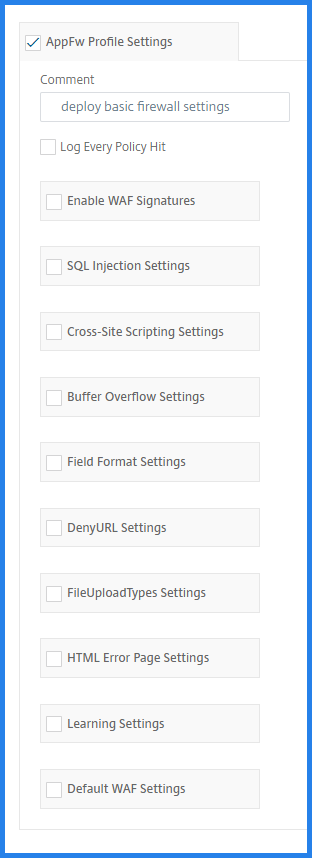
AppFw Profile Settings - Enable this option to add an application firewall profile to a virtual server.
The following image displays the protections and parameters that are part of the StyleBook:
-
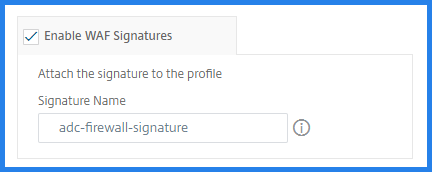
Enable WAF Signatures - This option attaches the existing Application Firewall Signature on NetScaler to the profile created by the StyleBook.
-
Enable the required protections to an application.
By default, the StyleBook applies the
logandstatsWAF actions to an enabled protection. Specify the other actions as required.For example:
In SQL Injection Settings, you can enable and configure SQL injection settings.
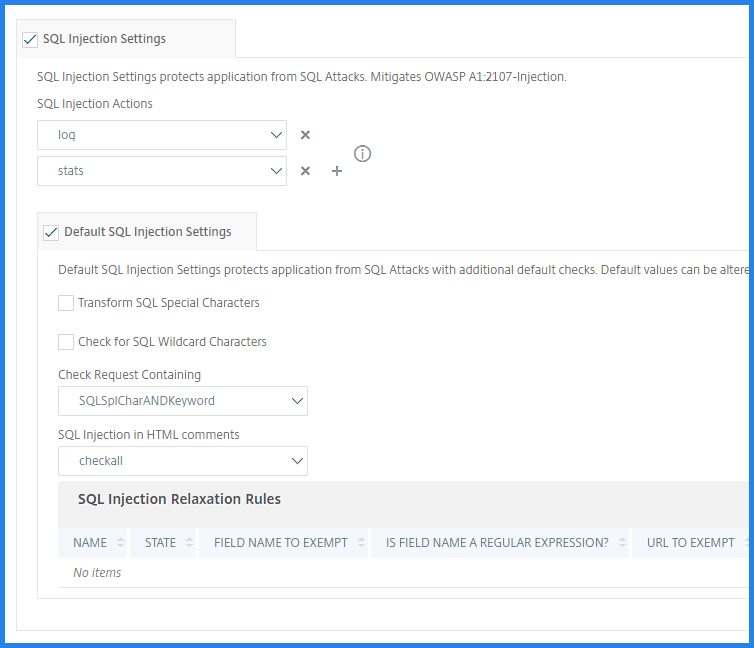
Similarly, you can enable and configure the required protections.
-
-
-
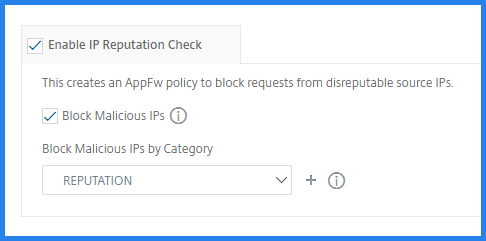
Optional, enable IP Reputation check to evaluate the client source IP address.
-
Select Block Malicious IPs.
-
In Block Malicious IPs by Category, Select categories to preemptively reject requests that belong to the selected categories.
If you select REPUTATION, the application blocks the traffic from the IPs with bad reputation.
-
-
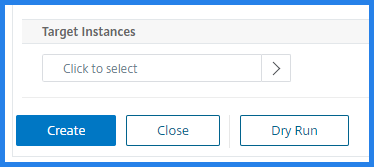
In Target Instances, select the ADC instances where you want to deploy this application firewall setting.
-
Click Create.
Tip
Citrix recommends that you select Dry Run to check the configuration objects that must be created on the target instance before you execute the actual configuration on the instance.
Note
The
StartURLprotection is not part of standard WAF deployment. The ADC defaults ofStartURLActionto block log stats might block URLs.Therefore, configure
StartURLActionandStartURLseparately on ADC without using StyleBook.
Deploy advanced application firewall configurations
Perform the following steps to deploy the advanced application firewall and IP reputation policy on existing LB virtual servers in your NetScaler instances.
-
In NetScaler ADM, navigate to Applications > Configurations > StyleBooks and do the following:
-
Search for the StyleBook with the name as
waf-adv.
-
Click Create Configuration.
The ADM opens as a user interface page with all the parameters defined in the StyleBook.
-
-
Specify the values for the following parameters:
-
Application Name - Name of the application.
-
Load Balancing Virtual Server Name - Name of the load-balancing virtual server present on an ADC instance.
-
WAF Settings - Enable this option to apply WAF configuration to an ADC instance.
-
AppFw Policy Rule - Select True to apply the application firewall settings to all virtual server traffic.
Alternatively, specify the NetScaler policy rule to select a subset of requests to which you want to apply the application firewall settings. For more information, see Web App Firewall Policies.
-
Type of profile - You can select multiple profile types. The advanced WAF StyleBook supports HTML, XML, or JSON profile types.
-
-
AppFw Profile Settings - Enable this option to add an application firewall profile to a virtual server.
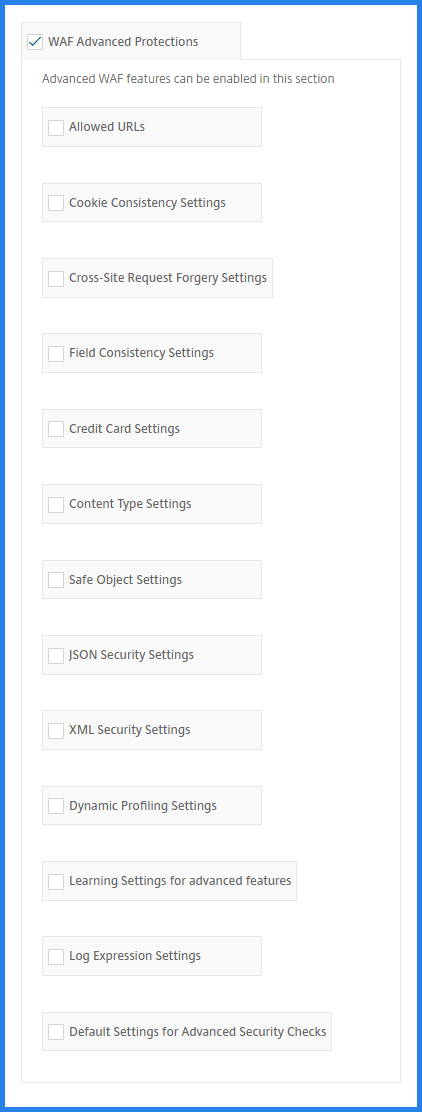
The following image displays the protections and parameters that are part of the StyleBook:
-
Enable WAF Signatures - This option attaches the existing Application Firewall Signature on NetScaler to the profile created by the StyleBook.
-
WAF Advanced Protection - Enable this option to use advanced WAF protections.
-
Enable the required protections to an application.
By default, the StyleBook applies the
logandstatsWAF actions to an enabled protection. Specify the other actions as required.For example:
In SQL Injection Settings, you can enable and configure SQL injection settings.
Similarly, you can enable and configure the required protections.
-
-
-
Optional, enable IP Reputation check to evaluate the client source IP address.
-
Select Block Malicious IPs.
-
In Block Malicious IPs by Category, Select categories to preemptively reject requests that belong to the selected categories.
If you select REPUTATION, the application blocks the traffic from the IPs with bad reputation.
-
-
In Target Instances, select the ADC instances where you want to deploy this application firewall setting.
-
Click Create.
Tip
Citrix recommends that you select Dry Run to check the configuration objects that must be created on the target instance before you execute the actual configuration on the instance.
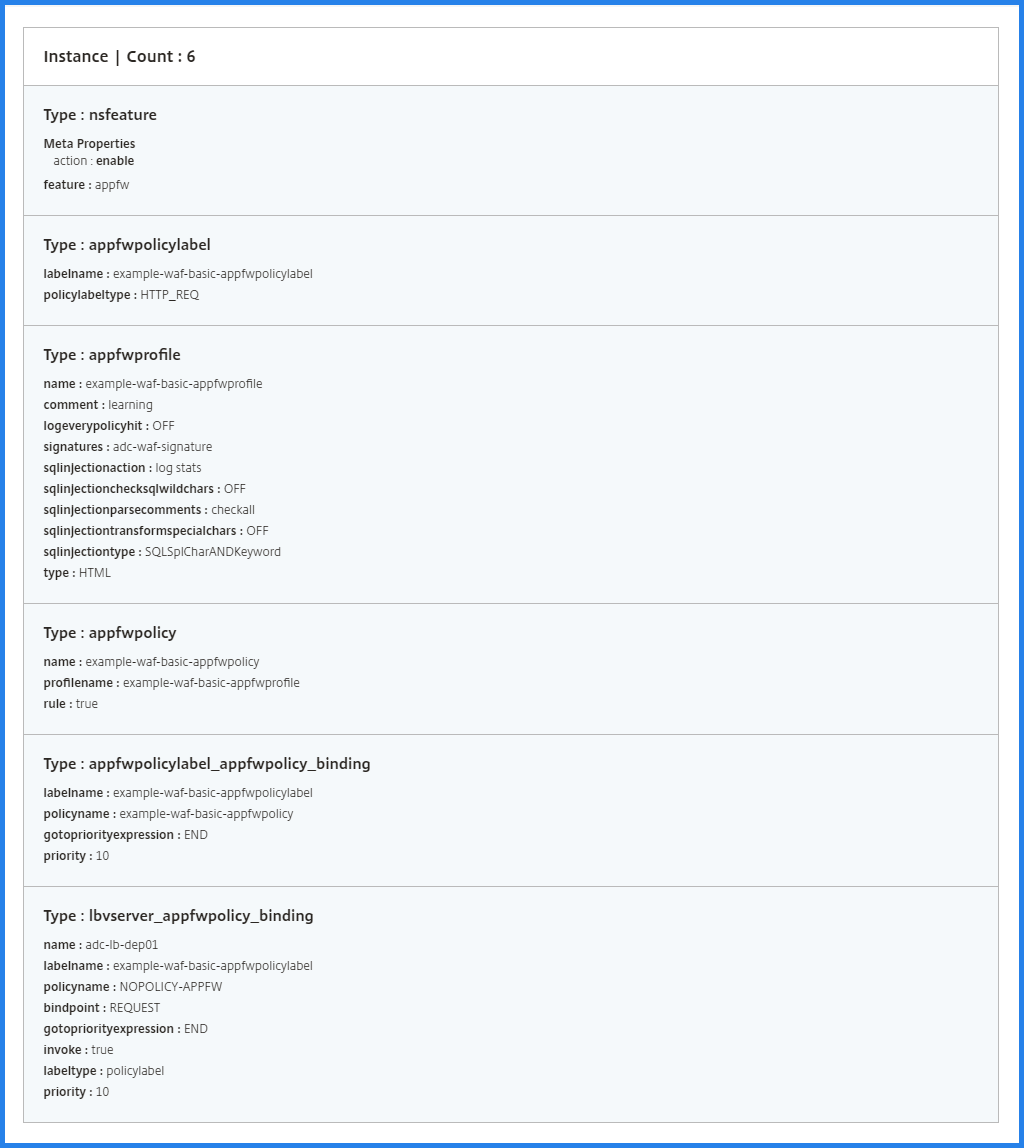
View objects created by WAF configuration pack
When you deploy the configuration successfully, the StyleBook creates the following configuration objects on ADC:
- Application firewall policy labels
- Application firewall policies
- Application firewall profiles
Also, it binds application firewall policies with the specified load-balancing virtual server.
To view the objects created,
-
Navigate to Applications > StyleBook > Configurations.
-
Select the configuration pack created by WAF StyleBook.
-
Click View Objects Created.