
Deploy a Citrix SD-WAN VPX instance on a NetScaler SDX appliance
Citrix SD-WAN technology applies software-defined networking (SDN) concepts to WAN connections. The technology abstracts traffic management and monitoring from network hardware and applies them to individual applications. The result is improved performance, high-quality user experiences over geographically dispersed locations, and simplified deployment of wide-area and cloud-access networks. For more information, see Citrix SD-WAN.
Note: Only the SD-WAN VPX Standard edition is supported. For more information, see SD-WAN VPX editions.
Deploying a Citrix SD-WAN™ VPX instance on an SDX appliance includes the following tasks:
-
Installing the hardware: ensure the SDX hardware is properly installed. For more information, see Installing the Hardware.
-
Setting up and configuring the SDX Management Service. For more information, see Getting Started with the Management Service User Interface and Configuring the Management Service.
-
Provisioning the SD-WAN VPX instance on the SDX appliance. For more information, see Provision the Citrix SD-WAN VPX instance on a NetScaler SDX.
-
Configuring the SD-WAN VPX instance. For more information, see the Configuration documentations and Configuring the virtual path service between the MCN and client sites.
Prerequisites
Ensure you've the following licenses:
-
Citrix SD-WAN VPX license
-
NetScaler SDX platform license
Citrix SD-WAN VPX requirements
The Citrix SD-WAN VPX on the SDX platform can act both as a site and MCN. The MCN can handle 1 Gb/s bidirectional throughput and 64 sites.
Supported throughput for MCN and site
-
250 Mb/s to 1 Gb/s bidirectional throughput
-
MCN supports 64 sites
Hardware requirement for supported throughput
Site
-
4 CPUs to 16 CPUs
-
4 GB to 16 GB RAM
-
60 GB to 250 GB disk storage
-
Minimum 4 NICs: one for management and remaining minimum 3 for data path
Master control node (MCN)
-
4, 8, and 16 CPUs
-
16 GB RAM
-
250 GB disk storage
-
Minimum 4 NICs: one for management and remaining 3 for data path, with dedicated NICs for data path
Data center topology
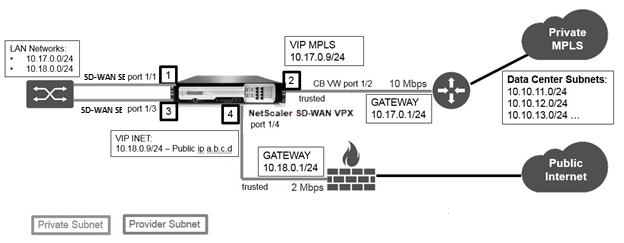
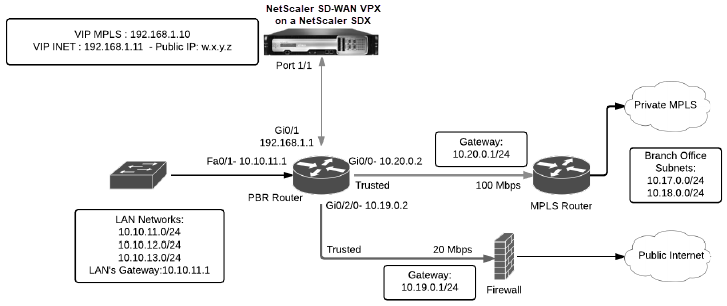
You can deploy a Citrix SD-WAN VPX appliance on a NetScaler SDX in policy-based route (PBR) mode or in inline mode. See scenario 1 and 2 for data center topology for these two supported modes. For more information, see Deploying SD-WAN in virtual inline mode).
Scenario 1: Inline Mode
Scenario 2: PBR mode or virtual inline mode
Provision the Citrix SD-WAN VPX instance on a NetScaler SDX™
Before you provision the Citrix SD-WAN VPX appliance, download the SD-WAN VPX image from the NetScaler® product download site:
<https://www.citrix.com/downloads/netscaler-sd-wan/>.
Follow these steps to provision the Citrix SD-WAN VPX appliance.
-
Log on to the NetScaler SDX appliance.
-
Navigate to Configuration > SD-WAN > Instances.
-
Select Software Images > Upload and upload the SD-WAN XVA file.

-
Select Instances > Add. The Provision SD-WAN Instance page appears.
-
In the Provision SD-WAN Instance page, enter the following:a. Nameb. IP addressc. Netmaskd. Gateway addresse. Upload the XVA filef. Under Resource Allocation, allocate resources.
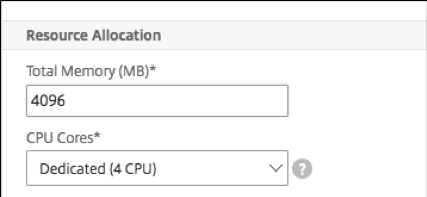 g. Under Network Settings, provision management interfaces and select OK to create to provision the SD-WAN VPX instance on the SDX appliance.
Note: The SDX Management Service binds interfaces to the VPX instance in the ascending sequence of interface names. For example, if you add 1/4, and 1/1, Management Service arranges them as 1/1, 1/4. When you add new interfaces, the existing sequence is retained and a new sequence is created. For example, you add interfaces 1/2, 10/1, 1/3.The new sequence would be 1/1, 1/4; 1/2, 1/3, 10/1.
6\. The SD-WAN VPX instance appears under the Instance page. Here’s an example.
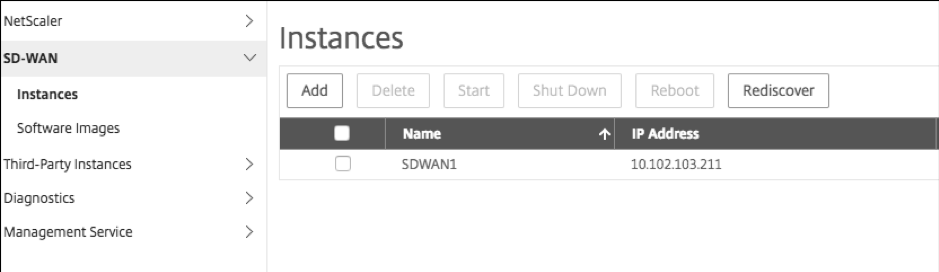
To edit the instance, navigate to Configuration > SD-WAN > Instances. Select and click the instance. Once you've completed editing, click OK to save the changes.
Configuring the Citrix SD-WAN VPX instance
After you’ve created an SD-WAN instance on the SDX appliance, configure the SD-WAN instance by completing these two tasks:
-
Apply configuration for both MCN and site appliances.
-
Configure virtual path and transmit traffic.
For more information, see the following topics: