
Configure a NetScaler VPX instance to use PCI passthrough network interface
Overview
After you have installed and configured a NetScaler VPX instance on VMware ESX Server, you can use the vSphere Web Client to configure the virtual appliance to use PCI passthrough network interfaces.
The PCI passthrough feature allows a guest virtual machine to directly access physical PCI and PCIe devices connected to a host.
Prerequisites
-
The firmware version of the Intel XL710 NIC on the host is 5.04.
-
A PCI passthrough device connected to and configured on the host
-
Supported NICs:
-
Intel X710 10G NIC
-
Intel XL710 Dual Port 40G NIC
-
Intel XL710 Single Port 40G NIC
-
Configure passthrough devices on a host
Before configuring a passthrough PCI device on a virtual machine, you must configure it on the host machine. Follow these steps to configure passthrough devices on a host.
-
Select the host from the Navigator panel of the vSphere Web Client.
-
Click Manage > Settings > PCI Devices. All available passthrough devices are displayed.
-
Right-click the device that you want to configure and click Edit.
-
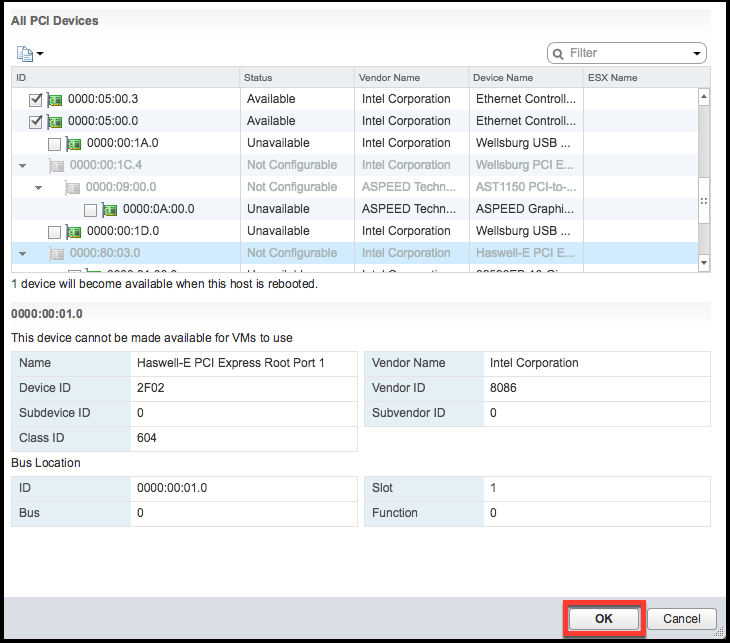
The Edit PCI Device Availability window appears.
-
Select the devices to be used for passthrough and click OK.
-
Restart the host machine.
Configure passthrough devices on a NetScaler VPX instance
Follow these steps to configure a passthrough PCI device on a NetScaler VPX instance.
-
Power off the virtual machine.
-
Right-click the virtual machine and select Edit Settings.
-
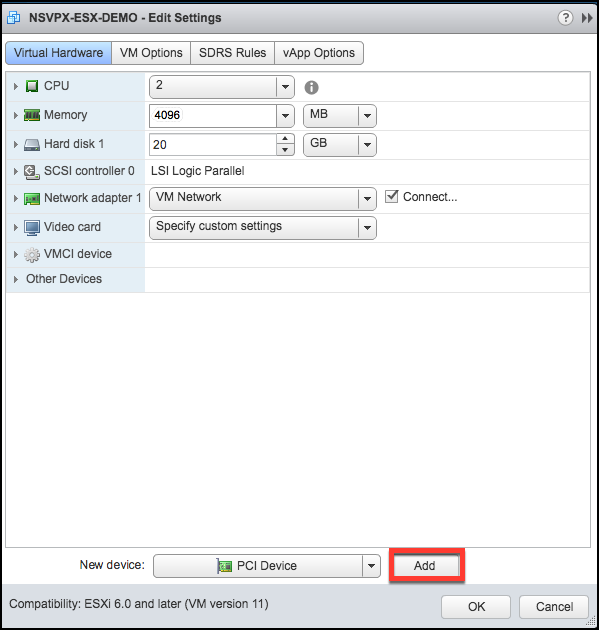
On the Virtual Hardware tab, select PCI Device from the New Device drop-down menu, and click Add.
-
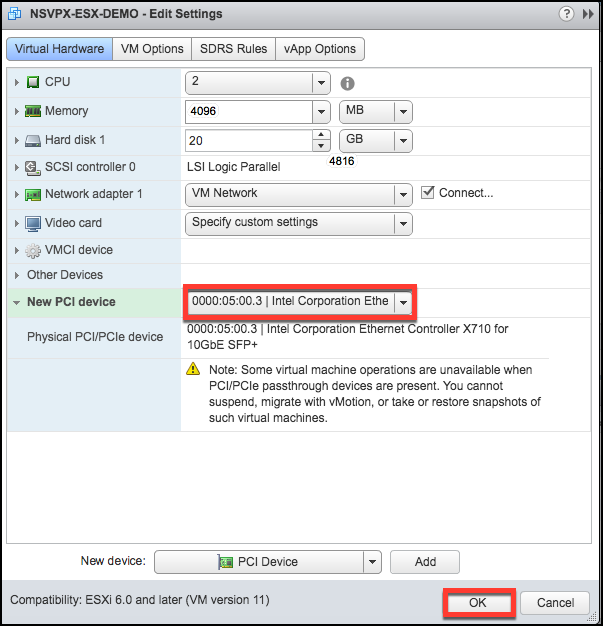
Expand New PCI device and select the passthrough device to connect to the virtual machine from the drop-down list and click OK.Note:VMXNET3 network interface and PCI Passthrough Network Interface cannot coexist.
-
Power on the guest virtual machine.
You have completed the steps to configuring NetScaler VPX to use PCI passthrough network interfaces.