
Identify and remediate vulnerabilities for CVE-2026-13474
In the NetScaler Console security advisory dashboard, under Current CVEs >
<number of> NetScaler instances are impacted by common vulnerabilities and exposures (CVEs), you can see all the instances vulnerable due to this specific CVE. To check the details of the CVE-2026-13474 impacted instances, select CVE-2026-13474 and click View Affected Instances.

The
<number of> NetScaler instances impacted by CVEs window appears. Here you see the count and details of the NetScaler instances impacted by CVE-2026-13474.
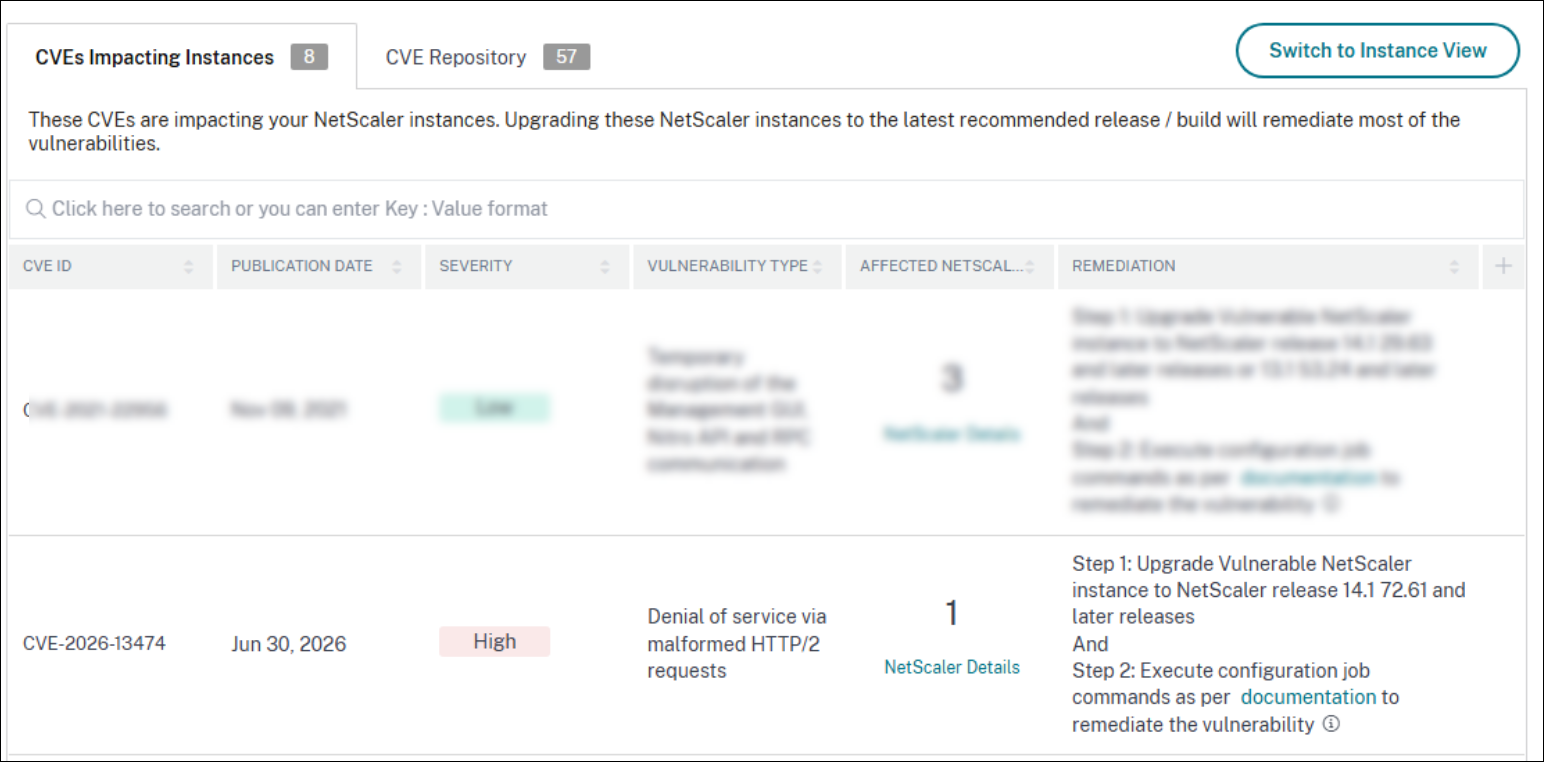
For more information about the security advisory dashboard, see Security Advisory.
Remediate CVE-2026-13474
For CVE-2026-13474 impacted NetScaler instances, the remediation is a two-step process. In the GUI, under Current CVEs > NetScaler instances are impacted by CVEs, you can see step 1 and step 2.
The two steps include:
-
Upgrading the vulnerable NetScaler instances to a release and build that has the fix.
-
Applying the required configuration commands using the customizable built-in configuration template in configuration jobs.
Under Current CVEs > NetScaler instances impacted by CVEs, you see two separate workflows for this two-step remediation process: Proceed to upgrade workflow and Proceed to configuration job workflow.
Step 1: Upgrade the impacted NetScaler instances
To upgrade the vulnerable instances, select the instances and click Proceed to upgrade workflow. The upgrade workflow opens with the vulnerable NetScaler instances already populated.
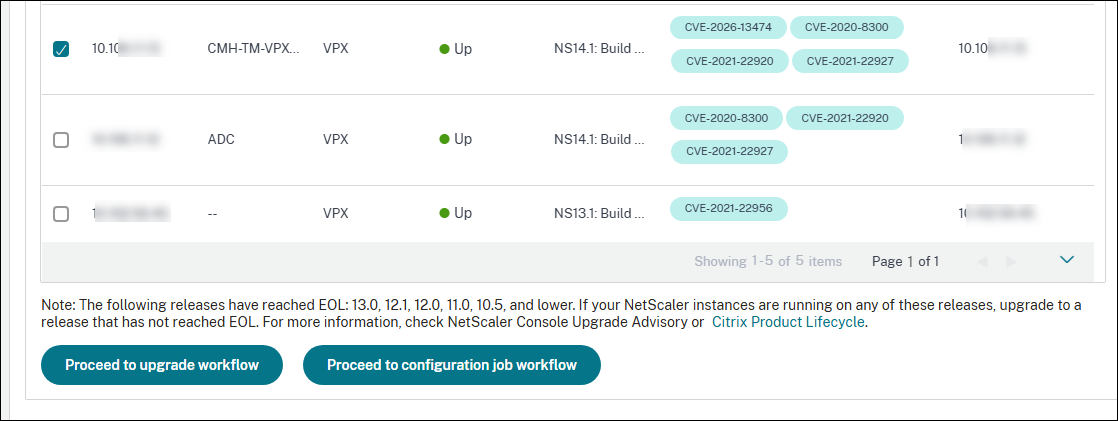
For more information on how to use NetScaler Console to upgrade NetScaler instances, see Create a NetScaler upgrade job.
Step 2: Apply configuration commands
After you upgrade the impacted instances, in the
<number of> NetScaler instances impacted by CVEs window, select the instance impacted by CVE-2026-13474 and click Proceed to configuration job workflow. The workflow includes the following steps:
-
Customizing the configuration.
-
Reviewing the auto-populated impacted instances.
-
Specifying input variables for the job.
-
Reviewing the final configuration with variable inputs populated.
-
Running the job.
Keep the following points in mind before you select an instance and click Proceed to configuration job workflow:
-
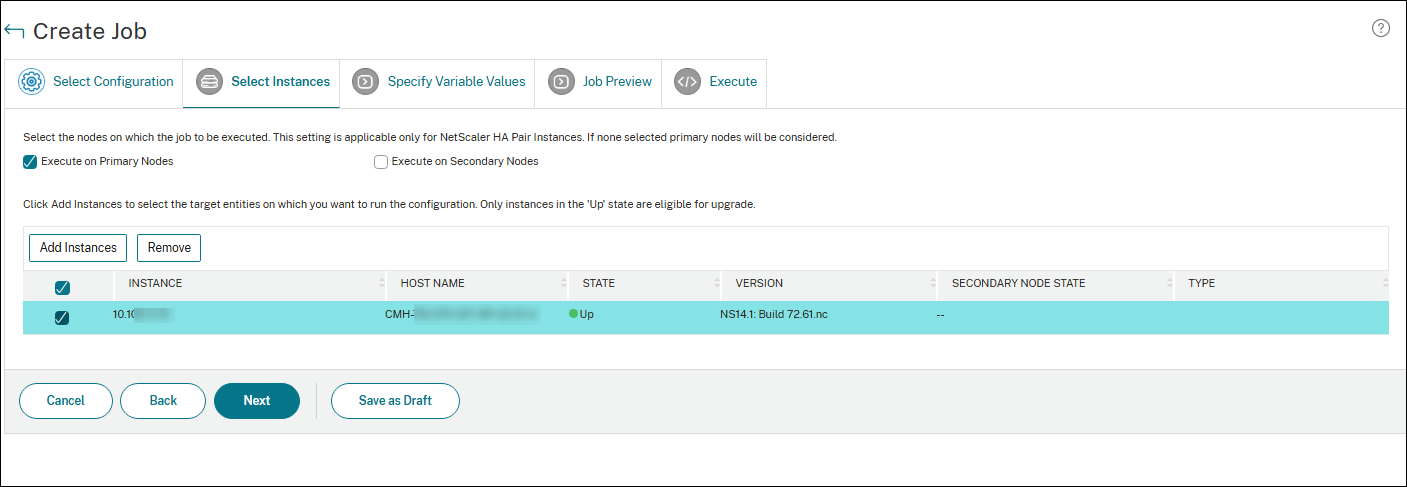
For multiple NetScaler instances that are impacted only by CVE-2026-13474, you can run configuration jobs on all the instances at once. For example, if NetScaler 1, NetScaler 2, and NetScaler 3 are impacted only by CVE-2026-13474, select all these instances and click Proceed to configuration job workflow. The built-in configuration template auto-populates under Select configuration.
Step 1: Select configuration
In the configuration job workflow, the built-in base configuration template auto-populates under Select configuration.
Step 2: Select the instance
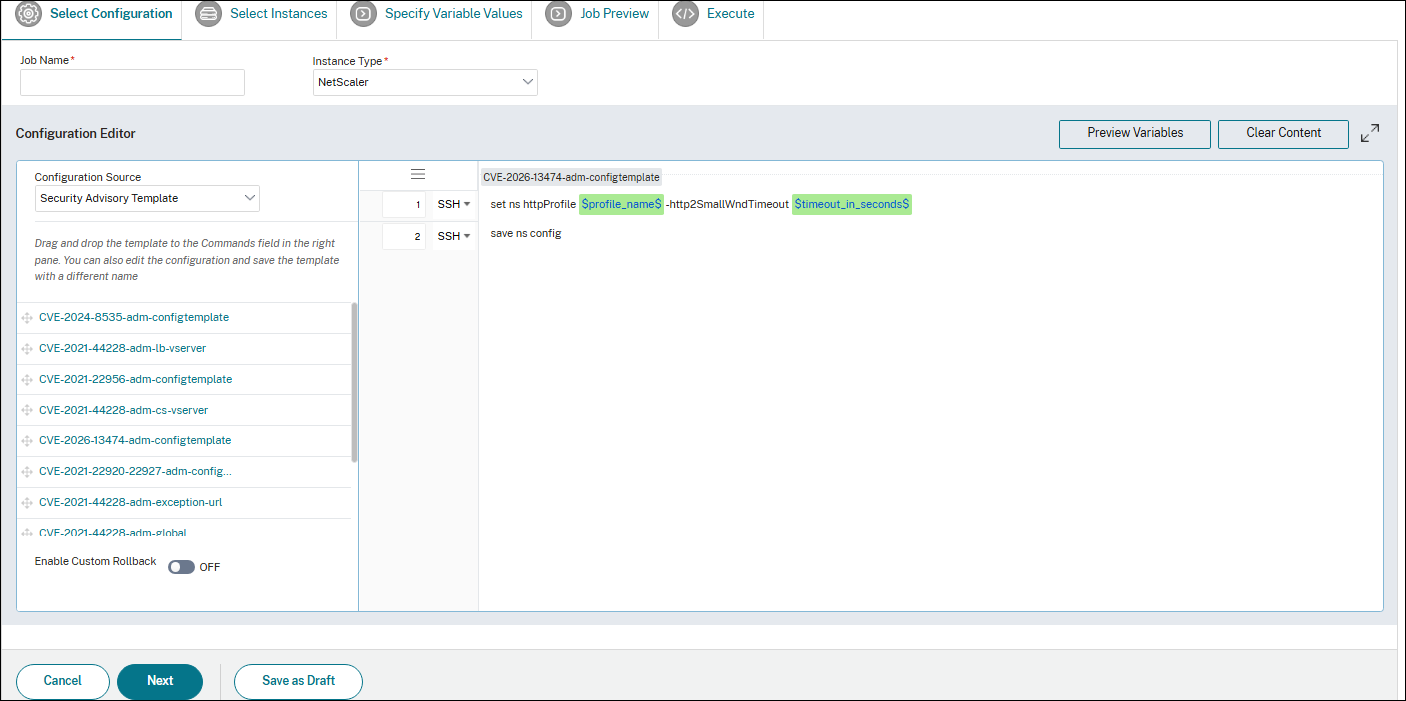
The impacted instance is auto-populated under Select Instances. Select the instances and click Next. In the next step, preview the configurations and click Next.
Note:
For NetScaler instances in cluster mode, by using security advisory, NetScaler Console supports running the configuration job only on the cluster configuration coordinator (CCO) node. Run the commands on non-CCO nodes separately.
Step 3: Run the configuration
Click Finish to run the configuration job.
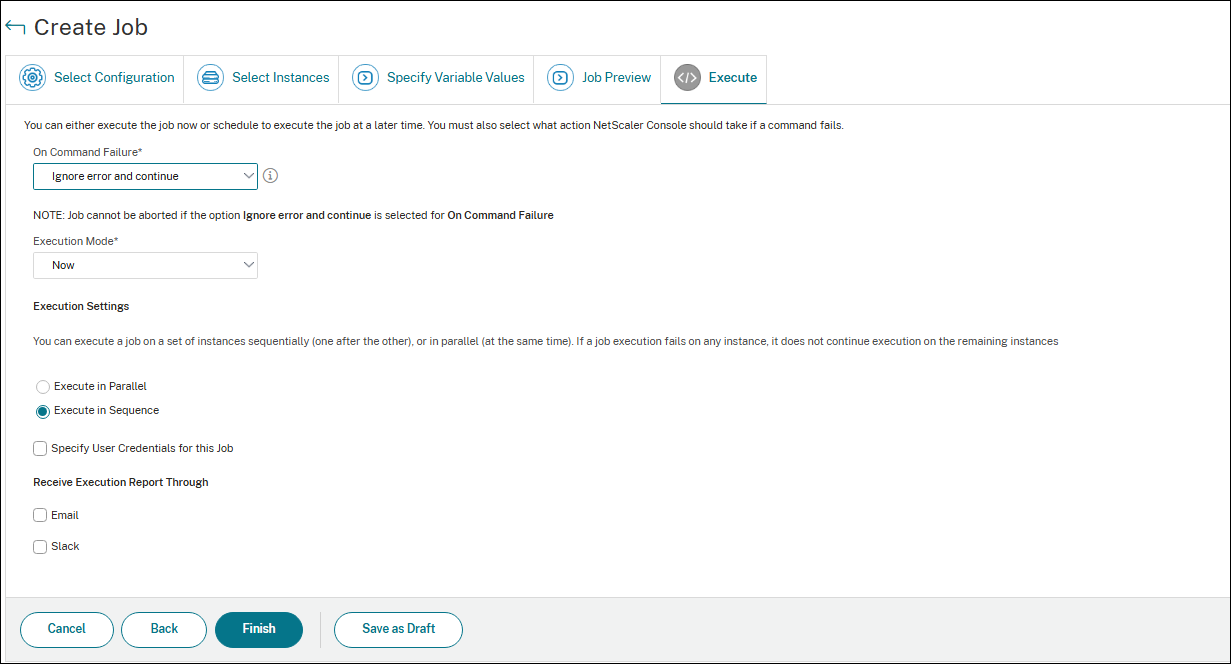
After the job is run, it appears under Infrastructure > Configuration > Configuration Jobs.
After you complete the two remediation steps for all vulnerable NetScaler instances, run an on-demand scan to see the revised security posture.