Deliver a NetScaler® managed app
An application is the central component in NetScaler managed application and contains the application delivery and security information required to deliver the customer's application. Two main components of an application are its services and endpoints. Services correspond to the customer's application servers. Endpoints correspond to the FQDN and virtual IP addresses that users use to reach the application.
The configuration of an application is organized as a set of application delivery features. These features help in optimizing, securing, accelerating, and ensuring availability of customers' applications. Each application delivery feature allows a user to configure a specific feature provided by NetScaler Console. Together they constitute the overall application delivery configuration for your application.
You can create services to represent your origin application servers. You can select a default service profile that contains the most commonly used settings for a service. Alternately, you can create your own service profile and specify the load balancing settings, back-end SSL settings, and health checks for your servers. For more information about services, see Create services. For more information about service profiles, see Create service profiles.
Using the authentication feature, admins can add SAML authentication to the apps. Once authentication is enabled, only authenticated users are allowed to access specific services configured by the admin. For more information, see Authentication.
Using content policy, you can evaluate an incoming request and apply one or more actions based on the evaluation. For example, you can drop a connection if DDoS attack is suspected or manipulate the data in HTTP requests and responses. NetScaler Console supports both rewrite and responder content policy. For more information, see Content Policy.
Note:
You can configure the following application delivery features and reuse them across multiple applications:
-
Content policies
-
SSL settings
-
Authentication
-
Service profiles
For more information, see Manage app features.
The security protection feature protects your applications from security threats. Create security protection to configure features, such as allow or block requests, add exceptions, define rules to examine the traffic, geo blocking, rate limiting, and cookie consistency. Exceptions can be added for cross-site scripting protection and buffer overflow protection. Exceptions help avoid false positives and bypass the traffic. For more information, see Security protection.
The analyzer feature of the NetScaler managed application displays concise configuration information of your application in a pictorial way. This information helps you analyze the application's status easily and also helps in troubleshooting purposes. You can access the analyzer from the application dashboard. For more information, see Visualize the application-configuration.
Prerequisites
-
Before you can create an application, you must create at least one cloud access profile and one application environment.A classic application in the NetScaler Console service offers granular control over the configuration as compared to a modern application and is recommended for advanced NetScaler users. For more information, see Deliver a classic application.
Create an application
Follow these steps to create an application:
Specify application details
You must have at least one environment before you can proceed with application creation.
-
Navigate to NetScaler Managed Apps > App Delivery > New Application.
-
Type a name for the application.
-
Select one of the following options:
-
Environment: When the app delivery infrastructure is available on the cloud.
-
Instance: When the app delivery infrastructure is an on-premises data center.
-
-
Select the required environment or instance from the list.
-
Click Next and complete the configuration workflow.
-
Click Deploy.
Manage an application
You can manage your applications individually or through app features. When managing the applications individually, you must edit and redeploy each application. While managing through app features, you can edit an app feature setting and redeploy all the applications that use these settings in one go. For information on app features settings, see Manage app features and redeploy an application.
To manage applications individually, navigate to the NetScaler Managed Apps > App Delivery page, click one of the following options in the Actions column to manage your deployed apps. Redeploy the application after making changes.
-
Edit
-
Redeploy
-
Undeploy
-
Health Status
Manage app features and redeploy an application
You can create and edit customized configurations specific to your network needs for the following app features:
After the configuration changes, you can deploy all the applications associated with the app features in one go.
-
Navigate to NetScaler Managed Apps > App Features and select the required tab.
-
Perform one of the following:
-
To create a configuration, click Create.
-
To edit an existing configuration, click the three dots in the Actions column and click Edit. After changing the configuration, click Update and Deploy.
-
To deploy the applications associated with an updated configuration, click the three dots in the Actions column and click Deploy.
-
To delete a configuration, click the three dots in the Actions column and click Delete.Note:You can delete a network function setting only if it is not associated with any application.
-
You can check the status of the network function setting in the Status column.
Note:
If one or more applications associated with the updated configuration is not in the Deployed state, the Status column shows Error. Click Error to view applications that failed during deployment. To know why deployment failed for a specific application, navigate to the Application dashboard and click Error in the Status column corresponding to that application.
Modify and redeploy an application
You can edit the application details, services, endpoints, load balancing, content policy, and security protection settings for an application.
-
Navigate to the NetScaler Managed Apps > App Delivery page.
-
For applications whose status is Deployed, click the three dots in the Actions column.
-
Click Edit.
-
Click any of the tabs to change the configured values and click Deploy.
You have completed the steps to modify and redeploy an application.
Check the health status of an application
The health status displays the real-time health of your deployed applications for each application service in an availability zone.
-
Navigate to the Applications page.
-
For applications whose status is Deployed, click the three dots in the Actions column.
-
Click Health Status.
Analyze the application configuration
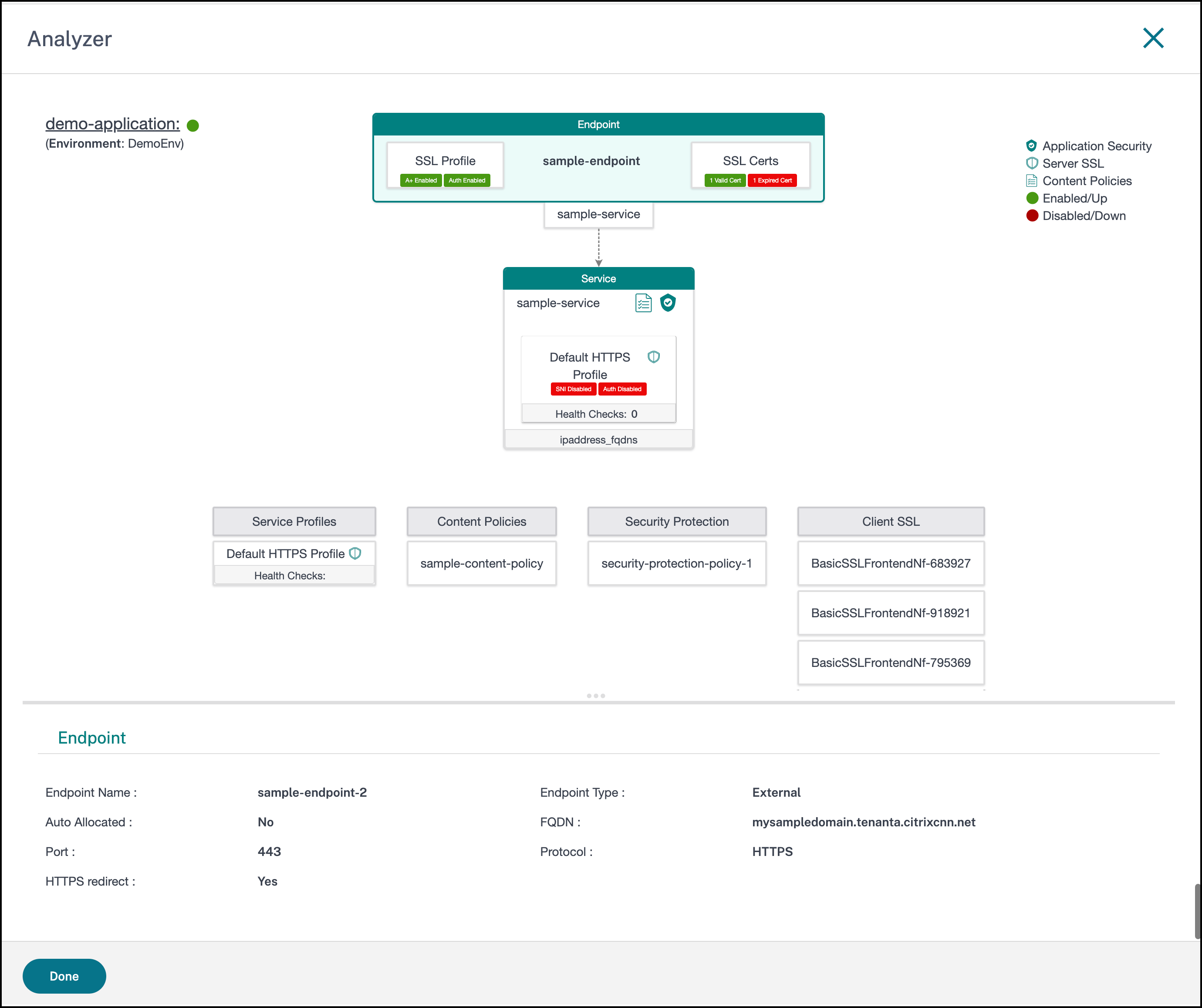
You can view the visual representation of an application configuration and use the details for analyzing the application's status and troubleshooting.
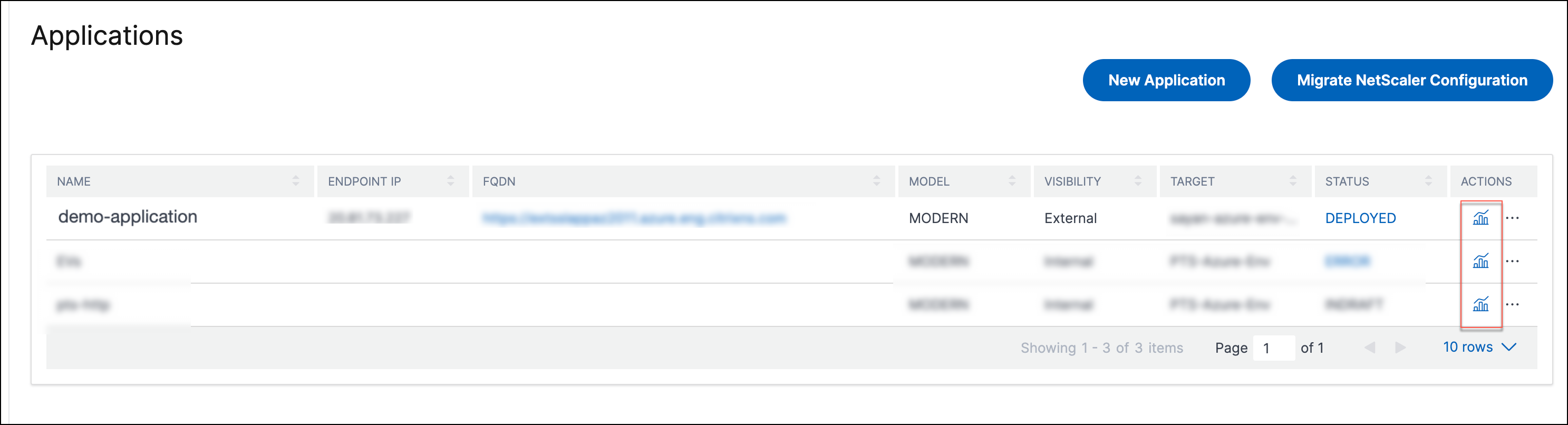
Navigate to NetScaler Managed Apps > Applications and click the Analyzer icon in the Actions column.
Application status and environment name
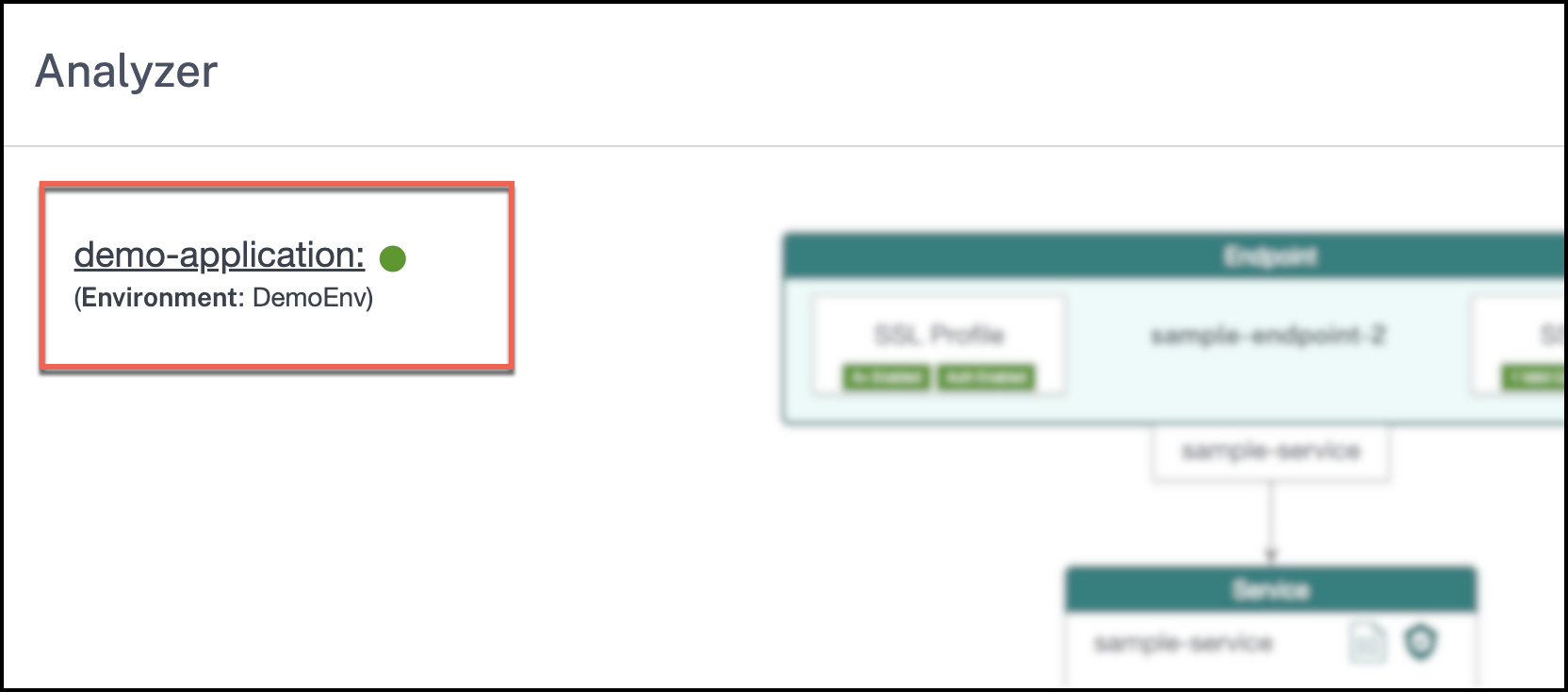
Application status is indicated next to the application name at the top-left corner. If the application is up and running, you see a green dot and if the application is down, you see a red dot.
The name of the environment where the application is deployed appears below the application name.
Endpoint details
The Endpoints tile displays the name of the endpoint associated with the application. The SSL Profile and SSL Cert sections is available in the Endpoints tile if HTTPS is configured as the protocol. The name of the service associated with the endpoint is displayed at the bottom of the Endpoint tile.
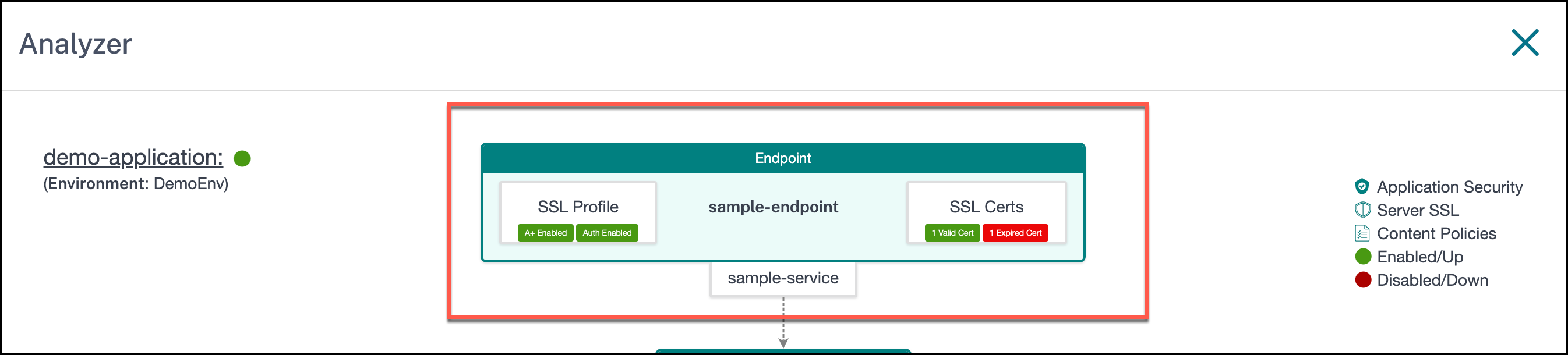
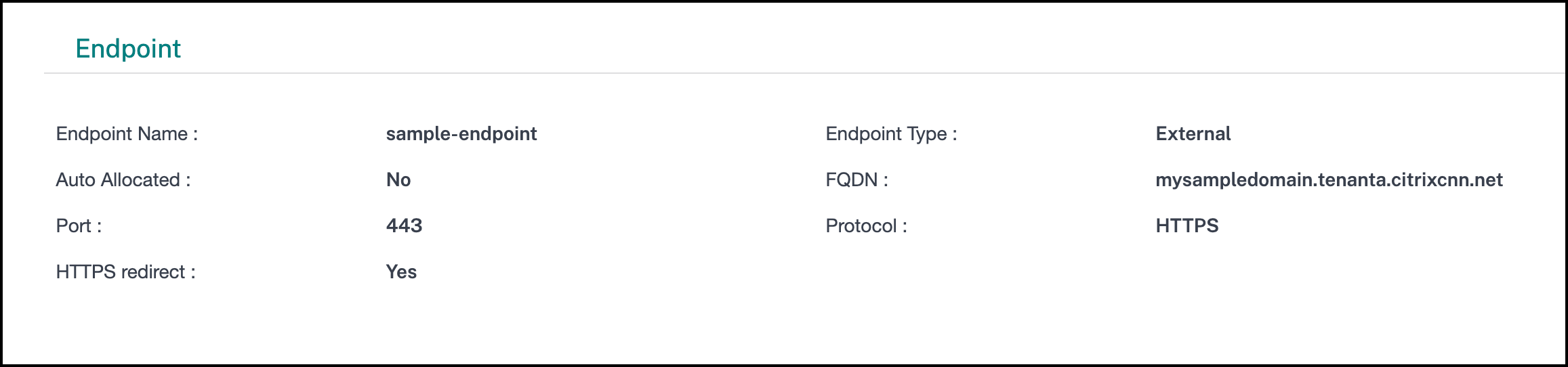
Click the Endpoint tile and view the following details in the lower pane:
-
Name of the endpoint
-
If the endpoint is accessible internally or externally
-
If the FQDN type is auto-allocated or user-defined
-
Protocol and port details
-
If “Auto redirect HTTP traffic to HTTPS” is configured
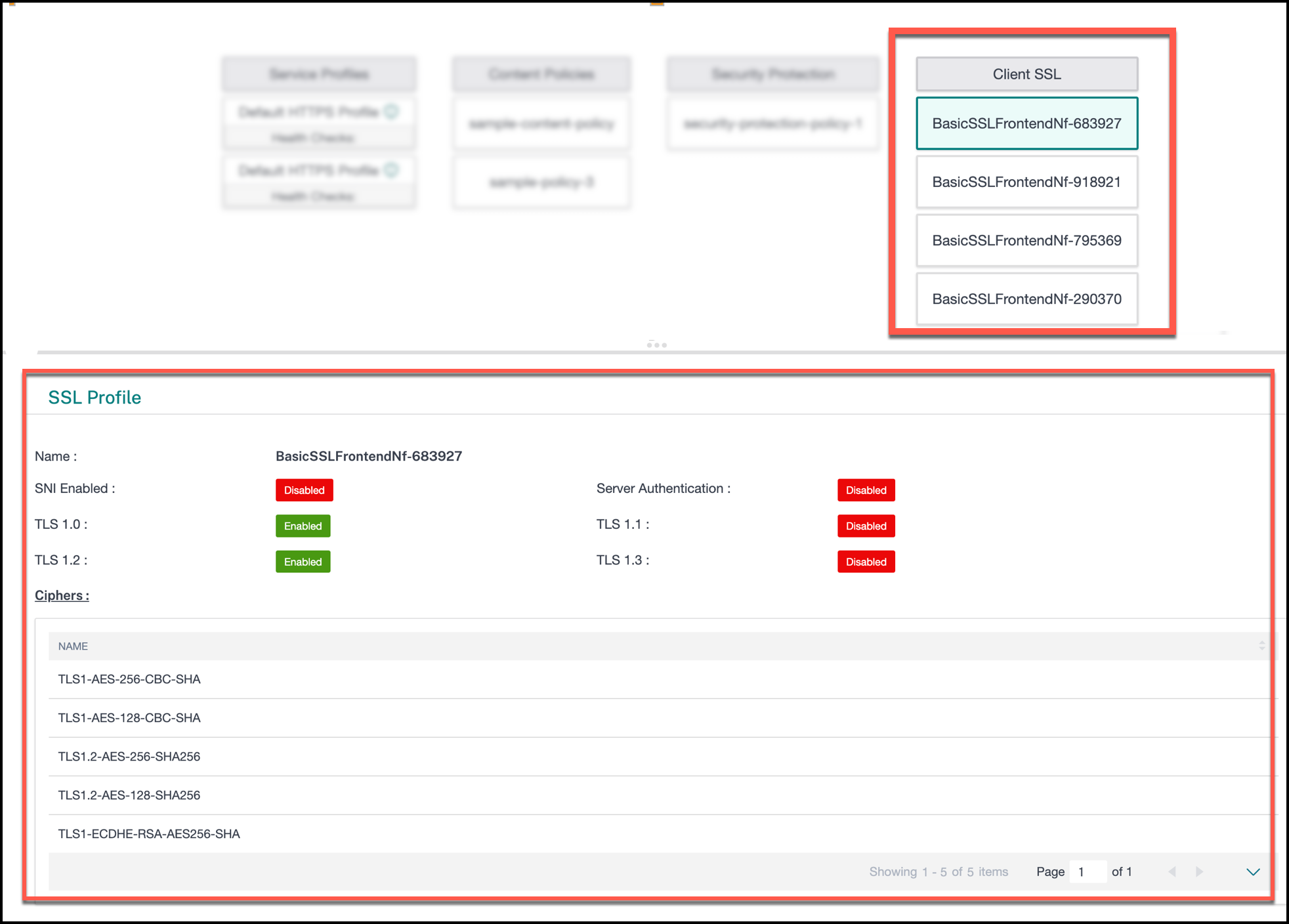
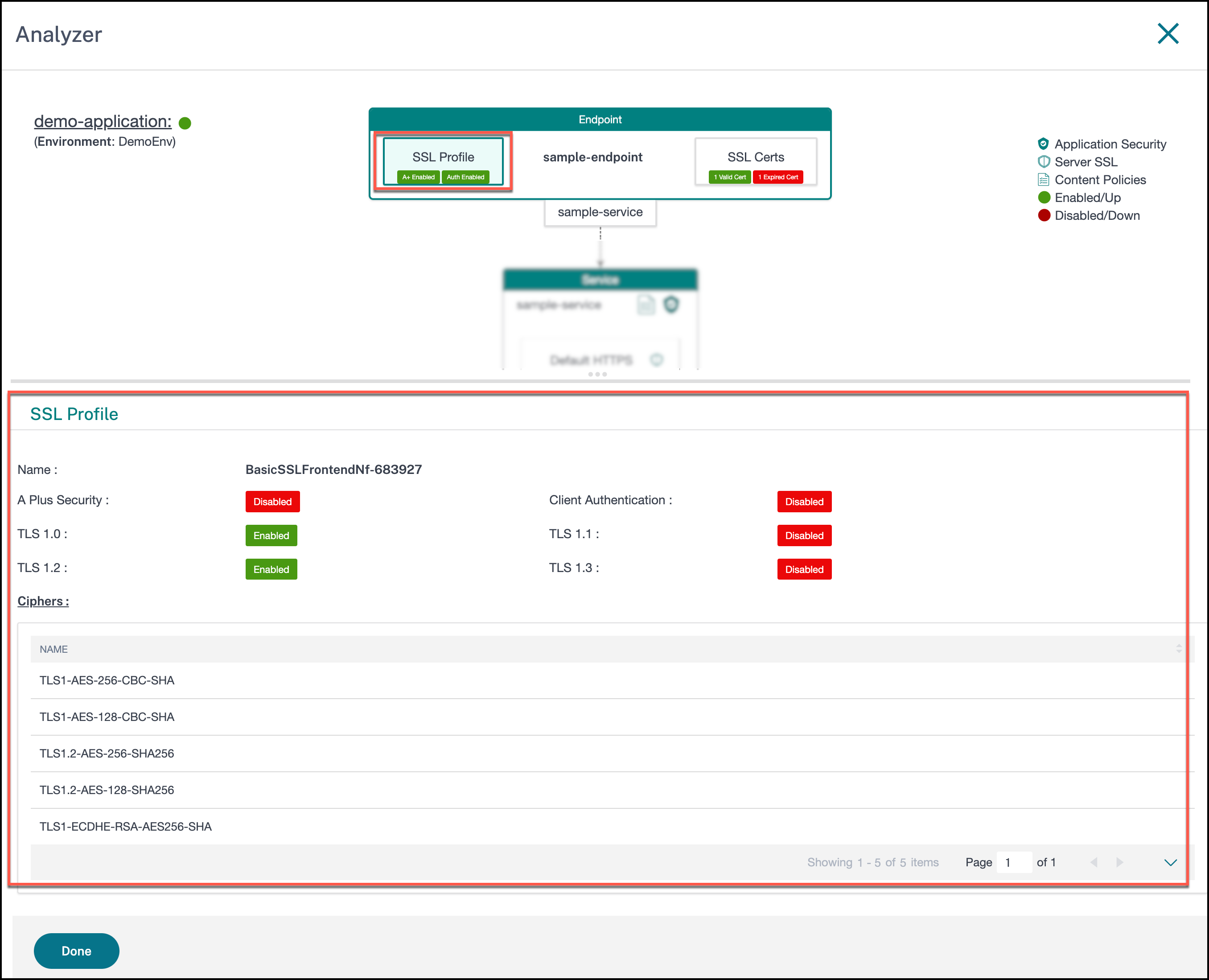
The SSL Profile section within the endpoints tile displays if A+ security and client authentication is enabled. Click the SSL Profile section to view the following details:
-
Name
-
Status of A Plus security and client authentication (enabled or disabled)
-
Status of TLS versions from 1.0 to 1.3 (enabled or disabled)
-
List of ciphers associated with the SSL profile
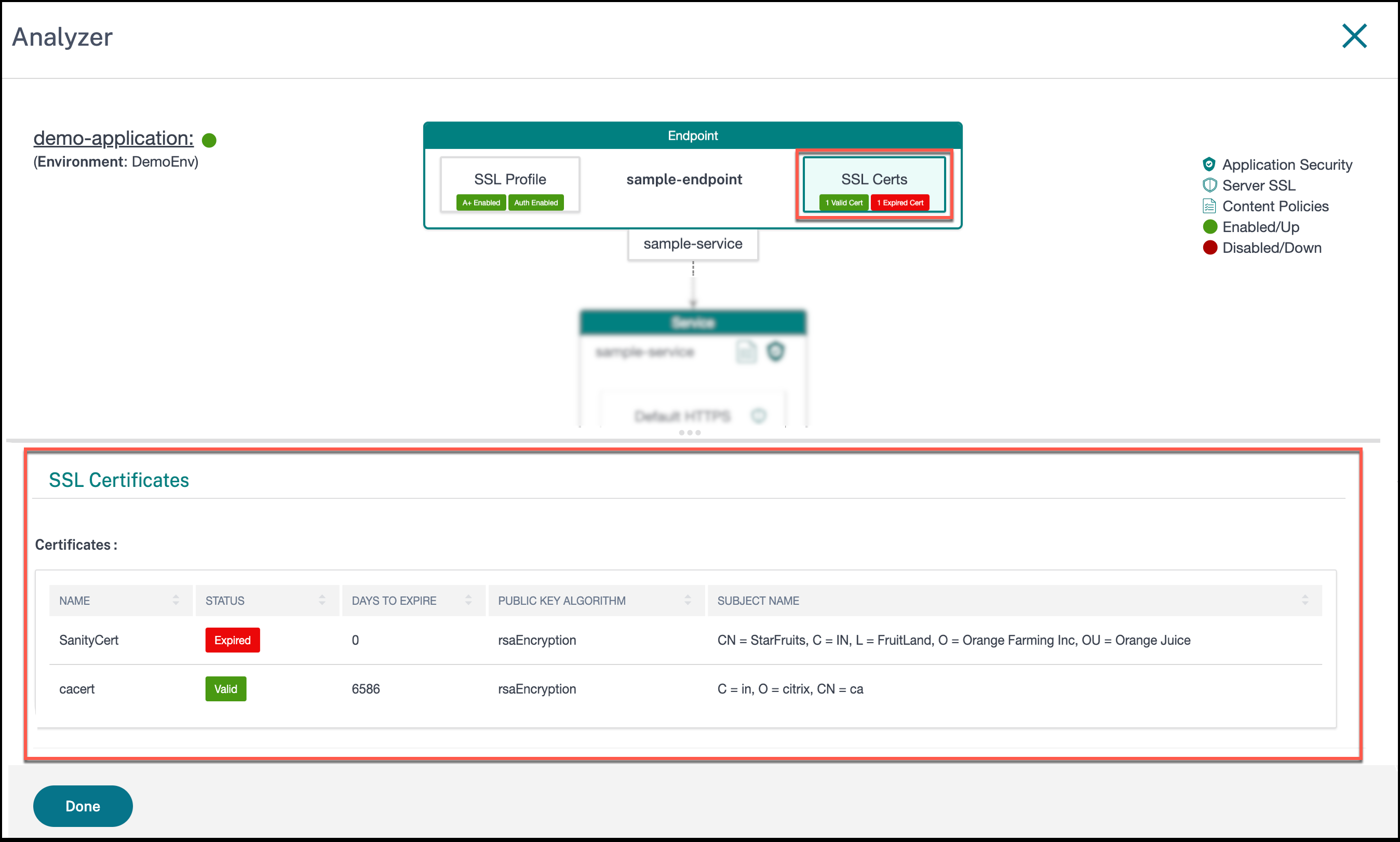
The SSL Certs section displays the number of valid and expired certificates. Click the SSL Certs section to view the following details:
-
Name
-
Status
-
Number of days for the certificate to expire
-
Public key algorithm
-
Subject name
Service details
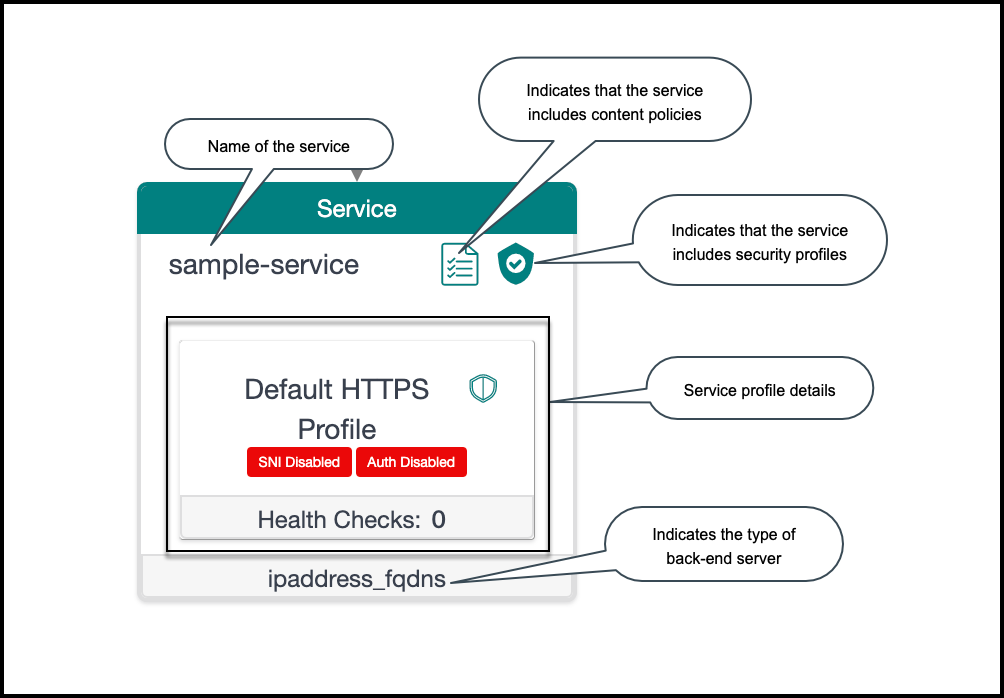
The Service tile displays the name of the service and the service profile associated with the service. The service profile information is shown as a section within the Service tile. If the service contains security policies and content policies, then the corresponding legend is displayed on the Service tile. The type of back-end app server is indicated at the bottom of the tile.
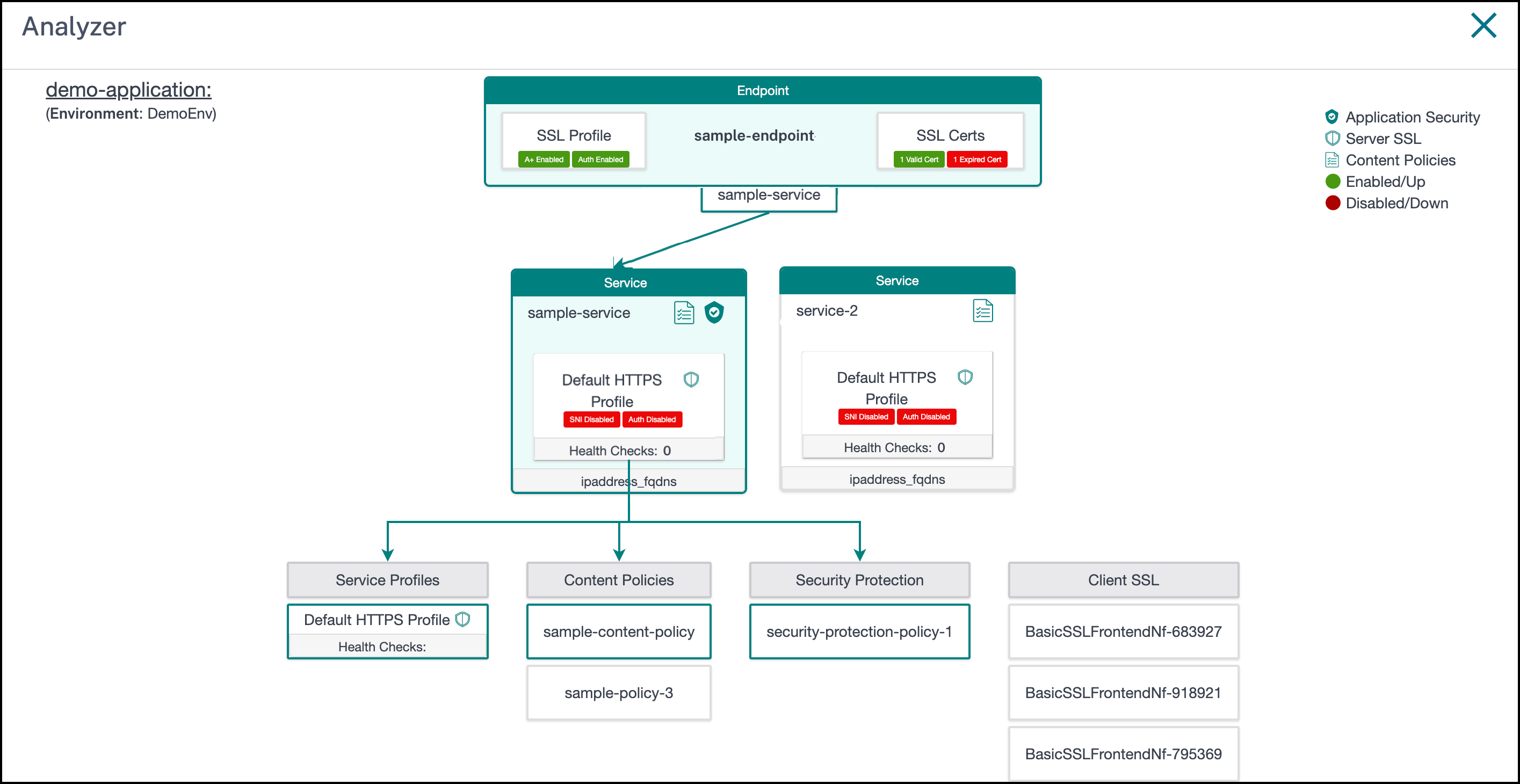
If you have configured more than one service, then all of them appear in the analyzer. When you hover over the Service tile, all the configurations associated with the application get highlighted and linked.
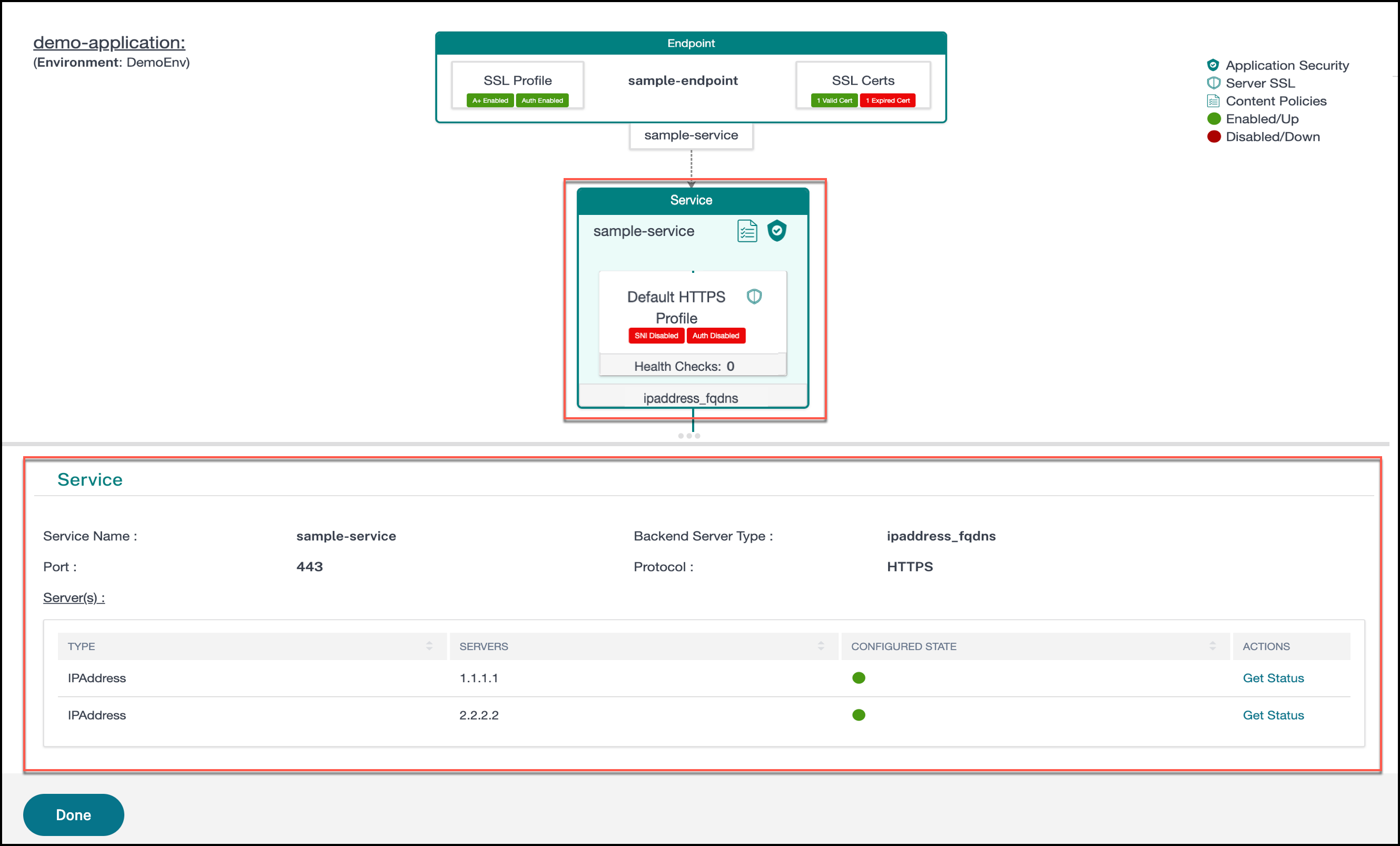
Click the Service tile to view the following details:
-
Name
-
Back-end application server type
-
Protocol and port number
-
List of servers
-
Type of server
-
IP address
-
Configured status
-
Get status: Click to view details of the back-end application server status and change the status. For more information, see View and change the back-end app server status.
-
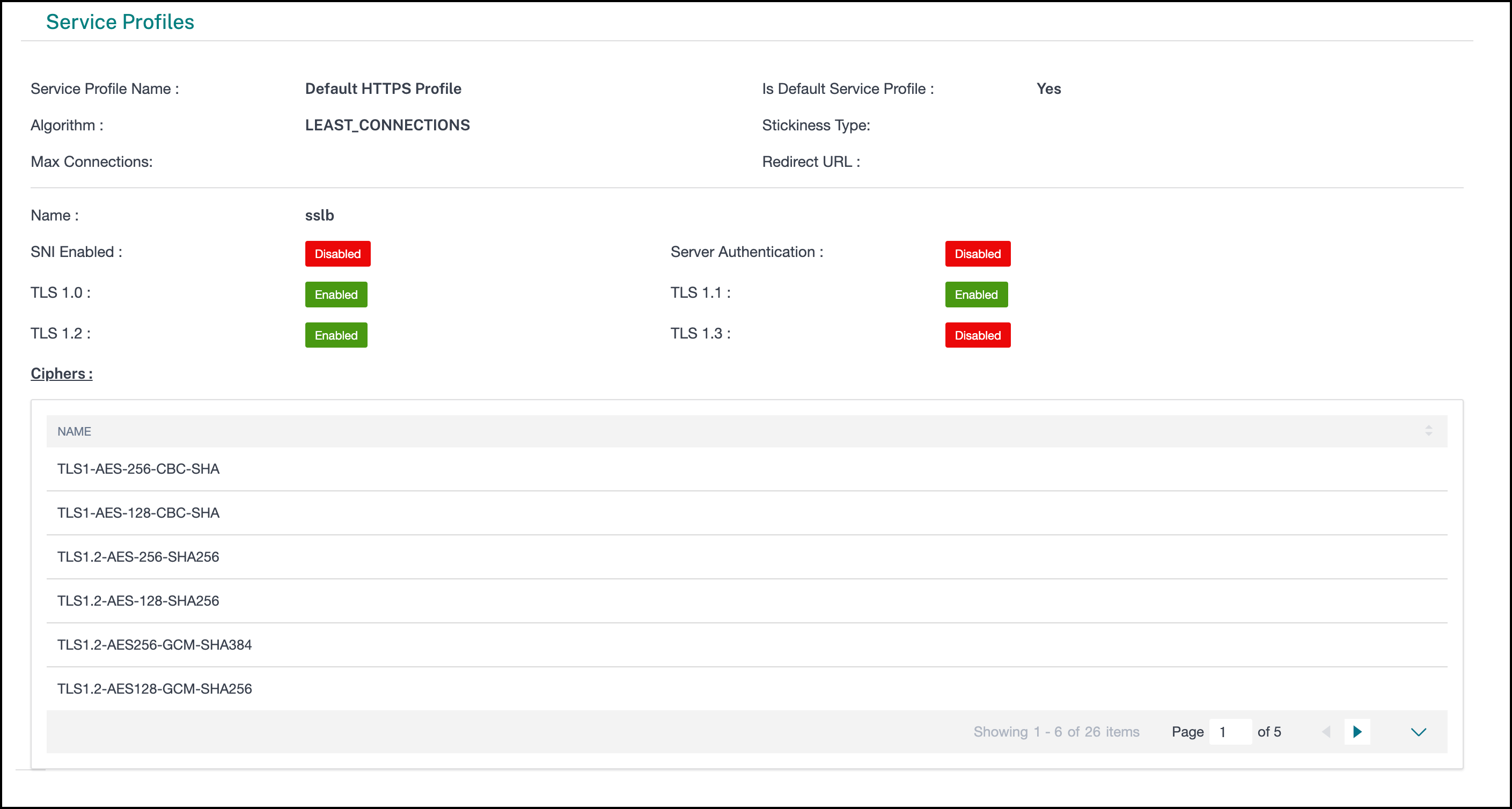
The service profile section displays the name of the service profile and indicates if there are any SSL configurations associated with that profile. You can see if the SNI and server authentication is enabled or disabled. The number of health checks configured is indicated at the bottom of the service profile section.
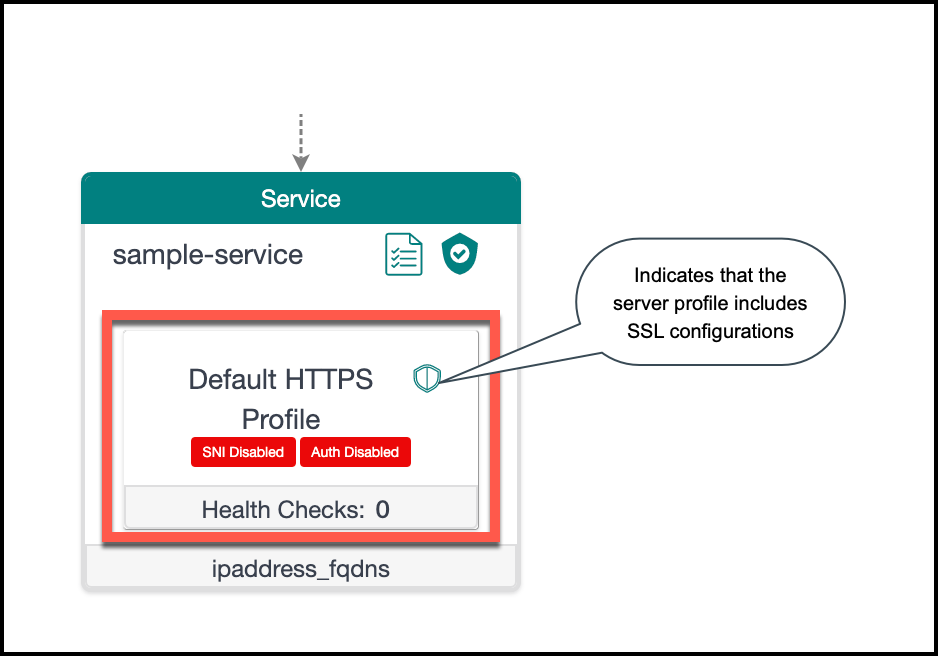
Click the service profile section to view the following information:
-
Name
-
If default service profile is used
-
Which load balancing algorithm configured
-
Maximum connections allowed
-
Redirect URL
-
SSL details
-
Status of SNI and server authentication (enabled or disabled)
-
Status of TLS versions from 1.0 to 1.3 (enabled or disabled)
-
List of ciphers associated with the SSL profile
-
List of health checks configured and along with protocol and port details
-
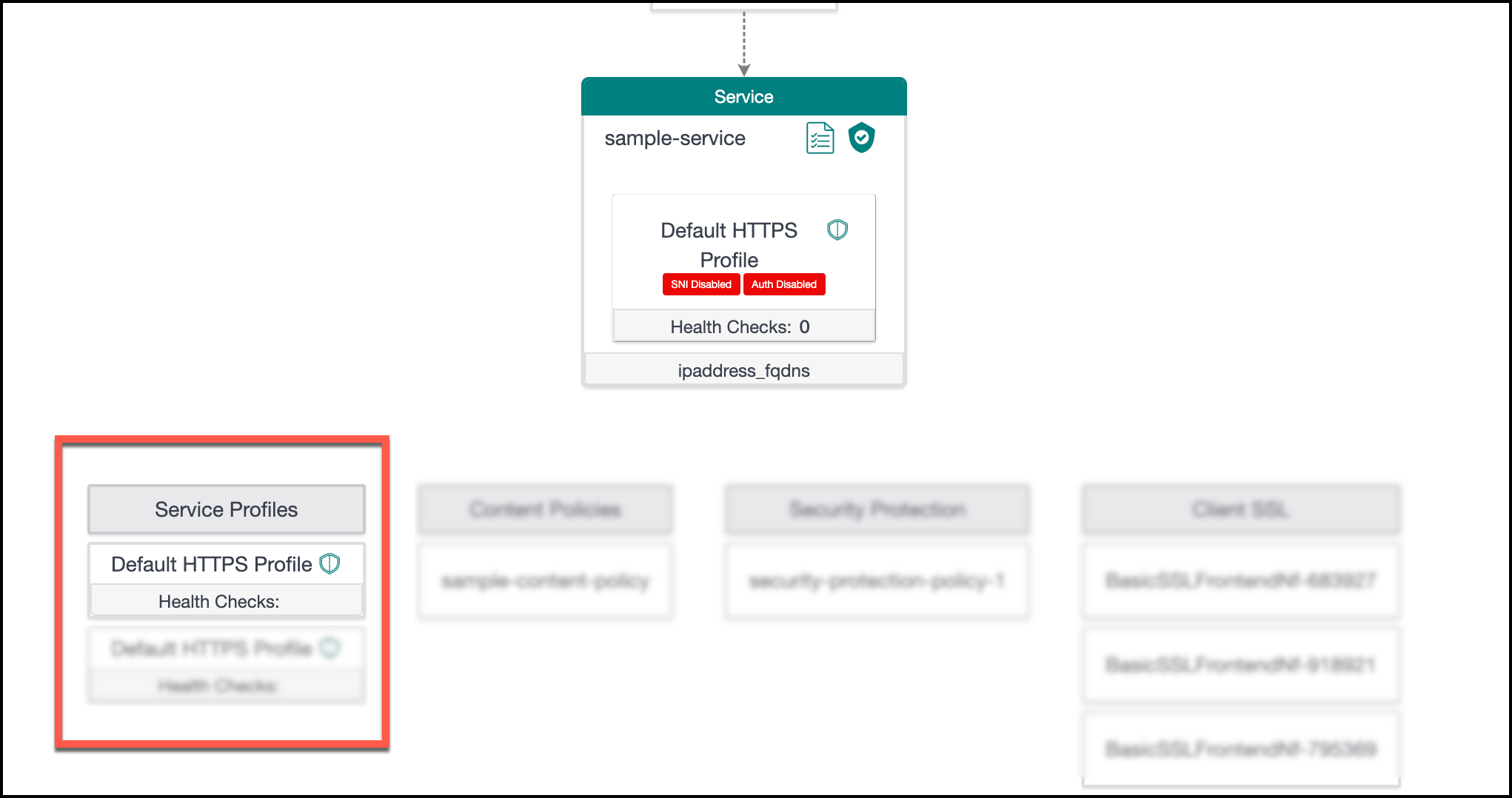
Service profiles
The service profiles section displays the complete list of service profiles that are part of the NetScaler managed application. Only the service profile that is associated with the application gets highlighted when you hover over the Service tile. You can click the required service profile and view its details in the lower pane.
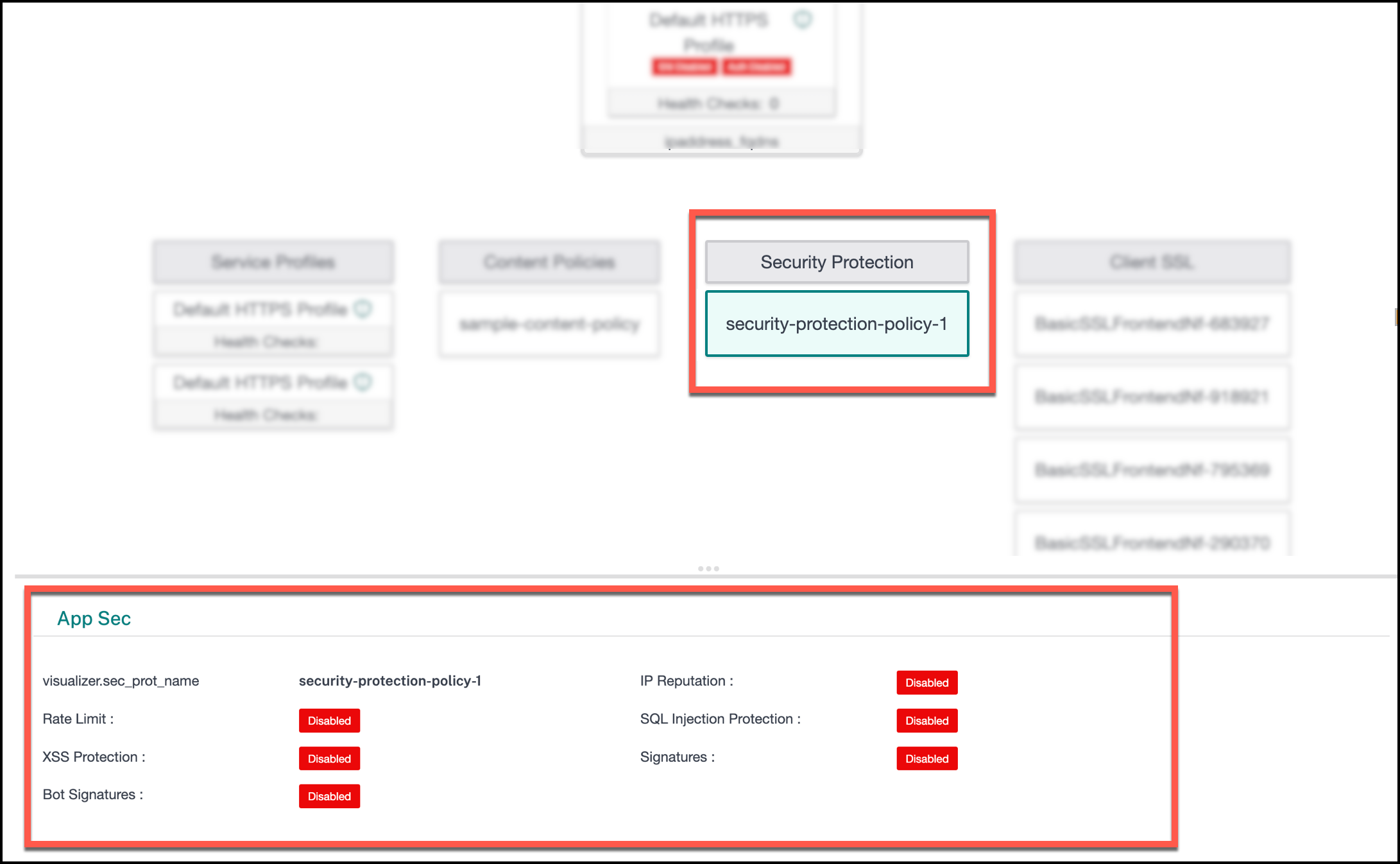
Application security details
Displays the complete list of security profiles that are part of the NetScaler managed application. Click the required security profile tile to view the following details:
-
Name
-
Status of the following security features (enabled or disabled)
-
IP reputation
-
Rate limit
-
SQL injection protection
-
Cross-site scripting protection
-
Signatures
-
Bot signatures
-
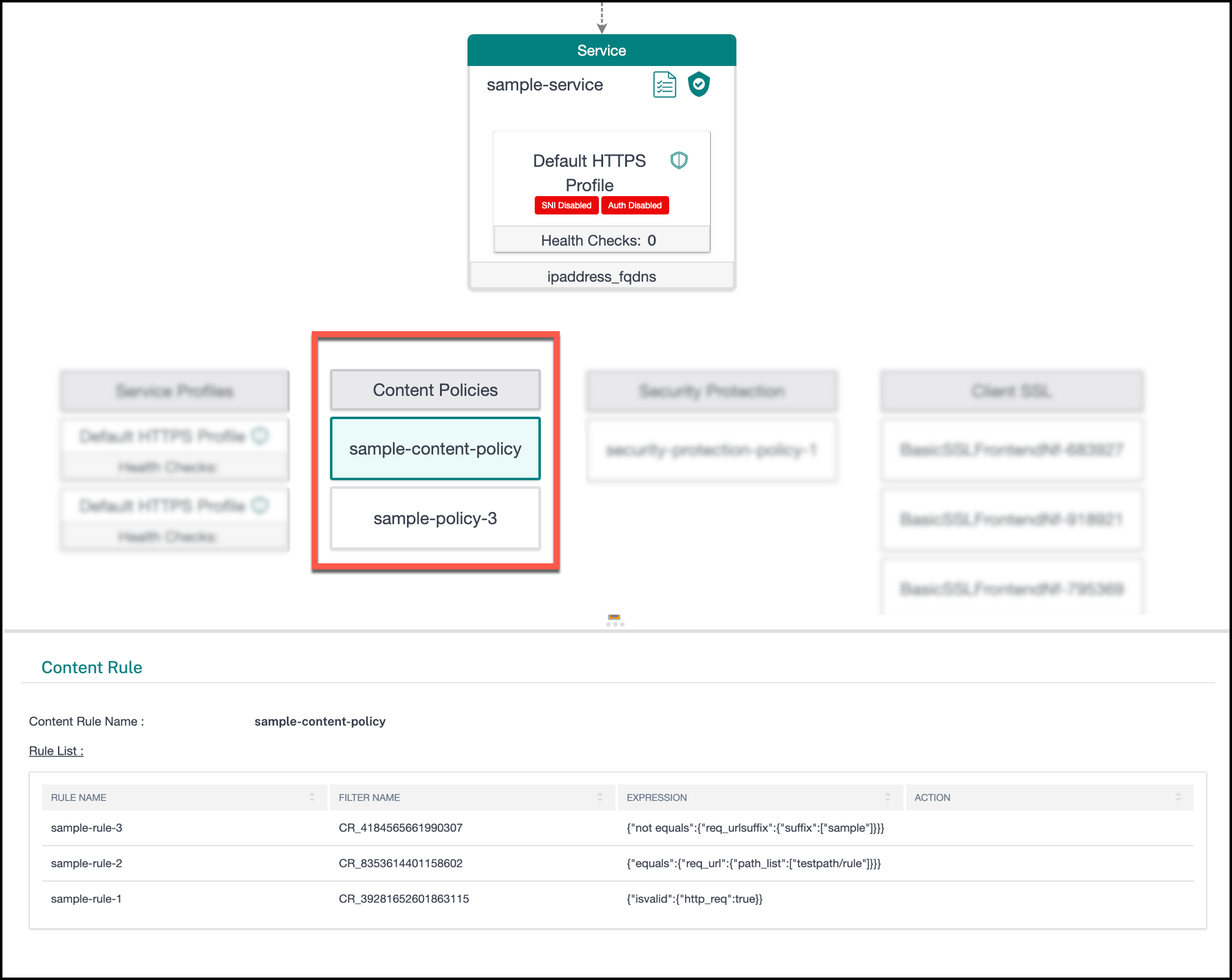
Content policy details
Displays the complete list of content policies that are part of the NetScaler managed application. Click the required content policy tile to view the following details:
-
Name
-
The list of rules including the name, filter, expression, and action.
Client SSL details
Displays the complete list of SSL profiles that are part of the NetScaler managed application. Click the required SSL profile tile and view its details in the lower pane.