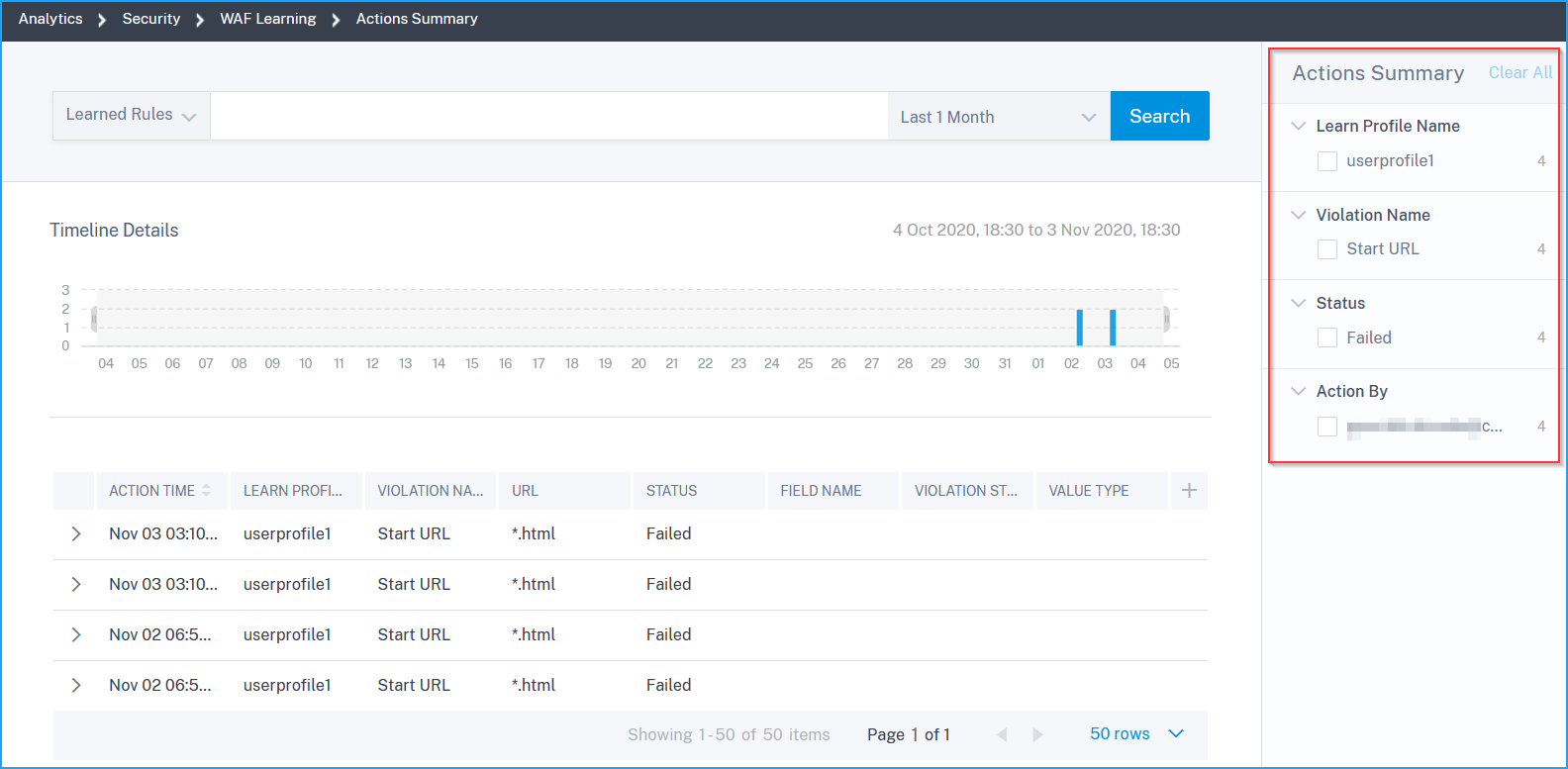
View WAF learning Actions Summary
The WAF Learning Actions Summary page enables you to view all the deployed rules.
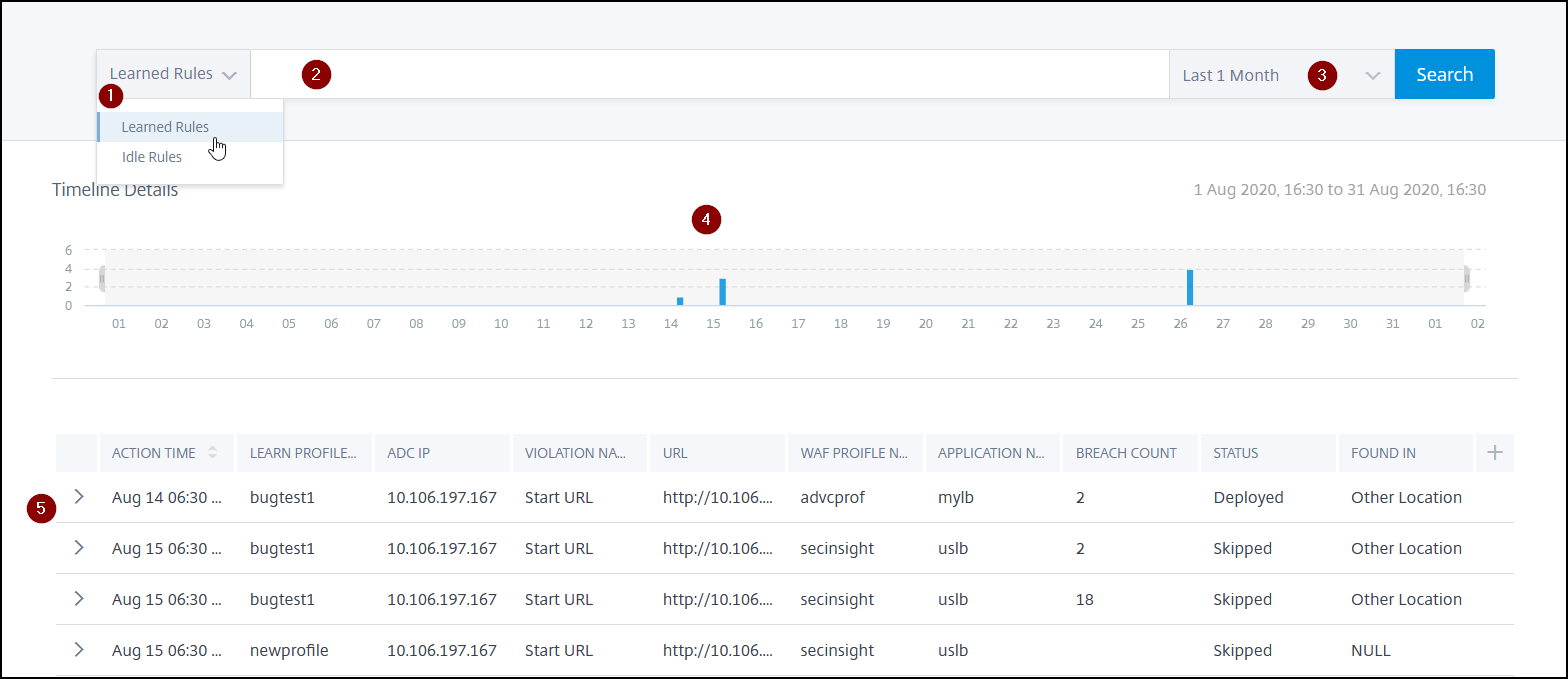
1 – Select Learned Rules or Idle Rules from the list to view details in the dashboard.
2 – An advanced search bar that enables you to show the result based on the suggestions and operators.
3 – Time duration list for which you want to view the result
4 – A graph format result that enables you to drag and select the graph to filter the results
5 – The deployed or removed rules details
Click > to view the details.
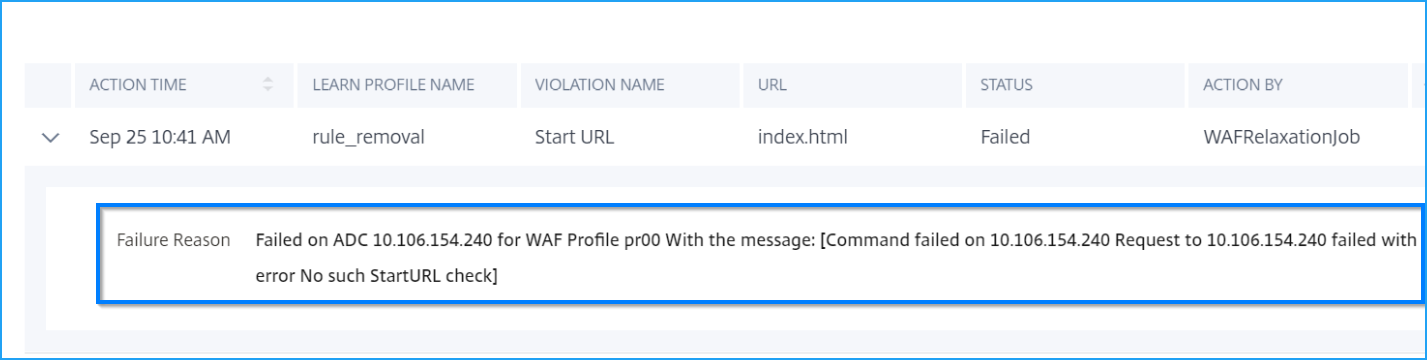
View failed rules
If a deployed learn rule has failed, you can view the failure reason.
Advanced search
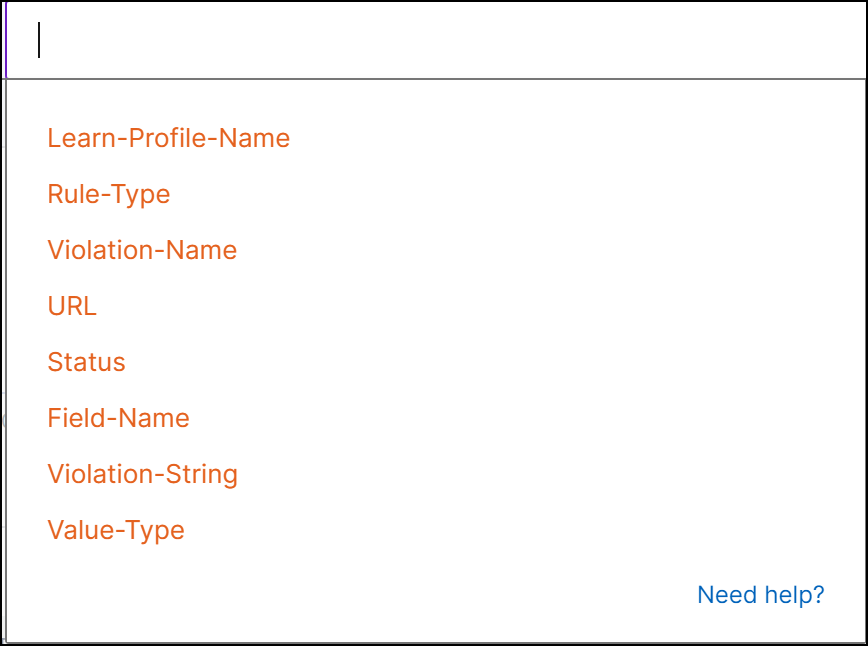
The advanced search bar enables you to view the results as per your requirement. When you click the search box, the search box gives you a list of search suggestions. You can also use operators in your search queries to narrow the focus of your search.
The following suggestions are displayed when you place the mouse pointer on the search box:
-
Learn-Profile-Name – Indicates the learning profile name that you configured.
-
Rule-Type – Indicates the rule type (Deny or Allow).
-
Violation-Name – Indicates the violation name such as Start URL, Cross-Site script, and so on.
-
URL – Indicates the web application URL.
-
Status – Indicates the deployed rule status.
-
Field-Name – Indicates the field name updated in the web forms for form field security check.
-
Violation-String – Indicates the possible string from where the violation has originated.
-
Value-Type – Indicates the data types used in the security checks. For example, keyword.
Filter results
From the Actions Summary, you can filter the results by selecting the following options:
-
Learn Profile Name - Filter based on the learn profile name.
-
Violation Name - Filter based on the violation name such as Start URL, HTML Cross-Site Scripting, Content Type, and so on.
-
Status - Filter based on the status of the deployed or idle rules.
-
Action By - Filter based on the user.