
Apply the Citrix Workspace theme to the NetScaler Gateway logon page
By default, NetScaler Gateway uses the RfWebUI portal theme, which matches the classic (unified UI) theme used by StoreFront versions 2311 CR and above. Before version 2311 CR, StoreFront had a single UI theme, which by default matches with the RfWebUI visual theme. NetScaler Gateway release 14.1 build 43.50 features a new portal theme that closely resembles the Citrix Workspace UI. You can either switch to the Citrix Workspace theme or create a custom theme to match the look and feel of Citrix Workspace and StoreFront's next generation UI.
Switch to Citrix Workspace theme
Using GUI:
You can switch to the Citrix Workspace theme using the instructions in Bind a portal theme to a VPN virtual server by using the GUI.
Using CLI:
At the command prompt, type:
bind vpn vserver <vserver_name> -portaltheme WStheme
Create a custom Citrix Workspace theme
Using GUI:
Create a custom theme to match the look and feel of Citrix Workspace using the following instructions:
-
Navigate to Configuration - > NetScaler Gateway - > Portal Themes.
-
On the Portal Theme page, click Add on the top left corner.
-
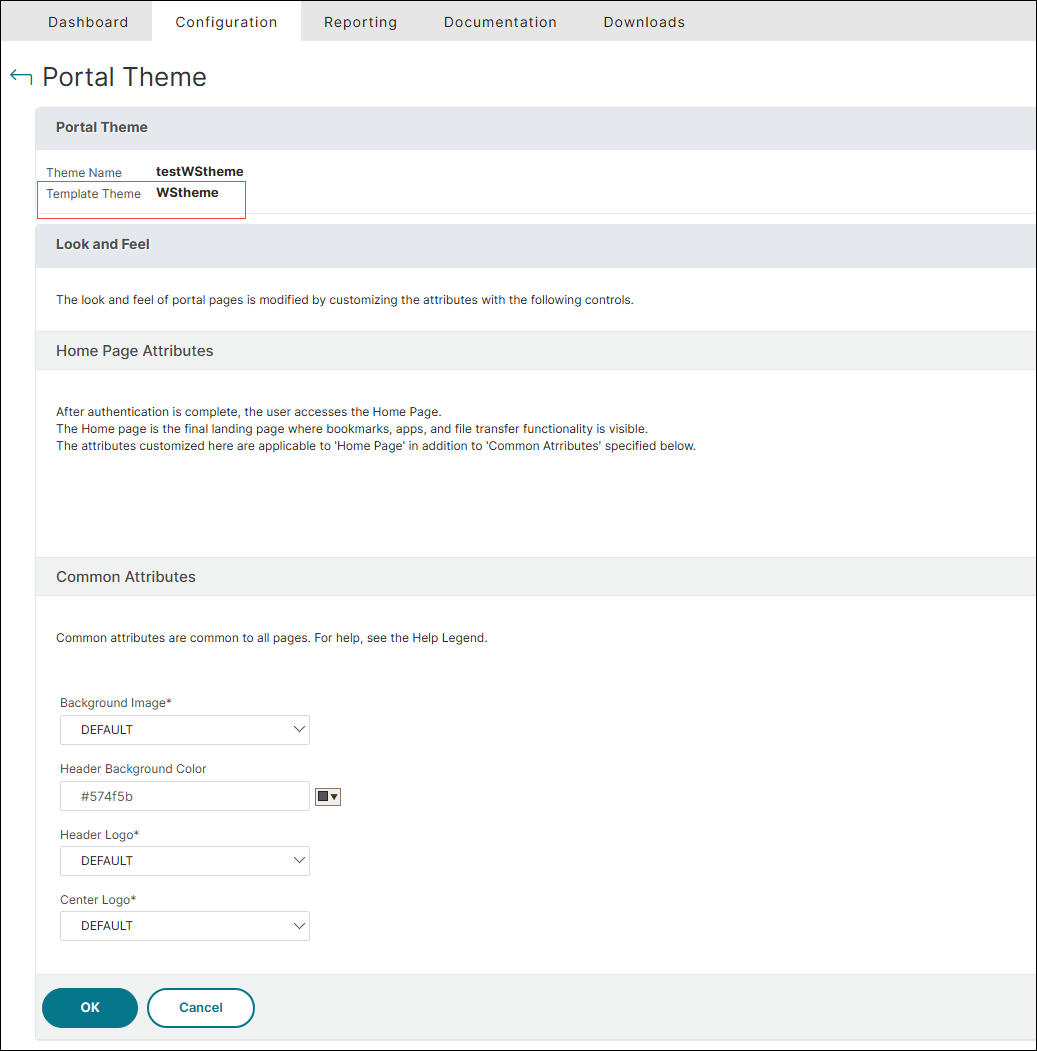
Give a theme name and select WStheme as the template theme.
-
Click OK.
-
Customize the theme by modifying the background image, header background color, header logo, center logo, and then click OK.
-
Bind the customized theme to the VPN virtual server. For more information, see Bind a portal theme to a VPN virtual server by using the GUI.
Using CLI:
To create a custom Citrix Workspace theme:
add vpn portaltheme <custom_WStheme_name> -basetheme WStheme
To bind the customized theme to a VPN virtual server:
bind vpn vserver <vserver_name> -portaltheme <custom_WStheme_name>