Portal customizations from the Admin UI
Admins can customize the portal themes by creating the custom themes to achieve the personalized look and feel of the user portal. Custom themes can be created based on the RfWebUI, Default, X1, and GreenBubble themes.
To create the custom themes:
-
In the Configuration tab, navigate to NetScaler Gateway > Portal Themes and click Add.
-
Enter a name for the custom theme name.
-
In Template Theme, select the base theme, as per your requirement. RfWebUI is selected by default.
-
Click OK.
-
In the Look and Feel section, modify the attributes as per your requirement for the home page and click OK.
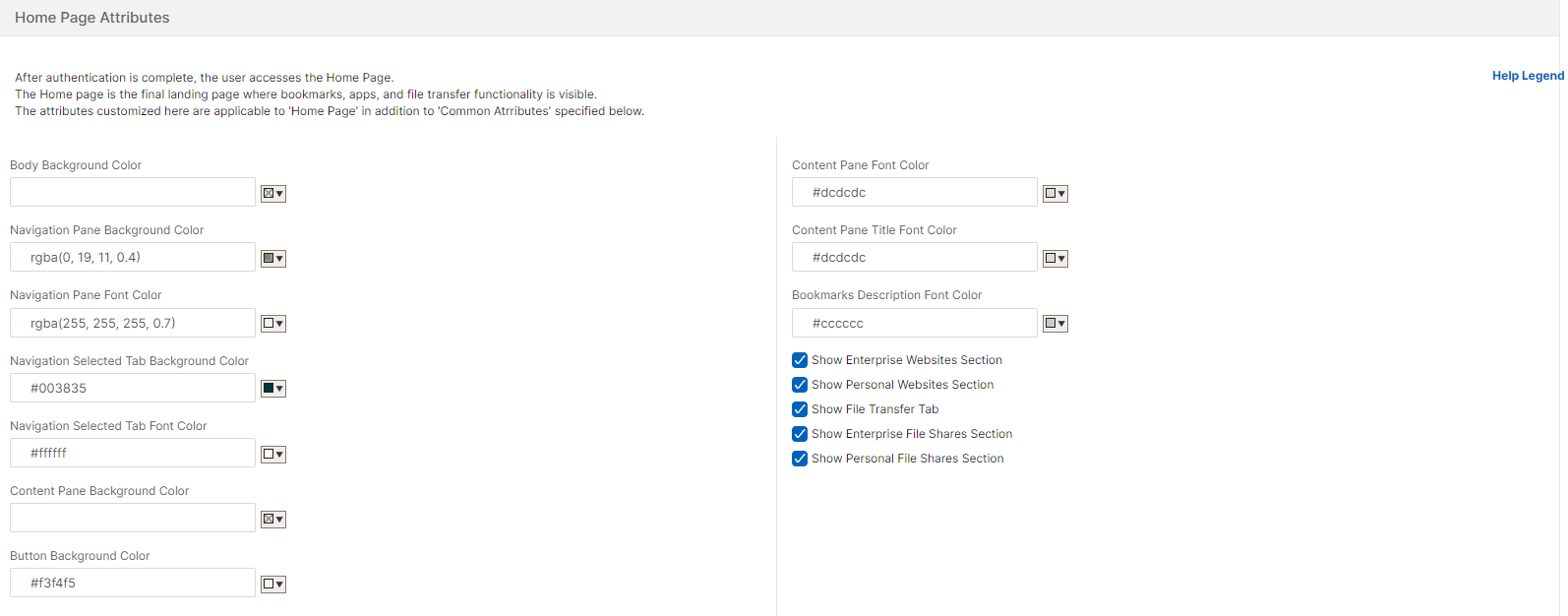
The following figure displays the RfWebUi based custom theme.
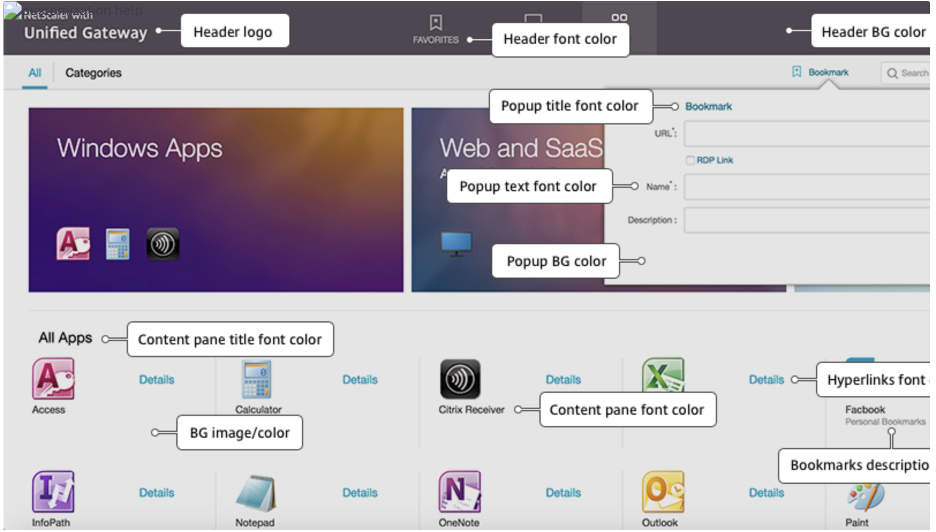
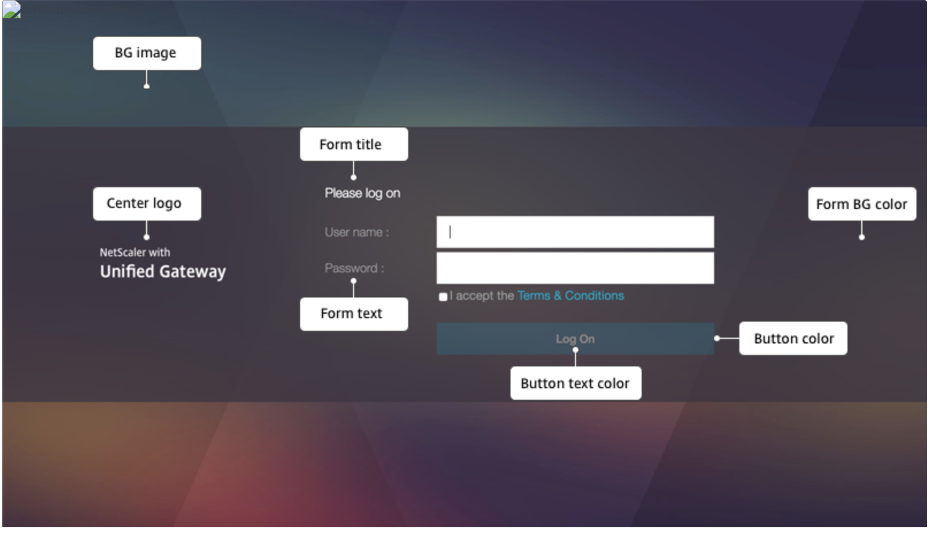
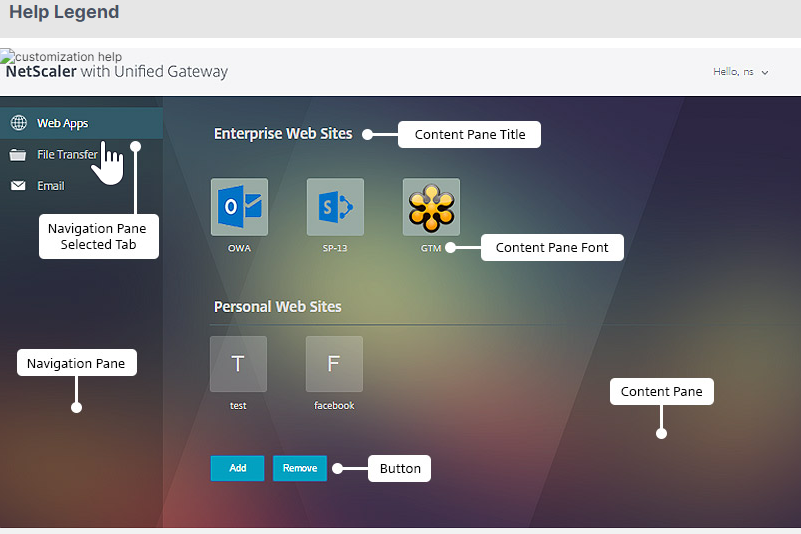
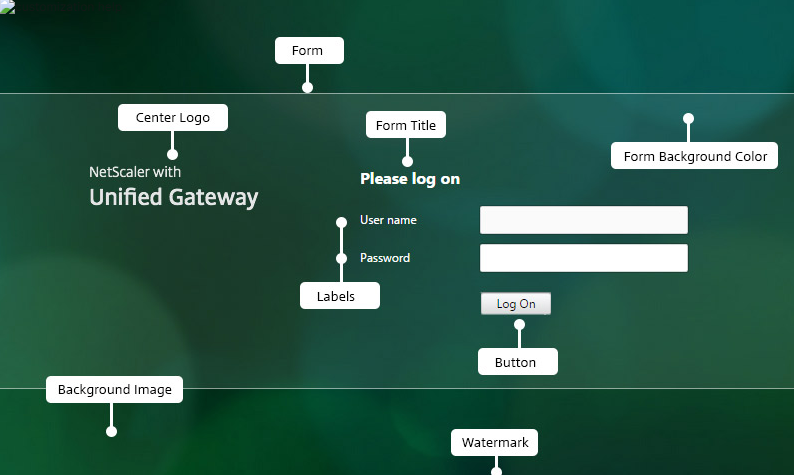
The Help Legend link displays the graphical page display with the section names to help you choose what you want to edit.
Common attributes
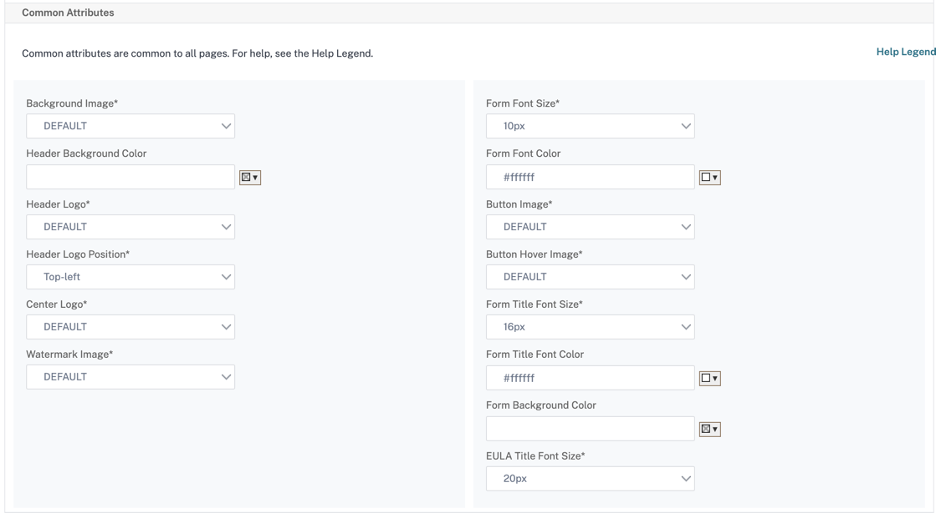
The Common Attributes section provides the configurable settings that are common to all NetScaler Gateway logon pages.
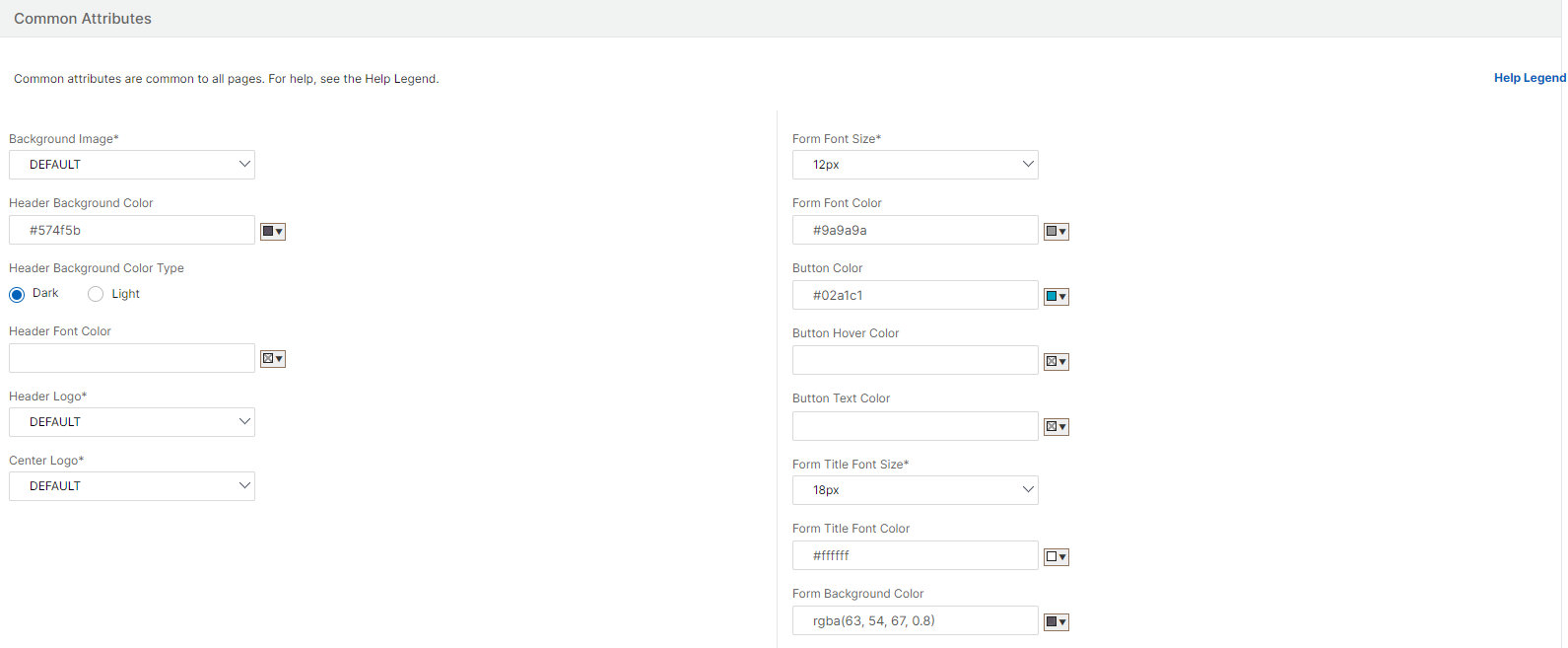
Click the Help Legend link to view each common configurable parameter.
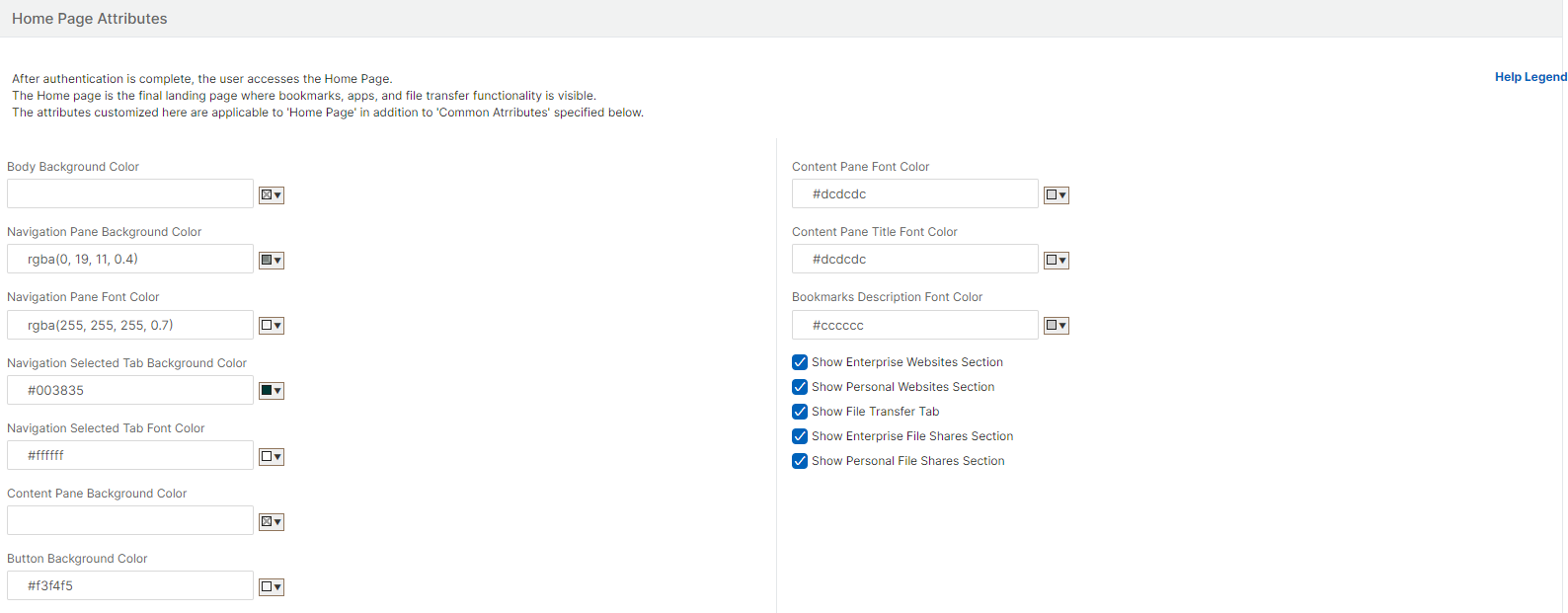
Similarly, for the custom theme based on Default, the following figure displays the available configuration for the home page. Note: This configuration is different for the x1 and GreenBubble.
String customizations
In addition to the look and feel of the gateway portal home pages, the admin UI also enables string customization on all the pages.
Perform the following steps to customize the strings:
-
Select the language for which you want to edit the string. The strings are displayed in the selected language. English is selected by default.
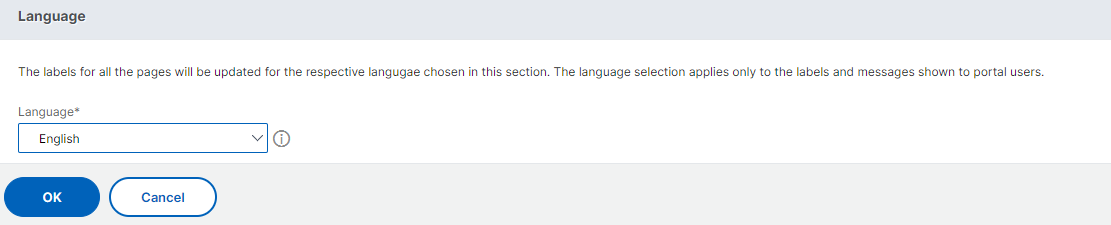 Note: The language that you select does not define the portal theme language. It is the language for which the strings are being customized.
 -
On the right, in Advanced Setting, the pages that are available for string customization are listed.
-
Login page
-
EPA page
-
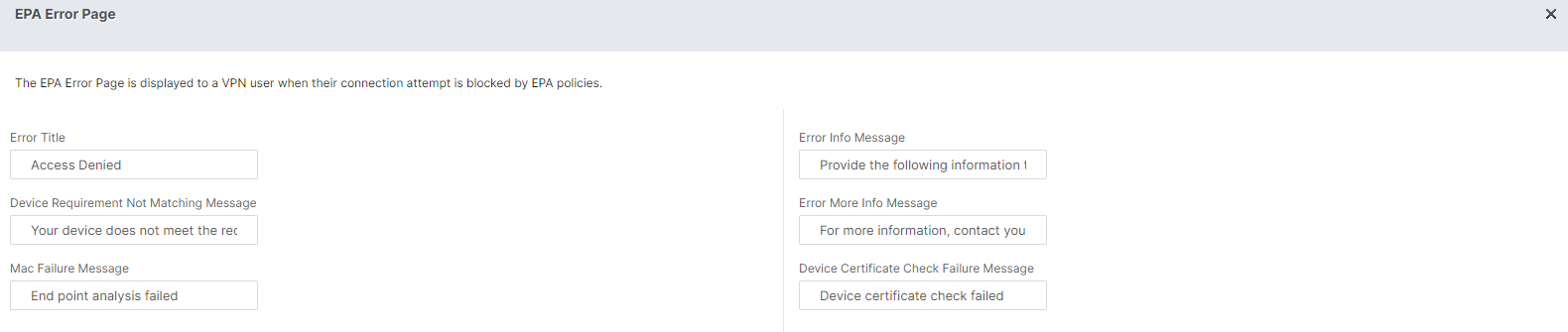
EPA Error Page
-
Post-EPA Page
-
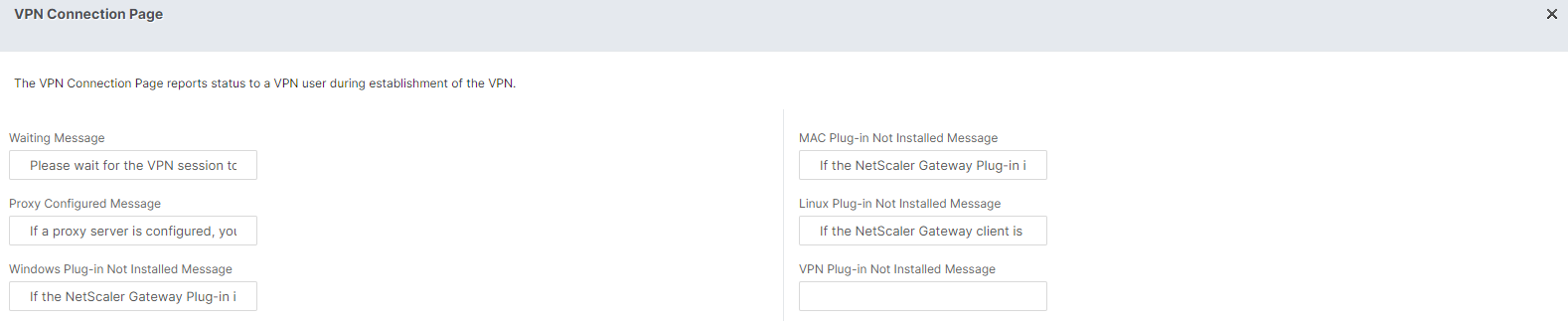
VPN Connection page
-
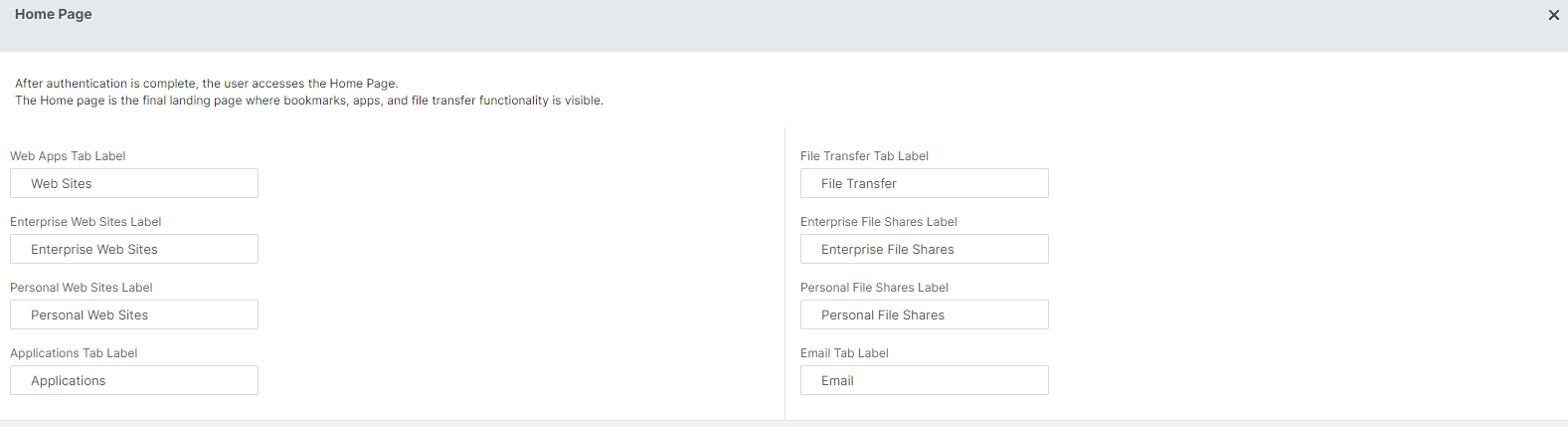
Home page
-
-
Select the page for which you want to customize the strings, and click the edit icon. A form with prefilled string customizations is displayed.
-
Select the field and add or edit the string as per your requirement.
-
Click Done to complete the custom portal theme creation. You can edit the themes later from NetScaler Gateway > Portal Themes.
Note: If the section still displays the strings in the previously selected language, it might be that the section was already open when the language was changed. In this case, close the section, select the language, and again open the page from Advanced Setting.
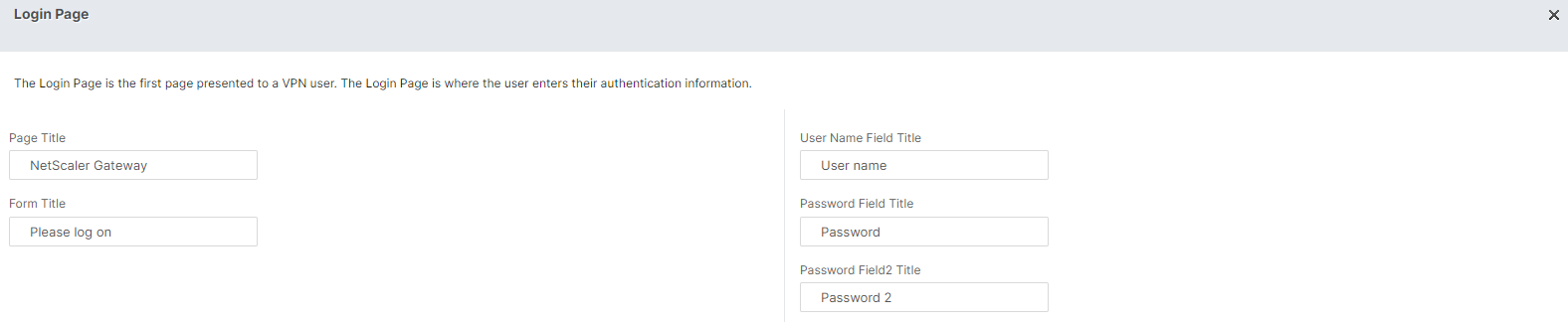
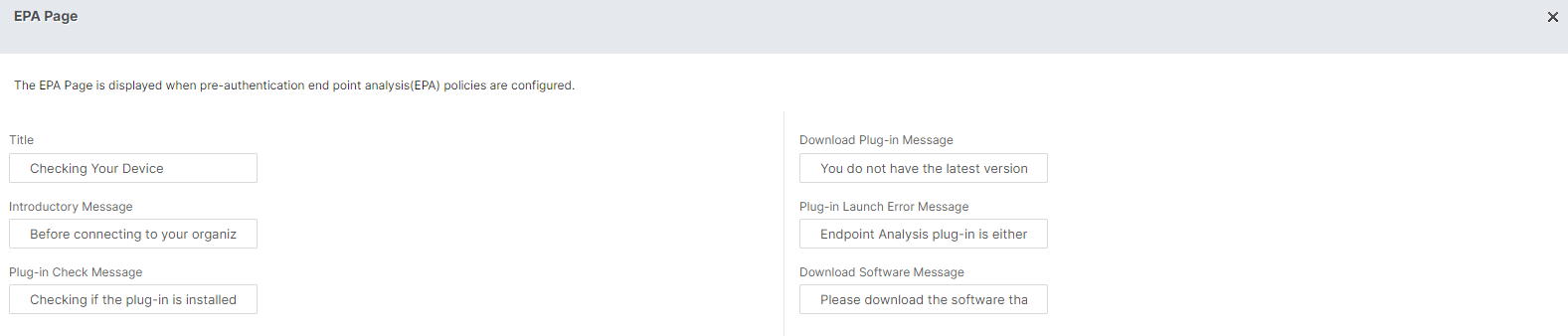
The following screenshots display the available set of customizable strings for each page.
Login page:
EPA page:
EPA Error page:
Post-EPA page:

VPN Connection page:
Home page: