
Create a configuration job
A job is a set of configuration commands that you can create and run on one or more multiple managed instances.
You can create jobs to make configuration changes across instances. You can replicate configurations on multiple instances on your network and record and play configuration tasks using the NetScaler Console GUI and convert it into CLI commands.
You can use the Configuration Jobs feature of NetScaler Console to create a configuration job, send email notifications, and check execution logs of the jobs created.
To create a configuration job on NetScaler Console:
-
Navigate to the Infrastructure > Configuration > Configuration Jobs.
-
Click Create Job.
-
On the Create Job page, under the Select Configuration tab, specify the Job Name and select the Instance Type from the list.
-
In the Configuration Source list, select the configuration job template that you want to create. Add the commands for the selected template.
-
You can either enter the commands or import the existing commands from the saved configuration templates.
-
You can also add multiple templates of different types in the Configuration editor while creating a job in the Configuration Jobs.
-
From the Configuration Source list, select the different templates and then drag the templates into the configuration editor. The template types can be Configuration Template, In built Template, Master Configuration, Record and Play, Instance and File.
NoteIf you add the Deploy Master Configuration Job template for the first time, add a template of different type, then the whole job template becomes a Master Configuration type.You can also rearrange and reorder the commands in the configuration editor. You can move the command from one line to another by dragging and dropping the command line. You can also move or rearrange the command line from one line to any target line by simply changing the command line number in the text box. You can also rearrange and reorder the command line while editing the configuration job.You can define variables that enable you to assign different values for these parameters or run a job across multiple instances. You can review all the variables that you have defined while creating or editing a configuration job in a single consolidated view. Click the Preview Variables tab to preview the variables in a single consolidated view that you have defined while creating or editing a configuration job.You can customize rollback commands for every command on the configuration editor. To specify your customized commands, Enable the custom rollback option.ImportantFor custom rollback to take effect, complete the Create Job wizard. And in the Execute tab, select the Rollback Successful Commands option from the On Command Failure list. -
-
In the Select Instances tab, select the instances on which you want to run the configuration audit.
-
In a NetScaler high-availability pair, you can run a configuration job local to a primary or a secondary node. Select on which node you want to run the job.
-
Execute on primary nodes - Select this option to run the job only on primary nodes.
-
Execute on secondary nodes - Select this option to run the job only on secondary nodes.
You can also choose both primary and secondary node to run the same configuration job. If you do not select either primary or secondary node, automatically the configuration job runs on the primary node. -
-
Click Add Instances and select the instances from the list. Click OK.
-
Click Next.
-
-
In the Specify Variable Values tab, you have two options:
-
Download the input file to enter the values for the variables that you have defined in your commands, and then upload the file to the NetScaler Console server.
-
Enter common values for the variables that you have defined for all instances
-
Click Next.
-
-
Evaluate and verify the commands to be run on each instance on the Job Preview tab. This tab also display the rollback commands if specified on the Select Configuration tab.
-
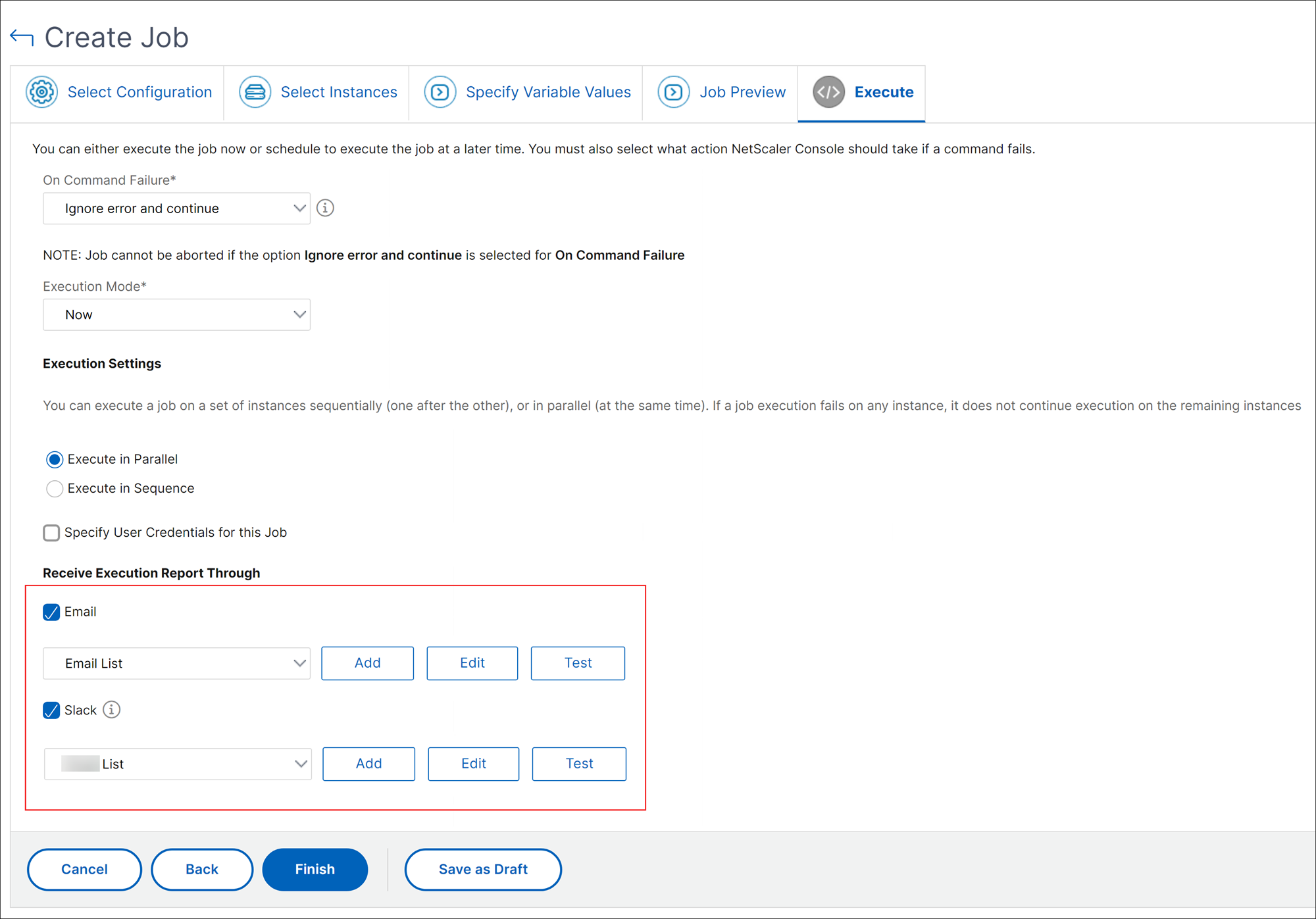
In the Execute tab, choose to either run your job now, or schedule to run the job later.Also, select one of the following actions from the On Command Failure list that NetScaler Console must perform if the command fails:
-
Ignore error and continue: NetScaler Console ignores the failed command and runs the remaining commands for the selected instance.NoteThis action does not allow you to abort a configuration job that is in progress.
-
Stop further execution: NetScaler Console stops the remaining commands if any command fails during execution.
-
Rollback successful commands: NetScaler Console restores the successfully run commands if any command fails during execution.If the custom rollback is enabled, the NetScaler Console runs the corresponding rollback commands for the failed commands.
-
-
Click Finish.
To send an email and Slack notification for a job:
An email and Slack notification is now sent every time a job is run or scheduled. The notification includes details such as the success or failure of the job along with the relevant details.
-
Navigate to Infrastructure > Configuration > Configuration Jobs.
-
Select the job that you want to enable email and Slack notification and click Edit.
-
In the Execute tab, go to the Receive Execution Report Through pane:
-
Select the Email check box and choose the email distribution list to which you want to send the execution report.If you want to add an email distribution list, click Add and specify the email server details.
-
Select the Slack check box and choose the slack channel to which you want to send the execution report.If you want to add a Slack profile, click Add and specify the Profile Name, Channel Name, and Token of the required Slack channel.
-
-
Click Finish.
To view execution summary details:
-
Navigate to Infrastructure > Configuration > Configuration Jobs.
-
Select the job that you want to view the execution summary and click Details.
-
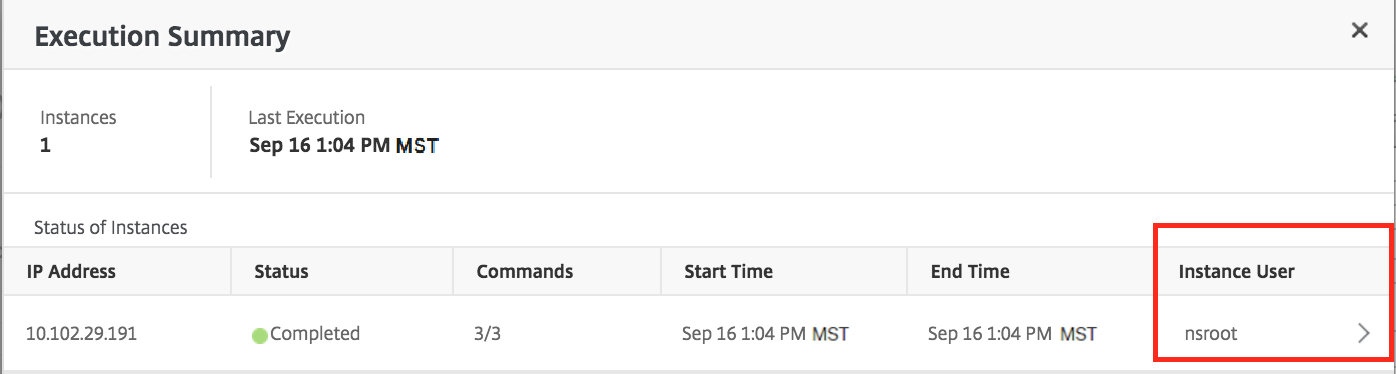
Click Execution Summary to see:
-
The status of the instance on the job that was run
-
The commands run on the job
-
The start and end time of the job, and
-
The instance user's name
-