LOM port management for MPX 9200 and MPX 17000
This section provides step-by-step instructions for the initial configuration of the Lights Out Management (LOM) interface on NetScaler MPX 9200 and 17000 series platforms. The LOM enables essential out-of-band management, allowing you to manage the appliance independently of the main operating system.
Prerequisites
Before beginning the LOM configuration, ensure that the following requirements are met:
- Physical or console access to NetScaler.
- Network connectivity to the LOM port (direct or switched).
- Device serial number (required for initial authentication).
- Planned IP addressing scheme for the LOM network segment.
- Administrative access credentials.
- Web browser with HTML5 support (Chrome, Firefox, Edge, or Safari).
- Standard HTTPS (port 443) network access to the LOM IP address.
Note:
Java or third-party plugins are not required.
Initial network access
The LOM interface is configured with default settings to facilitate initial configuration.
Default LOM settings
| Parameter | Default Value |
|---|---|
| IP Address | 192.168.1.3 |
| Subnet Mask | 255.255.255.0 |
| Default Gateway | 192.168.1.1 |
| Username | nsroot |
| Password | Device serial number (case-sensitive) |
Network connection methods
Select one of the following connection methods for initial setup:
Direct connection:
- Connect a laptop Ethernet port to the LOM interface using a crossover cable.
- Set the laptop static IP address to
192.168.1.10with a subnet mask of255.255.255.0.
Switched connection:
- Connect the LOM interface and a management workstation to the same network switch.
- Ensure that both devices are in the
192.168.1.0/24broadcast domain.
Configure LOM by using the GUI
Initial login and password change
Access the LOM web interface using the default IP address.
-
Open a web browser
- Type
https://192.168.1.3. - Accept the self-signed SSL certificate warning that appears in the browser.
- Type
-
Authenticate with default credentials
- Enter
nsrootas the Username. - Enter the device serial number as the Password (note: this is case-sensitive).
- Click Login.
- Enter
-
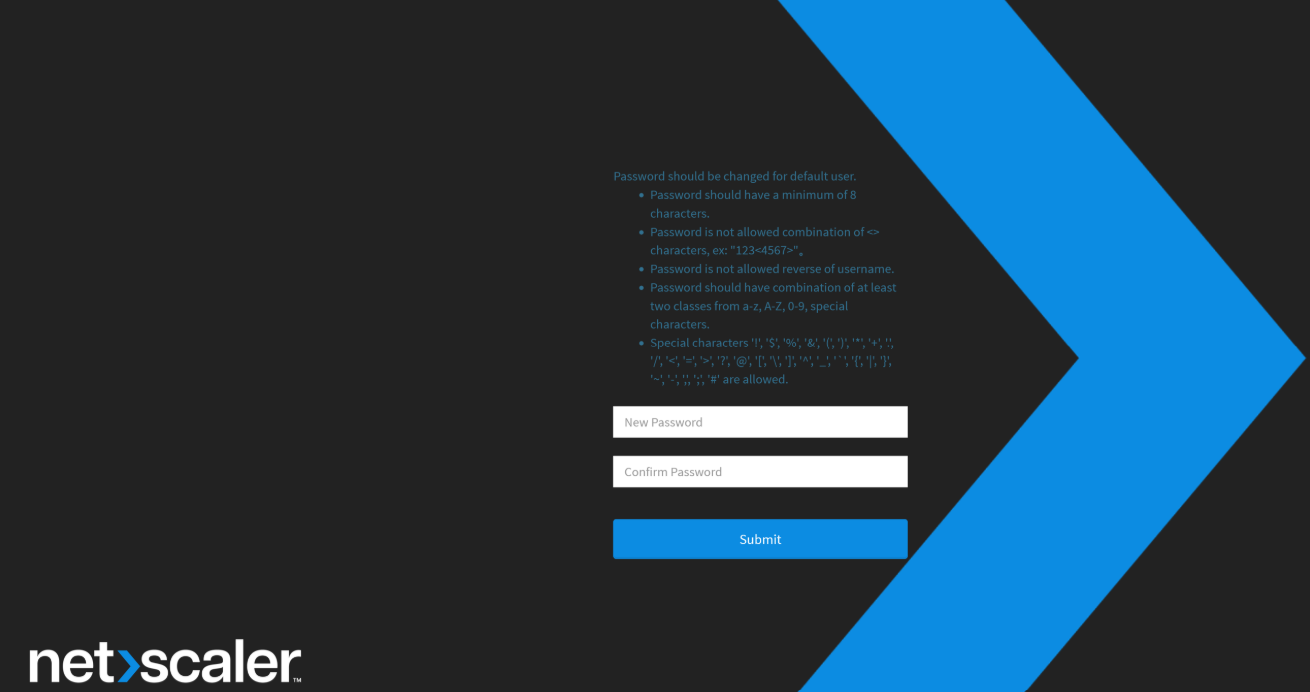
Mandatory password change
On the first login, the system enforces a password change for security.
- Current Password: Enter the device serial number.
- New Password: Enter a password that meets the complexity requirements shown on the page.
- Confirm Password: Re-enter the new password.
- Click Submit to save.
Note:
The system logs you out automatically once the password is saved. Log in again using the
nsrootaccount and your newly created password.
Network configuration
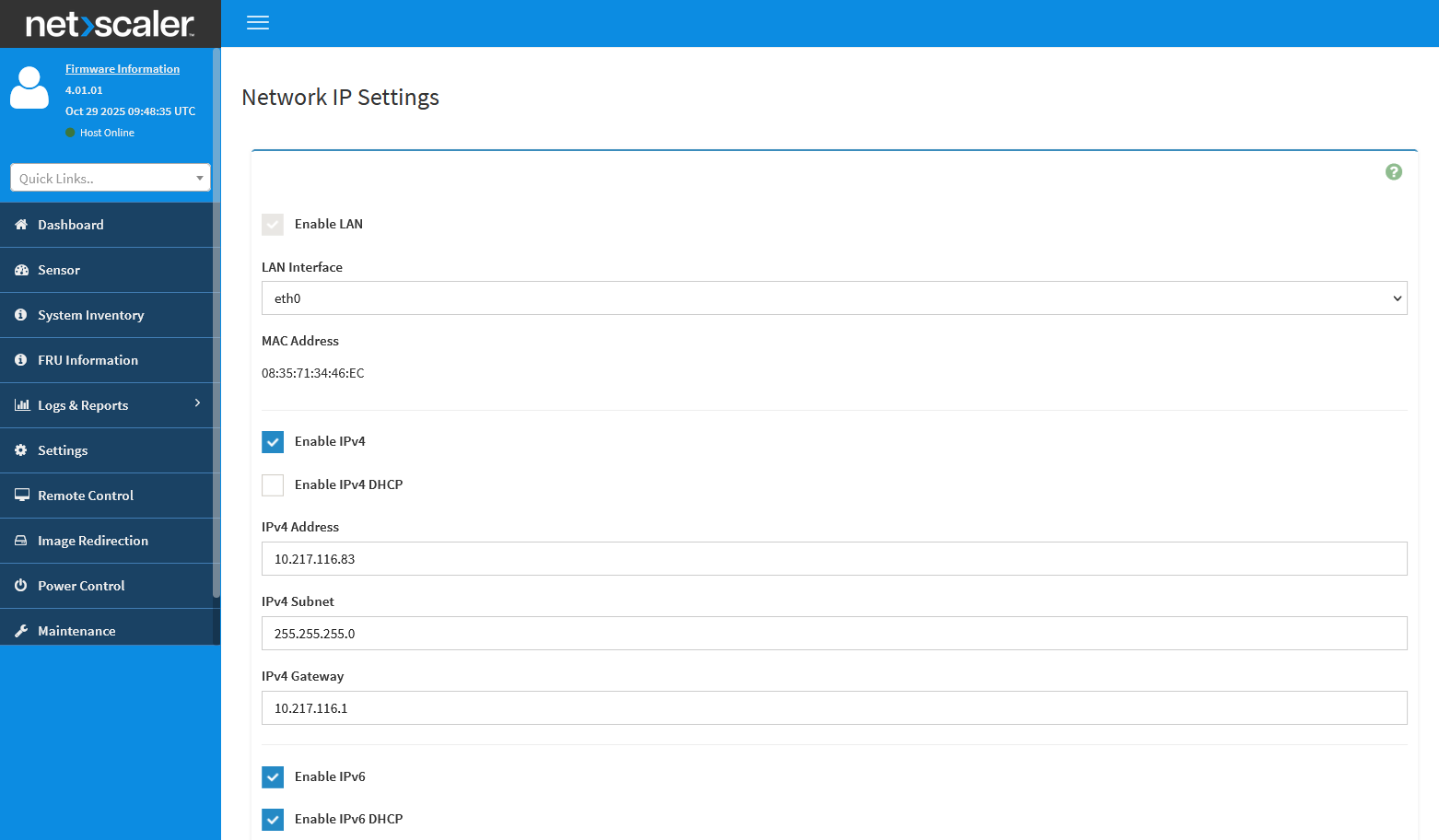
To integrate LOM into your production management network:
- Navigate to Settings > Network IP Settings > LAN Interface (eth0).
- Enter the following details:
- IPv4 Address
- IPv4 Subnet
- IPv4 Gateway
- Click Save. The Baseboard Management Controller (BMC) takes approximately 30 seconds to apply changes and then disconnects your current session.
-
Verify connectivity by pinging the new LOM IP address by using the following command from your management workstation:
ping <New_LOM_IP_Address> -
Access the LOM interface using the new IP address:
https://<new_LOM_IP_address> - Log using
nsrootand updated password.
System lockdown mode restriction
When System Lockdown mode is enabled, all out-of-band management interfaces (LOM Web UI, IPMI, and Redfish) are restricted to read-only access. As a result, users cannot modify LOM/BMC settings such as Network Settings and User Management under the Settings menu.
Symptoms of lockdown mode
If the system is locked, you encounter the following issues within the GUI:
- Error Messages: Insufficient privilege (code 8000).
- Notifications: You do not have permission to view this content.
- GUI Behavior: Settings menu items appear grayed out or are completely inaccessible.
Affected functions
The following operations are restricted during lockdown:
- Network configuration changes.
- User management and password operations.
- LOM firmware updates.
- Field Replaceable Unit (FRU) data modifications.
Resolution
System Lockdown must be disabled from the NetScaler host OS using ipmitool commands. For information about how to disable lockdown, see System lockdown management section in the CLI section for lockdown management procedures.
Configure LOM by using the CLI (IPMI tool)
If the GUI is inaccessible or System Lockdown is active, use the NetScaler host shell to run the ipmitool commands.
MPX 17000 System Lockdown Mode (LOM Security Enhancement)
When system lockdown is enabled in-band from the host OS, the BMC enforces out-of-band configuration protection. All platform configuration interfaces—including LOM firmware updates, network settings, user management, FRU data, and general LOM configuration—are restricted to “read-only” access through the LOM Web UI and IPMI/Redfish interfaces.
No persistent configuration or firmware changes can be performed while lockdown is active.
Access requirements
To run command-line instructions, connect to the appliance by using one of the following methods:
- Serial console connection
- SSH session (if a network is configured)
- Direct access or monitor access
Note:
All commands must run from the NetScaler shell environment. If you are at the NetScaler CLI prompt, type
shellto enter the FreeBSD environment.
System lockdown management
System Lockdown mode enforces read-only access across all out-of-band management interfaces. This security feature prevents unauthorized configuration changes via LOM, IPMI, and Redfish.
-
Check Status:
ipmitool raw 0x34 0x81(00=Disabled (Configuration changes allowed),01=Enabled (Read-only mode active)). -
Disable Lockdown:
ipmitool raw 0x34 0x81 0x0.This command enables full read-write access to all BMC configuration interfaces.
-
Enable Lockdown:
ipmitool raw 0x34 0x81 0x1.This command restricts all BMC interfaces to read-only access for enhanced security.
Static IP configuration
Perform the following procedure to manually configure the interface:
-
Set the IP address source to static: Change the interface mode to disable DHCP and prepare the interface for static IP assignment using the following command:
ipmitool lan set 1 ipsrc static -
Assign the IP address: Specify the static IP address for the LOM interface using the following command:
ipmitool lan set 1 ipaddr <LOM_IP_Address>Example:
ipmitool lan set 1 ipaddr 192.0.2.255 -
Assign the Subnet mask: Define the subnet mask for the LOM network segment using the following command:
ipmitool lan set 1 netmask <Subnet_Mask>Example:
ipmitool lan set 1 netmask 255.255.255.0 -
Configure the default gateway: Specify the gateway address for routing traffic outside the local segment using the following command:
ipmitool lan set 1 defgw ipaddr <Gateway_IP>Example:
ipmitool lan set 1 defgw ipaddr 192.0.2.255 -
Reset or reboot the BMC to apply changes:
ipmitool bmc reset coldThe BMC requires approximately 120 seconds to fully initialize after a reset.
Verify configuration
After the 120-second initialization period, verify the new network configuration.
Display current LOM network settings
Run the following command to display all current network parameters, including the IP address, subnet mask, gateway, and MAC address.
ipmitool lan print 1
Test network connectivity
From an external management workstation, test connectivity to the new LOM IP address:
ping <new_LOM_IP_address>
Access the LOM web interface to confirm full functionality:
https://<new_LOM_IP_address>
User password management
Change the default LOM password from the NetScaler host environment for enhanced security.
-
List current users
Run the following command to display all configured LOM user accounts with their user IDs:
ipmitool user list 1Example output:
ID Name Callin Link Auth IPMI Msg Channel Priv Limit 1 nsroot
false false false NO ACCESS 2 false false true ADMINISTRATOR 3 true false false NO ACCESS Note:
The default
nsrootaccount has a User ID of2. -
Change user password
Run the following command to change the password for the
nsrootaccount (User ID2):ipmitool user set password <user_ID> <new_LOM_password>Where:
-
<user_ID>is the appropriate user ID (typically 2 for nsroot account). -
<new_LOM_password>is the new password.
Example:
ipmitool user set password 2You are prompted to enter the new password interactively.
Alternative (Non-Interactive):
ipmitool user set password 2 NewSecurePassword123Note:
The system prompts for the new password interactively. Enter the password when prompted.
-
LOM factory reset
Restore the BMC to factory default settings. If the Preserve Configuration (IPMI/network) option is not enabled in the Maintenance → Preserve configuration section of the LOM GUI, this operation resets all settings—including LOM network configuration, user accounts, and IPMI web settings—to LOM factory defaults.
Run the following command to reset the LOM to factory default.
ipmitool raw 0x32 0x66
Reset effect:
- All settings revert to defaults (192.168.1.3/24).
- All passwords reset to the device serial number.
- System Lockdown mode resets to enable, by default.
- SSL certificates reset to self-signed defaults.
- All user configurations and custom settings are erased and restored back to factory defaults.
Post-reset actions:
The BMC automatically restarts after a factory reset. Wait 120 seconds for full initialization, then reconfigure the LOM interface using either GUI or command-line methods.
Remote system power control
The LOM interface provides comprehensive remote power management capabilities for system startup, shutdown, and reset operations.
Power on procedure
Run the following steps to remotely start the system.
-
Pre-startup verification
Before initiating power-on, verify the following conditions:
- Power supplies are connected and operational.
- Network infrastructure is available and stable.
- Environmental conditions are within an acceptable range (temperature, airflow).
- No hardware alerts or critical warnings are active.
-
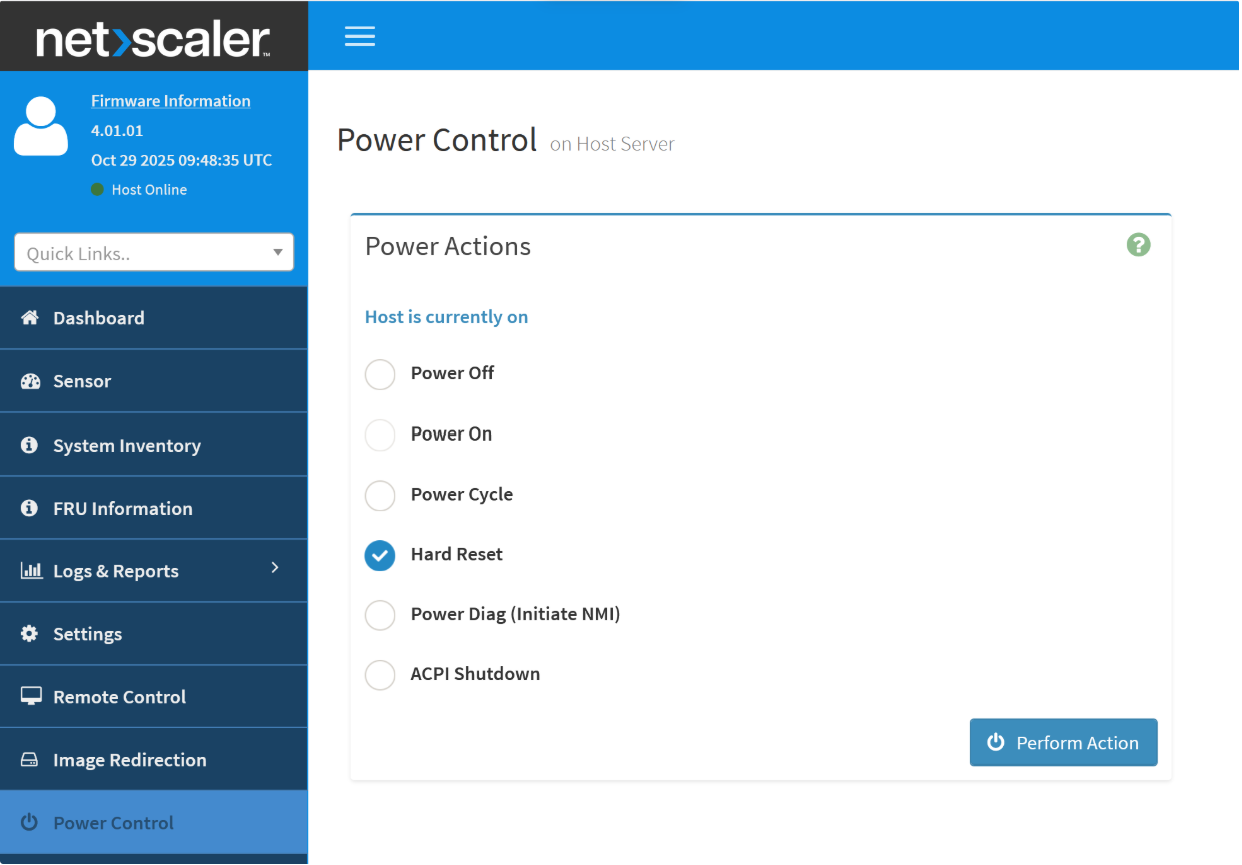
Access power control
Navigate to the power control interface, LOM Web UI > Dashboard > Power Control.
-
Run power on
- Select Power On from the available power control actions.
- Review the confirmation dialog.
- Click Perform Action to initiate the startup sequence.
-
Monitor startup process
Observe the following indicators during system boot:
- The power LED changes from off to solid green.
- The system completes POST (Power-On Self-Test).
- Network interfaces initialize and link up.
- The operating system loads and becomes accessible.
Note:
Use the iKVM console feature to monitor boot progress in real time, if needed.
Graceful shutdown procedure
Perform a graceful operating system shutdown before removing power.
-
Pre-Shutdown verification
Confirm the following conditions before initiating a shutdown:
- No critical operations are in progress.
- All active user sessions are canceled.
- Configuration changes are saved.
- Backup operations are complete.
-
Access power control
Navigate to the power control interface, LOM Web UI > Dashboard > Power Control.
-
Initiate ACPI Shutdown
- Select ACPI Shutdown from the power control actions.
- Review the confirmation dialog.
- Click Perform Action to initiate the graceful shutdown.
The ACPI Shutdown option sends a graceful shutdown signal to the operating system, allowing all services to exit.
-
Monitor shutdown process
Observe the following indicators during system shutdown:
- The operating system begins the shutdown sequence.
- Network interfaces go offline.
- System services exit gracefully.
- The power LED changes from green to off.
Note:
Allow adequate time for a complete shutdown before initiating any power-on operations.
Troubleshooting
Common issues and resolution procedures for LOM initial configuration.
Cannot access the default IP address
Issue: Browser cannot reach https://192.168.1.3.
Possible causes:
- The workstation is not configured with the correct IP address.
- Network cable is not connected properly.
- Layer 2 switching issue or VLAN mismatch.
- BMC is not fully initialized after system boot.
Resolution steps:
-
Verify workstation IP configuration: Use
ipconfig(Windows) orifconfig/ip addr(Linux/macOS). - Verify physical cable connection: Ensure the cable is plugged into the dedicated LOM port.
- Check link status: Verify the LED on the LOM port is active.
- Wait for initialization: Allow up to 5 minutes after system boot for the BMC to initialize.
- Direct Connection: Try a direct crossover cable connection if a switched network issue is suspected.
Login fails with default credentials
Issue: Authentication fails when using nsroot and the serial number.
Possible causes:
- Incorrect serial number entry (passwords are case-sensitive).
- The password was previously changed from the default.
- The user account is locked due to multiple failed attempts.
Resolution steps:
- Verify serial number: Check the physical label or device documentation.
- Check case-sensitivity: Ensure the serial number is entered exactly as displayed.
- Clear browser data: Clear the browser cache and cookies, then retry.
- Account Lockout: Wait 15 minutes if the account is locked, then retry.
- Factory Reset: Perform a factory reset if the password is lost and cannot be recovered.
BMC not responding after configuration
Issue: LOM interface becomes inaccessible after applying network changes.
Possible causes:
- An invalid IP address or subnet mask is entered.
- The network gateway is unreachable from the new IP address.
- IP address conflicts with another device on the network.
- BMC requires additional time for initialization.
Resolution steps:
- Wait for initialization: Allow a full 120 seconds for BMC network initialization.
- Check for conflicts: Verify that no other device on the network segment is using the same IP address.
-
Test connectivity: Attempt to
pingthe new IP address from a management workstation. -
Revert to default: Try connecting to the original default IP address (
192.168.1.3) if the new IP address fails. - Factory Reset: Perform a factory reset if the BMC remains completely inaccessible.
Best practices for LOM configuration and management
Security best practices
Implement the following security measures immediately after the initial LOM configuration to ensure the integrity of the management environment.
Password policy
- Change default passwords: Update the default credentials immediately after the first login.
- Complexity requirements: Use strong passwords with a minimum of 8 characters.
- Character variety: Include a mix of uppercase letters, lowercase letters, numbers, and special characters.
- Rotation: Rotate passwords regularly according to your organizational security policy.
- Uniqueness: Avoid using common words or device-specific information (such as serial numbers) in passwords.
System lockdown
- Production readiness: Enable System Lockdown mode in all production environments.
- Maintenance window: Disable lockdown only when configuration changes are explicitly required.
- Re-enablement: Re-enable lockdown immediately after completing maintenance tasks.
Access logging
- Audit logging: Enable audit logging for all administrative actions to maintain a clear history of changes.
- Regular reviews: Regularly review access logs for any signs of unauthorized attempts.
- Alerting: Implement alerting mechanisms for failed authentication attempts.
SSL/TLS configuration
- Certificate replacement: Replace the default LOM self-signed SSL certificate with certificates from a trusted multi-tier CA root chain.
- Chain validation: Implement proper certificate chain validation.
- Protocol version: Use minimum TLS 1.2 protocol.
- Monitoring: Configure appropriate monitoring for certificate expiration.
Power control best practices
Follow these guidelines for safe and effective power management:
- Prioritize graceful shutdowns: Use graceful shutdown procedures whenever possible to prevent data corruption and service disruption.
- Observe power cycle delays: Wait a minimum of 30 seconds between power-off and power-on operations.
- Maintain documentation: Document all power control actions in change management or maintenance logs.
- Schedule operations: Coordinate all power operations with established maintenance windows to minimize impact.
- Ensure redundant access: Maintain alternative access methods (such as serial console or iKVM) while power cycling the system.
- Verify system state: Always verify the system’s operational state both before and after performing power operations.