Best practices for monitoring your LAS transitioned NetScaler SDX (SVM)
This section details the best practices you can follow to monitor your NetScaler SDX if you are using LAS with NetScaler SDX (SVM) and have the Fixed Capacity Subscription license type.
Prerequisites
- Read the LAS for NetScaler page, including the FAQs for LAS with NetScaler SDX (SVM).
- Read the License Activation Service and complete your LAS migration.
- Ensure that you set up the relevant notifications, and monitor the NetScaler SDX (SVM) GUI and CLI regularly.
Note:
We intend to make continuous improvements to notifications and keep this documentation updated accordingly.
Monitoring LAS activation blob expiry
You can use the SVM GUI and CLI to track your LAS activation blob expiry and avoid unexpected license interruptions.
SVM GUI:
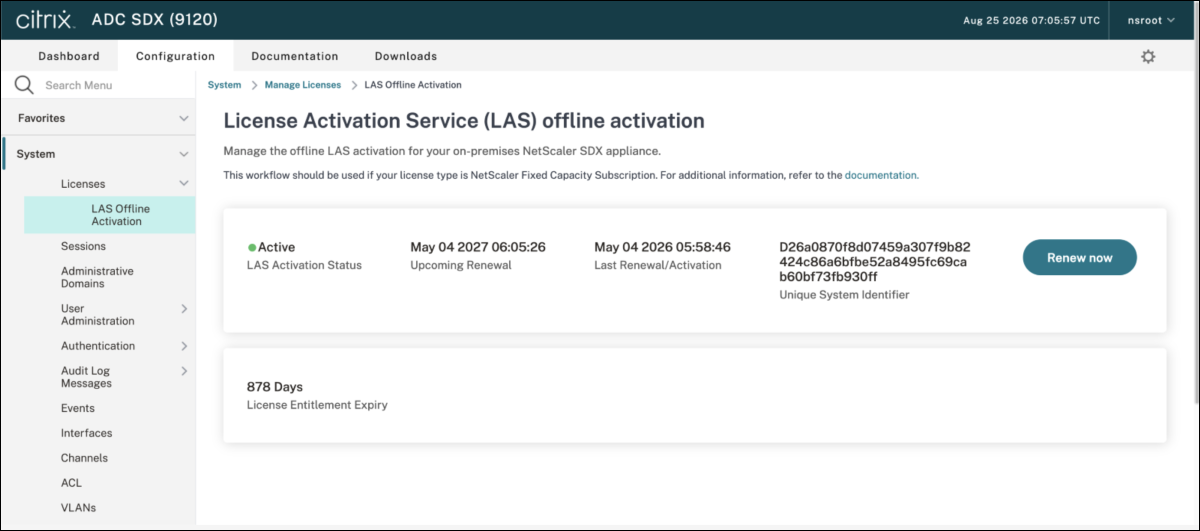
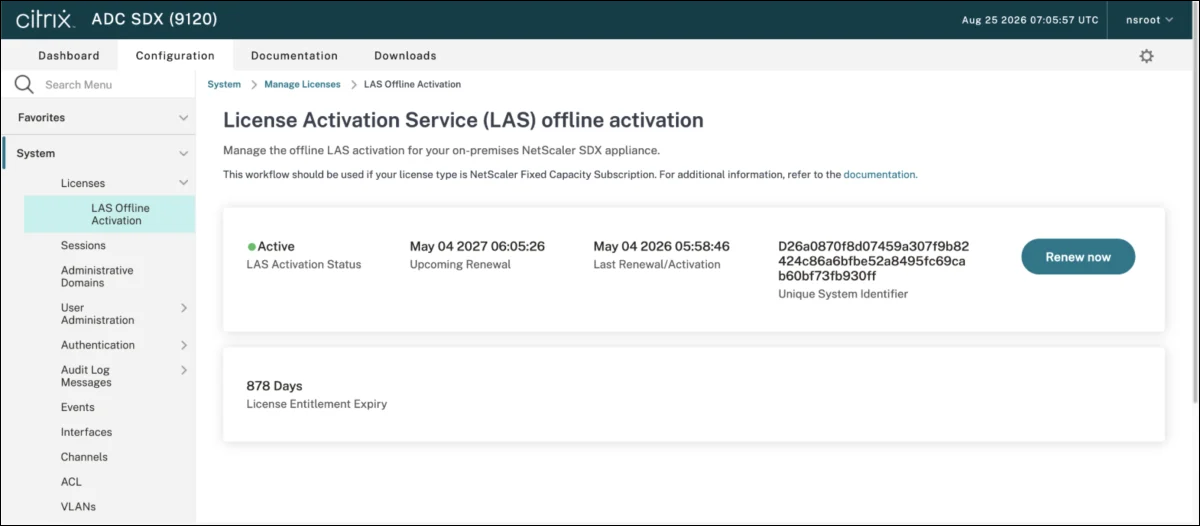
Navigate to SVM GUI > Configuration > System > Licenses > LAS Offline Activation > ADC Licenses, and monitor your Upcoming Renewal.
SVM CLI:
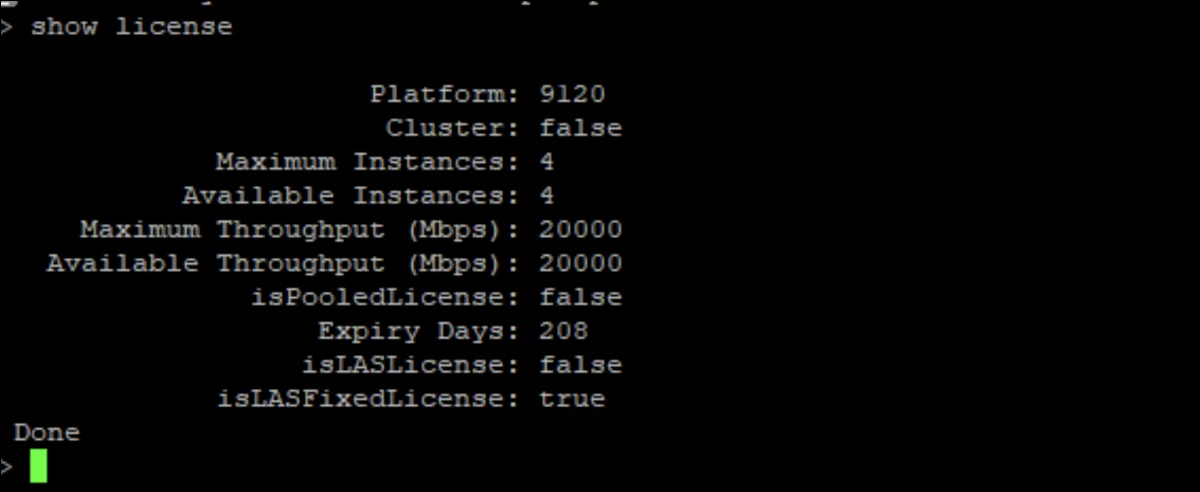
You can use the show license command and refer to the value of the Expiry Days parameter.
Sample:
show license

                       Platform: 9120
                        Cluster: false
              Maximum Instances: 4
            Available Instances: 4
      Maximum Throughput (Mbps): 20000
    Available Throughput (Mbps): 20000
                isPooledLicense: false
                    Expiry Days: 208
                   isLASLicense: false
              isLASFixedLicense: true
Done
<!--NeedCopy-->
Notifications
Banner on SVM GUI:
This GUI banner is triggered by default by the NetScaler SDX instance when LAS activation blob expiry is upcoming in less than 30 days. It appears on the GUI every time a user logs in.

SNMP-based notification
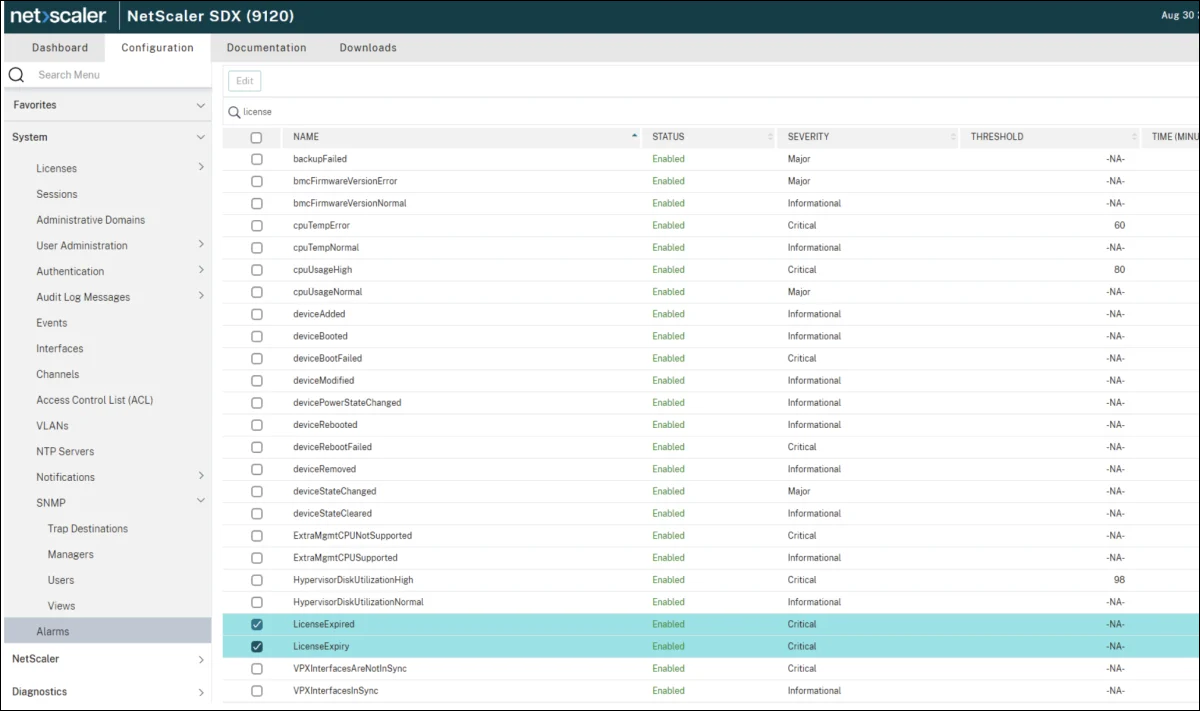
The SNMP trap or alarm is named LicenseExpiry for upcoming expiry and LicenseExpired for already expired.
The SNMP trap LicenseExpiry is triggered by default by the NetScaler SDX instance when the LAS activation blob expiry is upcoming in less than 30 days. This trap is generated every 24 hours, starting 30 days before LAS activation blob expiry, and continues until the blob is expired.
You must set an SNMP trap destination for the SDX/SVM. Once done, you will receive these SNMP traps.
Sample:
[EventNotification[#1]] Inside: send_ns_snmp_trap_LicenseExpiry
<!--NeedCopy-->
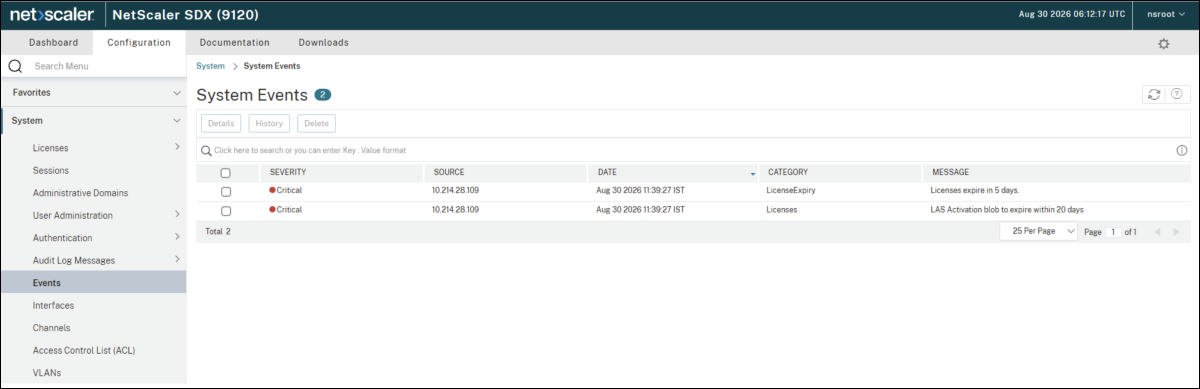
You can view the generated events by navigating to System > Events. The message shown is: “LAS Activation blob to expire within d days”.
Monitoring license entitlement expiry (contract expiry)
SVM GUI:
Navigate to SVM GUI > Configuration > System > Licenses > LAS Offline Activation > ADC Licenses and monitor your License Entitlement Expiry.
Notifications
Banner on SVM GUI:
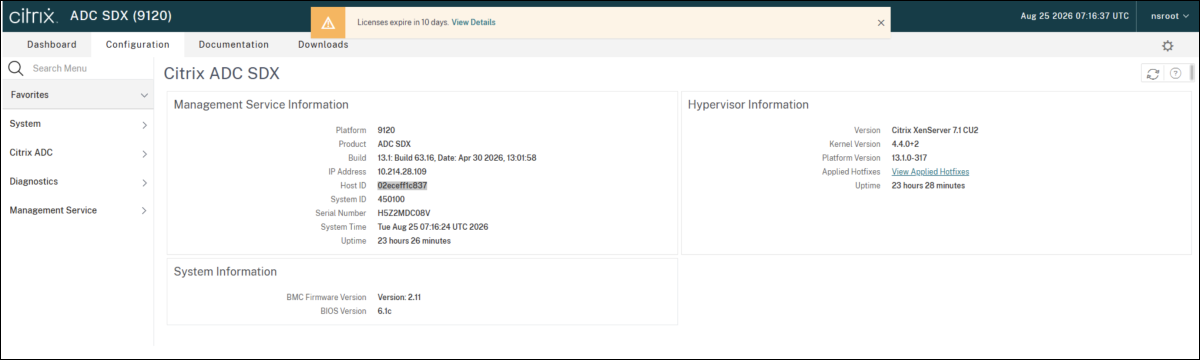
This banner on the SVM GUI is triggered by the NetScaler SDX instance when the license entitlement expiry is upcoming in less than 30 days. It is shown on the GUI at every user login.
SNMP-based notification:
NetScaler SDX generates events for license entitlement expiry.
The SNMP trap or alarm is named LicenseExpiry for upcoming expiry and LicenseExpired for already expired.
The SNMP trap LicenseExpiry is triggered by default by the NetScaler SDX instance when the license entitlement expiry is upcoming in less than 30 days. This trap is generated every 24 hours, starting 30 days before the license entitlement expiry, until it is expired.
You must set an SNMP trap destination for the SDX/SVM. Once done, you will receive these SNMP traps.
Navigate to SDX GUI > System > Events to see these events. The message shown is: “License entitlements expire in x days” (latest builds) or “Licenses expire in x days” (some older builds).