License Activation Service
Important:
File-based licensing system (also referred to as manually managed entitlements), traditionally used for activating various on-premises components, will be End of Life (EOL) on April 15, 2026. License Activation Service (LAS) is the next generation technology for product activations across the suite of Citrix products. LAS will be the only way to activate and license NetScaler instances after April 15, 2026, supporting NetScaler Flexed licenses (CPL/UHMC), legacy NetScaler Pooled licenses, and NetScaler Fixed term Bandwidth licenses. To remain supported, your NetScaler and NetScaler Console deployments must be on a LAS compatible version.
The minimum required NetScaler® versions that are LAS compatible are:
NetScaler ADCs: 14.1-51.x, 13.1-60.x, 13.1-37.246 (FIPS), 14.1–66.68 (FIPS)
NetScaler SVM: 14.1-51.x, 13.1-60.x
NetScaler Console Service: Supported from early September 2025
NetScaler Console on-prem: 14.1-51.x
Note: LAS support for Console on-prem is from release 14.1-51.x onwards. However, file-based licensing is deprecated as of April 15 2026 from Console on-prem releases 14.1-51.x onwards and 13.1-60.x onwards. If you upgrade to Console on-prem release 14.1-51.x or release 13.1-60.x or later, you can continue using file-based licensing until 15th April 2026. However you must upgrade to Console on-prem release 14.1-51.x or later, and switch to LAS before 15th April 2026 because Console on-prem 13.1 does not support LAS.
All the other forms of legacy NetScaler licenses such as Pooled vCPU, CICO, perpetual will not be supported with LAS. NetScaler instances leveraging perpetual licenses without an active maintenance will become unlicensed upon upgrade to the above mentioned software versions.
LAS-based licenses may not be available to customers where prohibited by law or regulations.
If you have questions or concerns, contact Customer Care. Citrix® may limit or suspend your Citrix Maintenance for non-compliance with these requirements without liability in addition to any other remedies Citrix may have at law or equity. These requirements don’t apply where prohibited by law or regulation.
Before starting your transition to LAS, we recommend reading LAS for NetScaler. This ensures you understand the general prerequisites, the supported or unsupported license types, the accurate workflow for your specific license and deployment types along with other important information.
LAS is a new cloud-based licensing solution that provides an alternative to traditional file-based licensing. LAS introduces new modules for activation of Citrix and NetScaler products, ensuring a seamless and modern approach to license management.
Note:
LAS is a licensing mechanism, not a license type. LAS supports Fixed-term bandwidth licensing for NetScaler deployments. All other forms of legacy NetScaler licenses, such as perpetual licenses, are not supported with LAS.
NetScaler version compatibility for LAS
To use LAS, your NetScaler must be running one of the following minimum versions or later:
- NetScaler ADC: 14.1 build 51.80, 13.1 build 60.29, 13.1 build 37.247 (FIPS)
- Management Service (NetScaler SVM): 14.1 build 51.83, 13.1 build 60.30
Note:
For SDX appliances, upgrade the Management Service (SVM) to a LAS-supported build and transition to LAS-based licensing. The VPX build version does not impact LAS compatibility.
Prerequisites
To use LAS, ensure that you have completed the following prerequisites:
- You must have a valid Citrix Cloud account. For more information about existing cloud accounts or to onboard new cloud accounts, see Account Management.
- The Organization ID (Org ID) linked to the Citrix Cloud account used for the LAS activation workflow must possess valid purchased entitlements. To view the current entitlements, see Entitlements.
- Ensure your NetScaler is running on a LAS-compatible version.
Transition to LAS by using the NetScaler GUI
Follow the steps described in this section, if you are:
- A Fixed-term Bandwidth customer using file-based licensing and moving to Fixed-term Bandwidth LAS-based licensing.
- Have an unlicensed NetScaler and want to use Fixed-term Bandwidth LAS-based licensing.
- A perpetual license customer using file-based licensing and moving to Fixed-term Bandwidth LAS-based licensing.
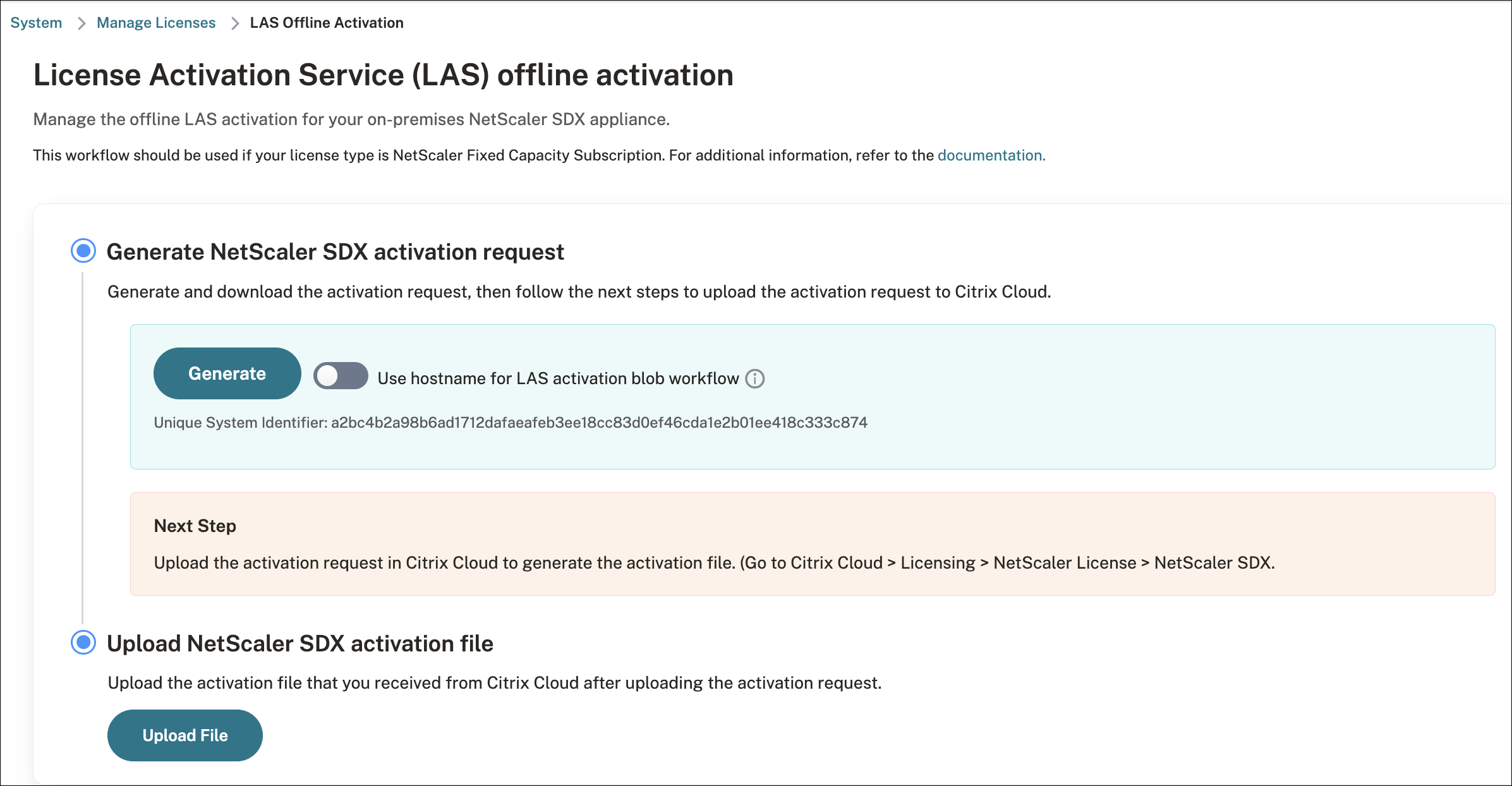
Step 1: In the NetScaler GUI, navigate to System > Licenses and select the LAS Offline Activation option.

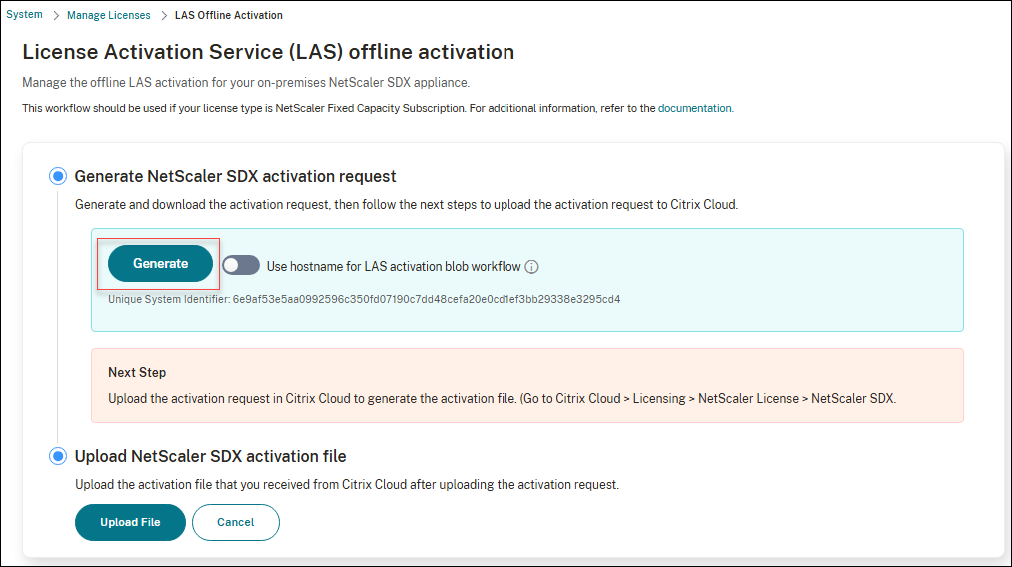
Step 2: LAS activation begins by generating an activation request file that contains the unique identity information for a specific NetScaler SDX instance.
-
To generate the LAS activation request file, under the Generate NetScaler SDX activation request section, click Generate.
-
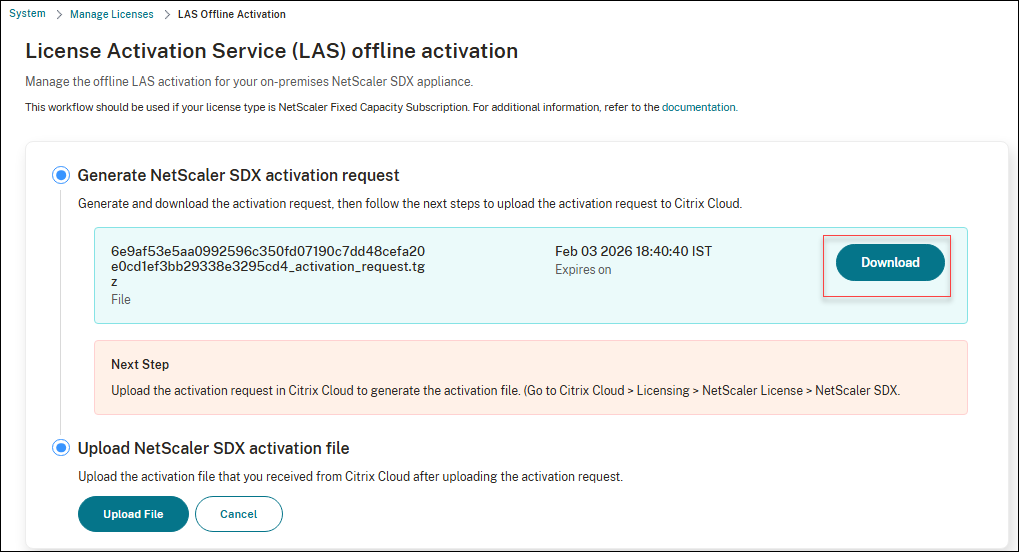
After the activation request file is generated, click Download to save it to your local system.
Note:
The activation request file expires after 7 days. Complete the activation process described in Step 3 within this timeframe to ensure that the file remains valid.
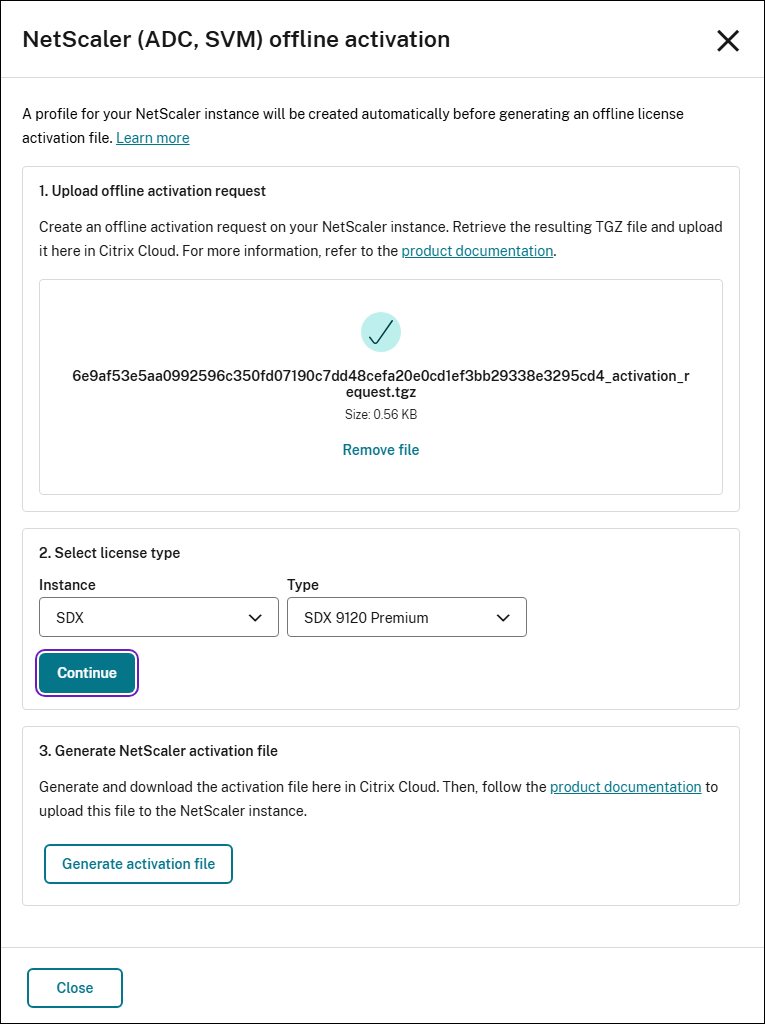
Step 3: Upload the activation request file generated from Step 2 to Citrix Cloud™ (LAS UI) to generate the license activation file or blob for your NetScaler.
-
Log in to Citrix Cloud and navigate to Citrix Cloud > Licensing > NetScaler licenses > NetScaler SDX.
-
Upload the activation request file generated in Step 2.
-
After the file uploads successfully, select the required license type for your NetScaler.
Note:
If you have multiple Fixed-term Bandwidth entitlements, a drop-down menu displays all available entitlements. Choose the appropriate one for this NetScaler instance.
-
After selecting the license type, generate and download the license activation file or blob.
Note:
The license activation file or blob remains valid for one year from generation.
Step 4: Return to the NetScaler GUI, navigate to System > Licenses and select the LAS Offline Activation option.
-
In the Upload NetScaler SDX activation file section, click Upload File to upload the license activation file or blob generated in Step 3.
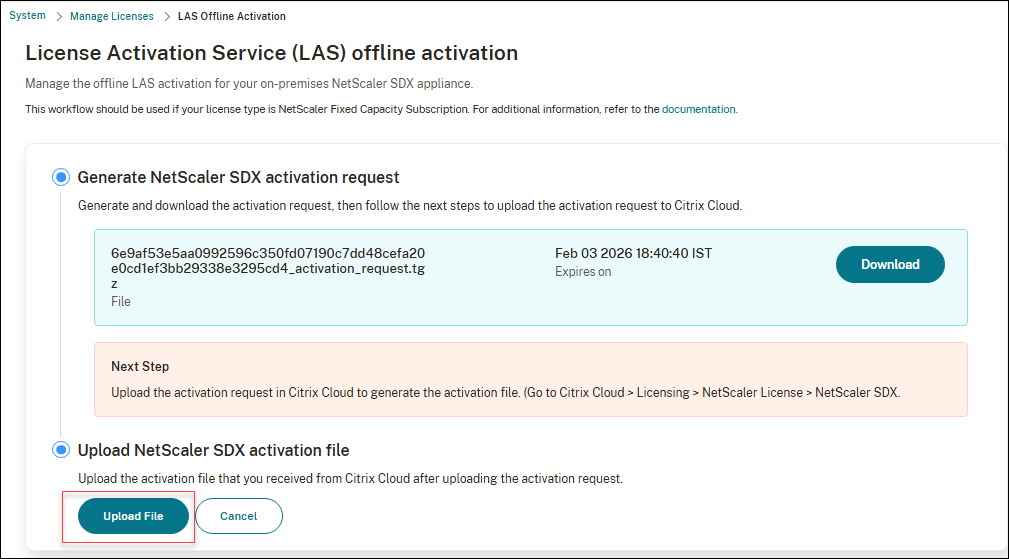
-
After you upload the activation file, confirm the activation by clicking Yes.
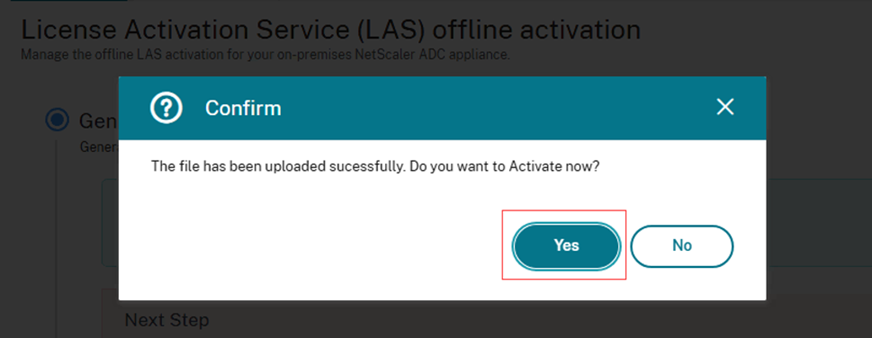
Step 5: Your NetScaler SDX is now licensed through LAS.
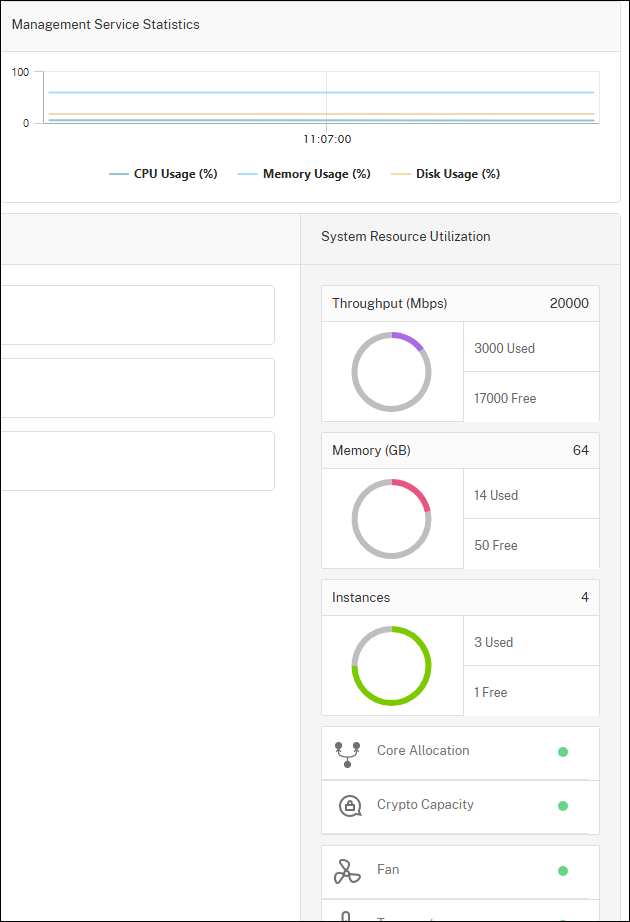
Step 6: Monitor and manage license activation file or blob to ensure continuous operation.
The license activation file or blob remains valid for one year. You can view both the last renewal or activation date and the upcoming renewal or activation date in the interface.
To maintain continuous NetScaler functionality, click Renew Now and repeat Step 2 through Step 5 before the upcoming renewal date expires.
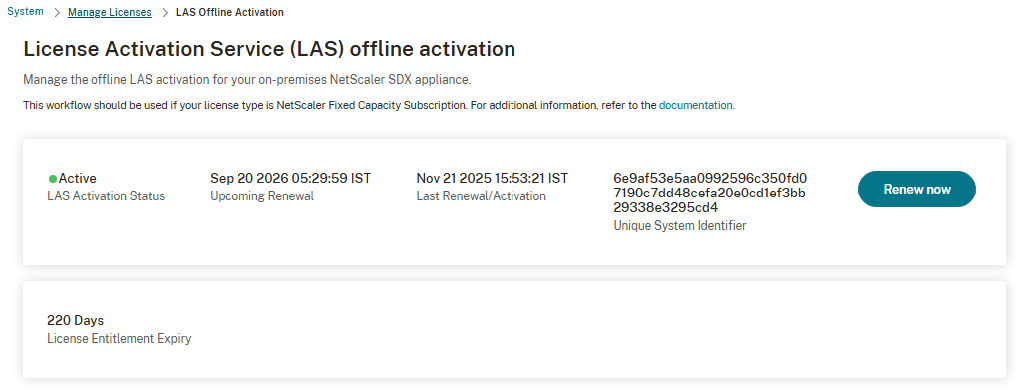
Important:
If you do not renew and apply the license activation file or blob in time, NetScaler becomes unlicensed.
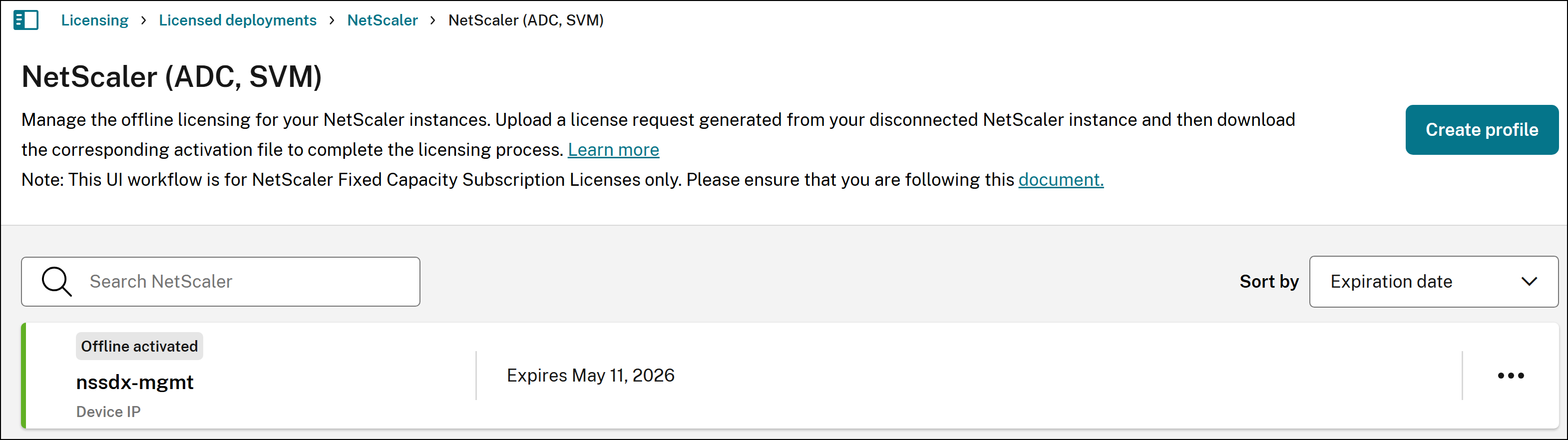
Step 7: View LAS activation blobs by logging into Citrix Cloud and navigating to Licensing > NetScaler licenses > NetScaler SDX.
Note:
By default, LAS uses a system identifier (
lsguid) to identify the NetScaler deployment for the activation blob listing.
If the host name is selected instead of the system identifier (lsguid), the host name appears in the NetScaler GUI field.
Note:
Delete the local file-based license(s) on SVM once the migration to LAS is complete. The file-based licenses are located in the SVM folder
/mpsconfig/licenseand must be deleted from this folder using the shell prompt.
License activation file behavior and expiry
The license activation file or blob remains valid for one year from the date of generation. Customers are responsible for tracking the upcoming renewal date and renewing the file before it expires.
Important:
Failure to renew the license activation file before its expiration date results in the NetScaler becoming unlicensed.
License contract expiry
The number of days remaining until your license contract expires, is shown under License Entitlement Expiry by navigating to System > Licenses > LAS offline activation.
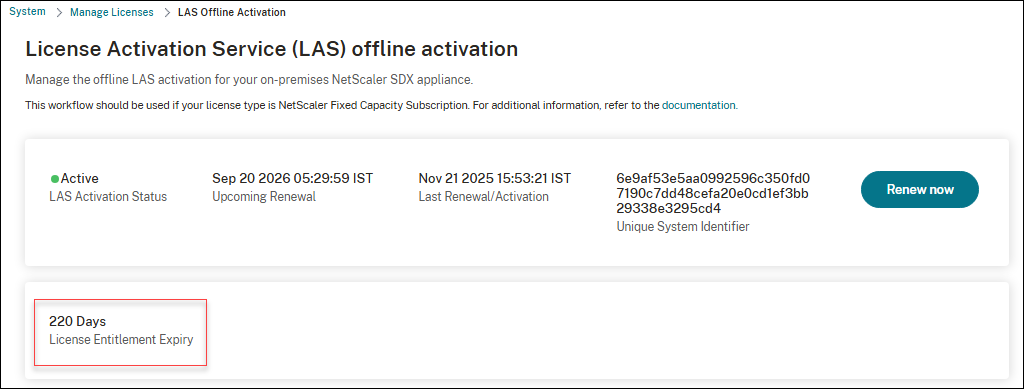
To ensure smooth functioning of your NetScaler, you must renew your license contract and complete the steps outlined in the Transition to LAS by using the NetScaler GUI section before your license contract expires:
Important
If the license contract is not renewed in time, your NetScaler becomes unlicensed.
NetScaler instance stops its normal operations after the license expiry, including configuration loss and complete shutdown of traffic processing.
Information sent to LAS during LAS licensing workflow
This section details all information sent as part of the request for an activation blob to LAS during every initial request and each LAS activation blob refresh request.
The following table summarizes the parameters sent to LAS during the licensing workflow.
| Parameter | Description | Need for it in LAS workflow |
|---|---|---|
| type | Hardcoded to identify the LAS deployment type for offline NetScaler | For LAS-side tracking |
| lsguid/lsid | Unique ID for NetScaler | LAS binding parameter |
| NSIP and hostname | Current hostname of NetScaler in the IP_hostname format | For LAS-side tracking |
| lsbuild | NetScaler version and build | For LAS-side tracking |
| requesttime | Timestamp when the request package (tgz) was created |
LAS binding parameter |
| orgid | Organization ID of the customer | LAS binding parameter |
| ccid | CC ID of the customer | LAS binding parameter |
| platform | NetScaler form factor and model | LAS binding parameter |
| burnindate | Software release date for the NetScaler version and build | For LAS-side tracking |
| lastactivationid | Previous LAS activation ID sent during renewal | LAS binding parameter |
| uiver | Ensures file integrity verification | File integrity verification |
Configure LAS activation identifier
Starting from NetScaler ADC or Management Service (SVM) 14.1-60.57, NetScaler ADC or Management Service 13.1-61.26, and NetScaler FIPS 13.1-37.259, the LAS-based licensing workflow for NetScaler (ADC or Management Service) deployments no longer uses the IP address and host name. Instead, a system identifier (lsguid) is used by LAS to uniquely identify the NetScaler (ADC or Management Service) deployment.
To use the host name instead of the system identifier (lsguid), manually select the Use hostname for LAS activation blob workflow option from the NetScaler GUI.
To activate the host name for LAS activation
- Navigate to System > Licenses > LAS Activation.
- Turn the Use hostname for LAS activation blob workflow toggle ON.