
Configure load balancing servers for Microsoft Exchange with Email Security Filtering
-
On the Home tab, in MDM Server LB, click Configure.
-
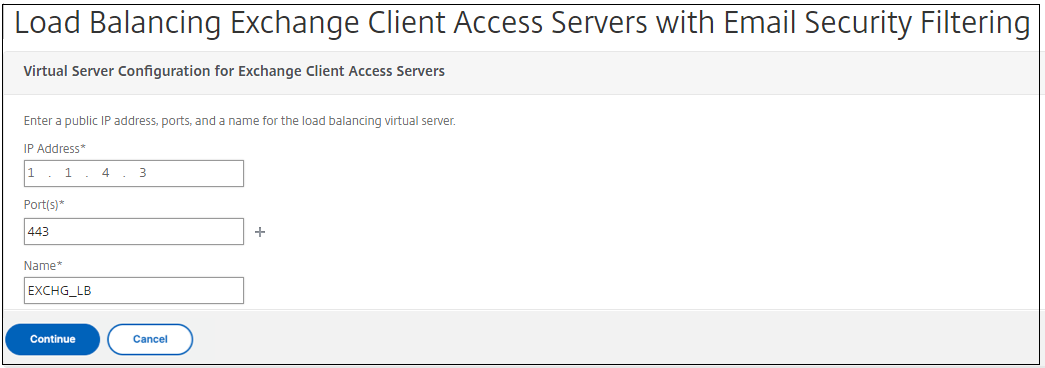
Under LB Virtual Server for Exchange CAS, in Name, type a name for the server.
-
In IP Address, type the IP address for the virtual server.
-
In Port, type the port number. To add more ports, click the plus (+) sign and then type the port number.
-
Click Continue.
-
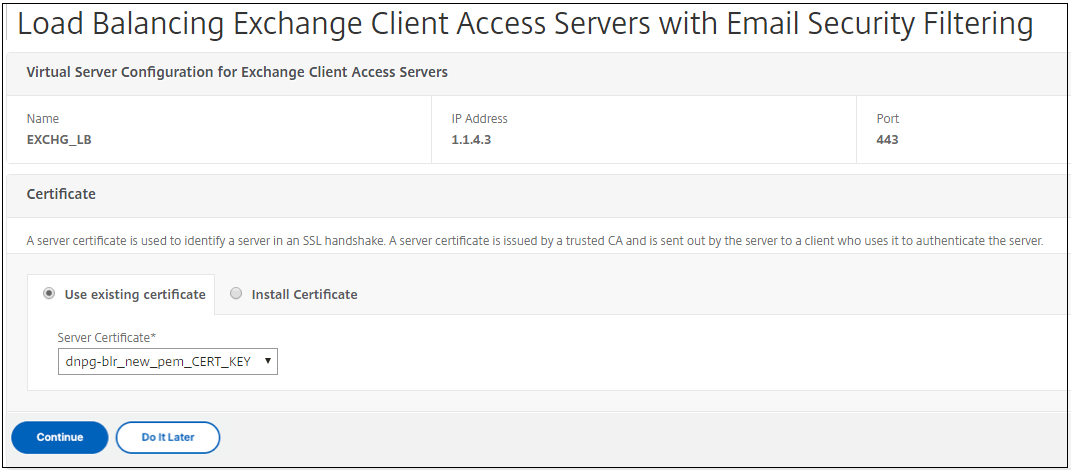
Under Certificates, either choose an existing certificate or install one that's on your computer (Local) or on the {{page.citrix-adc-generic}} appliance (Appliance).
-
Click Continue.
-
Under Exchange {{page.citrix-analytics-service-short}} Instances, type a name, IP address, and port number for the virtual server. Then, click Add and Continue.
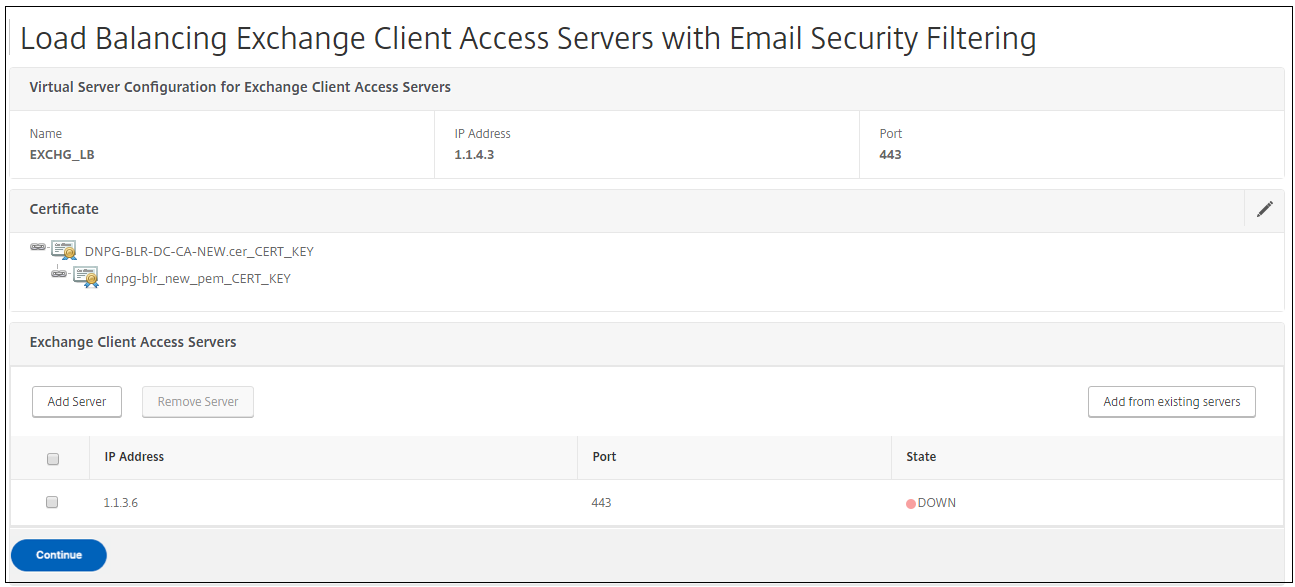
When you click Done, the fields for configuring the Citrix Endpoint Management {{page.citrix-adc-generic}} Connector (XNC) ActiveSync Filtering appear.