SDX Licensing Overview
Important:
File-based licensing system (also referred to as manually managed entitlements), traditionally used for activating various on-premises components, will be End of Life (EOL) on April 15, 2026. License Activation Service (LAS) is the next generation technology for product activations across the suite of Citrix products. LAS will be the only way to activate and license NetScaler instances after April 15, 2026, supporting NetScaler Flexed licenses (CPL/UHMC), legacy NetScaler Pooled licenses, and NetScaler Fixed term Bandwidth licenses. To remain supported, your NetScaler and NetScaler Console deployments must be on a LAS compatible version.
The minimum required NetScaler® versions that are LAS compatible are:
NetScaler ADCs: 14.1-51.x, 13.1-60.x, 13.1-37.246 (FIPS), 14.1–66.68 (FIPS)
NetScaler SVM: 14.1-51.x, 13.1-60.x
NetScaler Console Service: Supported from early September 2025.
NetScaler Console on-prem: 14.1-51.x
Note: LAS support for Console on-prem is from release 14.1-51.x onwards. However, file-based licensing is deprecated as of April 15 2026 from Console on-prem releases 14.1-51.x onwards and 13.1-60.x onwards. If you upgrade to Console on-prem release 14.1-51.x or release 13.1-60.x or later, you can continue using file-based licensing until 15th April 2026. However you must upgrade to Console on-prem release 14.1-51.x or later, and switch to LAS before 15th April 2026 because Console on-prem 13.1 does not support LAS.
All the other forms of legacy NetScaler licenses such as Pooled vCPU, CICO, perpetual will not be supported with LAS. NetScaler instances leveraging perpetual licenses without an active maintenance will become unlicensed upon upgrade to the above mentioned software versions.
LAS based licenses may not be available to customers where prohibited by law or regulations.
If you have questions or concerns, contact Customer Care. Citrix may limit or suspend your Citrix Maintenance for non-compliance with these requirements without liability in addition to any other remedies Citrix may have at law or equity. These requirements don’t apply where prohibited by law or regulation.
License Activation Service
License Activation Service (LAS) is a new cloud-based licensing solution that provides an alternative to traditional file-based licensing. LAS introduces new modules for activation of Citrix and NetScaler products, ensuring a seamless and modern approach to license management.
Note:
LAS is a licensing mechanism, not a license type.
For more information, see License Activation Service.
Managing licenses on the SDX appliance
Note:
For licensing details, see the NetScaler SDX Management Service user interface.
In the NetScaler SDX Management Service, you can use your hardware serial number (HSN) or your license access code to allocate your licenses. The Management Service software internally fetches the serial number of your appliance, and Citrix sends the license access code by email when you purchase a license.
Alternatively, if a license is already present on your local computer, you can upload it to the appliance.
For all other functionality, such as returning or reallocating your license, you must use the licensing portal. Optionally, you can still use the licensing portal for license allocation. For more information, see Manage Licenses on citrix.com.
For information about SDX licensing options, see:
Note: Installing a perpetual or pooled license doesn’t require a reboot of the SDX appliance.
Prerequisites
To use the hardware serial number or license access code to allocate your licenses:
- You must be able to access public domains through the appliance. For example, the appliance must be able to access www.citrix.com. The license allocation software internally accesses the Citrix licensing portal for your license. To access a public domain, you must configure the Management Service IP address and set up a DNS server.
- Your license must be linked to your hardware, or you must have a valid license access code.
Allocating your license by using the Management Service
If your license is already linked to your hardware, the license allocation process can use the hardware serial number. Otherwise, you must type the license access code.
You can partially allocate licenses as required for your deployment. For example, if your license file contains 10 licenses, but your current requirement is for only six licenses, you can allocate six licenses now, and allocate more licenses later. You cannot allocate more than the total number of licenses present in your license file.
To allocate your license
- In a web browser, type the IP address of the Management Service of the SDX appliance (for example, http://10.102.126.251).
- In User Name and Password, type the administrator credentials.
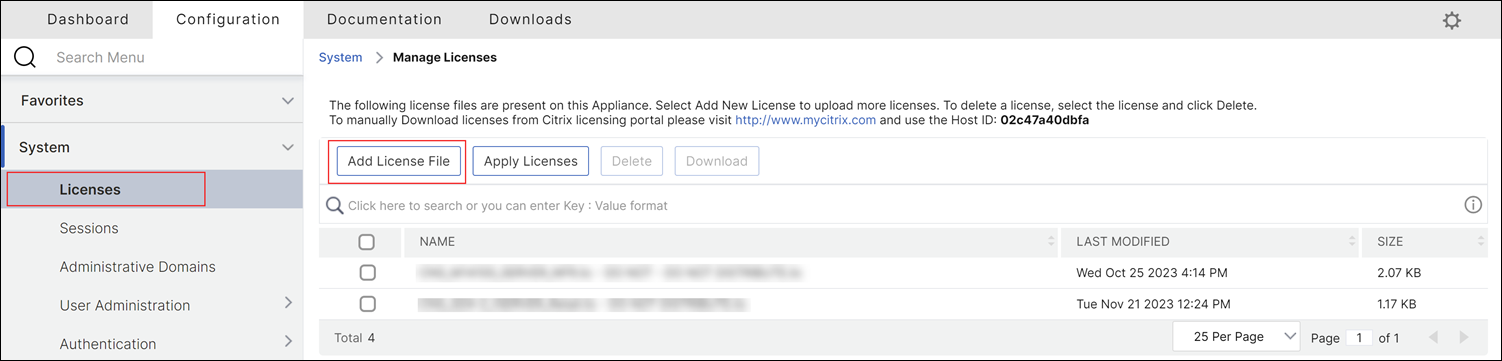
- On the Configuration tab, navigate to System > Licenses.
-
In the details pane, click Add License File.
-
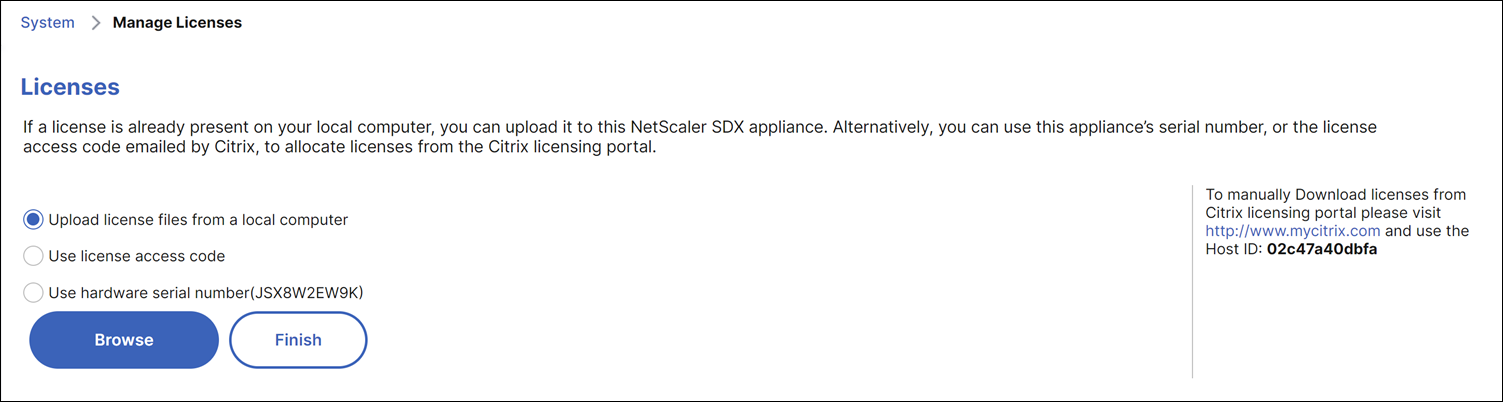
Next, select one of the options:
- Upload license files from a local computer (this option is selected by default)
- Use license access code
- Use hardware serial number
-
Upload license files from a local computer: If you choose this option, click Browse to select the zero-capacity license from your local machine. Then, click Finish.
- Once the zero-capacity license is applied successfully, the License Mode section appears on the Licenses page.
- You can choose either Pooled Licenses or Self Managed Pool Licenses.
- In the Licensing Server Name or IP Address field, enter the license server details.
- In the Port Number field, enter the license server port. Default value: 27000.
- Click Get Licenses.
- In the Allocate Licenses window, specify the required instances and bandwidth, and click Allocate.
- On the Manage Licenses page, you can view the details of the license server, license edition, and the allocated instances and bandwidth from the pool.
Note:
From NetScaler release 13.1 build 30.x and later, NetScaler SDX appliance supports Self-Managed Pool license. With this license, you can simplify and automate license file uploads to the license server. You can use NetScaler Console to create a licensing framework that comprises a common bandwidth or vCPU and instance pool.
-
Use license access code: If you select this option, either provide the LAC in the License Access Code field, or select the checkbox to connect through a proxy server. Next, click Get Licenses.
- Select the license file that you want to use to allocate your licenses.
- In the Allocate column, enter the number of licenses to be allocated. Next, click Download.
If the license is downloaded, it appears under License Files. Select the license file and click Apply Licenses.
-
Use hardware serial number: If you choose this option, the software internally fetches the serial number of your appliance and uses this number to display your licenses.
- Click Get Licenses, or select the check box for Connect through Proxy Server and then click Get Licenses.
After you’ve downloaded the license file, select the license file and click Apply Licenses.
For information about pooled licensing, see Upgrade a perpetual license in a NetScaler SDX to NetScaler pooled capacity.
License expiry and restriction on data traffic processing
Starting from NetScaler release 14.1-38.x, when an SDX pooled license expires, the throughput of a VPX instance is immediately limited to 20 Mbps. This feature is available for both pooled and fixed licenses in NetScaler 14.1-43.x and later. However, in NetScaler 14.1-38.x, it is only available for pooled licenses.
Users can view the remaining days until a pooled or flexed license expires under System > Licenses. This information is updated every 24 hours. The system checks for expiration 30 days before the expiry date and sends renewal alerts every 24 hours until the license is renewed.
When the SDX license expires, the Management Service enforces a throughput limit of 20 Mbps for the associated VPX instances. This restriction takes effect immediately, without requiring a restart of the Management Service. Previously, this restriction was effective only after a restart of the Management Service and the throughput was reduced to 1 Mbps.