
How to reset the password for NetScaler® ADM
The procedure to reset the password for NetScaler ADM might differ on hypervisors where it is hosted. If you have changed your default password and want to reset to default password, you can reset the password by rebooting the NetScaler ADM node.
Citrix Hypervisor™ using XenCenter:
-
Log on to Citrix Hypervisor using XenCenter.
-
Select the NetScaler ADM node, right-click, and select Reboot.
-
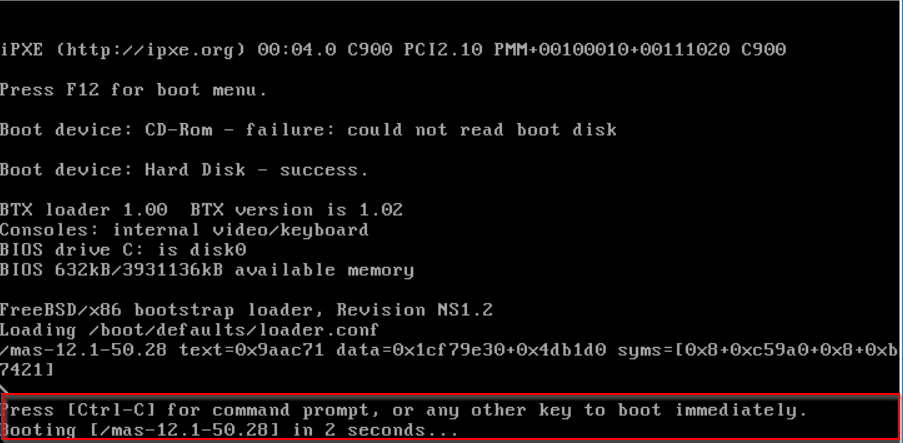
On the Console tab, press CTL + C to interrupt the boot sequence.
-
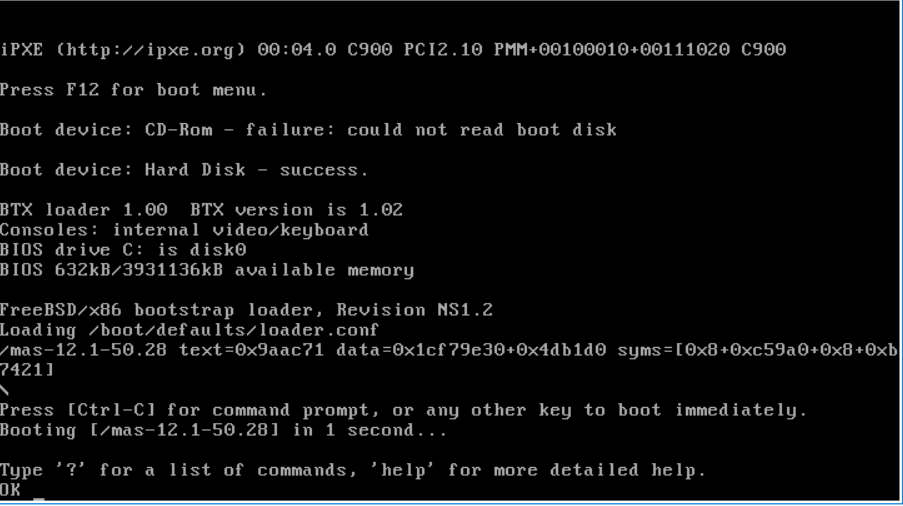
Run boot -s command at the OK prompt.
 NetScaler ADM reboots and displays the following message: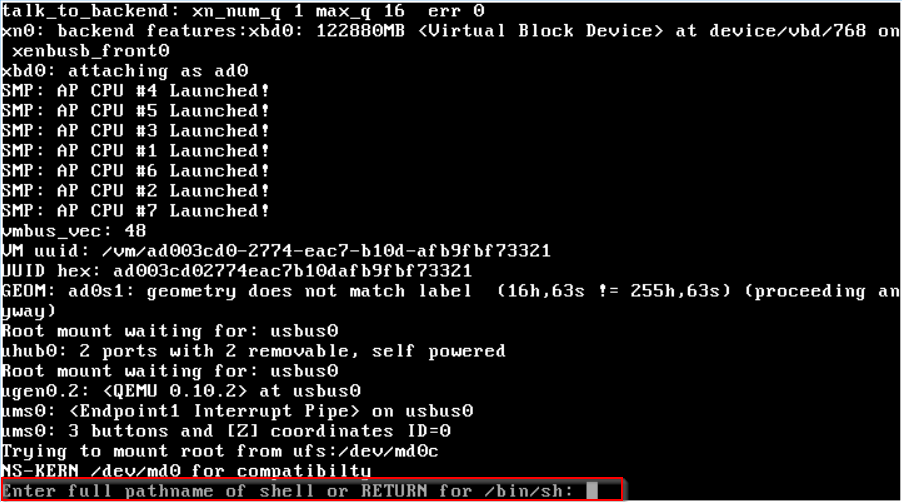
-
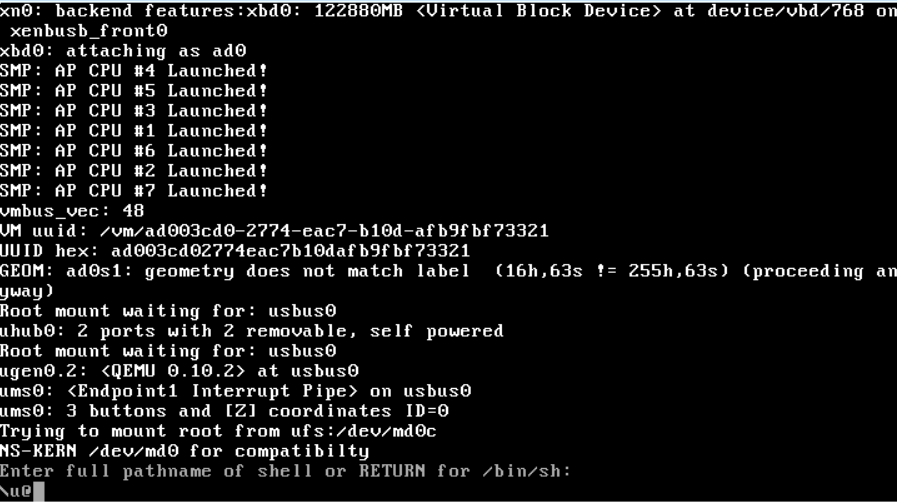
Press Enter to get the /u@ prompt.
-
Mount the flash partition using the following command:
mount /dev/da0s1a /flash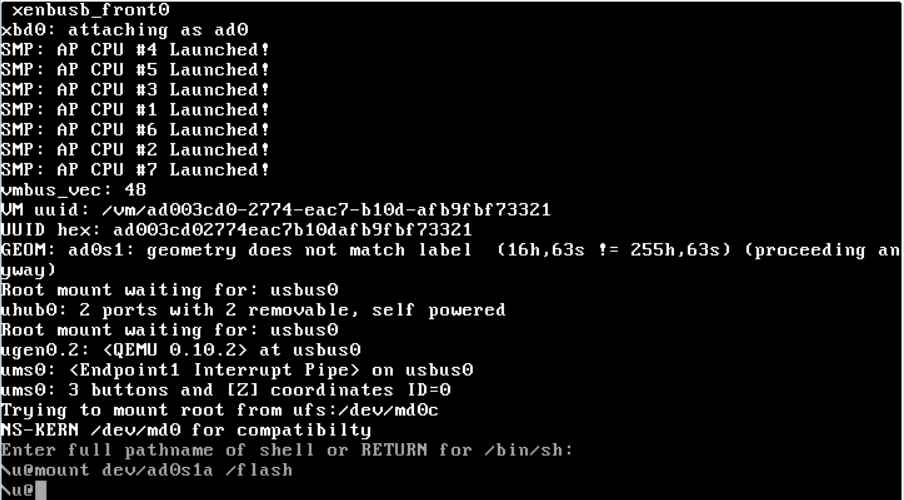
-
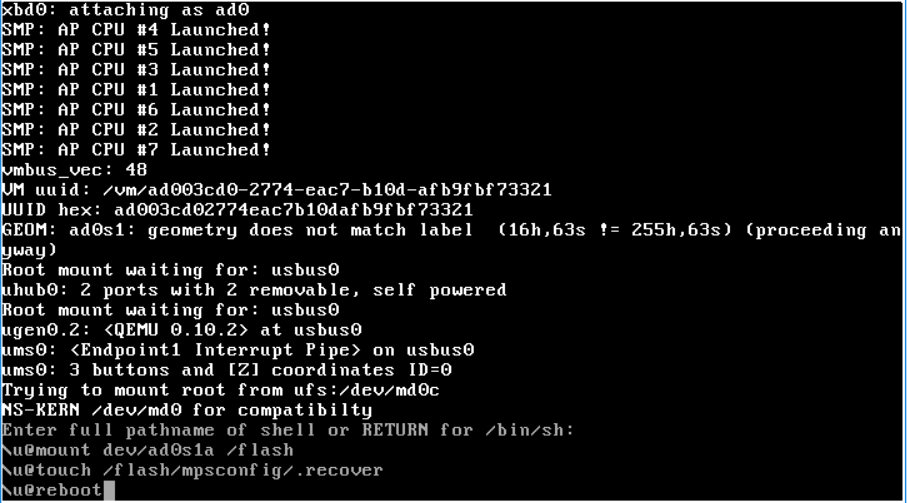
Create a file using the following command:
touch /flash/mpsconfig/.recoverThe password is now reset to default password. -
Run the Reboot command to reboot NetScaler ADM.
-
Access the NetScaler ADM GUI and wait until the reboot is complete.
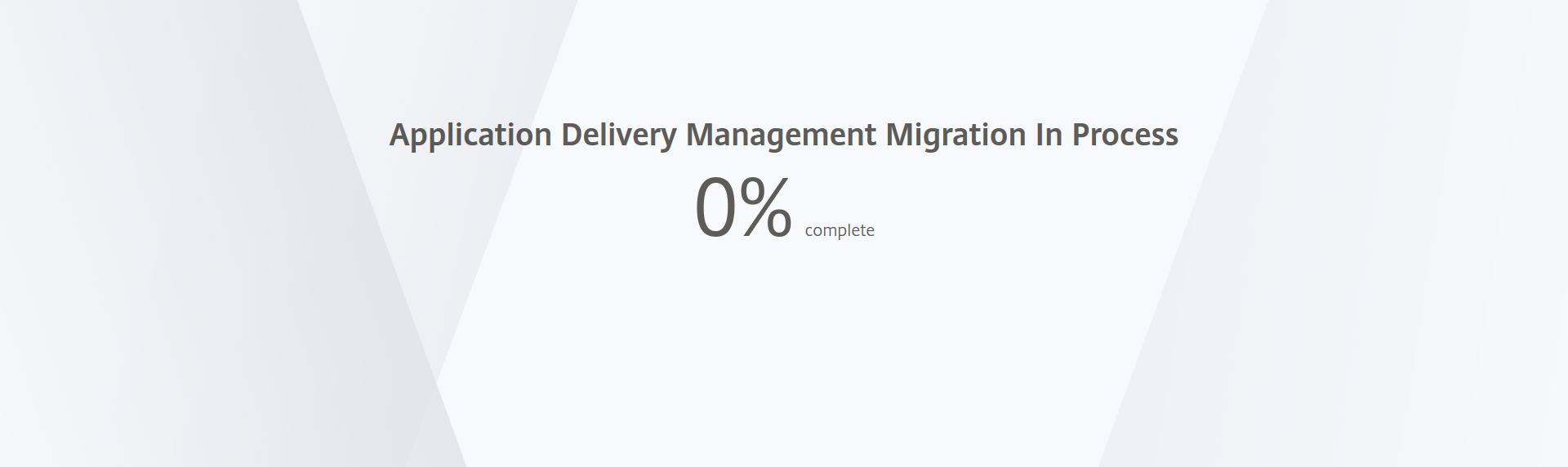 You can now use nsroot/nsroot credentials to log on from GUI and nsrecover/nsroot to log on from hypervisor.NoteAfter you reboot, if the password has not reset to default password, repeat the same procedure (step 1 to step 7). Then, run the following commands and reboot NetScaler ADM:
-
rm /flash/mpsconfig/master.passwd -
rm –rf /etc/passwd
-
Esx using vSphere:
-
Log on to ESX using vSphere.
-
Select the NetScaler ADM node, right-click, and then select Reboot.
-
On the Console tab, press CTL + C to interrupt the boot sequence.
-
Run boot -s command in the OK prompt.The NetScaler ADM reboots.
-
Press Enter to get the /u@ prompt.
-
Mount the flash partition using the following command:
mount dev/da0s1a /flash -
Create a file using the following command:
touch /flash/mpsconfig/.recoverThe password is now reset to default password. -
Run the Reboot command to reboot NetScaler ADM.
-
Access the NetScaler ADM GUI and wait until the reboot is complete.
You can now use nsroot/nsroot credentials to log on from GUI and nsrecover/nsroot to log on from ESX server.NoteAfter you reboot, if the password has not reset to default password, repeat the same procedure (step 1 to step 7). Then, run the following commands and reboot NetScaler ADM:
-
rm /flash/mpsconfig/master.passwd -
rm –rf /etc/passwd
-
Hyper-v using Hyper-v manager:
-
Log on to hyper-v using hyper-v manager.
-
Select the NetScaler ADM node, right-click, and then select Reboot.
-
On the Console tab, press CTL + C to interrupt the boot sequence.
-
Run the boot -s command at the OK prompt.The NetScaler ADM reboots.
-
Press Enter to get the /u@ prompt.
-
Mount the flash partition using the following command:
mount dev/ad0s1a /flash -
Create a file using the following command:
touch /flash/mpsconfig/.recoverThe password is now reset to default password. -
Run the Reboot command to reboot NetScaler ADM.
-
Access the NetScaler ADM GUI and wait until the reboot is complete.
You can now use nsroot/nsroot credentials to log on from GUI and nsrecover/nsroot to log on from hyper-v manager.NoteAfter you reboot, if the password has not reset to default password, repeat the same procedure (step 1 to step 7). Then, run the following commands and reboot NetScaler ADM:
-
rm /flash/mpsconfig/master.passwd -
rm –rf /etc/passwd
-
Linux KVM server (SSH to KVM Server by using any SSH client):
-
Log on to NetScaler ADM using an SSH client to the KVM server.
-
Reboot NetScaler ADM.
-
Press CTL + C to interrupt the boot sequence shortly after the Loading /boot/defaults/loader.conf message is displayed.
-
At the OK prompt, run the following command:
set console='comconsole,vidconsole' -
Run the boot -s command to reboot NetScaler ADM.
-
After the Enter full path of shell or RETURN for /bin/sh: message is displayed, press Enter to get the /u@ prompt.
-
Mount the flash partition using the following command:
mount dev/vtbd0s1a /flash -
Create a file using the following command:
touch /flash/mpsconfig/.recoverThe password is now reset to default password. -
Run the Reboot command to reboot NetScaler ADM.
-
Access the NetScaler ADM GUI and wait until the reboot is complete.
You can now use nsroot/nsroot credentials to log on from GUI and nsrecover/nsroot to log on from the SSH console.NoteAfter you reboot, if the password has not reset to default password, repeat the same procedure (step 1 to step 7). Then, run the following commands and reboot NetScaler ADM:
-
rm /flash/mpsconfig/master.passwd -
rm –rf /etc/passwd
-