
Add NetScaler VPX instances deployed in cloud to NetScaler ADM
You can use NetScaler ADM to manage and monitor the NetScaler VPX instances deployed on a public cloud such as Amazon Web Services (AWS), Microsoft Azure, or Google Cloud. You need to establish Layer 3 connectivity between NetScaler ADM and the NetScaler VPX instances deployed on the public cloud. To establish the Layer 3 connectivity, you can use solutions such as Direct Connect to AWS, VPN in Azure, or third-party connectors such as Equinix and so on.
The following sample topology uses Citrix CloudBridge Connector for Layer 3 connectivity between NetScaler ADM and the NetScaler VPX instances deployed in the cloud.
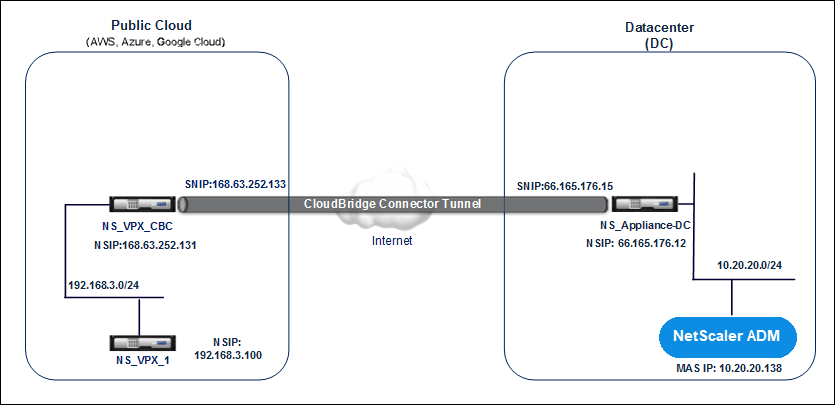
A Citrix CloudBridge Connector tunnel is set up between NetScaler appliance NS\_Appliance-DC, in a data center DC, and NetScaler virtual appliance (VPX) NS\_VPX\_CBC in the public cloud. NS\_Appliance-DC and NS\_VPX\_CBC enable the communication between NetScaler ADM and the NetScaler VPX instance, NS\_VPX\_1, deployed in the public cloud. After the communication is established, you can discover NS\_VPX\_1 in NetScaler ADM.
To configure this topology:
-
Install, configure, and start a NetScaler VPX instance in the public cloud.
-
For instructions, see Install NetScaler VPX on AWS.
-
For instructions, see Install NetScaler VPX on Microsoft Azure.
-
For instructions, see Install NetScaler VPX on Google Cloud.
-
-
Deploy and configure a NetScaler physical appliance, or provision and configure a NetScaler virtual appliance (VPX) on a virtualization platform in the data center.
-
For instructions, see Install a NetScaler VPX instance on Citrix Hypervisor.
-
For instructions, see Install Citrix virtual appliances on VMware ESXi.
-
For instructions, see Install NetScaler virtual appliances on Microsoft Hyper-V.
-
-
Configure the Citrix CloudBridge Connector between the data center and the public cloud. For instructions, see Configuring Citrix CloudBridge Connector.
-
Configure the static route for establishing connection between NetScaler ADM and the NetScaler VPX instances deployed on the cloud, as follows:
-
Log on to NetScaler® ADM.
-
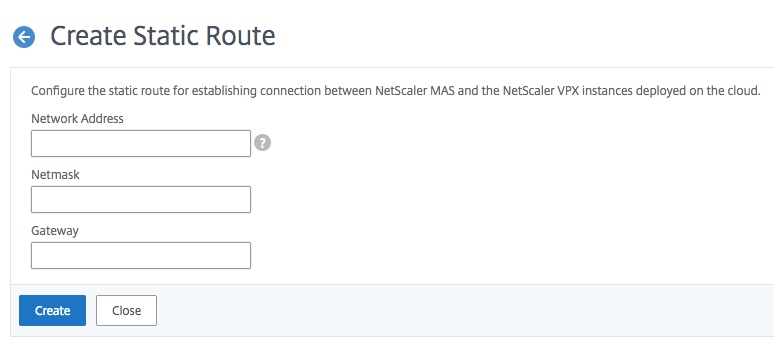
Navigate to System \> Static Routes and click Add.
-
In the Network Address field, enter the address of the network that you want to establish a static route from NetScaler ADM through the connector.
-
In the Netmask field, enter the netmask for the network.
-
In the Gateway field, enter the address of the gateway.
-
-
Add the NetScaler VPX cloud instances to the NetScaler ADM by specifying the range of IP addresses of NetScaler VPX instances in the public cloud. For detailed instructions, Add Instances to NetScaler ADM.