Install NetScaler VPX on Red Hat OpenShift Virtualization
NetScaler offers a dedicated VPX image for Red Hat OpenShift Virtualization (RHOV), significantly improving the deployment and management experience. You can now deploy instances using the RHOV console. Customers receive official support and access to all necessary resources. This ensures that you can deploy seamlessly on RHOV infrastructure.
Important:
RHOV support is available in NetScaler release 14.1 build 66.64 and later. After General Availability (GA), you can use the RHOV image to deploy NetScaler VPX virtual machines on RHOV.
System requirements
The CPU and memory requirements for deploying NetScaler VPX on RHOV depend on the VPX model and expected workload.
- CPU: At least 2 vCPUs
- Memory: At least 4 GB RAM
- Storage: A minimum of 20 GB disk space
Install NetScaler VPX instances on RHOV
Follow this step-by-step procedure to install NetScaler VPX on the RHOV console.
Step 1. Prepare the environment.
- Ensure that your RHOV cluster is up and running.
- Verify that you have administrator access to create the VMs.
- Ensure that you have the virtualization operator enabled to create and manage VMs.
Step 2. Obtain the NetScaler VPX image.
-
Navigate to Citrix.com > Downloads > NetScaler > Virtual Appliances, and download the NetScaler VPX image compatible with RHOV from the Citrix Downloads page.
-
Extract the downloaded “NSVPX-RHOV-
<version-build>_lx_64.tgz” file to get the qcow2 image file.
Step 3: Upload the image to RHOV bootable volume.
- Log in to your Red Hat OpenShift console.
- In the dashboard, navigate to Virtualization > Bootable Volumes.
- Click Add volume in the top-right corner and select With Form.
-
Upload the NetScaler VPX image file.
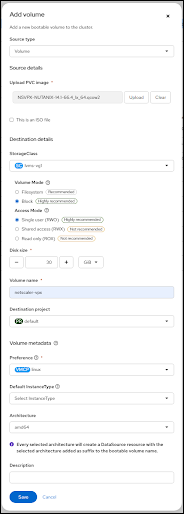
- Enter a name for the volume.
- Click Save.
Step 4. Create the NetScaler VPX VM.
You can create the VM using either the Instance Type or YAML configuration.

Option 1. Create VM from instance type:
- Go to Virtualization > VirtualMachine and click Create.
- Select From InstanceType.
-
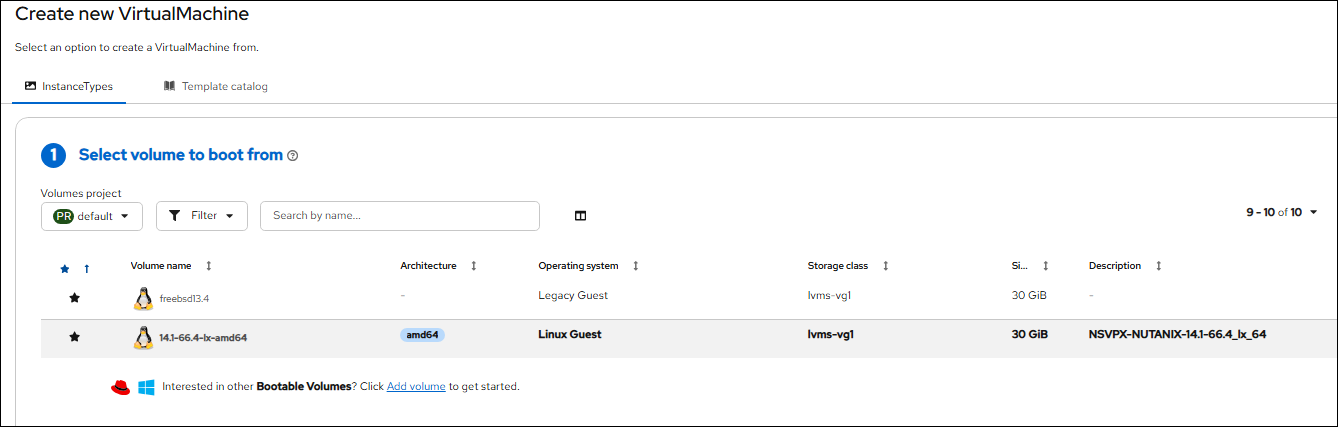
Select the bootable volume that you created in step 3.
-
Select an instance type that matches the VM hardware specifications for your VPX model. For details, see System requirements.
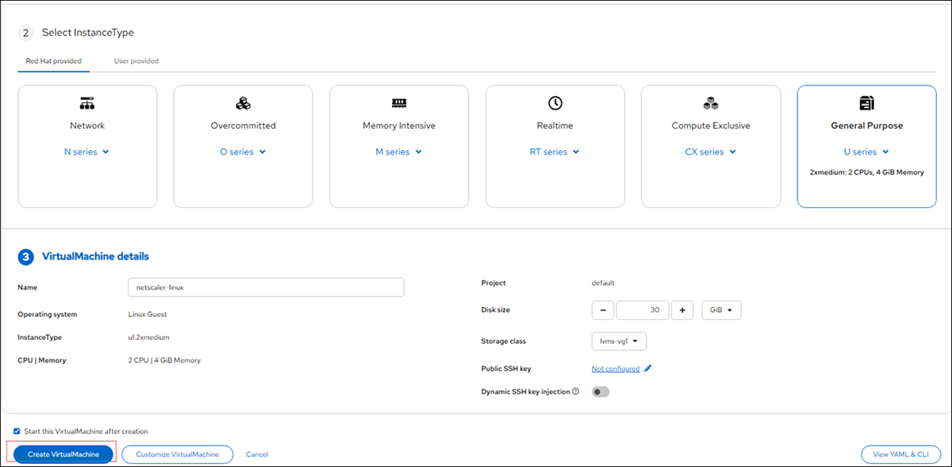
- Enter a name for the VM.
- Click Create VirtualMachine.
Option 2. Create VM with YAML:
- Go to Virtualization > VirtualMachine and click Create.
- Select With YAML.
- Edit the required fields with your values.
-
Update the boot disk to point to the NetScaler image you imported in Step 3.
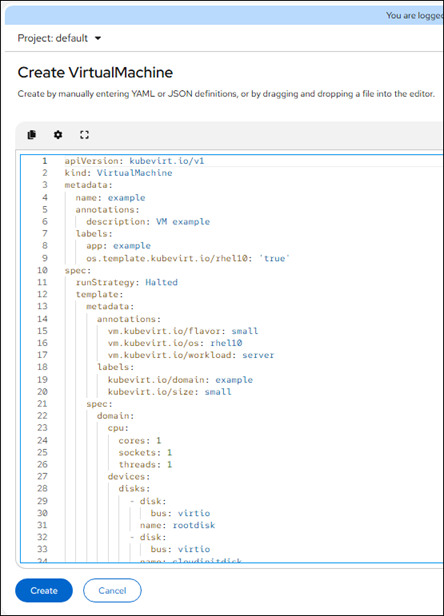
Sample YAML file:
apiVersion: kubevirt.io/v1 kind: VirtualMachine metadata: name: <vm-name> annotations: description: <VM description> labels: app: default os.template.kubevirt.io/rhel10: 'true' spec: runStrategy: Once template: metadata: annotations: vm.kubevirt.io/flavor: small vm.kubevirt.io/os: rhel10 vm.kubevirt.io/workload: server labels: kubevirt.io/domain: default kubevirt.io/size: small spec: domain: cpu: cores: <2> sockets: 1 threads: 1 devices: disks: - disk: bus: virtio name: <disk-name> interfaces: - masquerade: {} model: virtio name: default networkInterfaceMultiqueue: true rng: {} memory: guest: <4Gi> hostname: <vm-name> networks: - name: default pod: {} terminationGracePeriodSeconds: 180 volumes: - name: <diskname> persistentVolumeClaim: claimName: <14.1-66.4-lx-amd64> <!--NeedCopy--> - Click Create.
Step 5. Configure the NetScaler VPX VM.
- Go to Virtualization > Virtual Machine and select the newly created NetScaler VM.
- Verify that the VM is in the Power off state.
-
Click Configuration. Review the configuration options in the Network section and configure the VM interfaces: Management and Data.
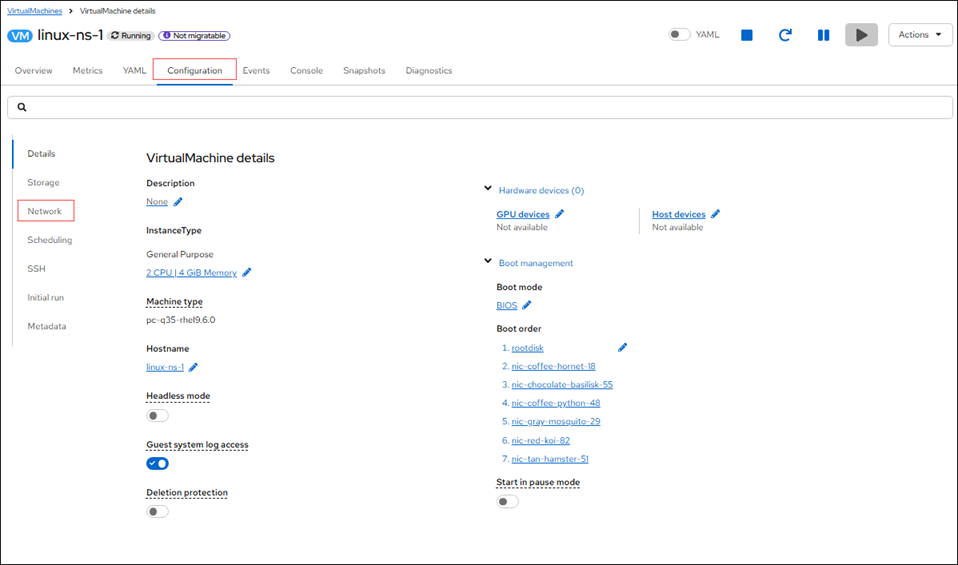
Step 6. Configure the management IP address.
-
During initial boot, NetScaler uses a default IP address for the management network. Follow these steps to configure the management IP address:
-
Set the management IP address and netmask by using the following command:
set ns config -IPAddress <ip> -netmask <mask> <!--NeedCopy--> -
Add the default route by using the following command:
add route <network> <netmask> <gateway> <!--NeedCopy--> -
Save the configuration by using the following command:
save config <!--NeedCopy--> -
Reboot the VM for the changes to take effect.
-
Once the VPX instance is up, access the management interface using the NetScaler console or NSIP address.
Step 7: Finalize configuration.
After applying the licenses and configuring the network settings, set up NetScaler features like load balancing, SSL offloading, or application firewall as needed for your deployment.
Note:
RHOV deployments are tested and qualified with bare metal SNO clusters and general-purpose U-series instances.
Upgrade NetScaler VPX™ on RHOV
Step 1: Download the RHOV-specific NetScaler upgrade bundle.
-
Navigate to Citrix.com > Downloads > NetScaler > Virtual Appliances, and download the NetScaler VPX upgrade bundle compatible with RHOV from the Citrix Downloads page.
Note:
When upgrading NetScaler VPX on RHOV, do not use the standard NetScaler upgrade bundle because the upgrade fails. Instead, ensure you use the RHOV-specific upgrade bundle named “build-<version-build>_lx_64.tgz” to avoid compatibility issues.
-
Copy and extract the downloaded “build-<version-build>_lx_64.tgz” file to
/var/nsinstall/directory in NetScaler VPX Shell. -
Run
./installnsand reboot to upgrade NetScaler VPX.
Unsupported features and limitations
For a list of NetScaler features, protocols, and system capabilities that are not supported in the NetScaler VPX deployment on RHOV, see Limitations for NetScaler VPX deployments on Red Hat OpenShift Virtualization and Nutanix AHV.
Note:
For NetScaler VPX deployments on RHOV, if you run the
clear configcommand, reboot the instance or set the TCP profile MSS value to1400.