
JSON SQL Injection protection check
An incoming JSON request can have SQL injection in the form of partial SQL query strings or unauthorized commands in the code. This leads to stealing of data from the JSON database of your web servers. On receiving such request, the appliance blocks such request to protection your data.
Consider a scenario, where a client sends a JSON SQL request to a NetScaler appliance, the JSON parser parses the request payload and if an SQL Injection is observed, the appliance enforces constraints on the JSON SQL content. The constraint enforces a size limit on the JSON SQL request. As a result, if any JSON SQL Injection is observed, the appliance applies an action and responds with the JSON SQL error page.
Configure JSON SQL Injection protection
For configure JSON SQL protection, you must complete the following steps:
-
Add application firewall profile as JSON.
-
Set application firewall profile for JSON SQL Injection settings
-
Configure JSON SQL action by binding the application firewall profile.
Add application firewall profile of type JSON
You must first create a profile that specifies how the application firewall must protect your JSON web content from JSON SQL Injection attack. At the command prompt, type:
add appfw profile <name> -type (HTML | XML | JSON)
Note:
When you set the profile type as JSON, other checks such as HTML or XML will not applicable.
Example
add appfw profile profile1 –type JSON
Configure JSON SQL Injection action
You must configure one or more JSON SQL Injection actions to protection your application from JSON SQL injection attacks. At the command prompt, type:
set appfw profile <name> - JSONSQLInjectionAction [block] [log] [stats] [none]
SQL Injection actions are: Block - Block connections that violate this security check. Log - Log violations of this security check. Stats - Generate statistics for this security check. None - Disable all actions for this security check.
Configure JSON SQL Injection type
To configure the JSON SQL Injection type on an application firewall profile, at the command prompt, type:
set appfw profile <name> - JSONSQLInjectionType <JSONSQLInjectionType>
Example
set appfw profile profile1 -JSONSQLInjectionType SQLKeyword
Where the available SQL Injection types are: Available SQL injection types. SQLSplChar. Checks for SQL Special Characters, SQLKeyword. Checks for SQL Keywords. SQLSplCharANDKeyword. Checks for both and blocks if found. SQLSplCharORKeyword. . Blocks if SQL special character or spl keyword is found. Possible values: SQLSplChar, SQLKeyword, SQLSplCharORKeyword, SQLSplCharANDKeyword.
Note: To enable one or more actions, type "set appfw profile - JSONSQLInjectionAction" followed by the actions to be enabled.
Example
set appfw profile profile1 -JSONSQLInjectionAction block log stat
The following example shows a sample payload, its corresponding log message and statistics counters:
Payload:
 =======
 {
   "test": "data",
   "username": "waf",
   "password": "select * from t1;",
   "details": {
     "surname": "test",
     "age": "23"
   }
 }

 Log Message:
 ===========
 08/19/2019:08:49:46 GMT pegasus121 Informational 0-PPE-0 : default APPFW APPFW_JSON_SQL 6656 0 :  10.217.32.165 18402-PPE0 - profjson http://10.217.32.147/test.html SQL Keyword check failed for object value(with violation="select(;)") starting at offset(52) <blocked>
 Counters:
 ========
    1  441083             1 as_viol_json_sql
    3       0             1 as_log_json_sql
    5       0             1 as_viol_json_sql_profile appfw__(profjson)
    7       0             1 as_log_json_sql_profile appfw__(profjson)
Configure JSON SQL Injection protection by using GUI
Follow the procedure below to set the JSON SQL Injection protection settings.
-
On the navigation pane, navigate to Security > Profiles.
-
In the Profiles page, click Add.
-
In the NetScaler Web App Firewall Profile page, click Security Checks under Advanced Settings.
-
In the Security Checks section, go to JSON SQL Injection settings.
-
Click the executable icon near the check box.
-
Click Action Settings to access the JSON SQL Injection Settings page.
-
Select the JSON SQL Injection actions.
-
Click OK.
-
In the NetScaler Web App Firewall Profile page, click Relaxation Rules under Advanced Settings.
-
In Relaxation Rules section, select JSON SQL Injection settings and click Edit.
-
In the JSON SQL Injection Relaxation Rule page, enter the URL to which the request has to be sent. All requests sent to this URL will not be blocked.
-
Click Create.
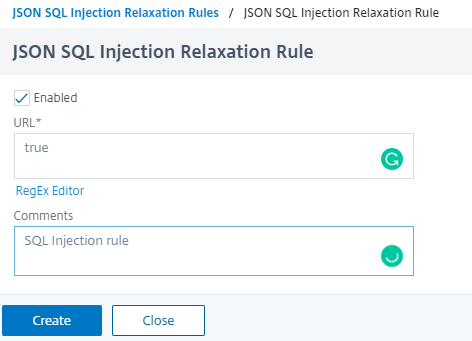
Configure fine grain relaxation for JSON SQL injection protection
The Web App Firewall gives you an option to relax a specific JSON key or value from the JSON based SQL Injection inspection check. You can configure multiple options to relax JSON payloads using fine grain relaxation rules.
Previously, the only way to configure relaxations for JSON protection checks is to specify the entire URL and that would bypass the verification of the entire URL.
The JSON based SQL security protection provides relaxation for the following:
-
Key names
-
Key values
JSON based SQL protection check enables you to configure relaxations that allow specific patterns and block the rest. For example, the Web App Firewall currently has a default set of more than 100 SQL keywords. Because hackers can use these keywords in SQL Injection attacks, the Web App Firewall flags all as potential threats. If you want to relax one or more keywords that are considered safe for the specific location, you can configure a relaxation rule that can bypass the security check and block the rest. The commands used in relaxations have optional parameters for Value Type and Value Expression. You can specify whether the value expression is a regular expression or a literal string. The value type can be left blank, or you have an option to select Keyword or Special String.
Note:
Regular expressions are powerful. Especially if you are not thoroughly familiar with PCRE-format regular expressions, double-check any regular expressions you write. Make sure that they define exactly the URL that you want to add as an exception, and nothing else. Careless use of wildcards, and especially of the dot-asterisk (.*) metacharacter or wildcard combination, can have results that you do not want, such as blocking access to web content that you did not intend to block or allowing an attack that the JSON SQL Injection check would otherwise have blocked.
Points to Consider
-
Value expression is an optional argument. A field name might not have any value expression.
-
A key name can be bound to multiple value expressions.
-
Value expressions must be assigned a value type. The value type can be: 1) Keyword, 2) SpecialString.
-
You can have multiple relaxation rules per key name or URL combination.
Configure JSON fine grain relaxation for command injection attacks using command interface
To configure JSON file grain relaxation rule, you must bind the fine grain relaxation entities to the Web App Firewall profile.
At the command prompt, type:
bind appfw profile <profile name> -jsoncmdURL <URL> -key <key name> -isregex <REGEX/NOTREGEX> -valueType <keyword/SpecialString> <value Expression> -isvalueRegex <REGEX/NOTREGEX>
Example:
bind appfw profile appprofile1 -jsonsqlurl www.example.com -key stn_name -isRegex NOTREGEX -valueType Keyword “union” -isvalueRegex NOTREGEX
To configure fine grain relaxation rule for JSON-based command injection attacks by using the GUI
-
Navigate to Application Firewall > Profiles, select a profile, and click Edit.
-
In the Advanced Settings pane, click Relaxation Rules.
-
In the Relaxation Rules section, select a JSON SQL Injection record and click Edit.
-
In the JSON SQL Injection Relaxation Rule slider, click Add.
-
In the JSON SQL Injection Relaxation Rule page, set the following parameters.
-
Enabled
-
Is Name Regex
-
Key Name
-
URL
-
Value Type
-
Comments
-
Resource ID
-
-
Click Create.