QUIC bridge configuration
To configure QUIC bridge, you must complete the following:
-
Add QUIC bridge profile
-
Add QUIC back-end servers
-
Add QUIC service on the appliance
-
Add load balancing virtual server of type QUIC bridge
-
Bind QUIC bridge to load balancing virtual server of type QUIC bridge
Important
Before you configure the QUIC bridge, ensure you first enable the load balancing feature on the appliance. For more information, see Set up basic load balancing.
Configure QUIC bridge by using the CLI
The following sections must be configured by using the CLI.
Add a QUIC bridge profile
Add a QUIC bridge profile.
At the command prompt, type:
add quicBridge profile <name> -routingAlgorithm <PLAINTEXT> -serveridlen <value>
Example:
add quicBridge profile q1 -routingAlgorithm PLAINTEXT -serveridlen 6
Note
The
serveridlen parameter configured in the example is the length of a custom server ID, which is the hex string of IP and PORT.
Add QUIC back-end application server
Add QUIC back-end application servers.
At the command prompt, type:
-  add server <name> (<IPAddress>)
 -  add server <name> (<IPAddress>)
Example:
-  add server s1 192.0.2.20
 -  add server s2 192.0.2.30
Add QUIC bridge service
You must add QUIC bridge service to the application servers.
At the command prompt, type:
-  add service  <name>  (<IP> | <serverName>) <serviceType> <port> [-CustomServerID <string>]

 -  add service  <name>  (<IP> | <serverName>) <serviceType> <port> [-CustomServerID <string>]
Example:
-  add service src1 s1 QUIC_BRIDGE 443 -CUSTOMSERVERID C0A8026401BB

 -  add service src2 s2 QUIC_BRIDGE 443 -CUSTOMSERVERID C0A802C801BB
Note
The
CustomServerID parameters configured in the preceding example are the hex string of a corresponding IP and the PORT of the server (s1 and s2). For the QUIC bridge feature, Citrix recommends you to configure the CustomServerID parameter in the hex string format only.
Add a load balancing virtual server of type QUIC bridge
You must add a load balancing virtual server of type QUIC bridge.
At the command prompt, type:
add lb vserver <name> [<IPAddress>@ <port>] [-persistenceType < persistenceType >] [-lbMethod < lbMethod >] [-rule <rule>] [-cltTimeout <secs>] [-quickBridgeProfilename <name>]
Example:
add lb vserver quic_bridge_vip QUIC_BRIDGE 192.0.2.10 443 -persistenceType CUSTOMSERVERID -lbMethod TOKEN -rule QUIC.CONNECTIONID -cltTimeout 120 -quicBridgeProfilename q1
Note
While configuring the QUIC bridge virtual server, you must configure a
persistenceType parameter as CUSTOMSERVERID, rule parameter as QUIC.CONNECTIONID, and a LbMethod parameter as TOKEN.
Bind QUIC bridge service to the load balancing virtual server of type QUIC bridge
You must bind the QUIC bridge service to the load balancing virtual server of type QUIC bridge.
At the command prompt, type:
-  bind lb vserver <name> (<serviceName>)

 -  bind lb vserver <name> (<serviceName>)
Example:
-  bind lb vserver quic_bridge_vip src1

 -  bind lb vserver quic_bridge_vip src2
Configure QUIC bridge for service groups
You can also configure QUIC bridge capabilities to service groups. The following steps guide you to configure QUIC bridge for service groups.
To configure QUIC bridge for service groups, you must complete the following:
Add QUIC bridge profile
At the command prompt, type:
add quicBridge profile <name> -routingAlgorithm <PLAINTEXT> -serveridlen <value>
Example:
add quicBridge profile q1 -routingAlgorithm PLAINTEXT -serveridlen 6
Add server of type QUIC
At the command prompt, type:
-  add server <name> (<IPAddress>)
 -  add server <name> (<IPAddress>)
Example:
-  add server s1 192.0.2.20
 -  add server s2 192.0.2.30
Add QUIC bridge service group
At the command prompt, type:
add serviceGroup <serviceGroupName> (<IP> | <serverName>) <serviceType>
Example:
add serviceGroup svg1 QUIC_BRIDGE
Bind the QUIC servers to the service group
At the command prompt, type:
-  bind serviceGroup <serviceGroupName> (<IP>@ | (<serverName>) [-CustomServerID <string>]
 -  bind serviceGroup <serviceGroupName> (<IP>@ | (<serverName>) [-CustomServerID <string>]
Example:
-  bind serviceGroup svg1 s1 443 -customServerID C0A8026401BB
 -  bind serviceGroup svg1 s2 443 -customServerID C0A802C801BB
Add load balancing virtual server of type QUIC bridge
At the command prompt, type:
add lb vserver <name> [<IPAddress>@ <port> [-persistenceType < persistenceType >] [-lbMethod < lbMethod > [-cltTimeout <secs>] [-quickBridgeProfilename <name>]
Example:
add lb vserver quic_bridge_vip QUIC_BRIDGE 192.0.2.10 443 -persistenceType CUSTOMSERVERID -lbMethod TOKEN -cltTimeout 120 -quicBridgeProfilename q1
Bind the load balancing virtual server of type QUIC bridge to the service group
At the command prompt, type:
bind lb vserver <name>@ (<serviceName>@ <serviceGroupName>
Example:
bind lb vserver quic_bridge_vip svg1
Configure QUIC bridge using the GUI
Complete the following steps to configure QUIC bridge by using the GUI.
-
Navigate to Traffic Management > Load balancing > Virtual Servers.
-
On the Virtual Servers page, click Add.
-
On the Load Balancing Virtual Server page, select the Protocol as QUIC_BRIDGE and enter the details.
-
Click Continue and Done.
Configure load balancing for the services by using the GUI
Complete the following steps to configure load balancing for the services by using the GUI.
-
Navigate to Traffic Management > Load Balancing > Services. On the Services page, click Add.
-
On the Load Balancing Service page, enter the details and click OK.
-
On the Virtual Servers page, select the created virtual server to bind the service.
-
Scroll down on the Load Balancing Virtual Server page and select the Services and Service Groups.
-
On the Service Binding screen, click Select Service field.
-
On the Service screen, select the service to bind to the load balancing virtual server, and click Select.
-
On the Service Binding screen, select the service that you created and click Bind.
-
On the Load Balancing Virtual Server page, click Done.
View statistics for QUIC bridge
QUIC bridge supports statistics command to view a detailed summary of QUIC bridge statistics.
The following commands display a detailed summary of QUIC bridge statistics. At the command prompt, type the following:
-
stat quicbridge -
stat quicbridge -detail
To clear the statistics display, type one of the following:
-
stat quicbridge -clearstats basic -
stat quicbridge -clearstats full
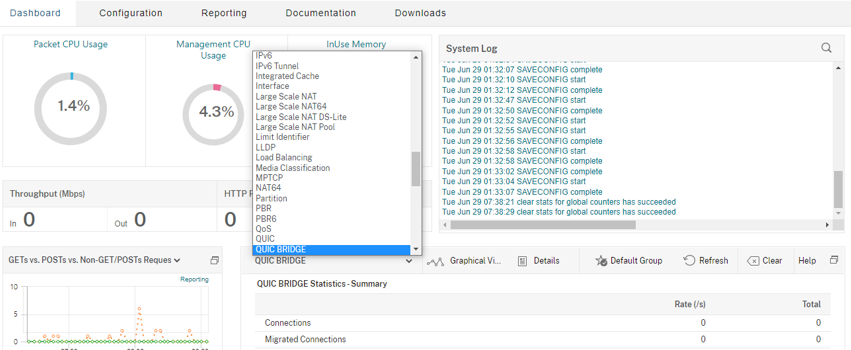
View QUIC bridge statistics by using the GUI
Complete the following steps to view QUIC bridge statistics.
-
On the Dashboard tab, hover the mouse to System Overview section.
-
Click System Overview and select QUIC BRIDGE from the drop-down list.