Configure SSL offloading with end-to-end encryption
A simple SSL offloading setup terminates SSL traffic (HTTPS), decrypts the SSL records, and forwards the clear text (HTTP) traffic to the back-end web servers. Clear text traffic is vulnerable to being spoofed, read, stolen, or compromised by individuals who succeed in gaining access to the back-end network devices or web servers.
You can, therefore, configure SSL offloading with end-to-end security by re-encrypting the clear text data and using secure SSL sessions to communicate with the back-end Web servers.
Configure the back-end SSL transactions so that the appliance uses SSL session multiplexing to reuse existing SSL sessions with the back-end web servers. It helps in avoiding CPU-intensive key exchange (full handshake) operations and also reduces the overall number of SSL sessions on the server. As a result, it accelerates the SSL transaction while maintaining end-to-end security.
To configure an end-to-end encryption deployment, perform the following steps:
-
Create SSL services
-
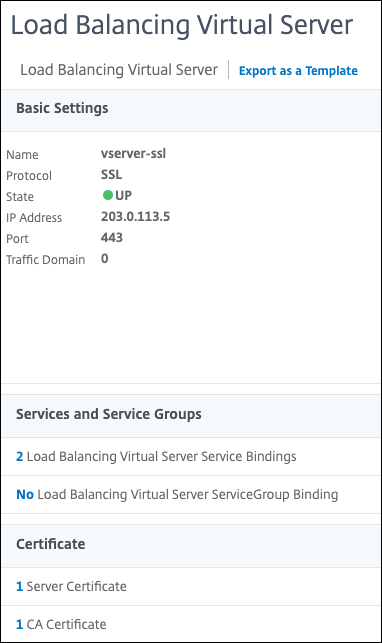
Create an SSL virtual server
-
Add a certificate-key pair
-
Bind the certificate-key pair to the SSL virtual server
-
Bind the services to the SSL virtual server
For information about adding services, virtual servers, certificate-key pairs, see SSL offloading configuration.
Sample values used in the configuration are listed in the table
| Entity | Name | IP Address | Port |
|---|---|---|---|
| SSL service | service-ssl-1 | 198.51.100.5 | 443 |
| SSL service | service-ssl-2 | 198.51.100.10 | 443 |
| SSL virtual server | vserver-ssl |
203.0.113.5 | 443 |
| SSL certificate-key pair | certkey-1 | NA | NA |
Example:
add service service-ssl-1 198.51.100.5 SSL 443

 add service service-ssl-2 198.51.100.10 SSL 443

 add lb vserver vserver-ssl SSL 203.0.113.5 443

 add ssl certKey certkey-1 -cert server_rsa_1024.pem -key server_rsa_1024.ky

 bind ssl vserver vserver-ssl -certkeyName certkey-1

 bind lb vserver vserver-ssl service-ssl-1

 bind lb vserver vserver-ssl service-ssl-2
Configure SSL offloading with end-to-end encryption using the GUI
-
Navigate to Traffic Management > Load Balancing > Services > Add.
-
Add two services:
service-ssl-1andservice-ssl-2. -
Navigate to Traffic Management > SSL > Certificates > Install.
-
Add a certificate-key pair:
certkey-1. -
Navigate to Traffic Management > Load Balancing > Virtual Servers > Add.
-
Add a virtual server:
vserver-ssl. -
Click OK.
-
Click inside Load balancing Virtual Server Service Binding.
-
In Select Service, click the arrow.
-
In the Service dialog box, select
service-ssl-1andservice-ssl-2. -
Click Select.
-
Click Bind.
-
Click Continue.
-
In the Certificate section, click Server Certificate.
-
In Select Server Certificate, click the arrow.
-
In the Server Certificates dialog box, click
certkey-1. -
Click Select.
-
Click Bind.
-
Click Continue.
-
Click Done.