This content has been machine translated dynamically.
Dieser Inhalt ist eine maschinelle Übersetzung, die dynamisch erstellt wurde. (Haftungsausschluss)
Cet article a été traduit automatiquement de manière dynamique. (Clause de non responsabilité)
Este artículo lo ha traducido una máquina de forma dinámica. (Aviso legal)
此内容已经过机器动态翻译。 放弃
このコンテンツは動的に機械翻訳されています。免責事項
이 콘텐츠는 동적으로 기계 번역되었습니다. 책임 부인
Este texto foi traduzido automaticamente. (Aviso legal)
Questo contenuto è stato tradotto dinamicamente con traduzione automatica.(Esclusione di responsabilità))
This article has been machine translated.
Dieser Artikel wurde maschinell übersetzt. (Haftungsausschluss)
Ce article a été traduit automatiquement. (Clause de non responsabilité)
Este artículo ha sido traducido automáticamente. (Aviso legal)
この記事は機械翻訳されています.免責事項
이 기사는 기계 번역되었습니다.책임 부인
Este artigo foi traduzido automaticamente.(Aviso legal)
这篇文章已经过机器翻译.放弃
Questo articolo è stato tradotto automaticamente.(Esclusione di responsabilità))
Translation failed!
MPLS queues
This feature simplifies creating SD-WAN configurations when adding a Multiprotocol Layer Switching (MPLS) WAN Link. Previously, each MPLS queue required one WAN Link to be created. Each WAN Link required a unique Virtual IP Address (VIP) to create the WAN Link and a unique Differentiated Services Code Point (DSCP) tag corresponding to the provider’s queuing scheme. After defining a WAN Link for each MPLS queue, the Intranet Service to map to a specific queue is defined.
Currently, a new MPLS specific WAN Link definition (that is, Access Type) is available. When a new Private MPLS Access Type is selected, you can define the MPLS queues associated with the WAN Link. This allows a single VIP with multiple DSCP tags that correspond to the provider’s queuing implementation for the MPLS WAN Link. This maps the Intranet Service to multiple MPLS Queues on a single MPLS WAN Link. For information on how to configure MPLS using Citrix SD-WAN Orchestrator service, see MPLS queues.
Note
If you have existing MPLS configurations and would like to implement the Private MPLS Access Type, contact Citrix® Support for assistance.
Assign autopath group to virtual path-WAN Link
The Autopath Group defined is the same for the MCN and Client appliance. This allows the system to build the Paths automatically. At the MCN site, you can also expand the WAN Link associated with the virtual path.
View permitted rate and congestion for WAN links
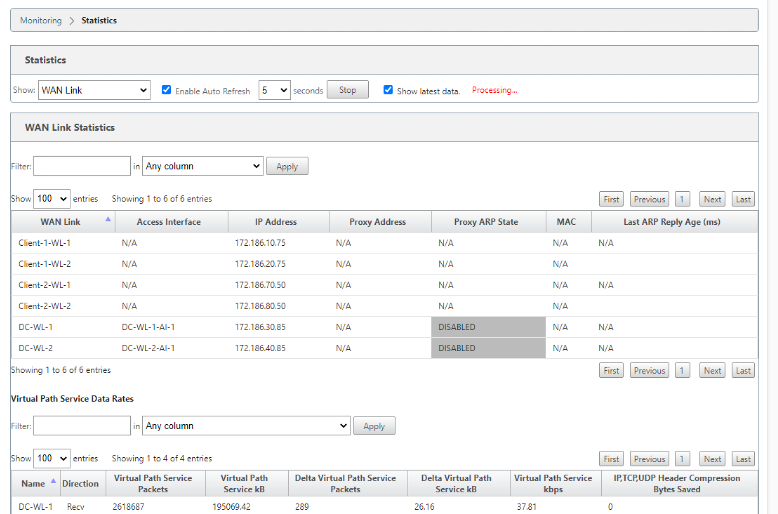
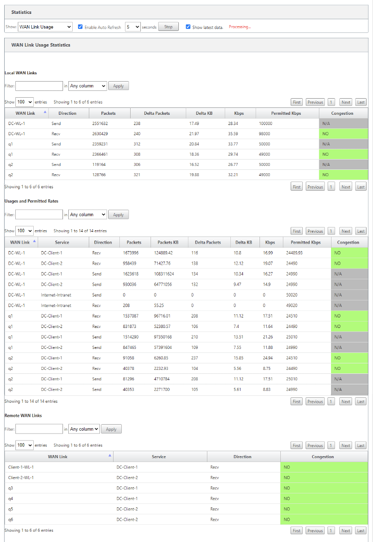
The SD-WAN web interface now allows you to view the permitted rate for WAN Links and WAN Link Usages and whether a WAN Link, Path, or Virtual Path is in congested state. In the previous releases, this information was only available in SD-WAN log files and through the CLI. These options are now available in the web interface to help with troubleshooting.
View permitted rate
Permitted Rate is the amount of bandwidth that a particular WAN Link, Virtual Path Service, Intranet Service, or Internet Service is permitted to use at a given point in time. The permitted rate for a WAN Link is static, and is defined explicitly in the SD-WAN configuration. The permitted rate for a Virtual Path Service, Intranet Service, or Internet Service will fluctuate over time, in response to congestion, user demand, and Fair Shares, but will always be greater than or equal to the Minimum Reserved Bandwidth for the Service.
Monitor WAN link
Go to Monitor > Statistics, and select WAN Link from the Show drop-down list.
Go to Monitor > Statistics, and select WAN Link Usage from the Show drop-down list.
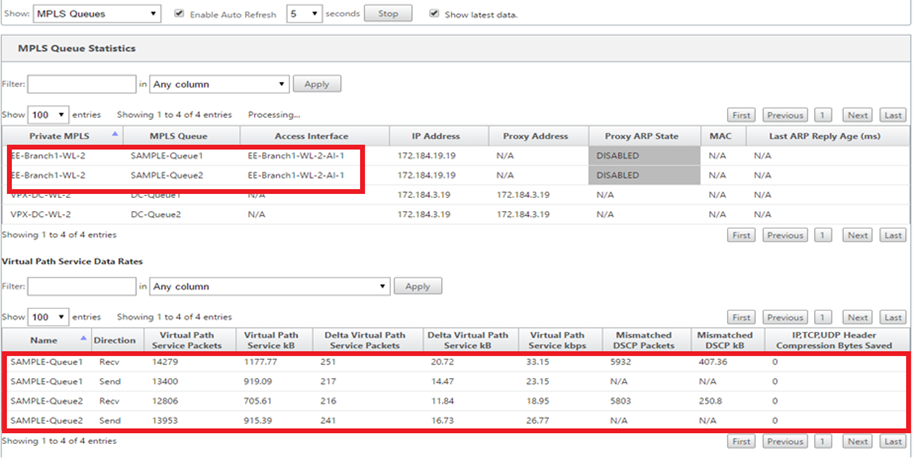
Monitor MPLS queues
Go to Monitor > Statistics, and select MPLS Queues from the Show drop-down list.
Troubleshooting MPLS queues
To check the status of MPLS queues, navigate to Monitor > Statistics and select Paths (summary) from the Show drop-down list. In the following example, the path from MPLS queue “q1” to “q3” is in DEAD state and shown in red. The path from MPLS queue “q1” to “q5” is in GOOD state and shown in green.
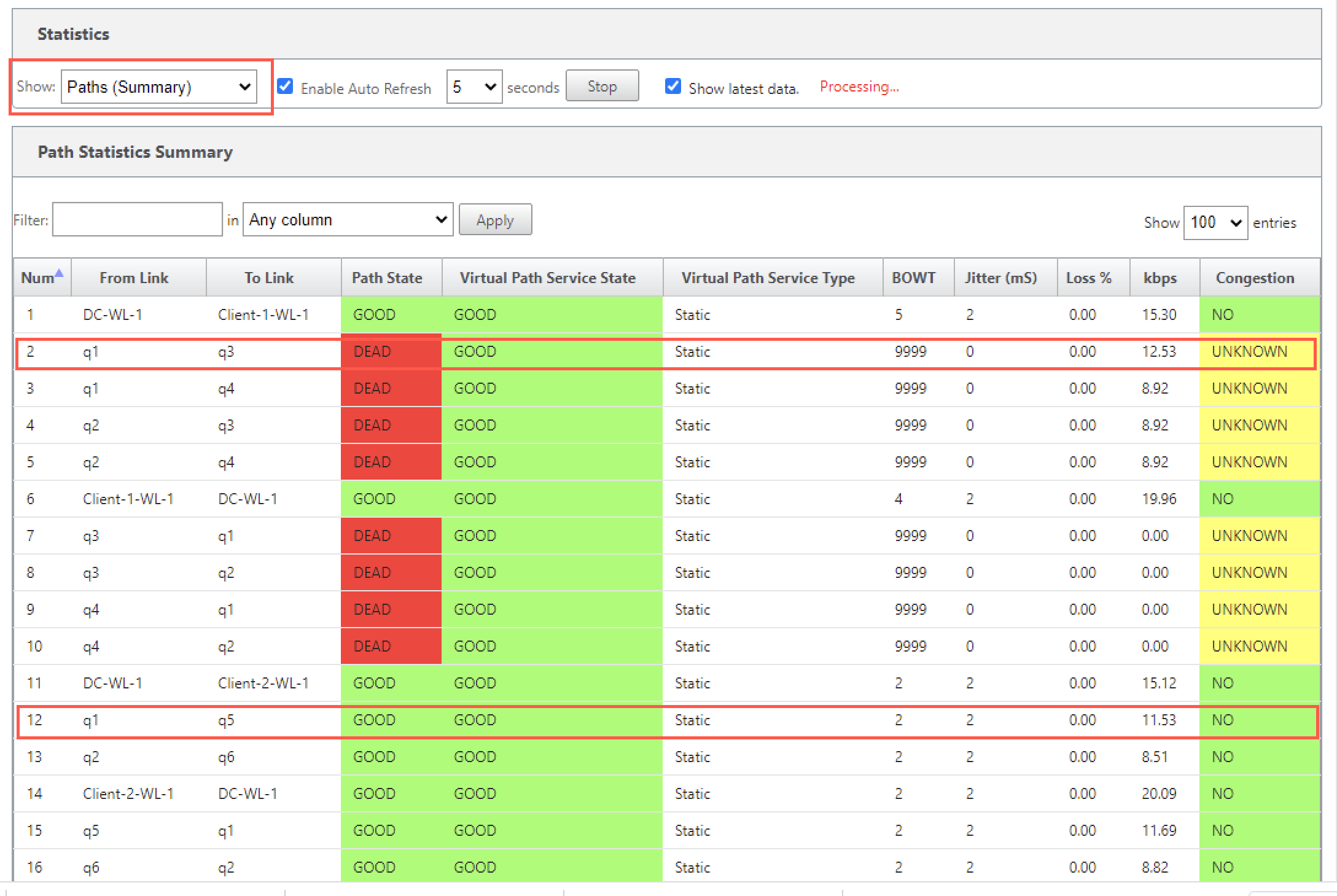
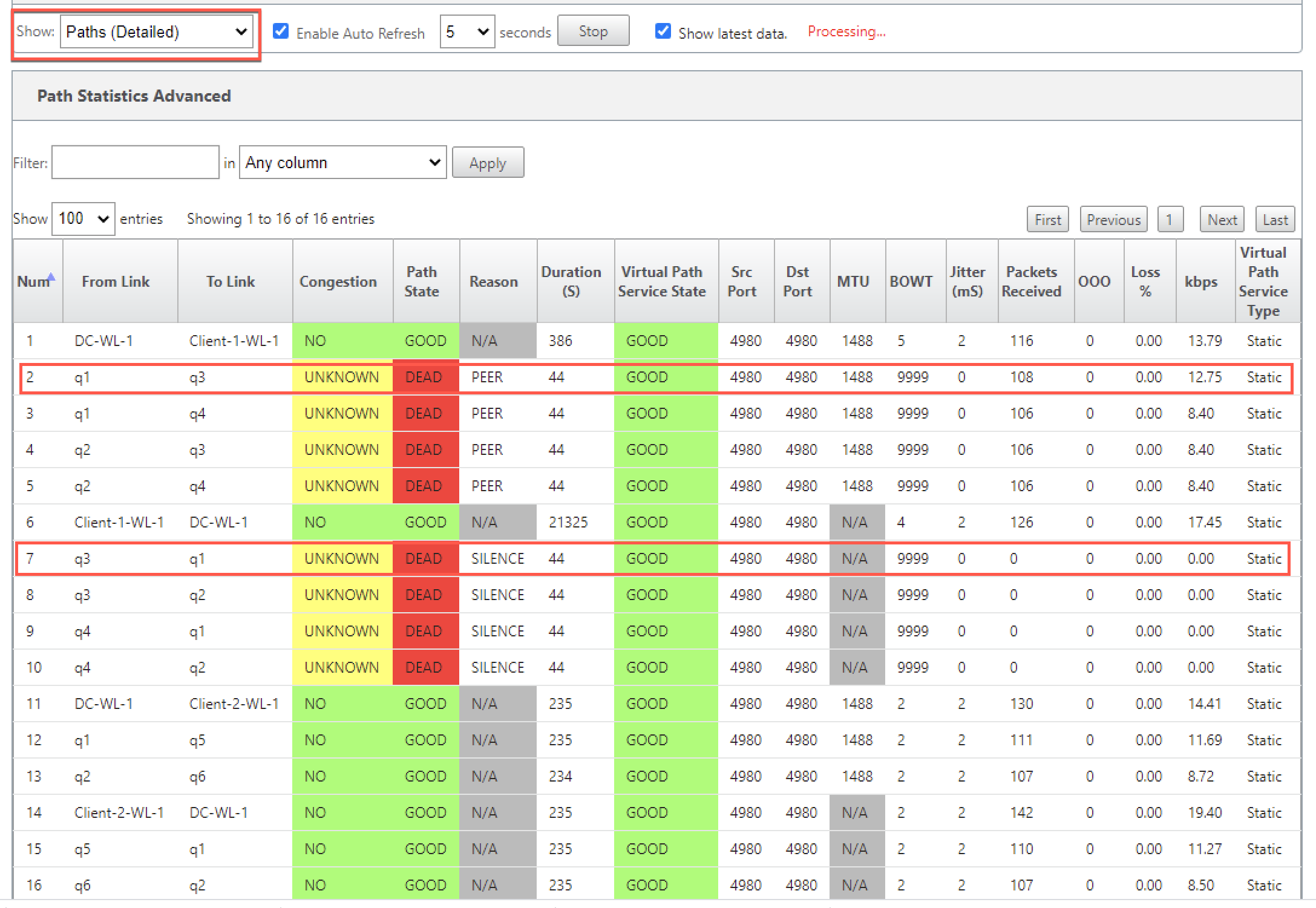
For detailed information on paths, select Paths (Detailed) from the Show drop-down list. The information on paths such as reason for the state, duration, source port, destination port, MTU are available
In the following example, the path from MPLS queue “q1” to “q3” is in DEAD state and the reason is PEER. The path from MPLS queue “q3” to “q1” is dead and the reason is SILENCE. The following table provides the list if available reasons and its descriptions.
| Reason | Description |
|---|---|
| GATEWAY | The path is DEAD as the appliance cannot reach or detect the gateway |
| SILENCE | The path is BAD or DEAD because the appliance has not received packets from the peer site |
| LOSS | The path is BAD due to packet loss |
| PEER | The peer site is reporting the path is BAD |
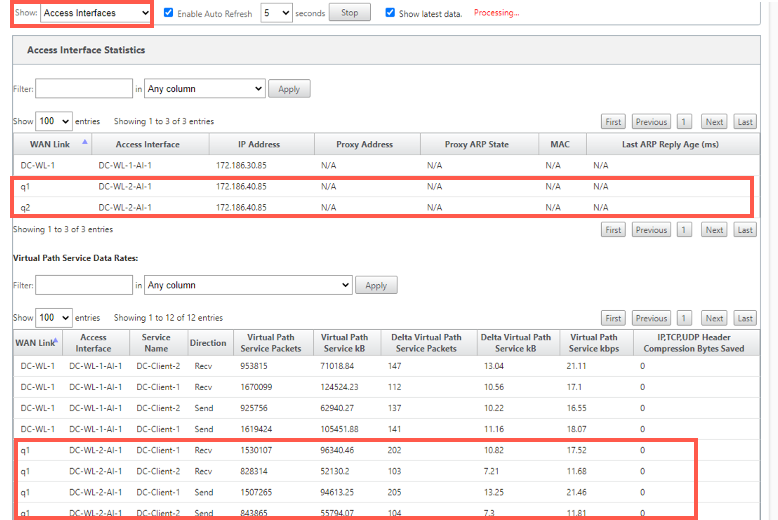
To check the access interface and IP address associated with the MPLS queues, select Access Interfaces from the Show drop-down list.
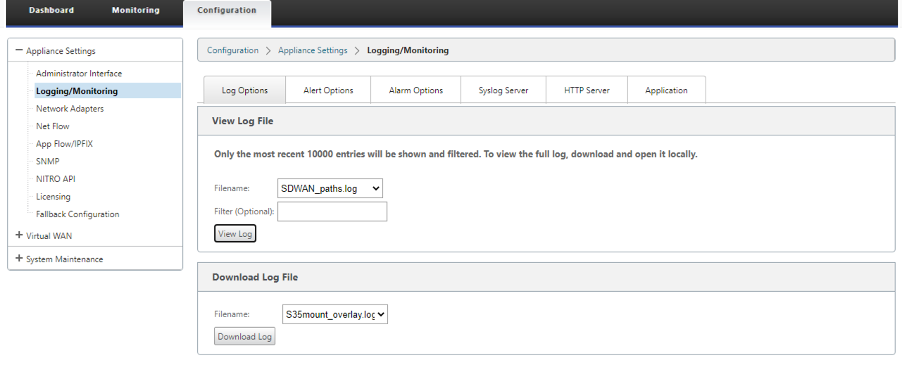
You can download the log files for further troubleshooting. Navigate to Configuration > Logging/Monitoring and select SDWAN_paths.log or SDWAN_common.log from the Log Options tab.
Share
Share
This Preview product documentation is Cloud Software Group Confidential.
You agree to hold this documentation confidential pursuant to the terms of your Cloud Software Group Beta/Tech Preview Agreement.
The development, release and timing of any features or functionality described in the Preview documentation remains at our sole discretion and are subject to change without notice or consultation.
The documentation is for informational purposes only and is not a commitment, promise or legal obligation to deliver any material, code or functionality and should not be relied upon in making Cloud Software Group product purchase decisions.
If you do not agree, select I DO NOT AGREE to exit.