NetScaler SDX 9200
Welcome to the next-generation NetScaler SDX 9200 platform. This section provides comprehensive instructions on how to deploy your appliance efficiently and configure it for optimal performance.
The SDX 9200 1U platform represents the latest advancement in NetScaler technology, featuring enhanced processing power, improved connectivity options, and robust management capabilities.
Key specifications
-
Intel Xeon 5th-generation processor architecture
-
128 GB DDR5 ECC memory for enhanced performance
-
Dual 4 x 50G high-speed ports with PCIe 4.0 support
-
Redundant CRPS power supplies for high availability
-
Dedicated BMC for comprehensive out-of-band management
Prepare for installation
Before installing your new appliance, carefully unpack the unit and verify that all the components are present. The only tools required for installing the appliance are a Phillips screwdriver, a flathead screwdriver, and a cage nut insertion tool (if installing into square-hole racks). Your NetScaler 1U package should include the following items:
Hardware components
- 1x NetScaler SDX 9200 appliance
- 1x standard 4-post rail kit (19-inch rack compatible), which includes:
- Left rail (x1)
- Right rail (x1)
- Mounting screw kit (includes M4x4L, M4x6L, M3x6L, M5x20L screws)
- Rackmount Ear Kit (x1)
The included accessory kit contains essential connectivity hardware, including two power cords to support redundant power supply operation.
Notes:
Rail kit compatibility varies by rack manufacturer and configuration. If the provided rail kit does not fit your specific rack infrastructure, contact your NetScaler sales representative immediately to obtain an appropriate alternative mounting solution.
Before proceeding, examine all components for shipping damage. Report any damaged items to your carrier and NetScaler support before beginning the installation process.
Infrastructure requirements
-
Compatible 19-inch rack with adequate depth clearance (minimum 550 mm)
-
Proper airflow management with front-to-rear cooling path
-
Available rack units (1U height requirement)
-
Adequate weight support (system weight: 25.2 lbs)
Network requirements
-
Administrative LAN with available switch ports
-
Dedicated out-of-band management network
-
Appropriate network cables (Cat5e/Cat6 for management, fiber/DAC for data)
Power requirements
- Dual power sources (recommended for redundancy)
- Frequency operating range: 47 Hz – 63 Hz
- Adequate power capacity (full load 110 V: 406 W/240 V: 394.57 W)
- PSU input connector: IEC320-C14 (Male)
- Required power cord: IEC320-C13 to NEMA 5-15P (or regional equivalent)
- Rating: Minimum 10 A / 250 V
Detailed AC input voltage specifications
| Voltage Range | Minimum | Rated Operating Range | Maximum | Brown Out | Brown In |
|---|---|---|---|---|---|
| 115 V Range | 90 Vrms | 100-127 Vrms | 140 Vrms | 75 Vac+/-4 V | 85 Vac+/-4 V |
| 230 V Range | 180 Vrms | 200-240 Vrms | 264 Vrms | N/A | N/A |
Maximum input current requirements
| Input Voltage Range | Maximum Current |
|---|---|
| 100 Vac – 127 Vac | 10 A |
| 200 Vac – 240 Vac | 5 A |
Management station requirements
-
Workstation or laptop (Windows or macOS) with network connectivity
-
Web browser with JavaScript and HTML5 support (Chrome, Firefox, Safari, or Edge)
-
Terminal emulator software for CLI access
-
Administrative privileges for network configuration
Hardware platform
Front panel components
The 1U front panel integrates comprehensive connectivity and management interfaces designed for enterprise data center environments. Each component serves a specific function in system operation and management.
The following figure shows the front panel of the SDX 9200 appliance.
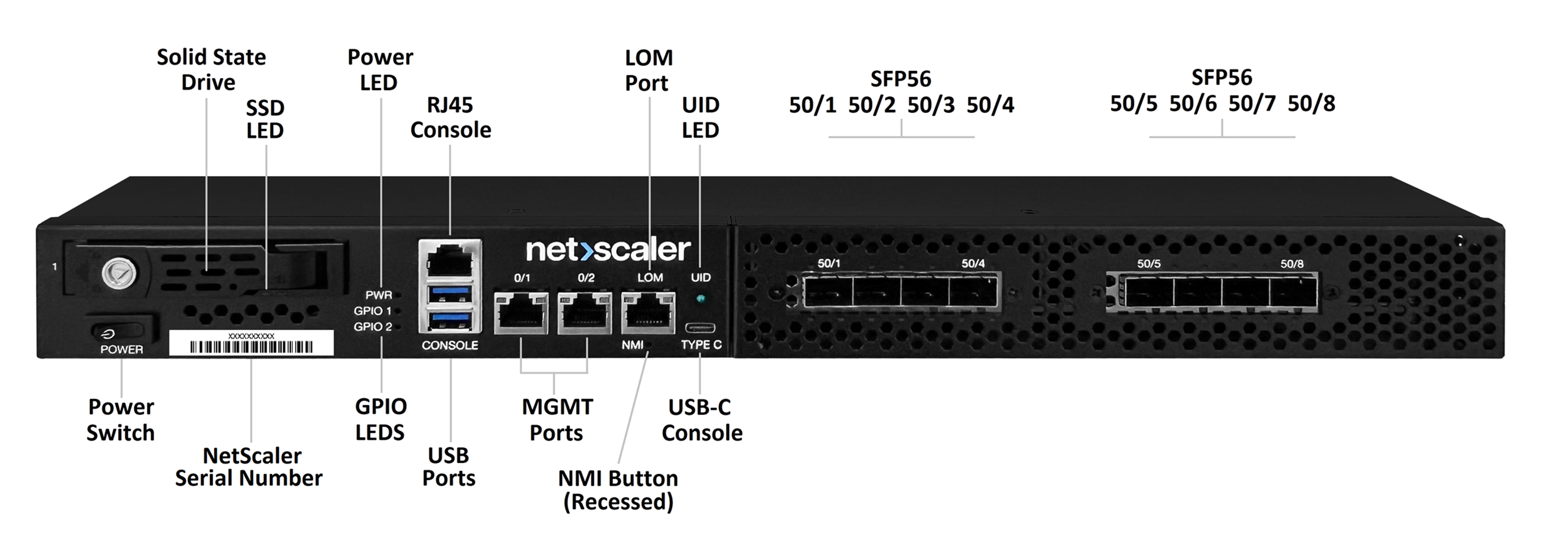
| Label | Component Type | Technical Specification | Primary Function |
|---|---|---|---|
| CONSOLE | RJ-45 Port | RS232 compatible | Primary console interface for direct system access |
| MGMT 0/1 & 0/2 | Dual Ethernet Ports (1000 Base-T) | 1 GbE Ethernet | NetScaler management network connectivity |
| LOM | Dedicated IPMI port | Intelligent Platform Management | Out-of-band monitoring and control system hardware |
| NMI | Pinhole button | Non-maskable interrupt | Kernel core dump generation |
| PWR | Soft-Push button 4-second holds for on/off | Power management | System power control with graceful shutdown |
| TYPE-C | Optional Port | USB Type-C | Alternate console and debug interface |
| UID | Locator LED | Blue LED indicator | Remote identification capability |
| GPIO1/GPIO2 | User-defined GPIOs | General purpose I/O | Currently disabled in 1U platform design |
| 50/1–50/8 | Data Ports | 50GbE network interface card NIC | Quad-port SFP56 with PCIe 4.0 x16 |
Console port configuration: The primary console port eliminates the need for legacy RS232 adapters by providing direct RJ-45 connectivity, which simplifies cable management and improves connection reliability.
Management port operation: Dual management ports support link aggregation and provide necessary redundancy for secure administrative access.
Data Port Capabilities: High-performance data ports deliver 50GbE per port and support various transceiver types, including SFP56 modules.
Rear panel components
The rear panel houses critical infrastructure components, including dual power supplies, the cooling system, a UID indicator, a PSU alarm, and a secondary power control button.
The following figure shows the back panel of the SDX 9200 appliance.
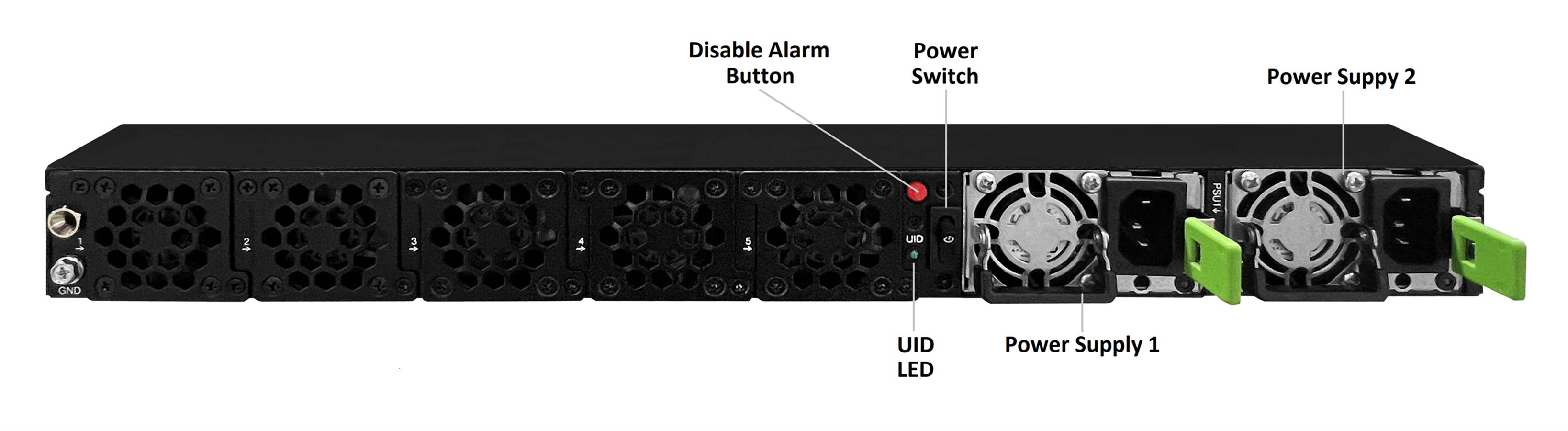
| Component | Technical Details | Operational Characteristics | Service Information |
|---|---|---|---|
| PSU1 / PSU2 | CRPS PSU | Redundant N+1 configuration | Hot-swappable during operation |
| 2nd UID | Locator LED | Blue LED indicator | Remote identification capability |
| Rear Power Button | Optional control | Mirrors front button function | Dual power control access |
| Fan Modules | 5x system fans | Smart fan control by using the BMC | No field replaceable Fan FRU |
Power supply architecture: The Common Redundant Power Supply (CRPS) design ensures continuous operation in the event of a single power supply failure. Each unit is hot-swappable, enabling maintenance without system downtime.
Cooling system design: The intelligent fan control system automatically adjusts cooling based on internal temperatures and current load conditions. Five fan modules provide N+1 redundancy, ensuring simplified serviceability.
Identification system: The Unit Identifier (UID) LED facilitates rapid system identification in dense rack environments. It supports both local activation and remote management through the system interface.
Install the hardware
Rack-mount the appliance
Perform the following procedure to ensure proper appliance mounting and system performance.
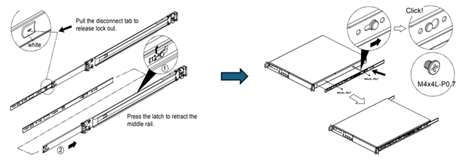
Remove the inner rails from the rail assembly
-
Pull the white disconnect tab to release and detach the inner rail member from each slide rail.
-
With the stamped text facing outward, align the inner rail with the chassis mount points, using the black reference markers on both sides of the chassis.
-
Slide the rail toward the rear until it clicks firmly into the locked position.
-
Fasten each inner rail using the provided M4x4L screws, as shown in the diagram.
-
Repeat this process for both the left and right sides of the chassis.
Chassis mounting ear installation
-
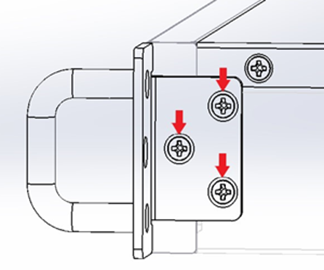
Place the rack-mount ears against the left and right sides of the chassis.
-
Align each ear with the designated screw holes on the front of the chassis.
-
Fasten each mounting ear using three M3x6L screws per side.
-
Ensure that the ears are flush against the chassis and properly aligned.
-
Confirm that the mounting ears do not obstruct front-panel ports or LED indicators.
Note:
The left and right-side rails are symmetrical. Repeat the installation steps for both sides as illustrated in the diagrams.
Outer slide rail assembly installation
-
Hold the outer rail assembly against the rack frame.
-
Align the mounting brackets with the rack post holes at the selected U-height.
-
Insert the rail mounting mechanism into the rack posts until it engages.
-
Listen for an audible “click” to confirm that the rail is properly seated and locked.
-
Ensure both the front and rear mounting points are securely attached to the posts.
-
Verify that the rails are level and parallel using the numbered rack post markings.
-
Repeat this process for both the left and right outer rail assemblies.
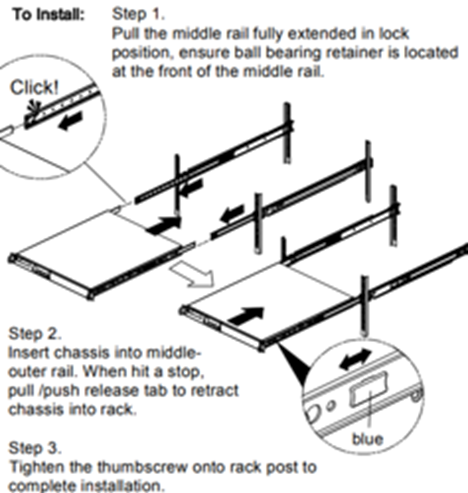
Mount the chassis into the rack
-
Carefully align the chassis-mounted inner rails with the rack-mounted outer rails.
-
Smoothly slide the system into the rack until the locking mechanism engages.
-
If necessary, apply light, even pressure to ensure the unit locks securely into place.
Safety requirements
For safety and equipment durability, ensure that the following requirements are met:
-
Maintain a minimum of 2 inches of clearance at the front and rear of the chassis to ensure proper ventilation.
-
Verify the rack’s weight capacity before installation and ensure that the rack is stable and properly secured to the floor.
-
Use proper lifting techniques. The system weight is approximately 25.2 lbs.
-
Strictly follow electrical safety procedures when connecting the appliance to a power source.
Airflow management
The 1U platform is designed for front-to-rear airflow. Unobstructed passage is required for optimal cooling performance. Restricted airflow results in thermal overheating and the automatic activation of system protection mechanisms (throttling or shutdown).
Network and power connections
Connection sequence
Perform the following sequence to ensure proper system initialization and to prevent configuration conflicts.
-
Management network connectivity
-
Connect the 0/1 MGMT port to your administrative LAN by using an appropriate Ethernet cable.
-
Ensure that the network switch port is configured to support auto-negotiation.
-
Verify network connectivity and ensure that the correct VLAN configuration is applied, if applicable.
-
Document the assigned IP address and network parameters for future reference.
-
-
Out-of-Band (OOB) management setup
-
Connect the LOM port to your dedicated OOB management network.
-
Use network infrastructure that is physically or logically separate from production traffic.
-
Configure the port for dedicated mode operation (default).
-
Ensure management network isolation for security.
-
-
Data port configuration
-
Insert the appropriate SFP+, SFP28, or SFP56 transceiver modules into the data ports.
-
Ensure that transceiver specifications align with your existing network infrastructure requirements.
-
Connect the fiber optic or direct cables to the data ports.
-
Confirm that the cable specifications support the required port speed (example: 50GbE).
-
-
Power system connection
-
Plug the first power cord into the PSU1 input receptacle.
-
Plug the second power cord into the PSU2 input receptacle.
-
Ensure that the power source meets requirements (100–240 VAC, 50–60 Hz).
-
To ensure power redundancy, connect each PSU to a separate power circuit.
-
-
System startup
-
Press the front-panel power button to begin the boot sequence.
-
Observe the front-panel LED indicators during the startup process.
-
Verify that both power supply LEDs show a solid green state, indicating normal operation.
-
Allow the system to complete the full boot cycle before attempting to access the management interface.
-
Power supply status indicators
The CRPS power supplies provide comprehensive status monitoring through integrated LED indicators located on each unit’s faceplate.
PSU LED indicator status:
| LED Indicator | PSU State | System Impact | Action Required |
|---|---|---|---|
| Solid GREEN | AC present, all DC rails active under load | Normal operation | None - normal |
| 1 Hz Blink GREEN | AC present, 12Vsb active including 5Vsb for BMC power, main rails idle | Redundant standby (N+1) | None - normal |
| Solid AMBER | AC input lost or disconnected | Lost redundancy (if N+1) or system down | Check AC power connection |
| 1 Hz Blink AMBER | OCP/OVP/OTP warning threshold reached | Degraded PSU operation/Potential shutdown | Verify PSU cooling and airflow |
| Solid AMBER | Critical Fault (OCP/OVP/OTP tripped) | PSU shutdown for protection | Replace the PSU immediately |
Monitoring recommendations:
- Regularly inspect PSU LED indicators during system operation.
- Document all occurrences of amber LED states to assist in long-term reliability and trending analysis.
- Replace modules with blinking amber status indicators during the next scheduled maintenance cycle.
- Contact customer support for any persistent warning conditions.
System access and configuration
Console connection setup by using the GUI
Use this method for initial deployment and ongoing administration.
Platform-specific access information
- Management through virtualized service interfaces
- Management Service VM: 192.168.100.1 with 255.255.0.0 (/16) subnet mask
- XenServer hypervisor: 192.168.100.2 with 255.255.0.0 (/16) subnet mask
- NSIP Pool Range: 192.168.100.10 to 192.168.100.100 for NetScaler instances
Perform the following steps to initialize the appliance
- Network preparation
- Connect your management workstation to the MGMT 0/1 port or a port on the same management VLAN.
- Configure your workstation network settings (if required).
- Verify the network path by performing a ping test to the default NSIP address: 192.168.100.1.
- Ensure that any local firewalls allow HTTPS (port 443) traffic to the appliance.
- Browser initialization
- Open a web browser (Chrome, Firefox, Safari, or Edge)
- Enter the URL
https://192.168.100.1(Management Service VM).Note:
Accept security certificate warnings (self-signed certificate)
- Initial authentication
- Enter the default administrative user:
nsroot. - Enter the system serial number exactly as it appears on the physical chassis label (case-sensitive).
-
Click Login or press Enter.
On successful authentication, the system redirects you to the Initial Configuration Wizard.
- Enter the default administrative user:
-
Setup wizard configuration
The Setup Wizard guides you through the following essential parameters:
-
NSIP address configuration: Set a NetScaler IP address for management access.
-
Network parameters: Configure the subnet mask and default gateway.
-
SNIP configuration: Add subnet IP addresses for client communication.
-
DNS settings: Configure DNS server addresses for name resolution.
-
Hostname setup: Assign a unique, descriptive hostname to identify the appliance on the network.
-
Administrative password: Change the default password to a strong, secure administrative password.
-
Common default IP address configuration
| Interface or Service | Default User Login Credentials | Default IP Address | Subnet Mask or Gateway | Description |
|---|---|---|---|---|
| Management Service (SVM) (0/1) | nsroot / product SN | 192.168.100.1 | 255.255.0.0/16 | Management Service is the management interface for NetScaler SDX like provisioning and monitoring VPX instances |
| XenServer (DOM0) | root / product SN | 192.168.100.2 | 255.255.0.0 /16 GW: 192.168.0.1 | DOM0 is the hypervisor control domain (based on Linux) that interfaces with system hardware. Note: The product S/N as the default password for DOM0 is only valid after Management Service initialization. |
| XenServer (Management Service virtual port 0/2) | nsroot / product SN | 169.254.0.10 | 255.255.0.0 /16 | Management Service internal default IP for 1U platform |
| LOM or IPMI Port | nsroot / product SN | 192.168.1.3 | 255.255.255.0/24 | Out-of-band management IPMI |
Navigation best practices
-
Use tab-based navigation to move quickly between input fields.
-
Hover your cursor over field labels or information icons to view additional help information.
-
Ensure that you save your changes before navigating to a different configuration section.
-
Avoid using the browser’s back button, as it might result in the loss of unsaved configuration data or session timeouts.
NetScaler SDX Management Service and DOM0 Configuration
-
Management Service shell access
- SDX Management Service initial network configuration

- SSH connection
- From your management laptop, initiate an SSH session to the Management Service IP address :
ssh nsroot@192.168.100.1 - Authenticate using the username as nsroot and password as the product serial number.
- Log in to the NetScaler CLI prompt, run the
shellcommand.
You can verify that you have successfully gained access when the prompt changes to bash-3.2#.
- From your management laptop, initiate an SSH session to the Management Service IP address :
- SDX Management Service initial network configuration
-
Configuration file verification
-
Access the configuration file: From the bash-3.2# prompt, run the
cat /flash/mpsconfig/svm.confcommand to display the contents of the Management Service configuration file. -
Review default contents: Ensure the output matches the standard default settings, which include the following parameters:
Default svm.conf output:
-
arp -d -a
-
route flush
-
ifconfig 0/1 192.168.100.1 netmask 255.255.0.0
-
ifconfig 0/2 169.254.0.10 netmask 255.255.0.0
-
/mps/changenameserver.sh 127.0.0.2
-
-
Verify XenServer Connectivity: Confirm the XenServer IP address is listed at the end of the file as:
#XenServer: 192.168.100.2.
-
-
Network configuration modification
-
Launch the configuration utility: From the bash shell environment, initiate the interactive network setup tool by running the command:
/mps/networkconfig. -
Interactive configuration menu: After launching the utility, the following menu appears:
1.  Management Service Host Name [ns]

2.  Management Service IPv4 address [192.168.100.1]

3.  XenServer IPv4 address [192.168.100.2]

4.  Netmask [255.255.0.0]

5.  Gateway IPv4 address []

6.  DNS IPv4 Address [127.0.0.2]

7.  Cancel and quit

8.  Save and quit
<!--NeedCopy-->
Note:
The current values are shown in square brackets. Press the corresponding number (1–8) to modify each parameter.
-
Navigate the interactive menu: Use the menu options (1–6) to modify the following parameters as required for your network environment.
- Update Management Service IP address for SVM access
- Configure XenServer IP address for DOM0 management
- Set the subnet mask and default gateway for external connectivity.
- Configure the primary DNS server address for name resolution.
- Save changes: Once all parameters are updated, select option 8 (Save and quit) to commit your changes.
Note:
The Service VM automatically applies the new network configuration during the next startup process.
-
-
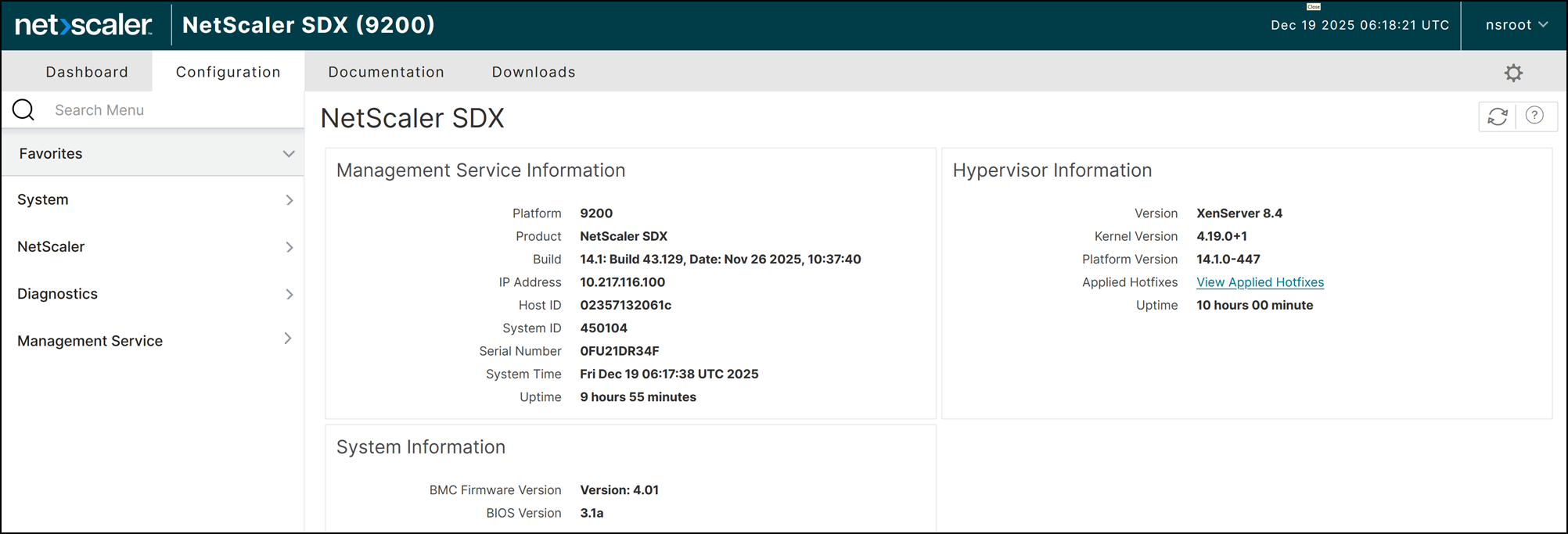
Management Service GUI access verification
- Test connectivity: Open a web browser and enter the new Management Service IP address in the address bar.
- Login: Authenticate using the username
nsrootand the product Serial Number as the password.
-
DOM0 Console access
- Power on the NetScaler SDX appliance and connect your management laptop to the RJ45 console port.
- Set your terminal emulator (PuTTY) to 9600 baud, 8 data bits, None for parity, 1 stop bit, and None for flow control.
- Log in to the DOM0 using the username root and the product serial number as the password.
- Confirm that you have reached the DOM0 command line when the prompt displays as
[root@netscaler-sdx ~]#.
System specifications
Hardware configurations
The SDX 9200 platform integrates enterprise-grade hardware built to deliver high-performance applications with consistent reliability.
Core system architecture
| Component Category | Specification Details | Performance Characteristics |
|---|---|---|
| Regulatory Model | 1U 3P3A | FCC and international compliance designation |
| Processor Architecture | Intel Xeon 5th Generation | 24 cores per socket |
| Platform Chipset | Intel C741 PCH | Advanced platform controller hub |
| BMC Controller | Baseboard Management Controller with IPMI 2.0 | Remote KVM, and hardware monitoring |
| System Memory | 128 GB DDR5 5600 ECC RDIMM | 2x 64 GB modules with error correction |
| Primary Storage | 800 GB NVMe U.2/U.3 | 2.5” form factor, high-performance SSD |
| Management Connectivity | Two 1GbE RJ45 (1000Base-T) | Dedicated management port access |
| Data Connectivity | Two 4×50G SFP56 network interfaces | PCIe 4.0 x16 interface |
Memory architecture
-
DDR5 technology: Provides enhanced bandwidth and improved power efficiency.
-
ECC (Error Correcting Code): Maintains data integrity and enhances overall system stability.
-
RDIMM design: Uses registered DIMMs to support high-density memory configurations.
Storage system
-
NVMe interface: Enables high-throughput storage with low latency.
-
U.2/U.3 compatibility: Supports current and next-generation storage standards.
-
Optimized capacity: Features 800 GB of storage, specifically tuned for system configurations and log retention.
Network interfaces
-
SFP56 connectivity: Flexible ports that support a wide range of transceiver types and cabling options.
-
PCIe 4.0 integration: Provides optimized bandwidth for 4x 50GbE high-speed connectivity.
-
Packet offloading: Hardware-level acceleration for optimized network performance.
Thermal management
-
Acoustic optimization for data center environments.
-
Redundant cooling with fan modules.
-
Temperature monitoring through the BMC interface.
Power and environmental specifications
Power system specifications
| Parameter | Specification | Operating Range | Notes |
|---|---|---|---|
| Power Supply Configuration | 2x CRPS PSUs | Redundant N+1 operation | Hot-swappable units |
| Input Voltage Range | 100–240 VAC | Universal input compatibility | Auto-sensing |
| Input Frequency | 50–60 Hz | Standard utility frequency | ±3 Hz tolerance |
|
Input Current
|
100–127 V: 10.0 A | Variable by input voltage
|
Maximum ratings
|
| 200–240 V: 5.0 A | |||
| Typical System Power Consumption | 300 W | Normal operational load | Steady-state operation |
| Maximum System Power Consumption | 406 W | Peak system utilization | Full load + redundancy |
Environmental specifications
| Environmental Factor | Operating Range | Storage Range | Critical Limits |
|---|---|---|---|
| Ambient Temperature | 0°C to 45°C (32°F to 113°F) | -40°C to 70°C | 50°C Absolute maximum |
| Relative Humidity | 10% to 90% RH | 10% to 95% RH | Non-condensing |
| Operating Altitude | 0 to 5,000 m | 0 to 15,200 m | Derated above 8,000 m |
| Typical System Airflow | 80.3 CFM | N/A | 100% load at 25°C ambient |
| Maximum System Airflow | 104 CFM | N/A | 100% load at elevated temp |
Physical specifications
| Dimension | Measurement | Standard Compliance |
|---|---|---|
| Width | 443 mm (17.4”) | EIA 310-D 19-inch rack |
| Depth | 550 mm (21.7”) | Standard server depth |
| Height | 44 mm (1.73”) | 1U Rack unit |
| System Weight | 11.4 kg (25.2 lbs) | Approximate operational weight |
| Package Weight | 18.6 kg (41.0 lbs) | Shipping configuration |
System LED status
The system provides real-time status monitoring by using the LED indicators located on the front and rear panels.
Front panel LED status
| LED Indicator | Normal Operation | Fault Condition | Description |
|---|---|---|---|
| PWR (Power) | Solid Green | Off | Indicates system power and initialization status |
| GPIO1 | Off | N/A | User-defined function (Disabled by default) |
| GPIO2 | Off | N/A | User-defined function (Disabled by default) |
Power supply LED status
| LED Indicator | PSU State | System Impact | Action Required |
|---|---|---|---|
| Solid GREEN | AC present, all DC rails active under load | Normal operation | None - normal |
| 1 Hz Blink GREEN | AC present, 12Vsb active including 5Vsb for BMC power, main rails idle | Redundant standby (N+1) | None - normal |
| Solid AMBER | AC input lost or disconnected | Lost redundancy (if N+1) or system down | Check AC power connection |
| 1 Hz Blink AMBER | OCP/OVP/OTP warning threshold reached | Degraded PSU operation/Potential shutdown | Verify PSU cooling and airflow |
| Solid AMBER | Critical Fault (OCP/OVP/OTP tripped) | PSU shutdown for protection | Replace the PSU immediately |
NVMe storage LED status
The NVMe SSD activity indicators provide real-time storage operation status.
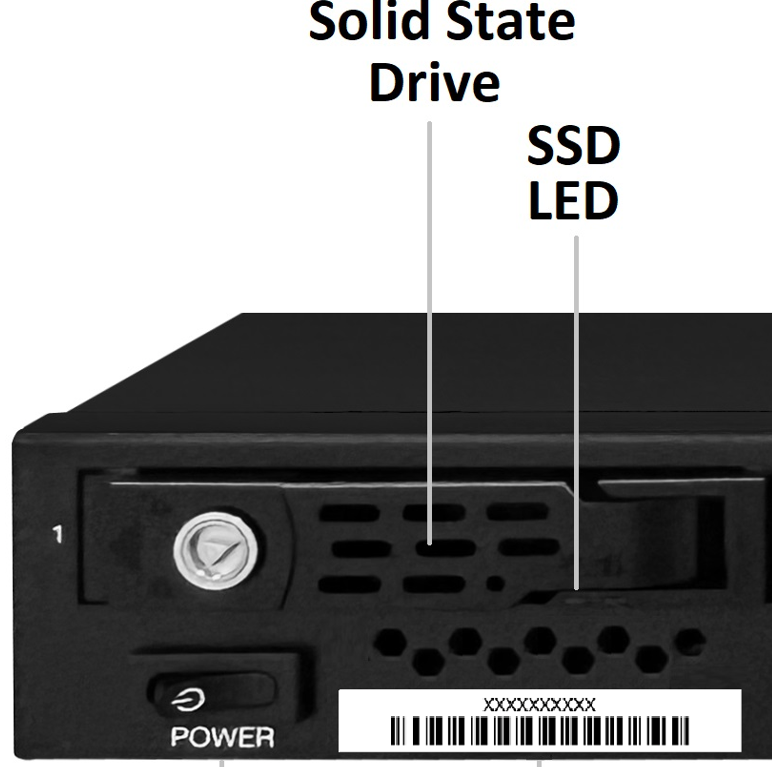
Left LED (Power/Present) indicator
| Condition | LED Behavior |
|---|---|
| No SSD present | Off |
| SSD installed and powered | Solid Green |
Right LED (Activity) indicator
| NVMe Brand | Condition | LED Behavior |
|---|---|---|
|
Micron
|
Idle | Very slow blinking |
| Active (I/O in flight) | Fast Blinking (4 Hz) | |
|
Samsung
|
Idle | LED Off |
| Active (I/O in flight) | Fast Blinking (4 Hz) |
Additional information resources
- For information about step-by-step procedures for performing system upgrades and downgrades, see Upgrade and downgrade a NetScaler appliance.
- For information about deploying redundant NetScaler configurations, see Configuring high availability.
Information required for technical support
Before contacting NetScaler Support, gather the following information to ensure an efficient resolution process:
-
Hardware serial number: Locate this on the physical chassis label.
-
Software version: Provide the current release version and specific build number (Example: Release 14.1 Build 12.35).
-
Problem description: Document the specific issue, including exact error codes, timestamps of the occurrence, and any recent changes to the environment.
-
System Configuration: Provide the network environment and relevant configuration files (Example: ns.conf).
-
Log files: Collect the system logs and diagnostic information.
In this article
- Key specifications
- Prepare for installation
- Hardware platform
- Install the hardware
- Network and power connections
- System access and configuration
- NetScaler SDX Management Service and DOM0 Configuration
- System specifications
- System LED status
- Additional information resources
- Information required for technical support