
Upgrade agents
Note:
Ensure that the agent version is 14.1-38.x or later.
Starting 14.1–43.50, you can upgrade NetScaler agents (14.1-38.x or later) through the NetScaler Console GUI. This enhancement eliminates the manual upgrade workflow for each agent and enables you to upgrade all agents in a single workflow or schedule upgrades for a later time.
Upgrade workflow
-
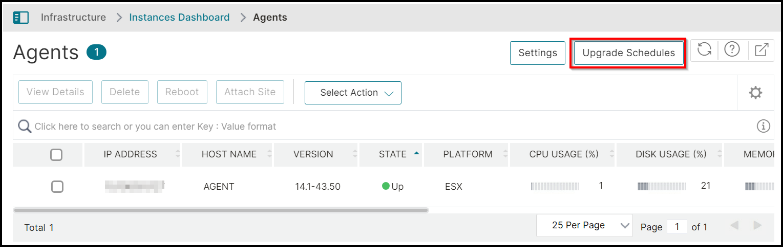
Navigate to Infrastructure > Instances > Agents.
-
Click Upgrade Schedules.
-
In the Upgrade Schedules page, click Add.
-
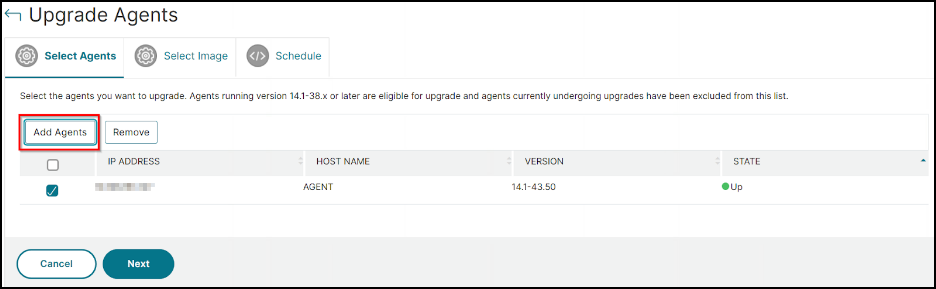
Click Add Agents, select the agents from the list that you want to upgrade, and click Next.Note:Agents that are running build 14.1-38.x or later only are displayed.
-
In the Select Image tab, select an image (.tgz) from local or appliance. You can upload the image from your local computer or the appliance. When you select Appliance, the NetScaler Console GUI displays the images that are present in
/var/mps/mas_agent_images. Select an image from the list.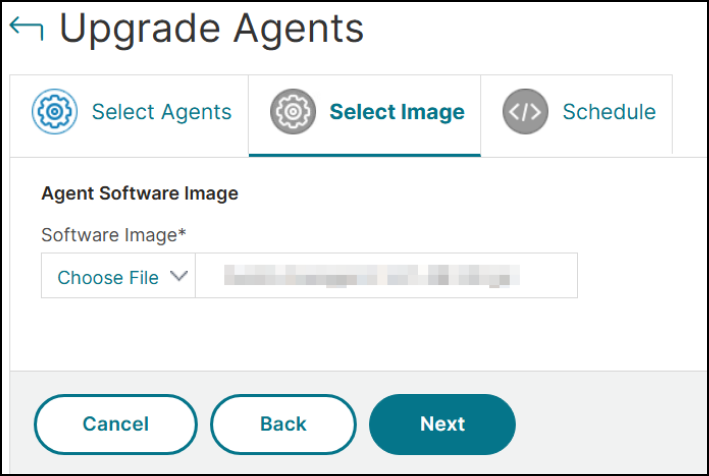
-
After selecting the image, click Next.
-
Under Upgrade Schedule, select Upgrade Now to upgrade immediately.
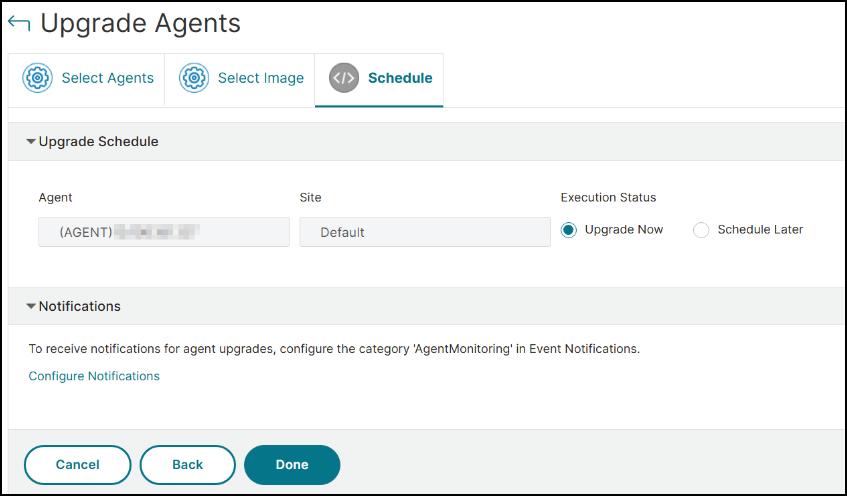 If you want to schedule an upgrade, select Schedule Later and then provide details by selecting the time zone, date, and time (24 hours format).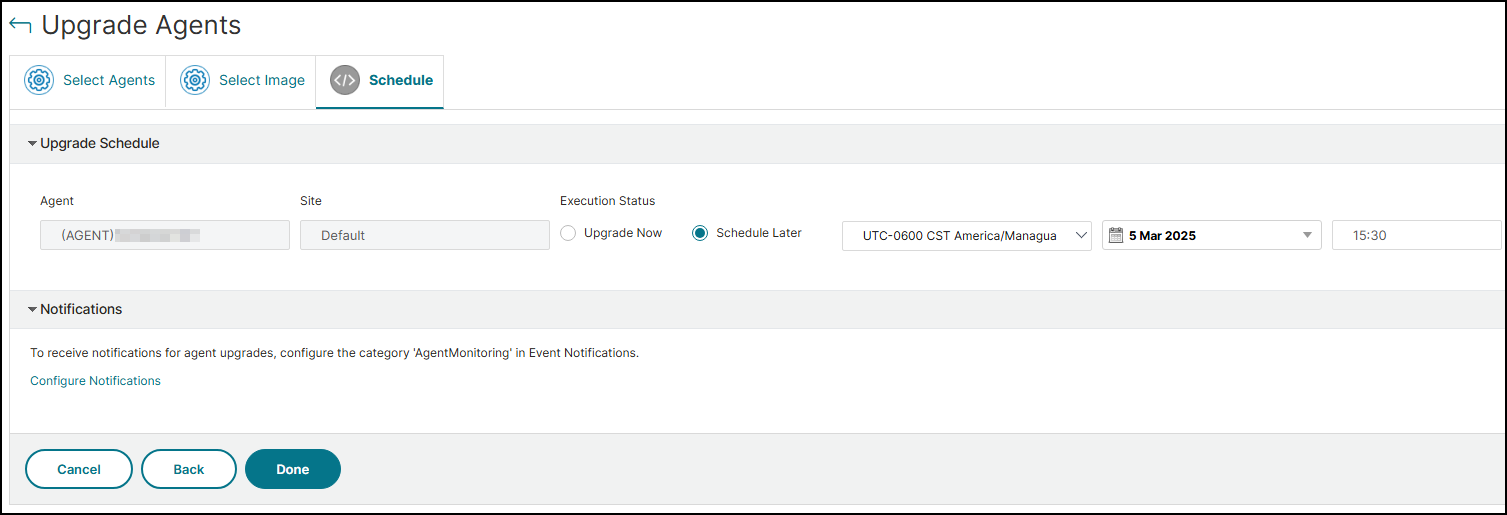
-
If you want to get notified for the upgrade workflow, click Configure Notifications under Notifications, select the category
AgentMonitoring, and select the communication options (Email, SMS, Slack, PagerDuty, and ServiceNow) that you want to get notified. -
Click Done.