
NetScaler Console on Citrix Hypervisor
To install NetScaler Console on Citrix Hypervisor (formerly known as XenServer), you need to first download the NetScaler Console .xva image file to your local computer. You need to use Citrix XenCenter to perform the NetScaler Console installation.
Note:
NetScaler Console does not support XenMotion.
Prerequisites
Before installing NetScaler Console, verify that the following requirements have been met:
-
Citrix Hypervisor version 7.1 or later is installed on hardware that meets the minimum requirements.
-
XenCenter is installed on a management workstation that meets the minimum requirements. You have to use XenCenter to install NetScaler Console on Citrix Hypervisor.
-
You have downloaded the NetScaler Console .XVA image file.
XenCenter® system requirements
XenCenter is a Windows client application. It cannot run on the same machine as the Citrix Hypervisor™ host. The following table describes the minimum system requirements.
| Component | Requirement |
|---|---|
| Operating System | Windows 7, Windows Server 2003, or Windows 10 |
| .NET framework | Version 2.0 or later |
| CPU | 750 MHz (MHz), Recommended: 1 gigahertz (GHz) or faster |
| RAM | 1 GB, Recommended: 2 GB |
| NIC | 100 megabits per second (Mbps) or faster NIC |
Install NetScaler® Application Delivery Management
-
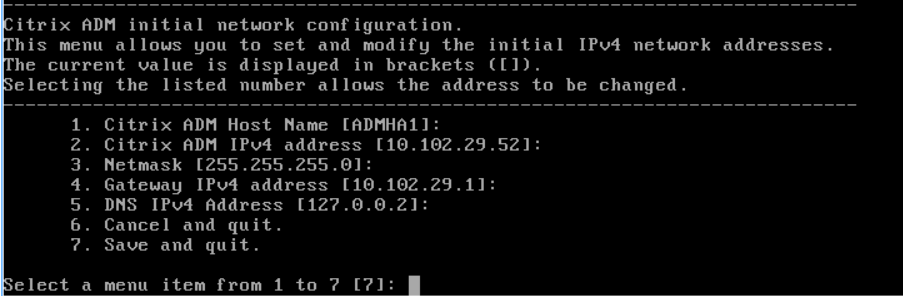
Import the XVA image file to your Citrix Hypervisor, and from the Console tab configure the initial network configuration options.
-
After specifying the required IP addresses, save the configuration settings.
-
When prompted, log on using nsrecover/nsroot credentials.
 NoteAfter you log on, if you want to update the initial network configuration, type
networkconfig, update the configuration, and save the configuration. -
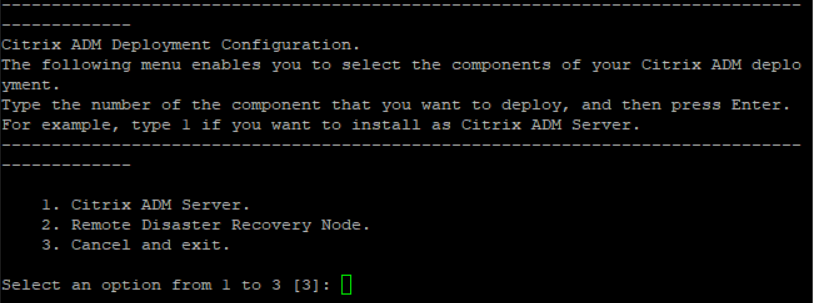
Run the deployment script by typing the command at the shell prompt:
/mps/deployment_type.py
-
Select the deployment type as NetScaler Console Server. If you do not select any option, by default, it is deployed as a server.
-
Type Yes to deploy NetScaler Console as a standalone deployment.
-
Type Yes to restart the NetScaler Console server.NoteAfter you install NetScaler Console, you can update the initial configuration settings later.
Verification
After the server is installed, you can access the GUI by typing the IP address of the NetScaler Console server in the web browser. The default administrator credentials to log on to the server are nsroot/nsroot.
The browser displays the NetScaler Console configuration utility.