
Add RADIUS authentication server
-
Navigate to Settings > Authentication.
-
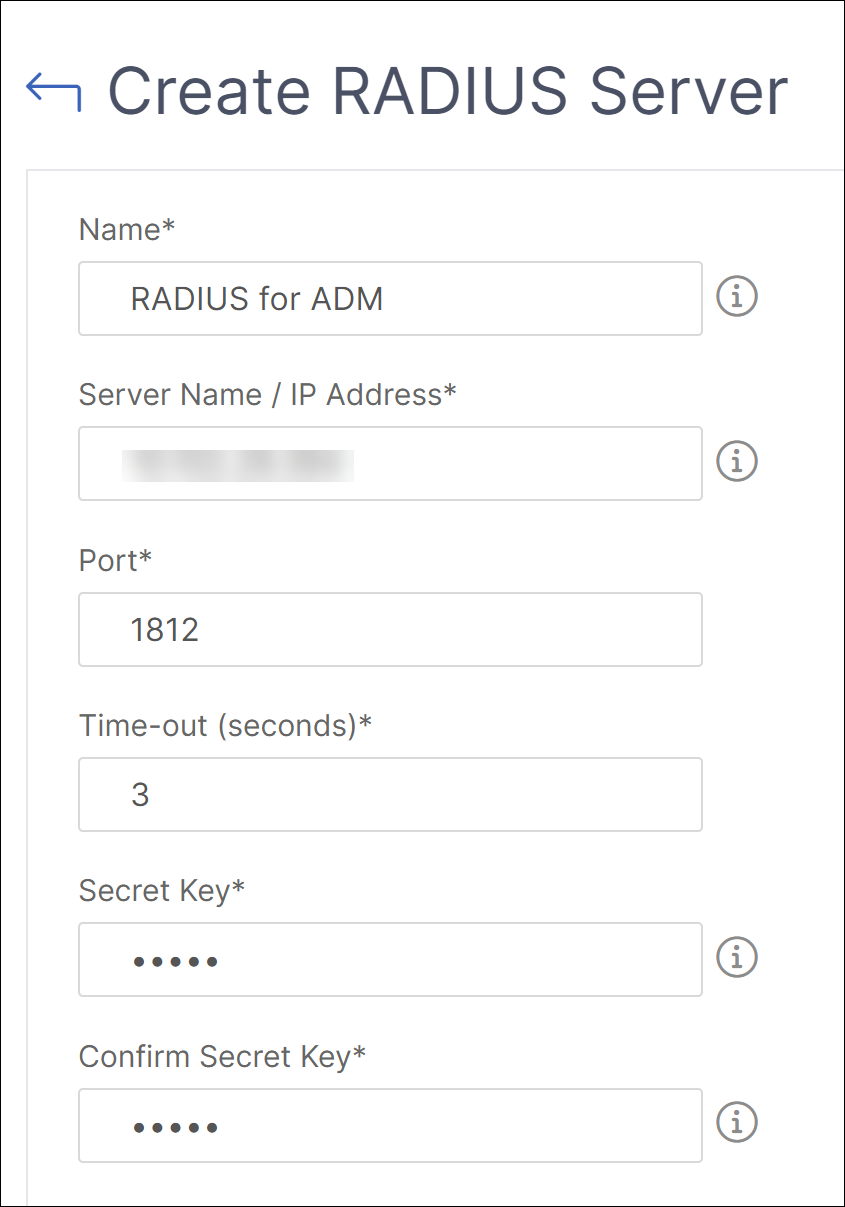
Select the RADIUS tab and then click Add.On the Create RADIUS Server page, specify the following parameters:
-
Name – Specify a RADIUS server name
-
Server Name / IP address – Specify the RADIUS server IP address
-
Port – Specify the port number on which the RADIUS server is hosted. The default port is 1812
-
Time-out (seconds) – Time in seconds for which the NetScaler Console system waits for a response from the RADIUS server
-
Secret Key – Specify the RADIUS secret key for authentication
-
Confirm Secret Key – Specify the key again for confirmation
-
Message-Authenticator – Enable this option to include and validate the RADIUS Message-Authenticator attribute for administrator authentication. This option strengthens RADIUS message integrity and supports mitigation of BlastRADIUS (CVE-2024-3596). The option is disabled by default.Important:
-
The Message-Authenticator option is available from NetScaler Console 14.1-74.x onwards.
-
Before enabling this option, ensure that the RADIUS server and any intermediary devices support the Message-Authenticator attribute. An incompatible RADIUS server or intermediary can cause external administrator authentication to fail.
 Under Details, specify the following parameters:
-
NAS ID – Specify the ID to send the identifier to RADIUS server
-
Group Vendor Identifier – Specify the vendor ID for using RADIUS group extraction
-
Group Prefix - A string that precedes group names within a RADIUS attribute for RADIUS group extraction
-
Group Attribute Type – Specify the attribute type for RADIUS group extraction
-
Group Separator – A string that delimits group names within a RADIUS attribute for RADIUS group extraction
-
IP Address Vendor Identifier – Vendor ID in RADIUS denotes the intranet IP. A value of 0 denotes that the attribute is not vendor encoded
-
Password Vendor Identifier – Vendor ID password in RADIUS response to extract the user password
-
IP Address Attribute Type – Remote IP address attribute for the RADIUS to respond
-
Password Attribute Type – The password attribute for the RADIUS to respond
-
Password encoding – Select pap, chap, mschapv1, or mschapv2 from the list. This denotes how passwords should be encoded in the RADIUS packets traveling from the system to the RADIUS server.
-
Default Authentication Group – Default group to choose when the authentication succeeds in addition to extracted groupsSelect Accounting if you want the appliance to log audit information with RADIUS server.
-
-
-
Click Create.The RADIUS server is now configured. If you enabled Message-Authenticator, test administrator authentication using a RADIUS-backed account to verify that authentication succeeds.
-
Enable the external authentication servers.For more information about enabling external authentication servers, see Enable external authentication servers and fallback options.
Configure RADIUS Message-Authenticator in NetScaler Console
Use the RADIUS Message-Authenticator attribute to strengthen the integrity of RADIUS administrator authentication requests and responses.
NetScaler Console can include and validate the Message-Authenticator attribute when communicating with a compatible RADIUS server. The setting is disabled by default. Enable it only after confirming that the RADIUS server and any intermediary devices support the attribute.
Important:
An incompatible RADIUS server or intermediary can cause external administrator authentication to fail. Before enabling this setting, verify local administrator access and test the configuration in a non-production environment.
Before you begin
-
Confirm that your RADIUS server supports the Message-Authenticator attribute for Access-Request and response messages.
-
Confirm that the shared secret configured in NetScaler Console matches the secret configured for the Console RADIUS client on the server.
-
Ensure that you can sign in to NetScaler Console with a local administrator account if external authentication is unavailable.
-
Plan a maintenance and rollback window, and test the change in a non-production environment.
-
Upgrade to a NetScaler Console build that provides the Message-Authenticator setting.
Configure the setting
-
In NetScaler Console, navigate to Settings > Authentication.
-
Select the RADIUS tab.
-
Add a RADIUS server, or edit an existing RADIUS server.
-
Configure the server name or IP address, port, time-out, secret key, and any other RADIUS parameters required for your environment.
-
Enable the Message-Authenticator option.
-
Save the configuration.
-
Test administrator sign in by using a RADIUS-backed account.
Verify the configuration
After you save the configuration, verify the complete authentication flow:
-
Confirm that a RADIUS-backed administrator can sign in successfully.
-
Review NetScaler Console logs and the RADIUS server logs for successful Message-Authenticator validation.
-
Confirm that authentication failures do not indicate an invalid or missing Message-Authenticator attribute.
-
Keep the local administrator recovery account available until validation is complete.
Disable or roll back the setting
If RADIUS administrator authentication fails after you enable the option:
-
Sign in to NetScaler Console with a local administrator account.
-
Navigate to Settings > Authentication, select the RADIUS tab, and edit the affected server.
-
Disable the Message-Authenticator option and save the configuration.
-
Validate the shared secret, RADIUS client definition, server compatibility, and any proxy or intermediary behavior before enabling the option again.
Security considerations
The Message-Authenticator attribute provides integrity protection for RADIUS messages and supports risk reduction for protocol attacks such as BlastRADIUS (CVE-2024-3596). It does not replace other security controls. Use a strong, unique shared secret, restrict network access to the RADIUS service, monitor authentication logs, and protect RADIUS traffic with additional transport security where supported by your environment.
Note:
Message-Authenticator behavior can vary by RADIUS implementation. Follow the guidance from your RADIUS server vendor when you enable or enforce this attribute.
Troubleshooting
| Symptom | Recommended action |
|---|---|
| Authentication fails immediately | Verify the shared secret, RADIUS client definition, and Message-Authenticator support on the server. |
| Server reports a missing or invalid attribute | Confirm that the option is enabled on the intended RADIUS server configuration and review intermediary devices that might alter packets. |
| Console does not receive a response | Verify network reachability, UDP port access, server availability, and the configured time-out. |
| Only some administrators can sign in | Review RADIUS policy, group extraction, and authorization rules for the affected accounts. |