This content has been machine translated dynamically.
Dieser Inhalt ist eine maschinelle Übersetzung, die dynamisch erstellt wurde. (Haftungsausschluss)
Cet article a été traduit automatiquement de manière dynamique. (Clause de non responsabilité)
Este artículo lo ha traducido una máquina de forma dinámica. (Aviso legal)
此内容已经过机器动态翻译。 放弃
このコンテンツは動的に機械翻訳されています。免責事項
이 콘텐츠는 동적으로 기계 번역되었습니다. 책임 부인
Este texto foi traduzido automaticamente. (Aviso legal)
Questo contenuto è stato tradotto dinamicamente con traduzione automatica.(Esclusione di responsabilità))
This article has been machine translated.
Dieser Artikel wurde maschinell übersetzt. (Haftungsausschluss)
Ce article a été traduit automatiquement. (Clause de non responsabilité)
Este artículo ha sido traducido automáticamente. (Aviso legal)
この記事は機械翻訳されています.免責事項
이 기사는 기계 번역되었습니다.책임 부인
Este artigo foi traduzido automaticamente.(Aviso legal)
这篇文章已经过机器翻译.放弃
Questo articolo è stato tradotto automaticamente.(Esclusione di responsabilità))
Translation failed!
Overview of Web Interface (UI) Layout
This section provides basic navigation instructions, and a navigation roadmap of the SD-WAN web management interface page hierarchy.
Basic navigation
The below figure outlines the basic navigation elements of the Web Management Interface, and the terminology used to identify them.
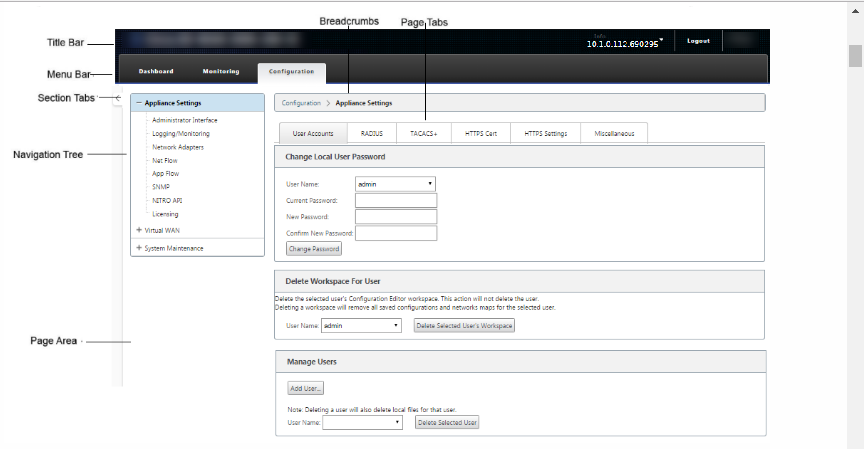
The basic navigation elements are as follows:
-
Title bar – This displays the appliance model number, Host IP Address for the appliance, the version of the software package currently running on the appliance, and the user name for the current login session. The title bar also contains the Logout button for terminating the session.
-
Main menu bar – This is the bar displayed below the title bar on every Management Web Interface screen. This contains the section tabs for displaying the navigation tree and pages for a selected section.
-
Section tabs – The section tabs are located in the main menu bar at the top of the page. These are the top-level categories for the Web Management Interface pages and forms. Each section has its own navigation tree for navigating the page hierarchy in that section. Click a section tab to display the navigation tree for that section.
-
Navigation tree – The navigation tree is located in the left pane, below the main menu bar. This displays the navigation tree for a section. Click a section tab to display the navigation tree for that section. The navigation tree offers the following display and navigation options:
-
Click a section tab to display the navigation tree and page hierarchy for that section.
-
Click + (plus sign) next to a branch in the tree to reveal the available pages for that branch topic.
-
Click a page name to display that page in the page area.
-
Click – (minus sign) next to a branch item to close the branch.
-
-
Breadcrumbs – This displays the navigation path to the current page. The breadcrumbs are at the top of the page area, just below the main menu bar. Active navigation links display in blue font. The name of the current page is displayed in black bold font.
-
Page area – This is the page display and work area for the selected page. Select an item in the navigation tree to display the default page for that item.
-
Page tabs – Some pages contain tabs for displaying more child pages for that topic or configuration form. These are located at the top of the page area, just below the breadcrumbs display. Sometimes (as for the Change Management wizard), tabs are located in the left pane of the page area, between the navigation tree and the work area of the page.
-
Page area resizing – For some pages, you can grow or shrink the width of the page area (or sections of it) to reveal more fields in a table or form. Where this is the case, there is a gray, vertical resize bar on the right border of a page area pane, form, or table. Roll your cursor over the resize bar until the cursor changes to a bi-directional arrow. Then click and drag the bar to the right or left to grow or shrink the area width.
If the resize bar is not available for a page, you can click and drag the right edge of your browser to display the full page.
Web management interface dashboard
Click the Dashboard section tab to display basic information for the local appliance.
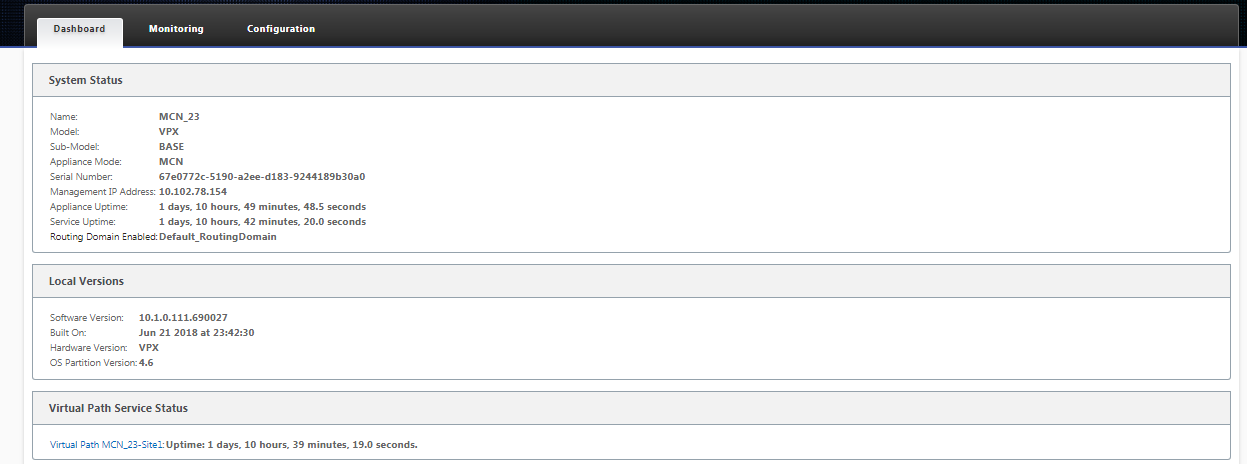
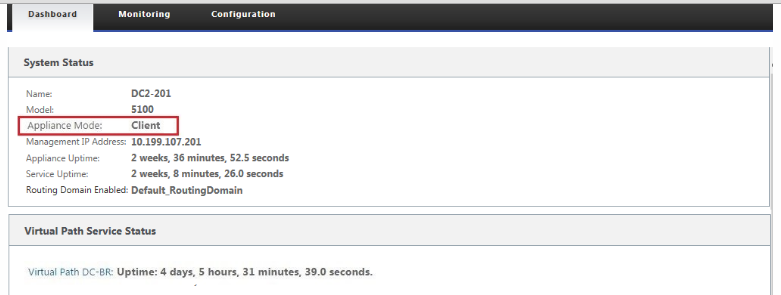
The Dashboard page displays the following basic information for the appliance:
-
System status
-
Virtual Path service status
-
Local appliance software package version information
The following figure shows a sample Master Control Node (MCN) appliance Dashboard display.
The following figure shows a sample client appliance Dashboard display.
Share
Share
This Preview product documentation is Cloud Software Group Confidential.
You agree to hold this documentation confidential pursuant to the terms of your Cloud Software Group Beta/Tech Preview Agreement.
The development, release and timing of any features or functionality described in the Preview documentation remains at our sole discretion and are subject to change without notice or consultation.
The documentation is for informational purposes only and is not a commitment, promise or legal obligation to deliver any material, code or functionality and should not be relied upon in making Cloud Software Group product purchase decisions.
If you do not agree, select I DO NOT AGREE to exit.