Establish network between Kubernetes nodes and Ingress NetScaler using node controller
In Kubernetes environments, when you expose the services for external access through the Ingress device you need to appropriately configure the network between the Kubernetes nodes and the Ingress device.
Configuring the network is challenging as the pods use private IP addresses based on the CNI framework. Without proper network configuration, the Ingress device cannot access these private IP addresses. Also, manually configuring the network to ensure such reachability is cumbersome in Kubernetes environments.
Also, if the Kubernetes cluster and the Ingress NetScaler® are in different subnets, you cannot establish a route between them using Static routing. This scenario requires an overlay mechanism to establish a route between the Kubernetes cluster and the Ingress NetScaler.
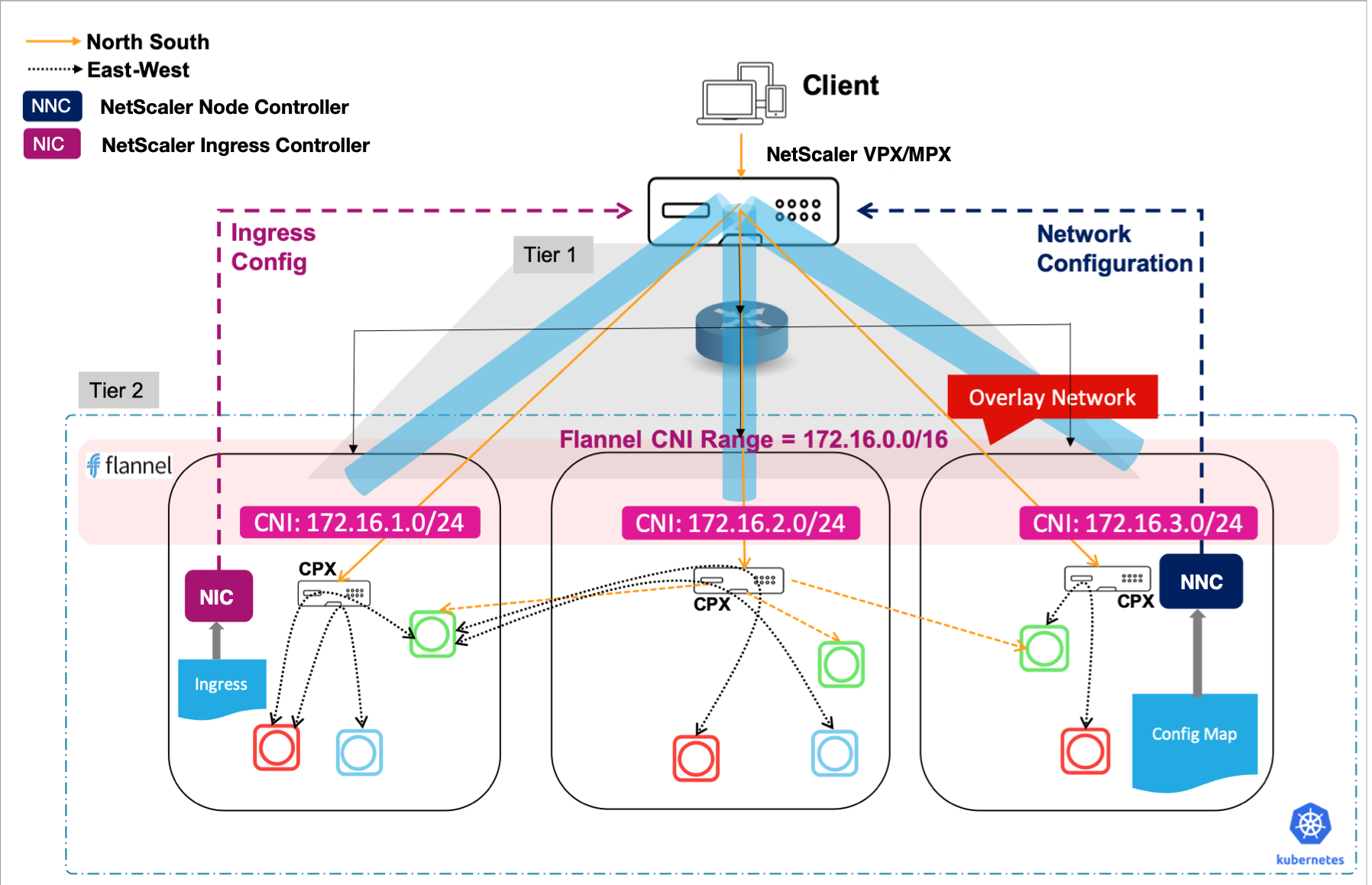
NetScaler provides a node controller that you can use to create a Virtual Extensible LAN (VXLAN) based overlay network between the Kubernetes nodes and the Ingress NetScaler as shown in the following diagram:
Note:
NetScaler Node Controller does not work in a setup where a NetScaler cluster is configured as an ingress device. node controller requires to establish a VXLAN tunnel between NetScaler and Kubernetes nodes to configure routes and creating a VXLAN on a NetScaler cluster is not supported.
Prerequisites
- The Kubernetes version 1.6 or later if using a Kubernetes environment.
- The OpenShift version 4.8 or later if using the OpenShift platform.
- The Helm version 2.x or later. You can follow the instruction given in Helm Installation to install the same.
-
You determine the ingress NetScaler IP address needed by the controller to communicate with NetScaler. The IP address might be one of the following depending on the type of NetScaler deployment:
-
(Standalone appliances) NSIP - The management IP address of a standalone NetScaler. For more information, see IP Addressing in NetScaler.
-
(Appliances in High Availability mode) SNIP - The subnet IP address. For more information, see IP Addressing in NetScaler.
-
- You determine the ingress NetScaler SNIP. This IP address is used to establish an overlay network between the Kubernetes clusters needed by the controller to communicate with NetScaler.
-
The user name and password of the NetScaler VPX or MPX appliance used as the ingress device. The NetScaler must have a system user account (non-default) with certain privileges so that the node controller can configure the NetScaler VPX or MPX appliance. For instructions to create the system user account on NetScaler, see Create System User Account for NSNC in NetScaler.
You have to pass the user name and password using Kubernetes secrets. Create a Kubernetes secret for the user name and password using the following command:
 kubectl create secret generic nsloginns --from-literal=username='nsnc' --from-literal=password='mypassword'
 <!--NeedCopy-->
Create system user account for NetScaler node controller in NetScaler
node controller configures the NetScaler by using a system user account of the NetScaler. The system user account must have certain privileges so that the NSNC has permission configure the following on the NetScaler:
- Add, Delete, or View routes
- Add, Delete, or View arp
- Add, Delete, or View Vxlan
- Add, Delete, or View IP
Note:
The system user account must have privileges based on the command policy that you define.
To create the system user account, do the following:
-
Log on to the NetScaler appliance. Perform the following:
-
Use an SSH client, such as PuTTy, to open an SSH connection to the NetScaler appliance.
-
Log on to the appliance with the administrator credentials.
-
-
Create the system user account using the following command:
add system user <username> <password>
<!--NeedCopy-->
For example:
add system user nsnc mypassword <!--NeedCopy--> -
Create a policy to provide required permissions to the system user account. Use the following command:
add cmdpolicy nsnc-policy ALLOW (^\S+\s+arp)|(^\S+\s+arp\s+.*)|(^\S+\s+route)|(^\S+\s+route\s+.*)|(^\S+\s+vxlan)|(^\S+\s+vxlan\s+.*)|(^\S+\s+ns\s+ip)|(^\S+\s+ns\s+ip\s+.*)|(^\S+\s+bridgetable)|(^\S+\s+bridgetable\s+.*) <!--NeedCopy--> -
Bind the policy to the system user account using the following command:
bind system user nsnc nsnc-policy 0
<!--NeedCopy-->
Deploy NetScaler node controller
To establish network connectivity using node controller:
-
Deploy the NetScaler Ingress Controller. Perform the following steps:
-
Add the node controller helm chart repository using command:
helm repo add netscaler https://netscaler.github.io/netscaler-helm-charts/ <!--NeedCopy--> -
To install the chart with the release name,
nsnc, use the following command:helm install nsnc netscaler/netscaler-node-controller --set license.accept=yes,nsIP=<NSIP>,vtepIP=<NetScaler SNIP>,vxlan.id=<VXLAN ID>,vxlan.port=<VXLAN PORT>,network=<IP-address-range-for-VTEP-overlay>,adcCredentialSecret=<Secret-for-NetScaler-credentials> <!--NeedCopy-->Or you can create the
values.yamlfile as shown after this and use the following command:helm install nsnc netscaler/netscaler-node-controller -f values.yaml <!--NeedCopy-->Values.yaml
adcCredentialSecret: "nsloginns" # Kubernetes Secret created for login into Netscaler as mentioned in pre-requisite section.
clusterName: "" # For e.g. "cluster1", provide the name of the cluster, provide same cluster name in NetScaler Ingress Controller deployment as well.
cniType: "" # provide the CNI supported (canal, flannel, Calico, cilium, weave)
license:
  accept: 'yes'
network: "<network>" #for e.g. 172.16.3.0/24 # Give a network IP not conflicting with pod IP range and cluster IP range
nsIP: <IP-ADDRESS>  # Management IP of the NetScaler (can be NSIP or SNIP with management access enabled for HA and CLIP for cluster)
vtepIP: <IP-ADDRESS>  # SNIP IP of the NetScaler
vxlan:
  id: <ID> # VXLAN ID that you want to use
  port: <PORT> # VXLAN PORT that you want to use
<!--NeedCopy-->
For more information on the different arguments, see Mandatory and optional parameters.
-
-
Verify the deployment.
After you have deployed the node controller, you can verify if node controller has configured a route on the NetScaler.
To verify, log on to the NetScaler and use the following commands to verify the VXLAN VNID, VXLAN PORT, SNIP, route, and bridgetable configured by node controller on the NetScaler:
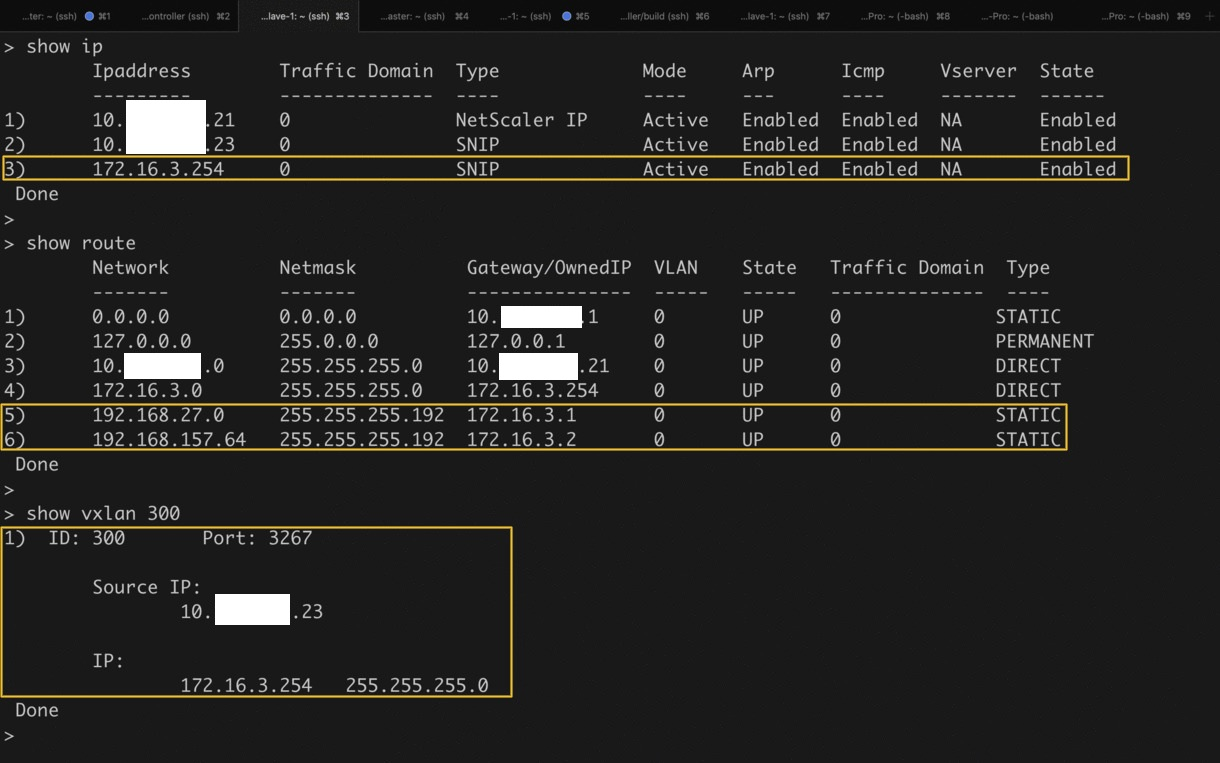
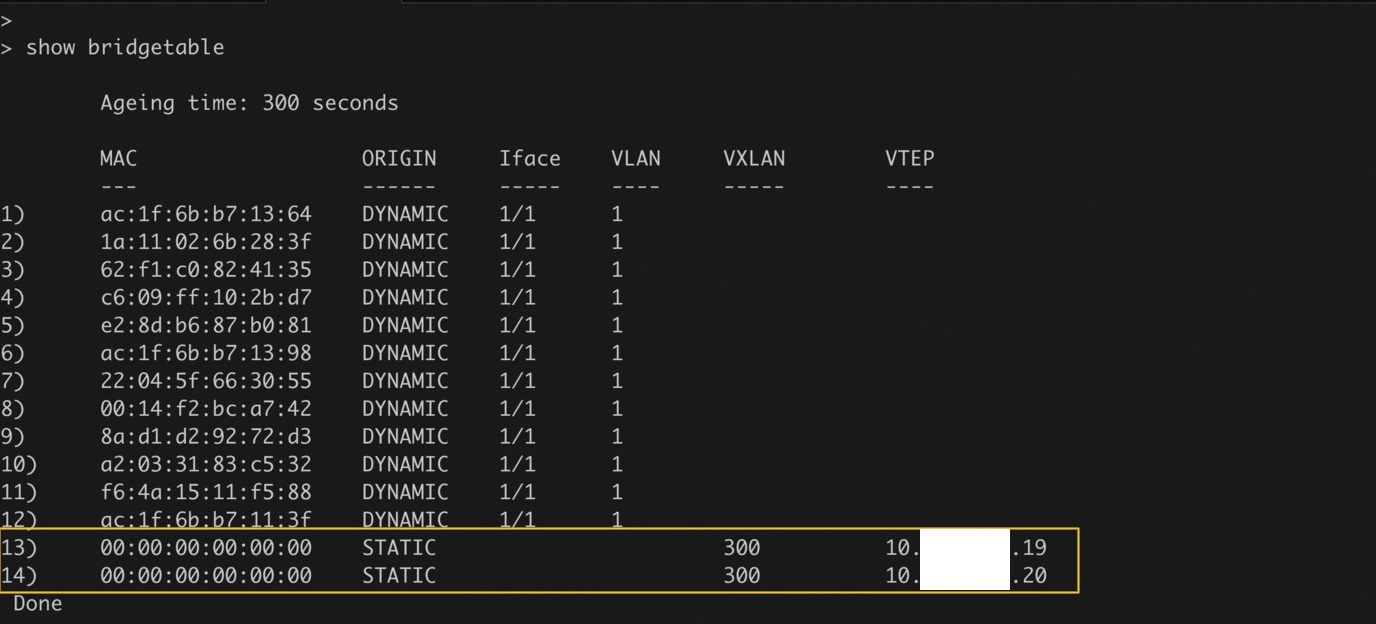
The highlights in the screenshot show the VXLAN VNID, VXLAN PORT, SNIP, route, and bridgetable configured by node controller on the NetScaler.
Verify cluster deployments
Apart from netscaler-node-controller deployment, some other resources are also created.
- In the namespace where NSNC is deployed:
- For each worker node, a
kube-cnc-routerpod. - A ConfigMap
kube-cnc-router.
- For each worker node, a
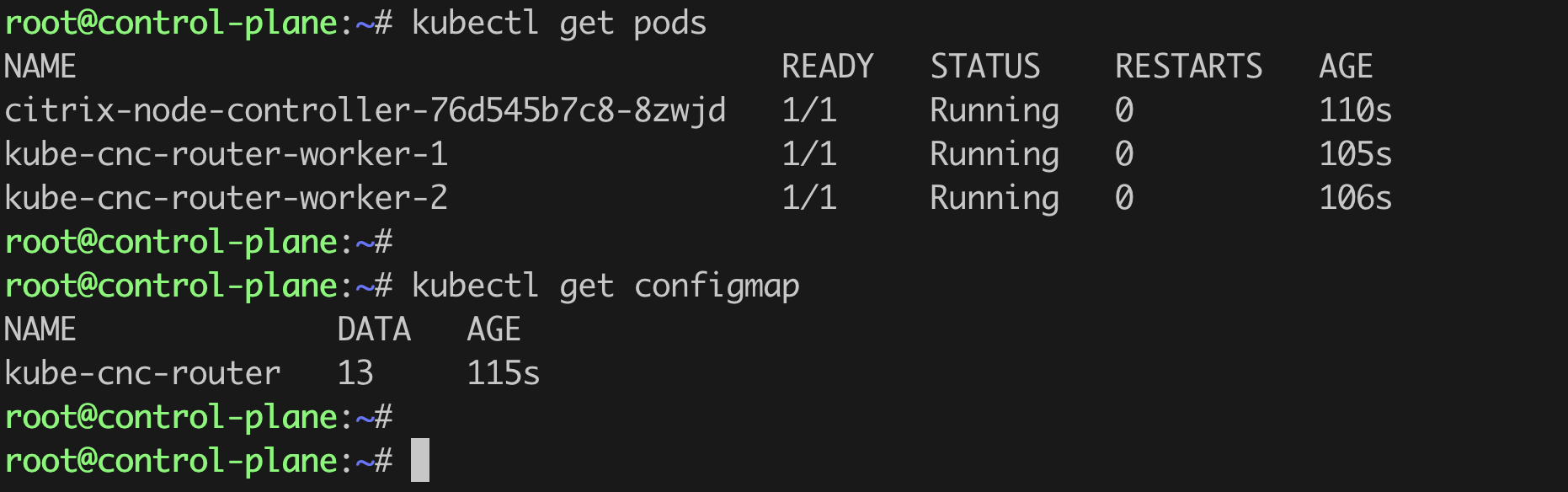
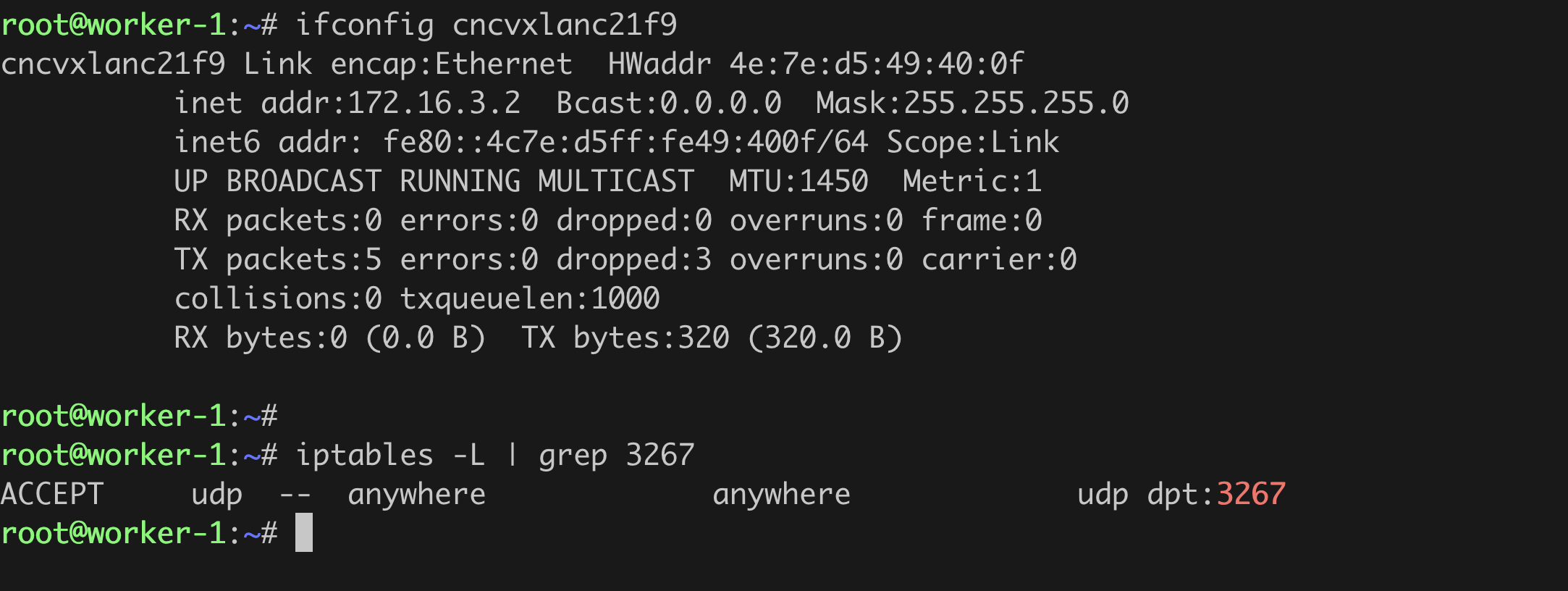
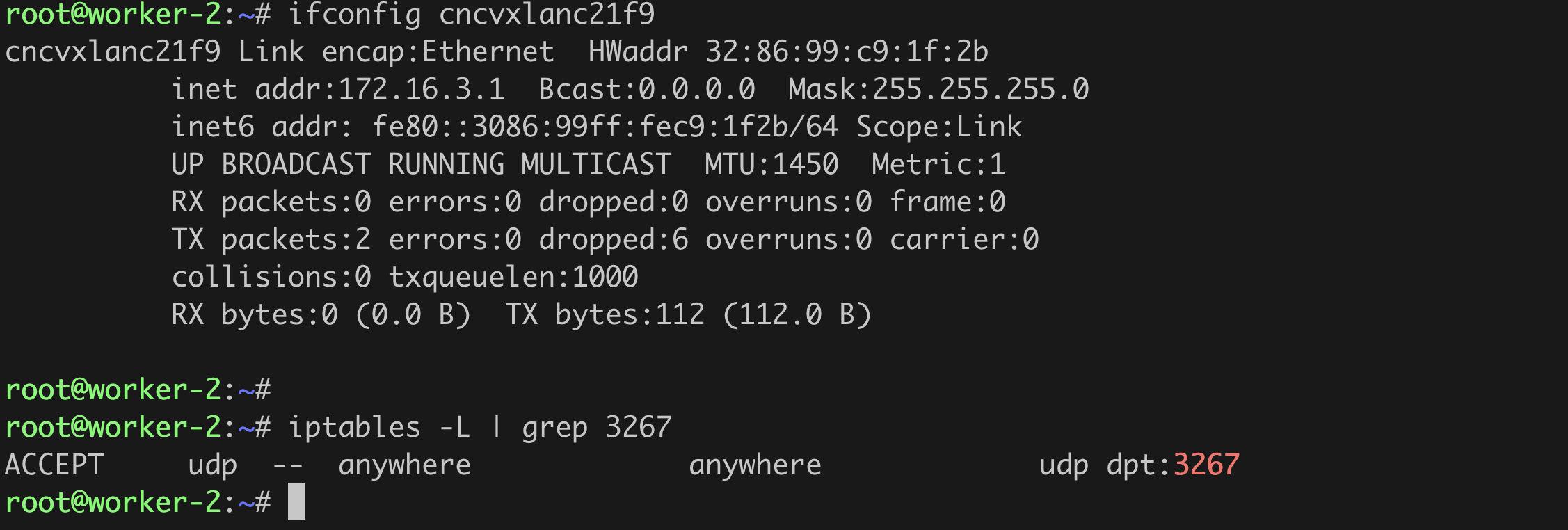
On each of the worker nodes, an interface cncvxlan<hash-of-namespace> and iptables rule is created.
Delete the NetScaler Kubernetes node controller
  helm delete nsnc
  <!--NeedCopy-->
Run NetScaler Node Controller without Internet access
node controller internally creates helper pods (kube-cnc-router pods) on each Kubernetes cluster node. The image used by default is quay.io/citrix/cnc-router:1.1.0 that requires Internet access. If the Kubernetes nodes do not have internet access, creation of kube-cnc-router pods fails.
However, NetScaler provides a way to access the image from your internal repository so that you can run the node controller without internet access. Using the CNC_ROUTER_IMAGE environment variable, you can point to the internal repository image of quay.io/citrix/cnc-router:1.1.0.
Configure NetScaler node controller to use an image from the internal repository
When you deploy node controller specify the CNC_ROUTER_IMAGE environment variable and set the value of the variable as your internal repository path for the image quay.io/citrix/cnc-router:1.1.0.
When you specify this environment variable, node controller uses the internal repository image provided by the CNC_ROUTER_IMAGE environment variable to create the kube-cnc-router helper pods. If the environment variable is not provided, it uses the default image quay.io/citrix/cnc-router:1.1.0 that requires internet access. Set nsncRouterImage while deploying the node controller.
   nsncRouterImage: "quay.io/citrix/cnc-router"
   <!--NeedCopy-->
Run multiple NetScaler node controller in the same cluster
If you want to deploy multiple node controller in the same cluster, use a different name for CNC_ROUTER_NAME by setting below argument while deploying node controller.
nsncRouterName: "abc-nsnc-router"
<!--NeedCopy-->
For Troubleshooting the node controller deployment, see Node Controller Troubleshooting
In this article
- Prerequisites
- Deploy NetScaler node controller
- Verify cluster deployments
- Delete the NetScaler Kubernetes node controller
- Run NetScaler Node Controller without Internet access
- Configure NetScaler node controller to use an image from the internal repository
- Run multiple NetScaler node controller in the same cluster