-
-
SSL certificate for services of type LoadBalancer through the Kubernetes secret resource
-
BGP advertisement for type LoadBalancer services and Ingresses using NetScaler CPX
-
NetScaler CPX integration with MetalLB in layer 2 mode for on-premises Kubernetes clusters
-
Advanced content routing for Kubernetes Ingress using the HTTPRoute CRD
-
IP address management using the NetScaler IPAM controller for Ingress resources
-
Deploy NetScaler ingress controller for NetScaler with admin partitions
-
-
-
Troubleshooting NetScaler node controller issues
This content has been machine translated dynamically.
Dieser Inhalt ist eine maschinelle Übersetzung, die dynamisch erstellt wurde. (Haftungsausschluss)
Cet article a été traduit automatiquement de manière dynamique. (Clause de non responsabilité)
Este artículo lo ha traducido una máquina de forma dinámica. (Aviso legal)
此内容已经过机器动态翻译。 放弃
このコンテンツは動的に機械翻訳されています。免責事項
이 콘텐츠는 동적으로 기계 번역되었습니다. 책임 부인
Este texto foi traduzido automaticamente. (Aviso legal)
Questo contenuto è stato tradotto dinamicamente con traduzione automatica.(Esclusione di responsabilità))
This article has been machine translated.
Dieser Artikel wurde maschinell übersetzt. (Haftungsausschluss)
Ce article a été traduit automatiquement. (Clause de non responsabilité)
Este artículo ha sido traducido automáticamente. (Aviso legal)
この記事は機械翻訳されています.免責事項
이 기사는 기계 번역되었습니다.책임 부인
Este artigo foi traduzido automaticamente.(Aviso legal)
这篇文章已经过机器翻译.放弃
Questo articolo è stato tradotto automaticamente.(Esclusione di responsabilità))
Translation failed!
Troubleshooting NetScaler node controller issues
This topic explains how to troubleshoot issues that you might encounter while using the node controller. You can collect logs to determine the causes and apply workarounds for some of the common issues related to the configuration of the node controller.
To validate node controller and the basic node configurations, refer to the image on the deployment page.
Router pods not starting
If kube-nsnc-router pods are not starting then it might be due to certain cluster restrictions that prevent privileged pods to be deployed by non-admin users/privileges.
As a workaround, perform one of the following:
- Use
kube-systemnamespace to deploy node controller. - Assign
cluster-adminrole to node controllerclusterrolebinding.
Note:
If you choose option 1, then you cannot create multiple instances of node controller in a single cluster as only one
kube-systemnamespace available per cluster.
Service status DOWN
To debug the issues when the service is in the “down” state, perform the following steps:
-
Verify the logs of the node controller pod by using the following command:
kubectl logs <nsnc-pod> -n <namespace>
<!--NeedCopy-->
Check for any ‘permission’ errors in the logs. node controller creates
kube-nsnc-routerpods, which requireNET_ADMINprivilege to perform the configurations on nodes. Therefore, the node controller service account must have theNET_ADMINprivilege and the ability to create host modekube-nsnc-routerpods. -
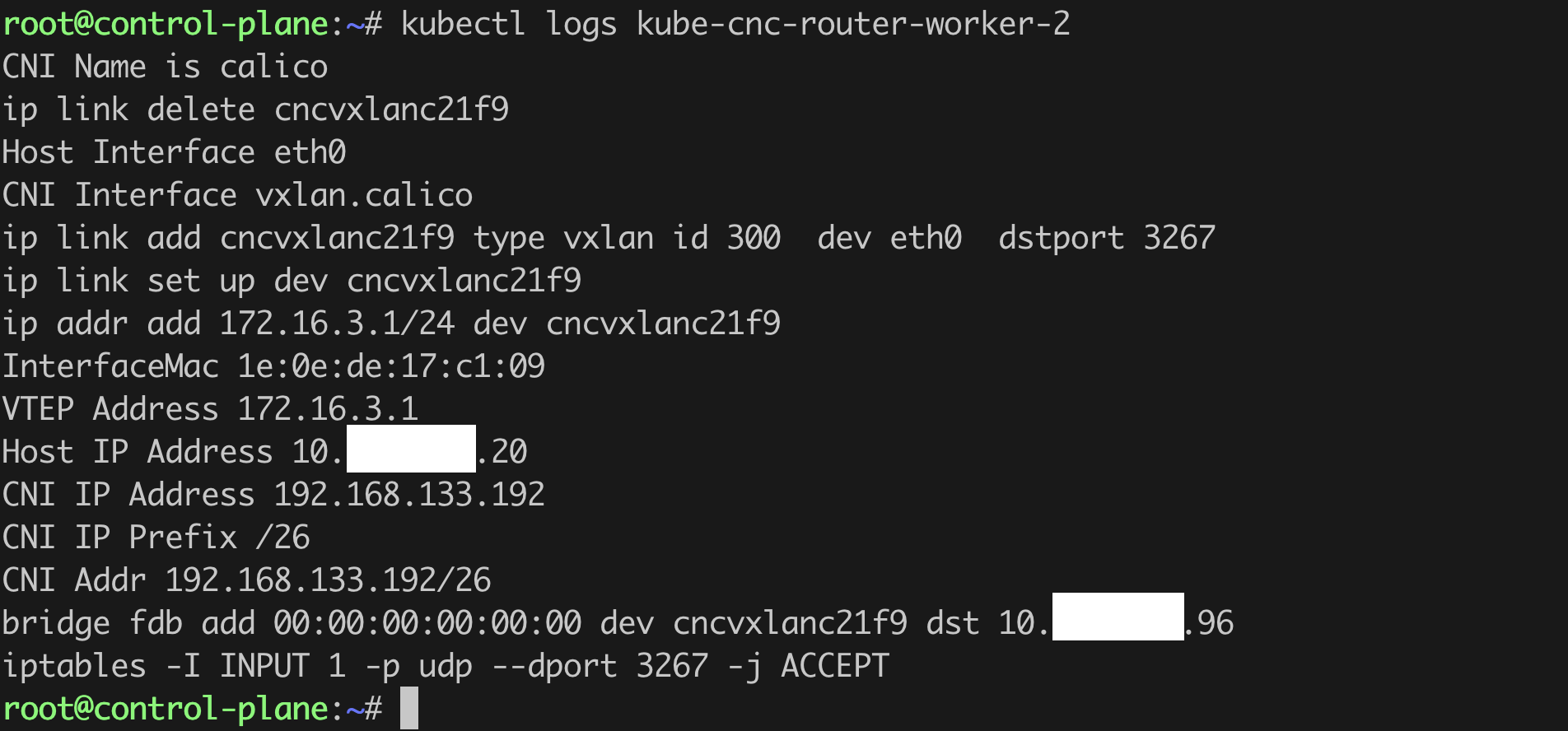
Verify the logs of the
kube-nsnc-routerpod by using the following command:kubectl logs <kube-nsnc-pod> -n <namespace> <!--NeedCopy-->Check for any errors in the node configuration. The following is a sample router pod log:
-
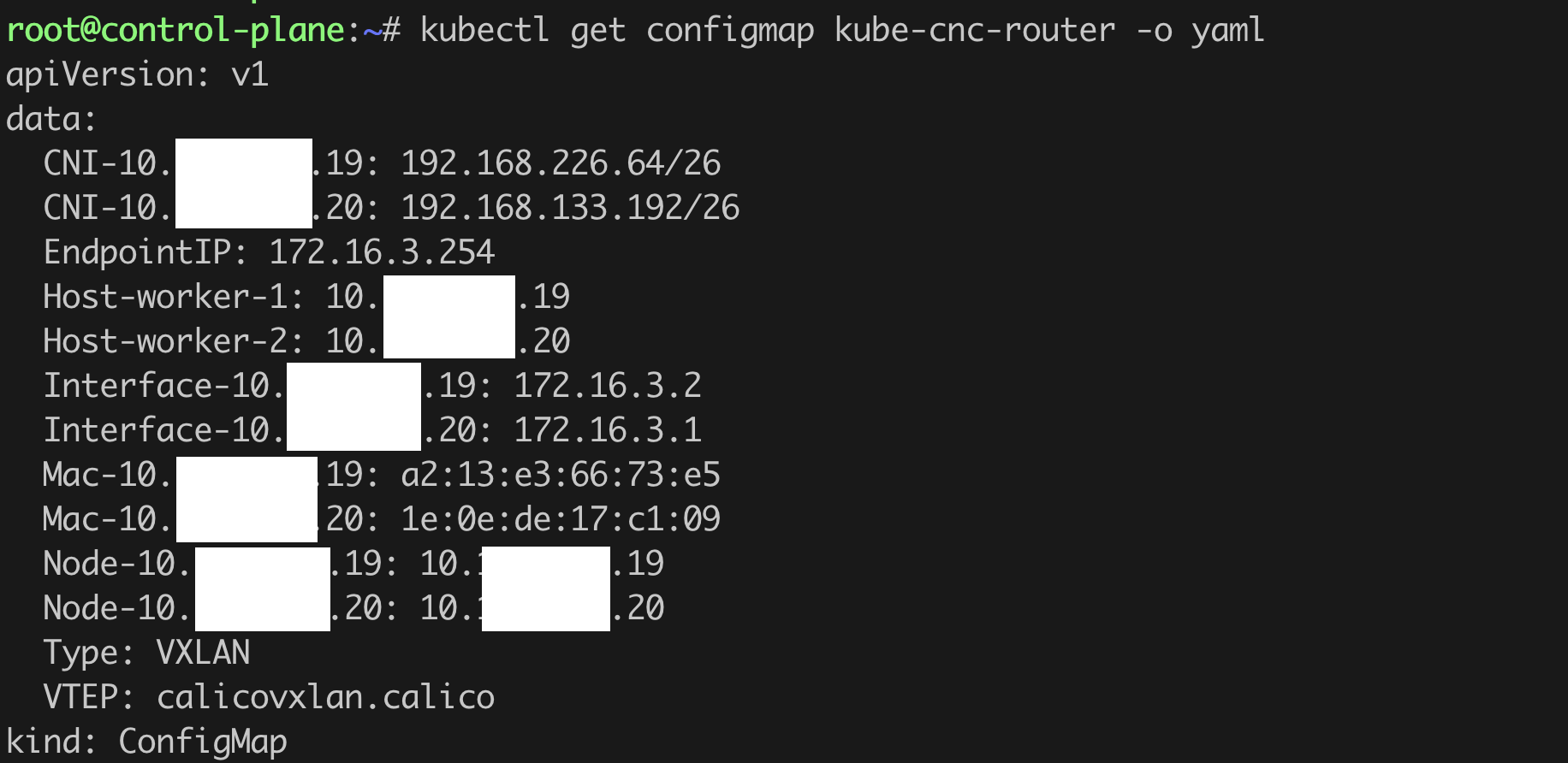
Verify the
kube-nsnc-routerConfigMap output by using the following command:kubectl get configmaps -n <namespace> kube-nsnc-router -o yaml <!--NeedCopy-->Check for an empty field in the “data” section of the ConfigMap. The following is a sample two-node data section:
-
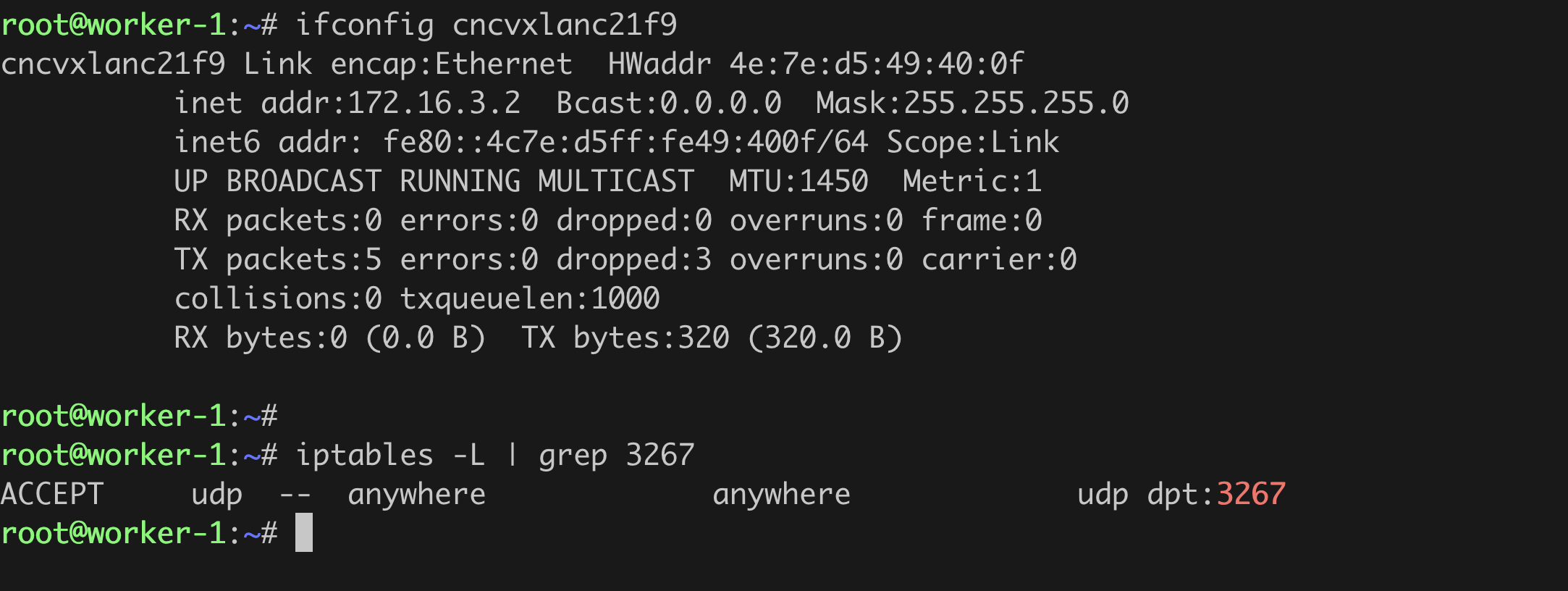
Verify the node configuration and ensure that:
-
node controller interface
nsncvxlan<md5_of_namespace>is created.- The assigned VTEP IP address is the same as the corresponding router gateway entry in NetScaler.
- The status of the interface is functioning.
-
iptablerule port is created.- The port is the same that of VXLAN created on NetScaler.
-
Service status is up and operational, but the ping from NetScaler is not working
This issue might occur due to the presence of a PBR entry, which directs the packets from NetScaler with SRCIP as NSIP to the default gateway. This issue does not impact any functionality.
You can use the VTEP of NetScaler as source IP address using the -S option of ping command in the NetScaler command line interface. For example:
ping <serviceIP> -S <vtepIP>
<!--NeedCopy-->
Note:
If it is necessary to ping with NSIP itself then you must remove the PBR entry or add a PBR entry for the endpoint with high priority.
cURL to the pod endpoint or VIP is not working
Though, services are in up state, if you cannot cURL to the pod endpoint, means that the stateful TCP session to the endpoint is failing. One reason might be that the ns mode ‘MBF’ is set to enable. This issue depends upon deployments and might occur only on certain versions of NetScaler.
To resolve this issue, you must disable MBF ns mode or bind a netprofile with the netprofile disabled to the service group.
Note:
If disabling the MBF resolves the issue, then you must continue to set MBF to disabled.
Customer support
For general support, when you raise issues with the customer support, provide the following details, which help for faster debugging. cURL or ping from NetScaler to the endpoint and get the details for the following:
For the node, provide the details for the following commands:
-
tcpdumpcapture on node controller interface on nodes.tcpdump -i nsncvxlan<hash_of_namesapce> -w nsncvxlan.pcap <!--NeedCopy--> -
tcpdumpcapture on node Mgmt interface, for example, “eth0”.tcpdump -i eth0 -w mgmt.pcap <!--NeedCopy--> -
tcpdumpcapture on CNI interface, for example, “vxlan.calico”.tcpdump -i vxlan.calico -w cni.pcap <!--NeedCopy--> -
output of
ifconfig -aon the node. -
output of
iptables -Lon the node.
For NetScaler, provide the details for the following show commands:
show ipshow vxlan <vxlan_id>show routeshow arpshow bridgetableshow ns pbrsshow ns bridgetableshow ns mode-
Try to capture
nstraceby using ping/cURL:start nstrace -size 0 -mode rx new_rx txb tx -capsslkeys enABLED <!--NeedCopy-->stop nstrace <!--NeedCopy-->
Share
Share
This Preview product documentation is Cloud Software Group Confidential.
You agree to hold this documentation confidential pursuant to the terms of your Cloud Software Group Beta/Tech Preview Agreement.
The development, release and timing of any features or functionality described in the Preview documentation remains at our sole discretion and are subject to change without notice or consultation.
The documentation is for informational purposes only and is not a commitment, promise or legal obligation to deliver any material, code or functionality and should not be relied upon in making Cloud Software Group product purchase decisions.
If you do not agree, select I DO NOT AGREE to exit.