-
-
在 Azure Cloud 上部署 NetScaler Console
-
在 Azure Cloud 上部署 NetScaler Console HA 对
-
-
-
-
This content has been machine translated dynamically.
Dieser Inhalt ist eine maschinelle Übersetzung, die dynamisch erstellt wurde. (Haftungsausschluss)
Cet article a été traduit automatiquement de manière dynamique. (Clause de non responsabilité)
Este artículo lo ha traducido una máquina de forma dinámica. (Aviso legal)
此内容已经过机器动态翻译。 放弃
このコンテンツは動的に機械翻訳されています。免責事項
이 콘텐츠는 동적으로 기계 번역되었습니다. 책임 부인
Este texto foi traduzido automaticamente. (Aviso legal)
Questo contenuto è stato tradotto dinamicamente con traduzione automatica.(Esclusione di responsabilità))
This article has been machine translated.
Dieser Artikel wurde maschinell übersetzt. (Haftungsausschluss)
Ce article a été traduit automatiquement. (Clause de non responsabilité)
Este artículo ha sido traducido automáticamente. (Aviso legal)
この記事は機械翻訳されています.免責事項
이 기사는 기계 번역되었습니다.책임 부인
Este artigo foi traduzido automaticamente.(Aviso legal)
这篇文章已经过机器翻译.放弃
Questo articolo è stato tradotto automaticamente.(Esclusione di responsabilità))
Translation failed!
Azure 云上的 NetScaler Console HA 对
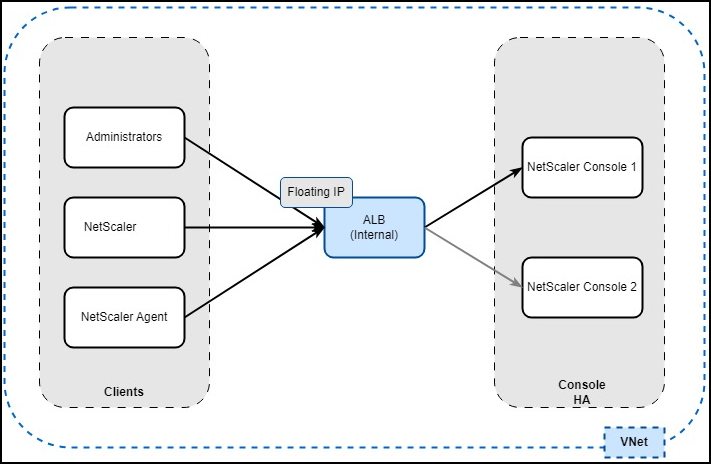
在 Azure 中,NetScaler Console 的高可用性通过 Azure 负载均衡器 (ALB) 实现。ALB 通过向主节点和辅助节点发送运行状况探测来监视实例。主实例响应 200 OK,而辅助实例不响应。根据这些响应,ALB 仅将流量发送到主实例。如果发生故障转移,新的主节点将开始响应 200 OK,ALB 会自动将流量发送到它。
先决条件
请确保:
-
您有权访问 Azure 云和资源组。
注意:
-
您在 Azure 云上创建了两个独立的 NetScaler Console 实例。
-
通信所需的端口已打开。有关详细信息,请参阅 系统要求。
配置 NetScaler Console HA 对
配置两个独立的 NetScaler Console 实例后:
-
登录到其中一个 NetScaler Console GUI。
-
导航到“设置 > 高可用性设置”。
注意:
-
要配置 HA 对,您必须提供另一个 NetScaler Console 的私有 IP 地址。
-
浮动 IP 可以是 Azure VNet(虚拟网络)中的任何可用 IP。
-
-
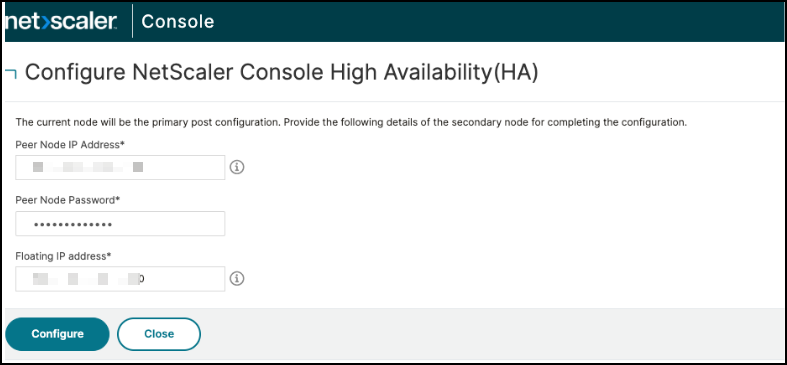
单击“配置 NetScaler Console 高可用性 (HA)”,提供辅助节点详细信息、浮动 IP 地址,然后单击“配置”。
-
在确认窗口中,单击“是”。NetScaler Console 实例将重新启动以形成 HA 对。
-
HA 对配置完成后,登录到主 NetScaler Console 并导航到“设置 > HA 部署”以验证主节点和辅助节点。

下一步是将浮动 IP 地址配置为 Azure 云中 Azure 负载均衡器的前端 IP。在 Azure 云门户中,搜索负载均衡器,然后在结果中选择“负载均衡器”,然后单击“创建”:
-
在“基本信息”中,在与配置 Console VM 相同的资源组和区域中创建 Azure 负载均衡器 (ALB)。
- 在“实例详细信息”下,选择 SKU:“标准”,类型:“内部”,层:“区域”。
-
在“前端 IP 配置”中,添加一个前端 IP,使用为 Console HA 对配置的浮动 IP。
-
在“后端池”中,添加两个 Console 实例的 IP 地址。
-
负载均衡规则:使用协议、端口、后端端口、运行状况探测和启用的浮动 IP 配置以下规则:
规则名称 协议 端口 后端端口 浮动 IP Rule-80 TCP 80 80 是 Rule-443 TCP 443 443 是 Rule-5454 TCP 5454 5454 是 Rule-22 TCP 22 22 是 Rule-8443 TCP 8443 8443 是 Rule-7443 TCP 7443 7443 是 Rule-27000 TCP 27000 27000 是 Rule-7279 TCP 7279 7279 是 Rule-5563 TCP 5563 5563 是 Rule-4739 UDP 4739 4739 是 Rule-5140 UDP 5140 5140 是 Rule-162 UDP 162 162 是 Rule-514 UDP 514 514 是 Rule-5557 UDP 5557 5557 是 Rule-5558 UDP 5558 5558 是 -
运行状况探测:创建 HTTP 运行状况检查,其中包含步骤 4 中列出的所有所需端口。此运行状况探测将主 Console 启用为活动状态,将辅助 Console 启用为被动状态。例如:
- 端口:443
- URL:
/mas_health -
预期响应代码:200
有关创建负载均衡器的详细信息,请参阅 Azure 文档中的 创建负载均衡器。
配置负载均衡器后,您可以使用 ALB 的前端 IP 地址访问 NetScaler Console。
注意:
请确保您有一个 Azure 虚拟桌面在同一 Azure 网络中运行,以便通过前端 IP 地址访问 NetScaler Console。
共享
共享
This Preview product documentation is Cloud Software Group Confidential.
You agree to hold this documentation confidential pursuant to the terms of your Cloud Software Group Beta/Tech Preview Agreement.
The development, release and timing of any features or functionality described in the Preview documentation remains at our sole discretion and are subject to change without notice or consultation.
The documentation is for informational purposes only and is not a commitment, promise or legal obligation to deliver any material, code or functionality and should not be relied upon in making Cloud Software Group product purchase decisions.
If you do not agree, select I DO NOT AGREE to exit.