
Configure proxy server settings
NetScaler Console® allows you to configure a proxy server for outbound connectivity. You can also upload its CA certificates for NetScaler Console deployments where the SSL-inspecting proxy intercepts outbound traffic. NetScaler Console trusts the proxy’s certificate only when its CA certificate is uploaded. This feature ensures that all external communication from NetScaler Console passes through a secured and controlled proxy server.
This feature provides the following benefits:
-
Ensures that the communication is secure when proxies perform SSL interception.
-
Prevents connectivity issues for telemetry uploads and Cloud Connect communication.
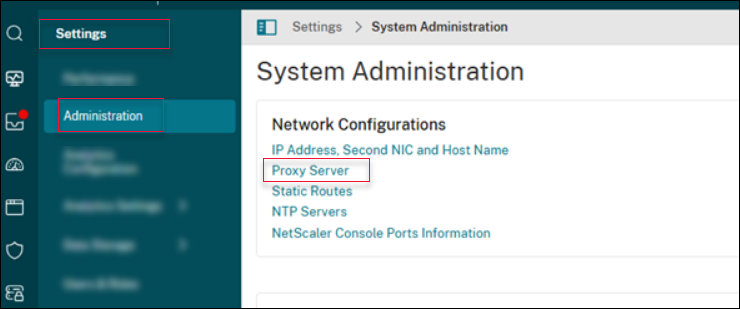
To configure a proxy server, navigate to Settings > Administration and click Proxy Server.
Points to note
-
Ensure that the proxy server is reachable from NetScaler Console over the specified IP/port.
-
If SSL interception is enabled, import in NetScaler Console, the proxy’s CA certificate to avoid connectivity failures.
-
Changes to proxy configuration might impact automated telemetry upload or Cloud Connect until the new details are added.
Proxy server configuration
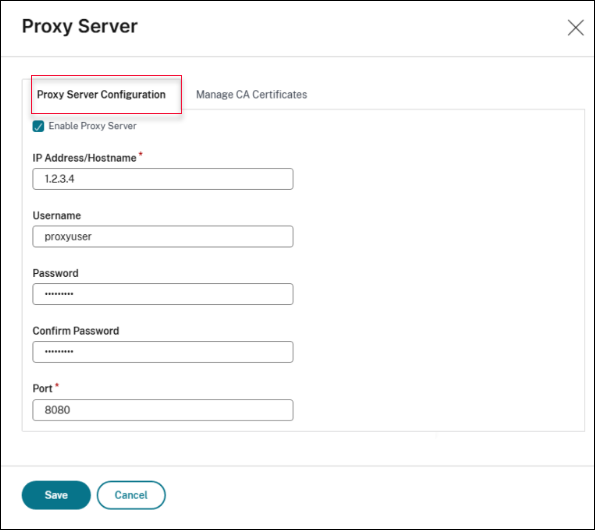
You can use the Proxy Server Configuration tab to add proxy details and credentials.
Prerequisite
-
Add
adm.cloud.comto Allow list.
To add a proxy server to route all outbound traffic, perform the following steps:
-
Navigate to Settings > Administration and click Proxy Server.
-
On the Proxy Server Configuration tab, select Enable Proxy Server.
-
Specify the IP Address/Hostname of the proxy server and its listening Port.Note:
-
Starting from 14.1 release build 56.x, NetScaler Console supports using DNS host names (FQDNs) in addition to IP addresses for proxy configuration.
-
Using host names is beneficial in environments that:
-
Use DNS-based redundancy (for example, GSLB) to route traffic across multiple proxy servers.
-
Have no load balancer, but rely on DNS to manage high availability and failover.
-
Require scalable and resilient proxy configurations across data centers.
The support to use DNS host names allows NetScaler Console to dynamically resolve the most appropriate proxy endpoint, improving reliability and simplifying management. -
-
-
Provide a Username and the corresponding Password if the proxy requires credentials.Note:NetScaler Console currently supports basic authentication for proxy.
-
Click Save.
Manage CA certificate
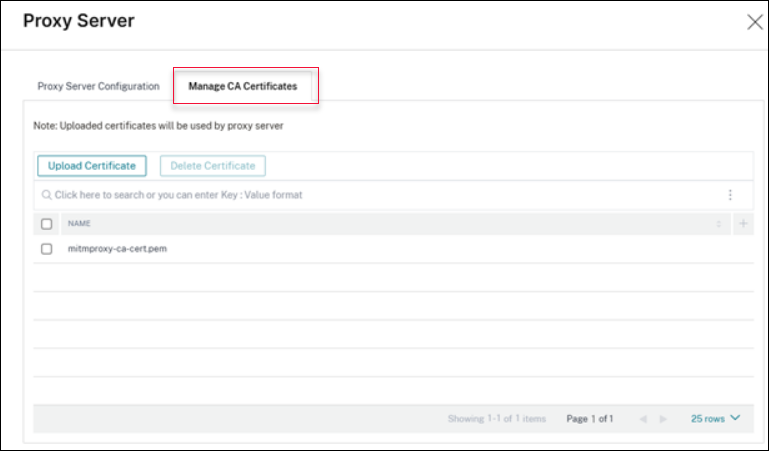
If the proxy server performs SSL inspection, use the Manage CA Certificates tab to upload the CA certificate of proxy server. You can either add or delete the certificate as per your needs.
To upload the CA certificate of the proxy server, perform the following steps:
-
Navigate to Settings > Administration and click Proxy Server.
-
Click Upload Certificate.
To delete the CA certificate of the proxy server, perform the following steps:
-
Navigate to Settings > Administration and click Proxy Server.
-
Select the certificate to be deleted.
-
Click Delete Certificate.
Proxy configuration support
NetScaler Console supports the following proxy deployment models to accommodate different enterprise network architectures. Based on your environment and security requirements, you can choose one of the following supported proxy configurations:
Important
-
For explicit SSL‑intercepting and transparent SSL‑intercepting proxy deployments, uploading the proxy CA certificate is mandatory. If the proxy CA certificate is not uploaded, outbound traffic from NetScaler Console fails.
-
Do not configure a proxy on NetScaler Console on‑prem when using a transparent SSL‑intercepting proxy.
No Proxy (Direct Internet Access)
In this deployment model, NetScaler Console on-prem connects directly to Citrix Cloud without using a proxy.
-
Communication uses outbound HTTPS traffic only.
-
No proxy configuration is required on NetScaler Console on-prem.
Explicit Forward Proxy (Non‑Intercepting)
In an explicit forward proxy setup, outbound traffic from NetScaler Console on-prem is explicitly routed through a proxy server.
-
NetScaler Console traffic is sent through a configured forward proxy.
-
The proxy forwards HTTPS traffic without decrypting SSL/TLS.
-
Required: Proxy details must be configured on NetScaler Console on-prem.
-
Optional: Authentication is optional. Users can provide a user name and password to authenticate while providing the proxy configuration. Only basic authentication is supported.
Explicit SSL‑Intercepting proxy
In this deployment model, the proxy inspects encrypted traffic by terminating and re‑encrypting SSL/TLS connections.
-
The proxy performs SSL decryption and re‑encryption.
-
Required: Proxy configuration is required on NetScaler Console.
-
Required: The proxy CA certificate must be uploaded to NetScaler Console. For more information, see Manage CA certificate.
-
Optional: Authentication is optional. Users can provide a user name and password to authenticate while providing the proxy configuration. Only basic authentication is supported.
Transparent SSL‑intercepting proxy
In a transparent proxy setup, traffic is intercepted at the network level without explicit proxy configuration on the client.
-
SSL inspection occurs transparently without proxy settings on NetScaler Console.
-
Network devices redirect traffic to the proxy automatically.
-
Required: The proxy CA certificate must be uploaded to NetScaler Console for SSL validation. For more information, see Manage CA certificate.
-
No proxy configuration is required on NetScaler Console.