
Setting up NetScaler for Citrix Virtual Apps and Desktops
NetScaler can provide load balanced, secure remote access to your Citrix Virtual Apps and Desktops applications. You can use the NetScaler load balancing feature to distribute traffic across the Citrix Virtual Apps and Desktops server. You can use the NetScaler Gateway feature to provide secure remote access to the servers.
NetScaler can also accelerate and optimize the traffic flow and offer visibility features that are useful for Citrix Virtual Apps and Desktops deployments.
Figure 1. NetScaler in Citrix Virtual Apps and Desktops setup
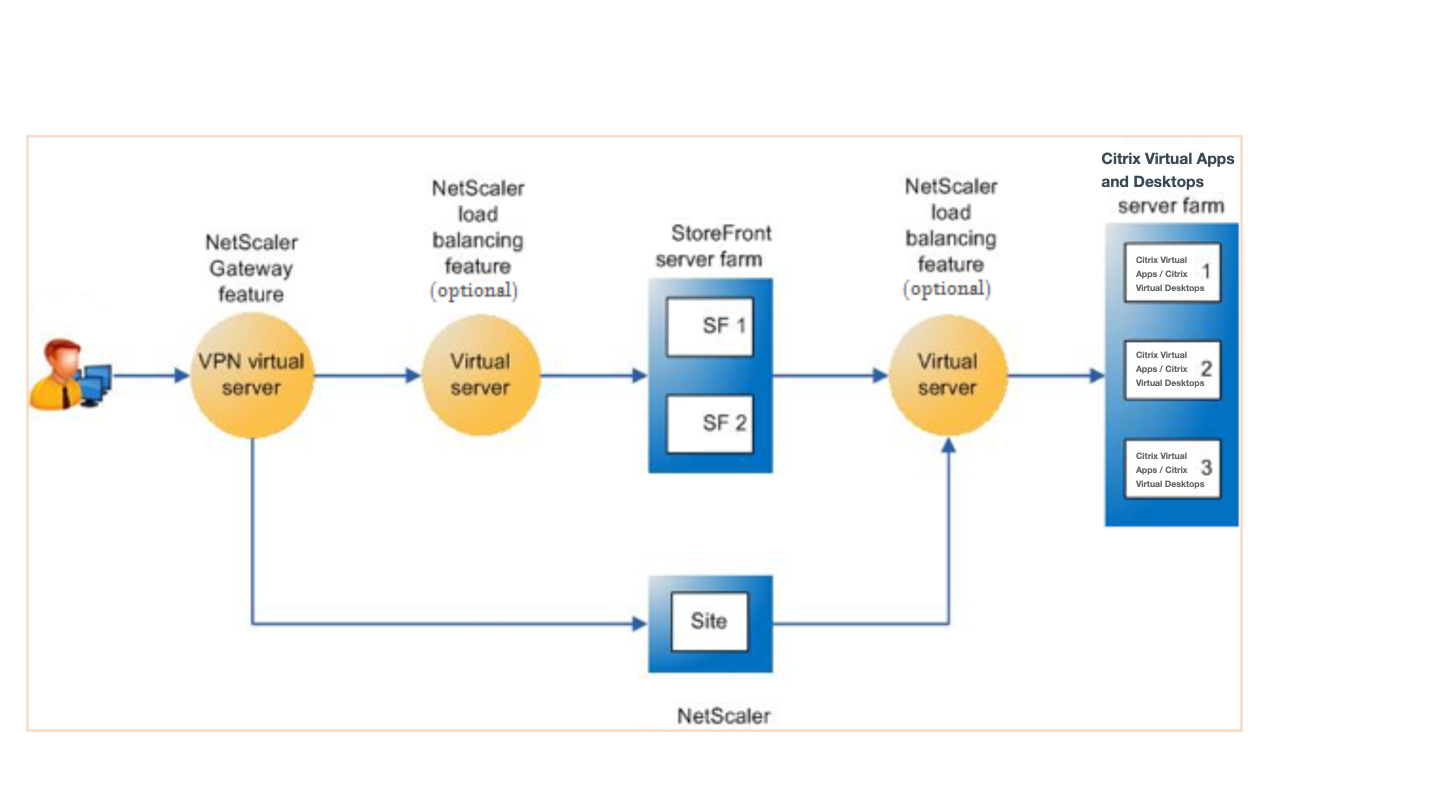
The preceding figure shows the components involved in this deployment:
-
NetScaler® Gateway. Provides the URL for user access, and provides security by authenticating the users. For more information, see About NetScaler Gateway.
-
NetScaler load balancing virtual server. Load balances the traffic for the StoreFront servers. You can also deploy a load balancing virtual server in front of the Citrix Virtual Apps and Desktop servers to load balance key components such as XML Broker and Desktop Delivery Controller (DDC) server.
-
Citrix Virtual Apps and Desktops. Provides the applications that your users want to access.
Prerequisites
-
Citrix Virtual Apps™ and Desktop servers are configured and available.
-
You have a working knowledge of NetScaler Gateway, NetScaler, Citrix Virtual Apps and Desktops, and StoreFront
-
Make sure that you have configured a virtual server and a service and bound the service to the virtual server. For more information, see the following documents:
-
Make sure that the required communication ports are open between NetScaler, StoreFront, and the Citrix Virtual Apps and Desktops components. For the list of ports, see NetScaler communication ports.
Set up NetScaler for Citrix Virtual Apps and Desktops by using the GUI
To set up the NetScaler for Citrix Virtual Apps and Desktops by using the NetScaler GUI, follow this procedure.
Procedure:
-
Log on to NetScaler and on the Configuration tab click XenApp and XenDesktop.
-
On the Details pane, click Get Started. If the setup exists on the NetScaler, click the Edit link corresponding to each of the section that you want to modify.
-
Select the product (StoreFront) that in your deployment provides the interface for access to the Citrix Virtual Apps and Desktops applications.
-
Set up secure remote access.
-
In the NetScaler Gateway Settings section, specify the details for the VPN virtual server and click Continue.
-
In the Server Certificate section, choose an existing certificate or install a new certificate and click Continue.
-
In the Authentication section, configure the primary authentication mechanism to be used and specify the server details or use an existing server and click Continue.
-
In the StoreFront™ section, specify the details of the server that provides the interface for accessing the applications and click Continue.
-
You can use LB virtual server pointing to multiple SF servers as your StoreFront server.
-
-
Click Done to complete the configuration.