
Installing the NetScaler web logging (NSWL) client
When you install NSWL, the client executable file (NSWL) is installed along with other files. The NSWL executable file provides a list of options that you can use. For details, see Configuring the NSWL Client.
Attention
The version of the NSWL client must be the same as NetScaler. For example, if the version of the NetScaler is 10.1 Build 125.9, the NSWL client must also be of the same version. Also, the web logging (NSWL) client works on both 32 bit and on 64 bit server machines. The download page has only a 32 bit weblog client. The 64 bit weblog client is available on request, and recommends you to contact NetScaler support for more information.
The following table lists the operating systems on which the NSWL client can be installed.
| Operating system | Version | Hardware requirements | Remarks |
|---|---|---|---|
| Windows | Windows Server 2016 or later | Processor - x86/amd64 CPU (1 GHz or higher), RAM - 4 GB (or higher) | - |
| macOS | macOS 8.6 or later | Not supported on NetScaler 10.1 and later releases | - |
| Linux | All Linux distributions that are compatible with GNU C Library (GLIBC) version 2.31 or later | Processor - x86/amd64 CPU (1 GHz or higher), RAM - 4 GB (or higher) | - |
| Solaris | Solaris Sun OS 5.6 or later | Processor - UltraSPARC-IIi 400 MHz, RAM - 512 MB, Controller - SCSI | Not supported on NetScaler 10.5 and later releases. |
| FreeBSD | FreeBSD 6.3 or later | Processor - x86/amd64 CPU (1 GHz or higher), RAM - 4 GB (or higher) | For NetScaler 10.5, use only FreeBSD 8.4. |
| AIX | AIX 6.1 | - | Not supported on NetScaler 10.5 and later releases. |
If the NSWL client system cannot process the log transaction because of a CPU limitation, the Web log buffer overruns and the logging process reinitiates.
Caution
Reinitiation of logging can result in loss of log transactions.
To temporarily solve an NSWL client system bottleneck caused by a CPU limitation, you can tune the Web server logging buffer size on the NetScaler appliance. To solve the problem, you need a client system that can handle the site's throughput.
Download NSWL client
You can obtain the NSWL client package from either the NetScaler product CD or the NetScaler downloads site. Within the package there are separate installation packages for each supported platform.
To download the NSWL client from the Citrix® website
-
Log on to Citrix by accessing the URL
https://www.citrix.com/downloads/citrix-adc/. -
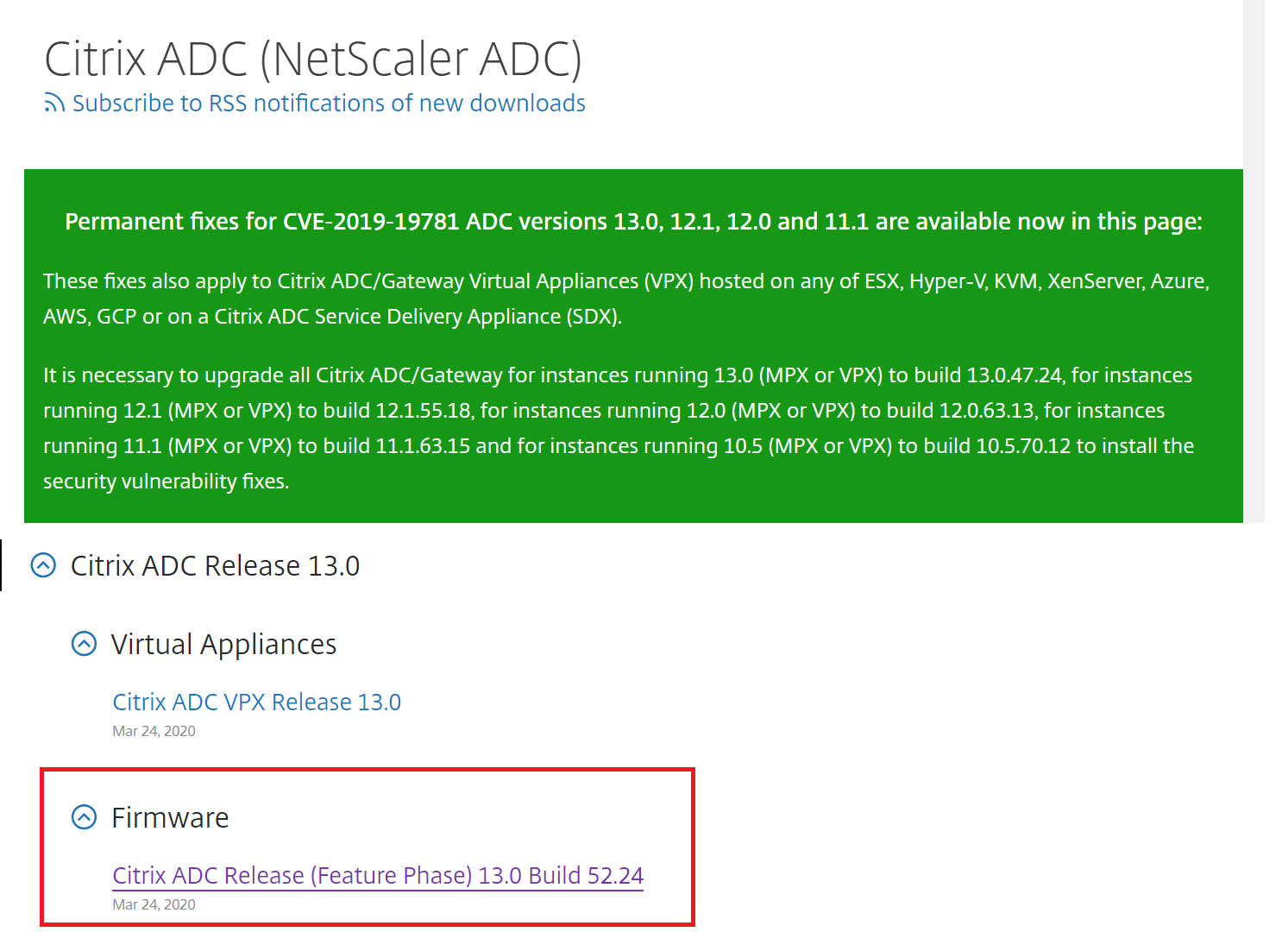
Navigate to a particular NetScaler release version and look for its Firmware.
-
Click Firmware (for example, NetScaler Release (Feature Phase) 13.0 Build 52.24).
-
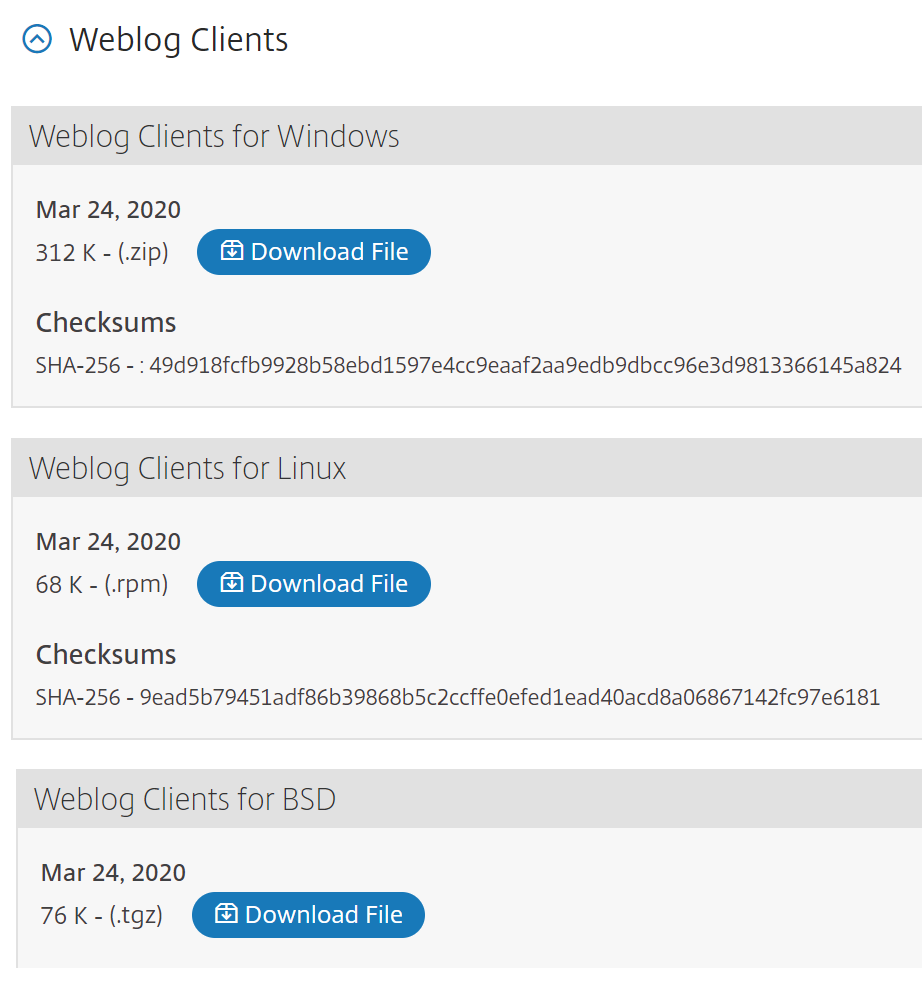
In the NetScaler Release (Feature Phase) Build page, go to Weblog Clients section.
-
The section allows you to download Weblog clients for Windows, Linux, and BSD.
Install NSWL client on Solaris
To install the NSWL client, perform the following operations on the system where you downloaded the package.
-
Extract the
nswl_solaris-<release number>-<build number>.tar filefrom the package. -
Copy the extracted file to a Solaris system on which you want to install the NSWL client.
-
Extract the files from the tar file with the following command:
tar xvf nswl_solaris-9.3-51.5.tar
A directory Weblog is created in the temporary directory, and the files are extracted to the Weblog directory.
-
Install the package with the following command:
pkgadd -d -
The list of available packages appears. In the following example, one Weblog package is shown:
1 NSweblog NetScaler Weblogging (SunOS,sparc) 7.0
You are prompted to select the packages. Select the package number of the Weblog to be installed.
After you select the package number and press Enter, the files are extracted and installed in the following directories:
-  /usr/local/netscaler/etc
 -  /usr/local/netscaler/bin
 -  /usr/local/netscaler/samples
-
To check whether the NSWL package is installed, run the following command:
pkginfo | grep NSweblog -
To uninstall the NSWL package, run the following command:
pkgrm NSweblog
Install NSWL client on Linux
Important
The installation of an NSWL client on Linux replaces the configuration file. You must take a backup before installing it.
To install the NSWL client, perform the following operations on the system where you downloaded the package.
-
Extract the
nswl_linux-<release number>-<build number>.rpmfile from the package. -
Copy the extracted file to a system running Linux OS, on which you want to install the NSWL client.
-
To install the NSWL package, run the following command:
rpm -i nswl_linux-9.3-51.5.rpm
This command extracts the files and installs them in the following directories.
-
/usr/local/netscaler/etc -
/usr/local/netscaler/bin -
/usr/local/netscaler/samples
-
To uninstall the NSWL package, run the following command:
rpm -e NSweblog -
To get more information about the Weblog RPM file, run the following command:
rpm -qpi *.rpm -
To view the installed Web server logging files, run the following command:
rpm -qpl *.rpm
Install NSWL client on FreeBSD
To install the NSWL client, perform the following operations on the system where you downloaded the package.
-
Extract the
nswl_bsd-<release number>-<build number>.tgzfile from the package. -
Copy the extracted file to a system running FreeBSD OS, on which you want to install the NSWL client.
-
To install the NSWL package, run the following command:
pkg_add nswl_bsd-9.3-51.5.tgz
This command extracts the files and installs them in the following directories.
- /usr/local/netscaler/etc
- /usr/local/netscaler/bin
- /usr/local/netscaler/samples
-
To uninstall the NSWL package, run the following command:
pkg_delete NSweblog -
To verify that the package is installed, run the following command:
pkg_info | grep NSweblog
Install the NSWL client on Mac
To install the NSWL client, perform the following operations on the system where you downloaded the package.
-
Extract the
nswl_macos-<release number>-<build number>.tgzfile from the package. -
Copy the extracted file to a system running macOS, on which you want to install the NSWL client.
-
To install the NSWL package, run the following command:
pkg_add nswl_macos-9.3-51.5.tgz
This command extracts the files and installs them in the following directories:
-
/usr/local/netscaler/etc
-
/usr/local/netscaler/bin
-
/usr/local/netscaler/samples
-
To uninstall the NSWL package, run the following command:
pkg_delete NSweblog -
To verify that the package is installed, run the following command:
pkg_info | grep NSweblog
Install NSWL client on Windows
To install the NSWL client, perform the following operations on the system where you downloaded the package.
-
Extract the
nswl_win-<release number>-<build number>.zipfile from the package. -
Copy the extracted file to a Windows system on which you want to install the NSWL client.
-
On the Windows system, unzip the file in a directory (referred as
<NSWL-HOME>). The following directories are extracted:/bin, and/etcand/samples. -
At the command prompt, run the following command from the
<NSWL-HOME>\bindirectory:nswl -install -f <directorypath>\log.confThe directory path points to the location of the configuration file (log.conf). By default, this file is found in the<NSWL-HOME>directory and the/etcdirectory. You can copy the configuration file to any other directory as needed.
Note
To uninstall the NSWL client, at the command prompt, run the following command from the
<NSWL-HOME>\bin directory:
> nswl -remove
Install NSWL client on AIX system
To install the NSWL client, perform the following operations on the system where you downloaded the package.
-
Extract the
nswl_aix-<release number>-<build number>.rpmfile from the package. -
Copy the extracted file to a system running AIX OS, on which you want to install the NSWL client.
-
To install the NSWL package, run the following command:
rpm -i nswl_aix-9.3-51.5.rpm
This command extracts the files and installs them in the following directories.
-
/usr/local/netscaler/etc -
/usr/local/netscaler/ -
usr/local/netscaler/samples
-
To uninstall the NSWL package, run the following command:
rpm -e NSweblog -
To get more information about the Weblog RPM file, run the following command:
rpm -qpi *.rpm -
To view the installed Web server logging files, run the following command:
rpm -qpl *.rpm