-
-
-
-
NetScalerが所有するIPアドレスの表示
-
-
-
This content has been machine translated dynamically.
Dieser Inhalt ist eine maschinelle Übersetzung, die dynamisch erstellt wurde. (Haftungsausschluss)
Cet article a été traduit automatiquement de manière dynamique. (Clause de non responsabilité)
Este artículo lo ha traducido una máquina de forma dinámica. (Aviso legal)
此内容已经过机器动态翻译。 放弃
このコンテンツは動的に機械翻訳されています。免責事項
이 콘텐츠는 동적으로 기계 번역되었습니다. 책임 부인
Este texto foi traduzido automaticamente. (Aviso legal)
Questo contenuto è stato tradotto dinamicamente con traduzione automatica.(Esclusione di responsabilità))
This article has been machine translated.
Dieser Artikel wurde maschinell übersetzt. (Haftungsausschluss)
Ce article a été traduit automatiquement. (Clause de non responsabilité)
Este artículo ha sido traducido automáticamente. (Aviso legal)
この記事は機械翻訳されています.免責事項
이 기사는 기계 번역되었습니다.책임 부인
Este artigo foi traduzido automaticamente.(Aviso legal)
这篇文章已经过机器翻译.放弃
Questo articolo è stato tradotto automaticamente.(Esclusione di responsabilità))
Translation failed!
NetScaler所有IPアドレスの表示
NetScaler Console GUIから直接、NetScalerインスタンスに構成されているIPアドレスを表示できます。構成変更やその他の操作は、NetScalerインスタンス上でのみ実行できます。
NetScaler所有IPアドレスを表示するには、Infrastructure > Instances > NetScaler Owned IPs に移動します。
この機能は、NetScalerインスタンスに構成されているIPv4アドレスとIPv6アドレスの両方を表示します。IPアドレスの種類には、次のものがあります。
- NetScaler IPアドレス
- サブネットIPアドレス
- 仮想IPアドレス
- ADNSサービスIPアドレス
- GSLB IPアドレス
- クラスターIPアドレス
- マップ済みIPアドレス
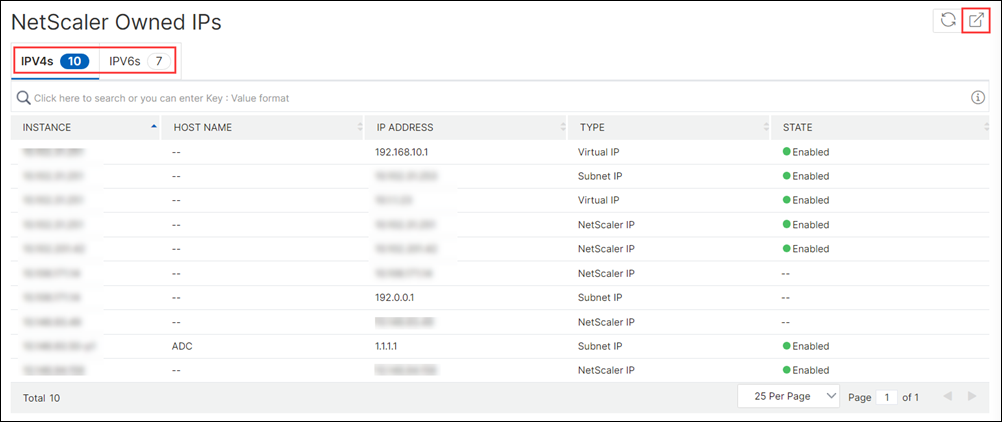
NetScaler所有IPアドレスのエクスポート
NetScaler所有IPアドレスをエクスポートするには、次の手順を実行します。
- Infrastructure > Instances > NetScaler Owned IPs に移動します。
- NetScaler Owned IPs ページで、右上隅にあるエクスポートアイコンをクリックします。
- Export Reports ページで、Export Now をクリックします。
-
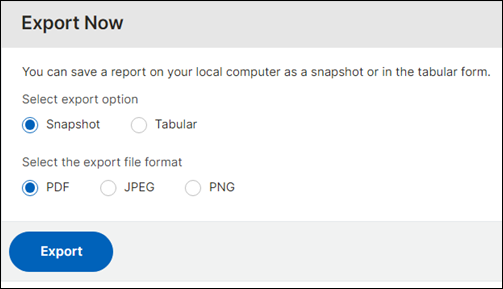
Export Now ページで、エクスポートオプションを選択します。
Snapshot エクスポートの場合:
- エクスポートファイル形式(PDF、JPG、またはPNG)を選択します。
Tabular エクスポートの場合:
- エクスポートファイル形式(PDFまたはCSV)を選択します。
- リストからエクスポートするデータレコードの数を選択します。
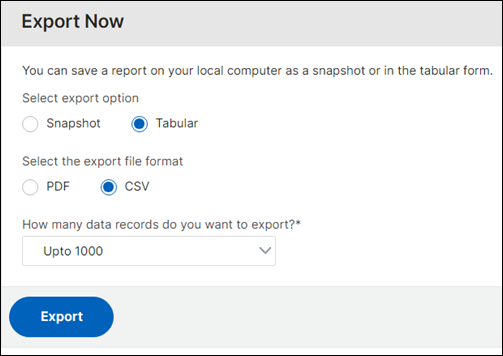
- Export をクリックします。
NetScaler所有IPアドレスのエクスポートのスケジュール設定
NetScaler所有IPアドレスのエクスポートをスケジュールするには、次の手順を実行します。
- Infrastructure > Instances > NetScaler Owned IPs に移動します。
- NetScaler Owned IPs ページで、右上隅にあるエクスポートアイコンをクリックします。
- Export Reports ページで、Schedule Export をクリックします。
-
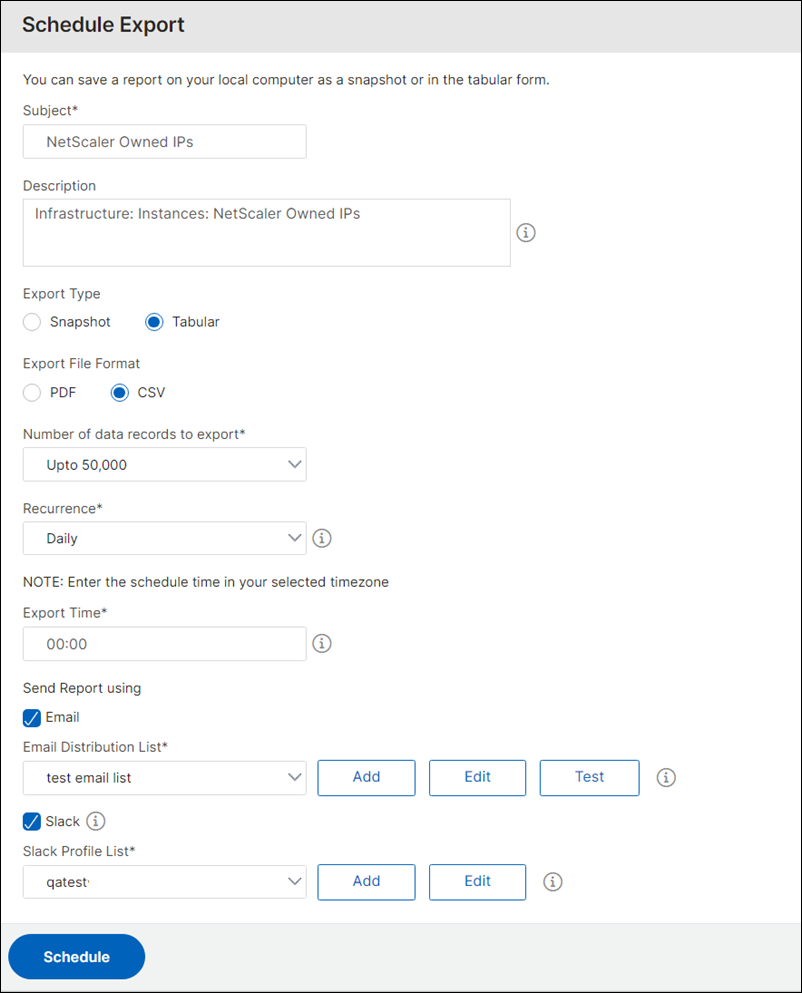
Schedule Export ページで、次の詳細を入力します。
- 件名と説明を入力します。
-
エクスポートタイプを選択します。
Snapshot エクスポートタイプの場合:
- エクスポートファイル形式(PDF、JPG、またはPNG)を選択します。
Tabular エクスポートタイプの場合:
- エクスポートファイル形式(PDFまたはCSV)を選択します。
- リストからエクスポートするデータレコードの数を選択します。
- 繰り返し(毎日、毎週、または毎月)を選択します。
- エクスポート時間を選択します。
-
エクスポートされたIPアドレスの送信方法(Email、Slack、または両方)を選択します。
Emailの場合:
-
Email を選択し、NetScaler所有IPアドレスのリストを送信するメール配信リストを選択します。
- メール配信リストを追加するには、Add をクリックし、メールサーバーの詳細を指定します。
- メール配信リストを編集するには、Edit をクリックします。
- メール配信リストが機能していることを確認するには、Test をクリックします。これにより、選択したメール配信リストにテストメールが送信されます。
Slackの場合:
-
Slack を選択し、NetScaler所有IPアドレスのリストを送信するSlackプロファイルリストを選択します。
- Slackプロファイルを追加するには、Add をクリックし、SlackチャネルのProfile Name、Channel Name、およびToken を指定します。
- 既存のSlackチャネルを編集するには、Edit をクリックします。
-
- Schedule をクリックしてエクスポートをスケジュールします。
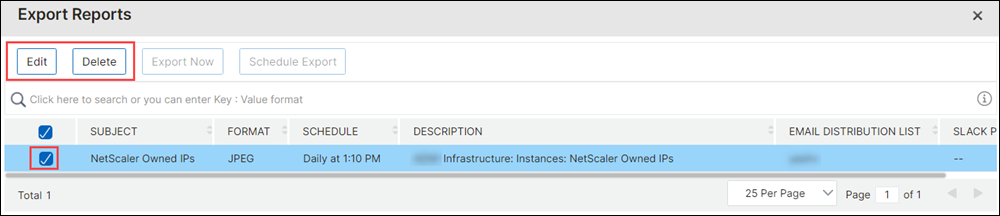
スケジュールが設定されると、エクスポートスケジュールがExport Reports ページに表示され、スケジュールを選択して編集または削除操作を実行できます。選択したスケジュールを編集した後、Save をクリックして編集した変更を保存します。Delete はスケジュールを削除します。
共有
共有
This Preview product documentation is Cloud Software Group Confidential.
You agree to hold this documentation confidential pursuant to the terms of your Cloud Software Group Beta/Tech Preview Agreement.
The development, release and timing of any features or functionality described in the Preview documentation remains at our sole discretion and are subject to change without notice or consultation.
The documentation is for informational purposes only and is not a commitment, promise or legal obligation to deliver any material, code or functionality and should not be relied upon in making Cloud Software Group product purchase decisions.
If you do not agree, select I DO NOT AGREE to exit.