
Install a NetScaler® agent as a microservice on a Kubernetes cluster
If you are using NetScaler Console on-premises, the container agent is used for several specific strategic and technical reasons. Some of the important reasons are:
-
Seamless Management of Cloud-Native Workloads - The primary reason for using the container agent is to manage NetScaler CPX (the containerized version of NetScaler).
-
Localized Control: The agent acts as a licensing proxy between your on-prem Console and NetScaler CPX instances running inside a Kubernetes cluster.
-
Simplified Connectivity (Microservices Architecture) - If your NetScaler Console and your Kubernetes cluster are on different networks, the container agent acts as a secure "in-cluster" gateway.
Notes:
-
You can also configure an on-prem agent and register the agent on the network where the Kubernetes cluster is hosted.
-
Starting from NetScaler Console release 14.1 build 60.x, NetScaler Console supports the use of containerized console agent. Use of a containerized console agent provides streamlined connectivity and monitoring of managed instances on Kubernetes or OpenShift platforms.
Getting started
-
In NetScaler Console, navigate to Infrastructure > Instances > Agents.
-
From the Select Action list, select the Download Agent Microservice option.
-
In the Download Agent Microservice page, specify the following parameters:
-
Application ID – A string id to define the service for the agent in the Kubernetes cluster and distinguish this agent from other agents in the same cluster.
-
Password – Specify a password for NetScaler CPX to use this password to onboard NetScaler CPX to NetScaler Console through the agent.
-
Confirm Password – Specify the same password for confirmation.Note:
-
You must not use the default password (
nsroot).
-
-
-
Click Download Yaml File.
Install NetScaler agent in Kubernetes cluster
Perform the following steps in the Kubernetes main node:
-
Save the downloaded YAML file.
-
Run the following command:
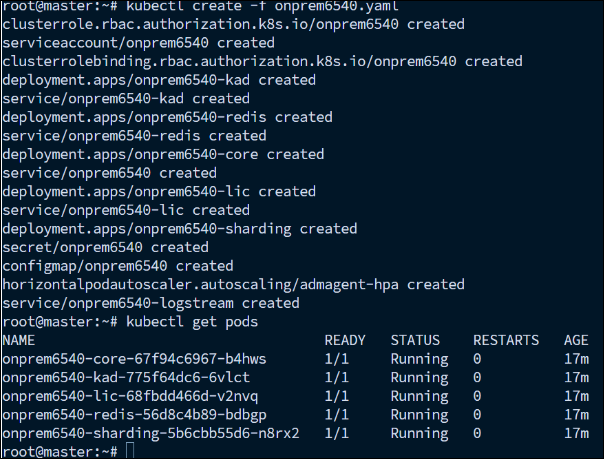
kubectl create -f <yaml file>Example:kubectl create -f onprem6540.yaml
The agent is successfully created.
In NetScaler Console, navigate to Infrastructure > Instances > Agents to see the agent status.

After you configure the agent, you can add the NetScaler CPX instances and view analytics in the service graph. For more information, see: