-
-
-
Importing and synchronizing StyleBooks from an external repository
-
Simplified migration of NetScaler application configuration using StyleBooks
-
-
-
-
Best Practices
-
Scenarios for Flexed or Pooled license expiry and connectivity issues behavior
-
Configure NetScaler Console as the Flexed or Pooled license server
This content has been machine translated dynamically.
Dieser Inhalt ist eine maschinelle Übersetzung, die dynamisch erstellt wurde. (Haftungsausschluss)
Cet article a été traduit automatiquement de manière dynamique. (Clause de non responsabilité)
Este artículo lo ha traducido una máquina de forma dinámica. (Aviso legal)
此内容已经过机器动态翻译。 放弃
このコンテンツは動的に機械翻訳されています。免責事項
이 콘텐츠는 동적으로 기계 번역되었습니다. 책임 부인
Este texto foi traduzido automaticamente. (Aviso legal)
Questo contenuto è stato tradotto dinamicamente con traduzione automatica.(Esclusione di responsabilità))
This article has been machine translated.
Dieser Artikel wurde maschinell übersetzt. (Haftungsausschluss)
Ce article a été traduit automatiquement. (Clause de non responsabilité)
Este artículo ha sido traducido automáticamente. (Aviso legal)
この記事は機械翻訳されています.免責事項
이 기사는 기계 번역되었습니다.책임 부인
Este artigo foi traduzido automaticamente.(Aviso legal)
这篇文章已经过机器翻译.放弃
Questo articolo è stato tradotto automaticamente.(Esclusione di responsabilità))
Translation failed!
Best Practices for monitoring your LAS transitioned NetScaler Console on-premises cloud-connected environment
This document focuses on the best practices that you can follow to monitor your NetScaler environments that use LAS. This document applies to deployments that use LAS with Console on-premises.
Prerequisites
- Read the LAS for NetScaler page, including the FAQ for LAS with Console service.
- Read the License Activation Service and complete your LAS migration.
- Ensure that you set up the relevant notifications, and monitor the NetScaler GUI and CLI regularly.
Note:
We intend to make continuous improvements to notifications and keep this documentation updated accordingly.
For NetScaler Console on-premises, LAS provides the LAS activation blob to cloud connected NetScaler Console on-premises. The blob is valid for 30 days or until the license entitlement expires, whichever comes first and is refreshed every day. If connectivity between NetScaler Console on-premises and NetScaler Console service breaks, NetScaler Console on-premises cannot refresh its LAS activation blob.
The Monitor Console on-premises LAS activation blob expiry section details the notification triggered when the Console on-premises LAS activation blob is within 30 days of expiration. If this occurs, your cloud connection requires immediate attention. To resolve this, run the cloud connect diagnostics tool to repair any identified issues, or contact Citrix Support for assistance.
After NetScaler Console on-premises obtains its LAS activation blob, it is authorized to issue activation blobs to all NetScaler instances requiring licensing through NetScaler Console on-premises. NetScaler Console on-premises can only do this while its own LAS activation blob remains valid. It issues LAS activation blobs to NetScaler instances with a 30-day validity period (or until its own blob expires, whichever comes first).
If connectivity between NetScaler and NetScaler Console on-premises Console is lost:
-
The Console cannot refresh the NetScaler instance’s LAS activation blob.
-
The Console retries the connection every eight hours.
-
After three failed attempts (24 hours total), the NetScaler enters a ‘grace’ status, which is reflected in the Console UI.
The Monitor LAS activation blob expiry section details notifications for the LAS activation blob that is nearing its expiry date (less than 30 days). If this occurs, your cloud connection requires immediate attention. To resolve this, run the cloud connect diagnostics tool to repair any identified issues, or contact Citrix Support for assistance.
Monitor Console on-premises LAS activation blob expiry
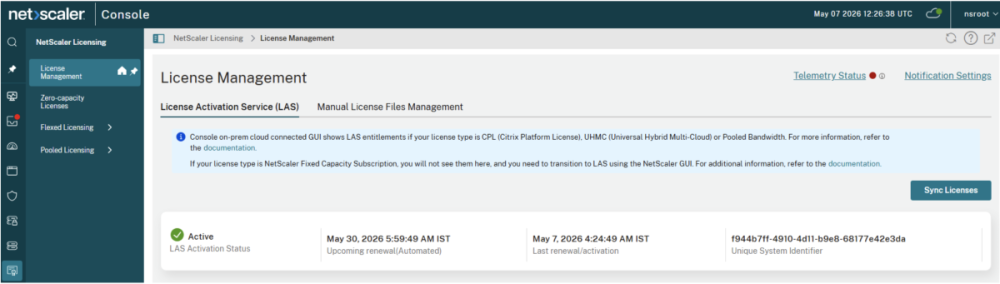
Monitor the last renewal date by using the GUI
To monitor the last renewal or activation date, navigate to Console on-premises GUI > NetScaler Licensing > License Management > LAS.
The renewal/refresh occurs daily. If the last renewal/activation date is more than a few days old, it indicates a connectivity or activation issue.
Notifications
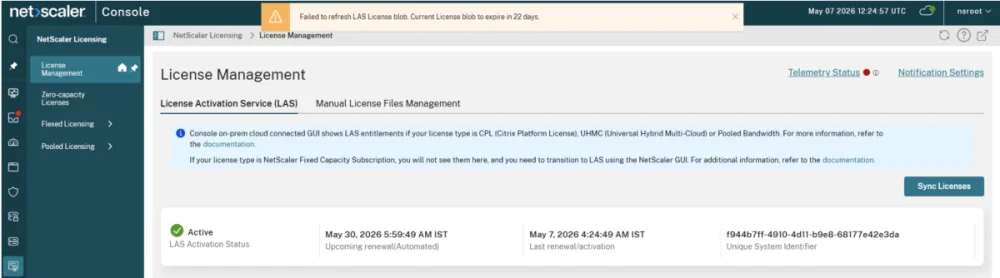
Banner on NetScaler Console on-premises GUI:
When the NetScaler Console on-premises fails to refresh the LAS activation blob, a warning banner appears in the NetScaler Console GUI, as shown in the following image.
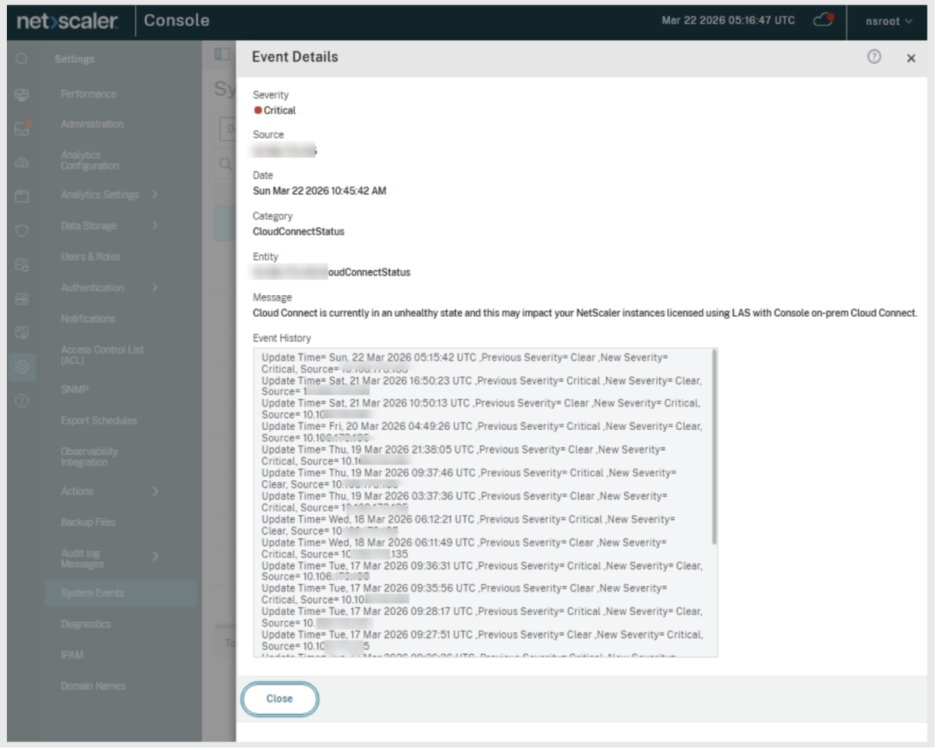
System event-based notifications for Cloud-connect issues:
NetScaler Console generates events for changes in the Cloud Connect status. These events trigger when the connection state between NetScaler Console on-premises and Console service changes, including transitions:
-
From Connected to Disconnected or Error
-
From Disconnected or Errors back to Connected
To view these events, navigate to Console on-premises GUI > Settings > System Events.
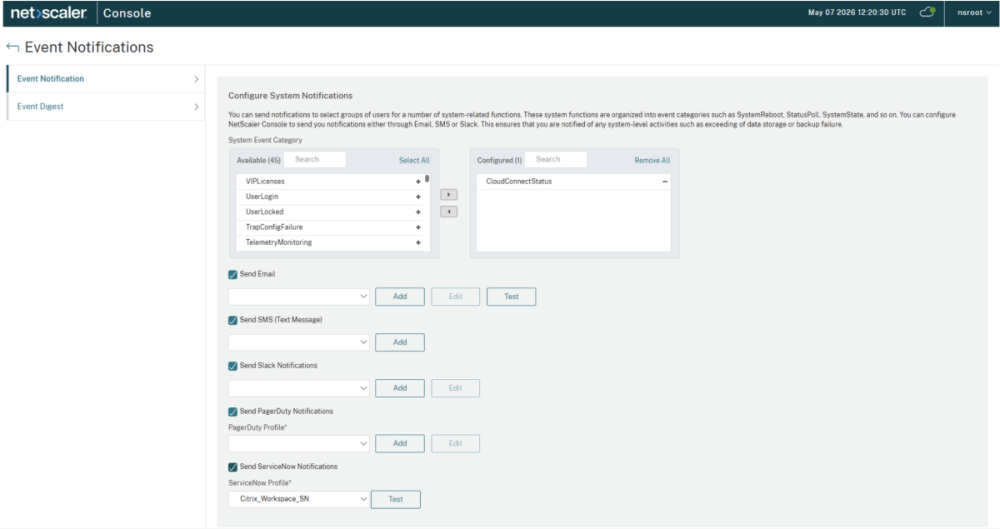
You can also set up email-based notifications for cloud connect related issues.
- Navigate to Console on-premises GUI > Settings > Event notifications.
- Select the category CloudConnectStatus.
- Select and configure one or more forms of notifications, such as email, SMS, PagerDuty.
- Click Save.
System event-based notification for Console on-premises LAS activation blob expiry:
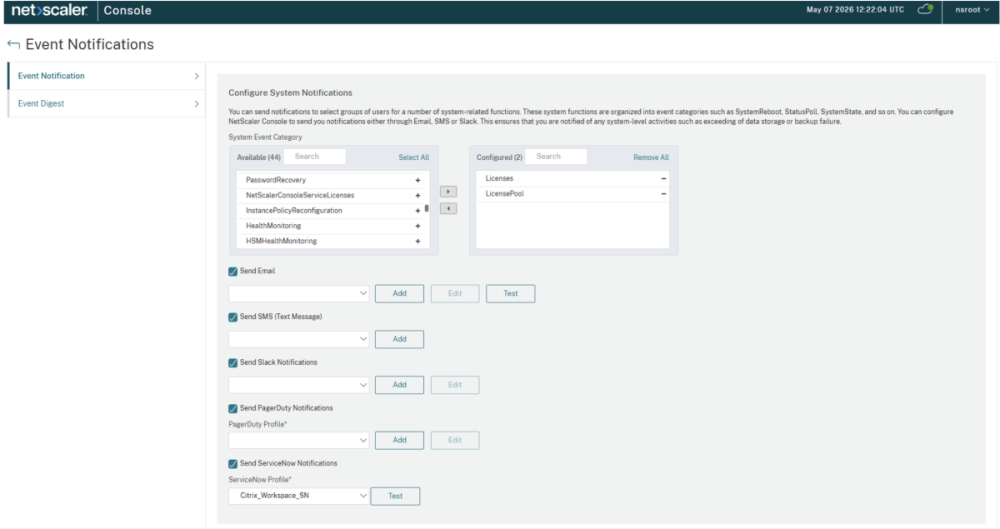
NetScaler Console on-premises generates events to inform administrators about the LAS activation blob expiration for NetScaler Console on-premises. You can also set up email-based alerts for these events.
To configure notifications for LAS activation blob expiry:
- Navigate to Console on-premises GUI > Settings > Event notifications.
- Select the Licenses and License Pool categories.
- Select and configure one or more forms of notifications, such as email, SMS, PagerDuty.
- Click Save.
Note:
The list of configured events can include more than these two based on your other use cases and configured notifications. The screenshot represents just these two for simplicity.
Monitor NetScaler instances LAS activation blob expiry (NetScaler licensed through Console on-premises cloud connected)
View NetScaler instances by using the GUI:
To view NetScaler instances that are in grace status, navigate to Console on-premises GUI > NetScaler Licensing > Flexed Licensing > Dashboard
View NetScaler instance status by using the CLI
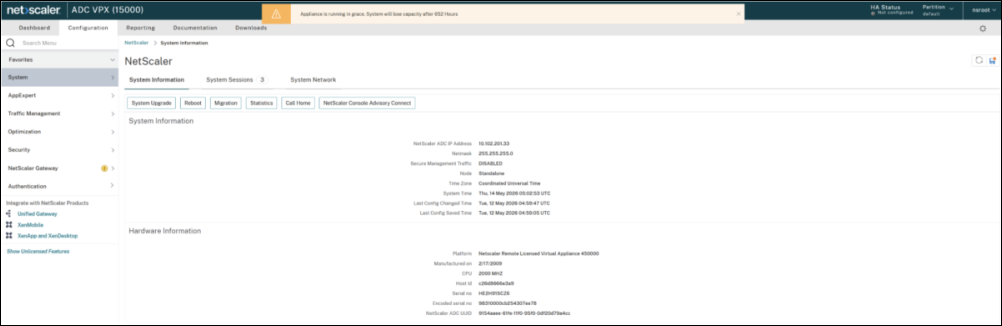
To view NetScaler instances in the grace status and the remaining grace period duration, run the sh licenseserver command.
Example:
> sh licenseserver
     License Server: 10.102.123.31 Status: Disconnected
        Grace: Yes         Grace Time Left: 652
Done
<!--NeedCopy-->
Notifications
Banner on NetScaler Console on-premises:
The NetScaler Console on-premises GUI displays a banner listing NetScaler instances whose LAS activation blob expires in x days, where x is less than 30 days.

Banner on NetScaler GUI:
The NetScaler Console on-premises GUI displays a banner if the NetScaler instance is in the grace status.
System event-based notification:
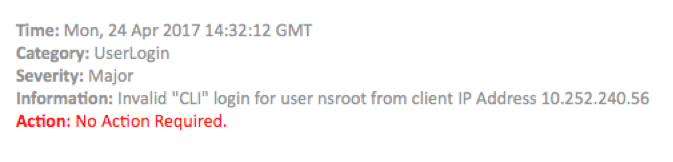
NetScaler Console on-premises generates events when LAS activation blob expiry for NetScaler instances. You can also set up email-based alerts for these events.
To configure notifications for LAS activation blob expiry:
- Navigate to Console on-premises GUI > Settings > Event notifications.
- Select the Licenses and License Pool categories.
- Select and configure one or more form of notifications, such as email, SMS, PagerDuty.
- Click Save.
SNMP traps generated by NetScaler for grace status:
If NetScaler instances are in grace status, NetScaler generates the following SNMP traps:
- pooledLicenseGraceStarted: Triggered when the instance has entered the Grace period.
- pooledLicenseGraceNormal: Triggered if NetScaler has been in the Grace period for 30 days and the Grace period has ended, which means the deployment is impacted or becomes unlicensed.
- pooledLicenseGracePeriodOver: Triggered when the Grace period is over.
Example:
May 15 05:17:21 <local0.info> 10.102.201.33  05/15/2026:11:17:21 GMT  0-PPE-2 : default SNMP TRAP_SENT 0 0 :  pooledLicenseGraceStarted (nsPartitionName = default)
May 15 05:17:21 <local0.info> 10.102.201.33  05/15/2026:11:17:21 GMT  0-PPE-2 : default SNMP TRAP_SENT 0 0 :  pooledLicenseGraceNormal (nsPartitionName = default)
May 15 05:17:21 <local0.info> 10.102.201.33  05/15/2026:11:17:21 GMT  0-PPE-2 : default SNMP TRAP_SENT 0 0 :  pooledLicenseGracePeriodOver (nsPartitionName = default)
<!--NeedCopy-->
Monitor license entitlement expiry
The License entitlement expiry date refers to the customer license entitlement or contract expiry date.
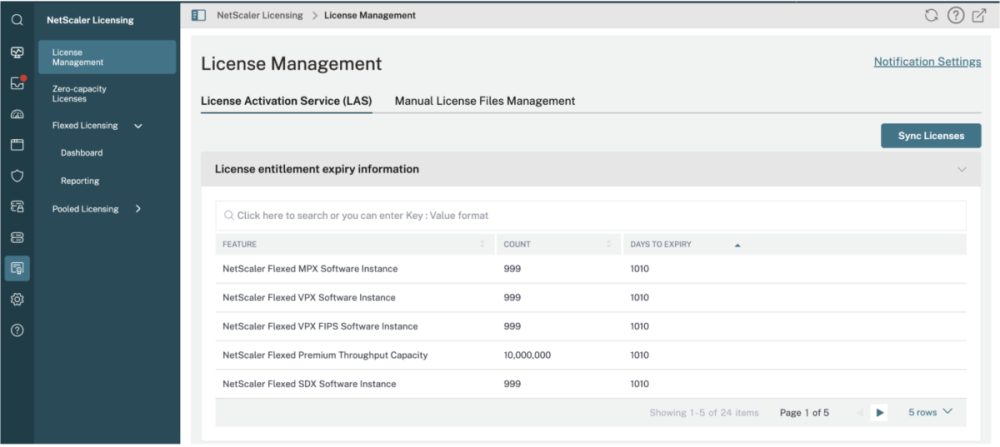
To view the license entitlement expiry information by using the GUI, navigate to Console Service GUI > NetScaler Licensing > License Management > LAS.
The Days to expiry shows entitlement expiry date for the corresponding license.
Notifications
NetScaler Console service GUI banner:
The NetScaler Console service GUI shows a banner indicating that the license entitlement is nearing expiry in x days.
Email-based notifications
To configure email-based notifications:
- Navigate to Console Service GUI > NetScaler Licensing > License Management > Notification Settings.
- Enter the required value in How many days before the license expires do you want to be notified?.
- Click Save.
Share
Share
This Preview product documentation is Cloud Software Group Confidential.
You agree to hold this documentation confidential pursuant to the terms of your Cloud Software Group Beta/Tech Preview Agreement.
The development, release and timing of any features or functionality described in the Preview documentation remains at our sole discretion and are subject to change without notice or consultation.
The documentation is for informational purposes only and is not a commitment, promise or legal obligation to deliver any material, code or functionality and should not be relied upon in making Cloud Software Group product purchase decisions.
If you do not agree, select I DO NOT AGREE to exit.