-
Low-touch onboarding of NetScaler instances using Console Advisory Connect
-
-
File integrity monitoring
-
Remediate vulnerabilities for CVE-2021-22927 and CVE-2021-22920
-
-
Importing and synchronizing StyleBooks from an external repository
-
Create and use custom StyleBooks
-
Create a StyleBook to upload files to NetScaler Console service
-
Create a StyleBook to upload SSL certificate and certificate key files to NetScaler Console service
-
Enable analytics and configure alarms on a virtual server defined in a StyleBook
-
Allow special characters with their literal form in StyleBooks
-
Use API to create configurations from StyleBooks
-
This content has been machine translated dynamically.
Dieser Inhalt ist eine maschinelle Übersetzung, die dynamisch erstellt wurde. (Haftungsausschluss)
Cet article a été traduit automatiquement de manière dynamique. (Clause de non responsabilité)
Este artículo lo ha traducido una máquina de forma dinámica. (Aviso legal)
此内容已经过机器动态翻译。 放弃
このコンテンツは動的に機械翻訳されています。免責事項
이 콘텐츠는 동적으로 기계 번역되었습니다. 책임 부인
Este texto foi traduzido automaticamente. (Aviso legal)
Questo contenuto è stato tradotto dinamicamente con traduzione automatica.(Esclusione di responsabilità))
This article has been machine translated.
Dieser Artikel wurde maschinell übersetzt. (Haftungsausschluss)
Ce article a été traduit automatiquement. (Clause de non responsabilité)
Este artículo ha sido traducido automáticamente. (Aviso legal)
この記事は機械翻訳されています.免責事項
이 기사는 기계 번역되었습니다.책임 부인
Este artigo foi traduzido automaticamente.(Aviso legal)
这篇文章已经过机器翻译.放弃
Questo articolo è stato tradotto automaticamente.(Esclusione di responsabilità))
Translation failed!
File integrity monitoring
File integrity monitoring enables you to identify if any changes or additions have been made to your NetScaler file system. This feature assesses the integrity of NetScaler files by comparing the binary hash value of your current NetScaler build with the original binary hash linked to the same NetScaler build.
The File Integrity Monitoring section in the Security Advisory dashboard lists the following:
- Number of issues detected
- Number of NetScaler instances impacted
- Date when the last scan was run
- Impacted NetScaler instances categorized under Critical, High, Medium, and Low severity
- Impacted NetScaler instances that have reported issues using binary signing and verification
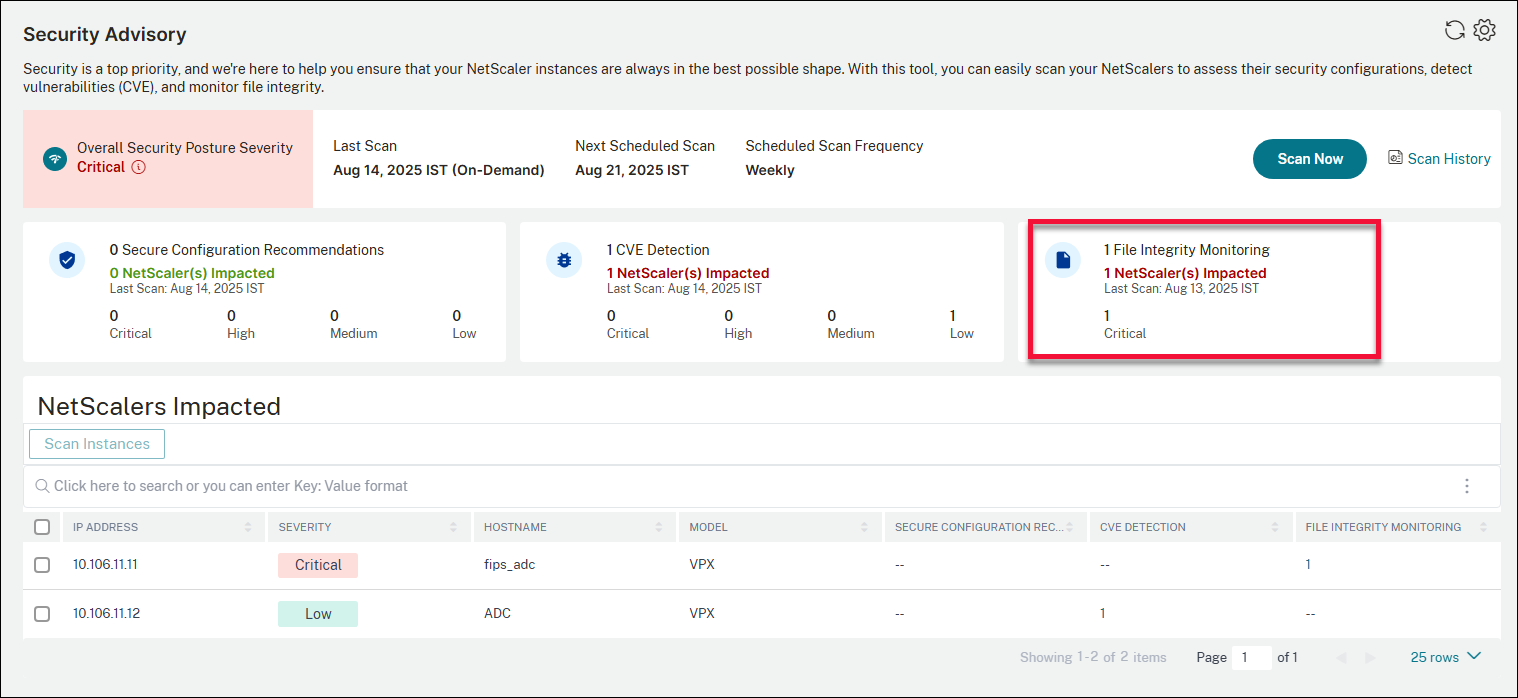
As an administrator, you can allow NetScaler to run the system scans that are scheduled periodically or you can choose to run on-demand scans based on your need.
- System scan - Scans all managed instances by default. NetScaler Console decides the date and time of system scans and are disabled by default.
- On-demand scan - You can trigger the scan manually when required. To run the on-demand scan, click Scan now on the security advisory dashboard.
You can click the File Integrity Monitoring section to view detailed information.
Console-Detected
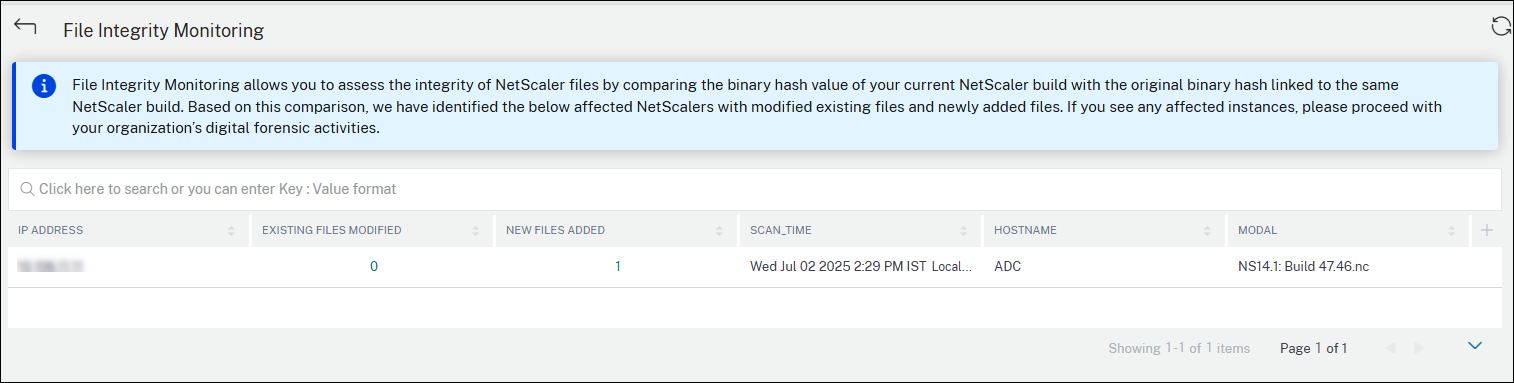
The Console-Detected tab lists the impacted NetScaler instances by comparing the binary hash of the current build with the original build hash to detect modified or newly added files. The table displays the following details:
- IP address - The IP address of the impacted instances.
- Scan status - Displays scan error results.
- Existing file modified -The list of the existing files that are modified.
- New files added - The list of new files added.
- Scan time - The time of the last scan.
- Host name - The host name of the impacted NetScaler.
- Modal - The modal name of the impacted NetScaler.
Scan error results are displayed within the main dashboard view so that you need not click the individual scan results or line items to access error details. Any integrity issues, such as hash mismatches or scan errors, are presented in a clear, accessible format on the dashboard helping you identify and understand problems quickly.
Click the numbers under Existing files modified and New files added to view details.
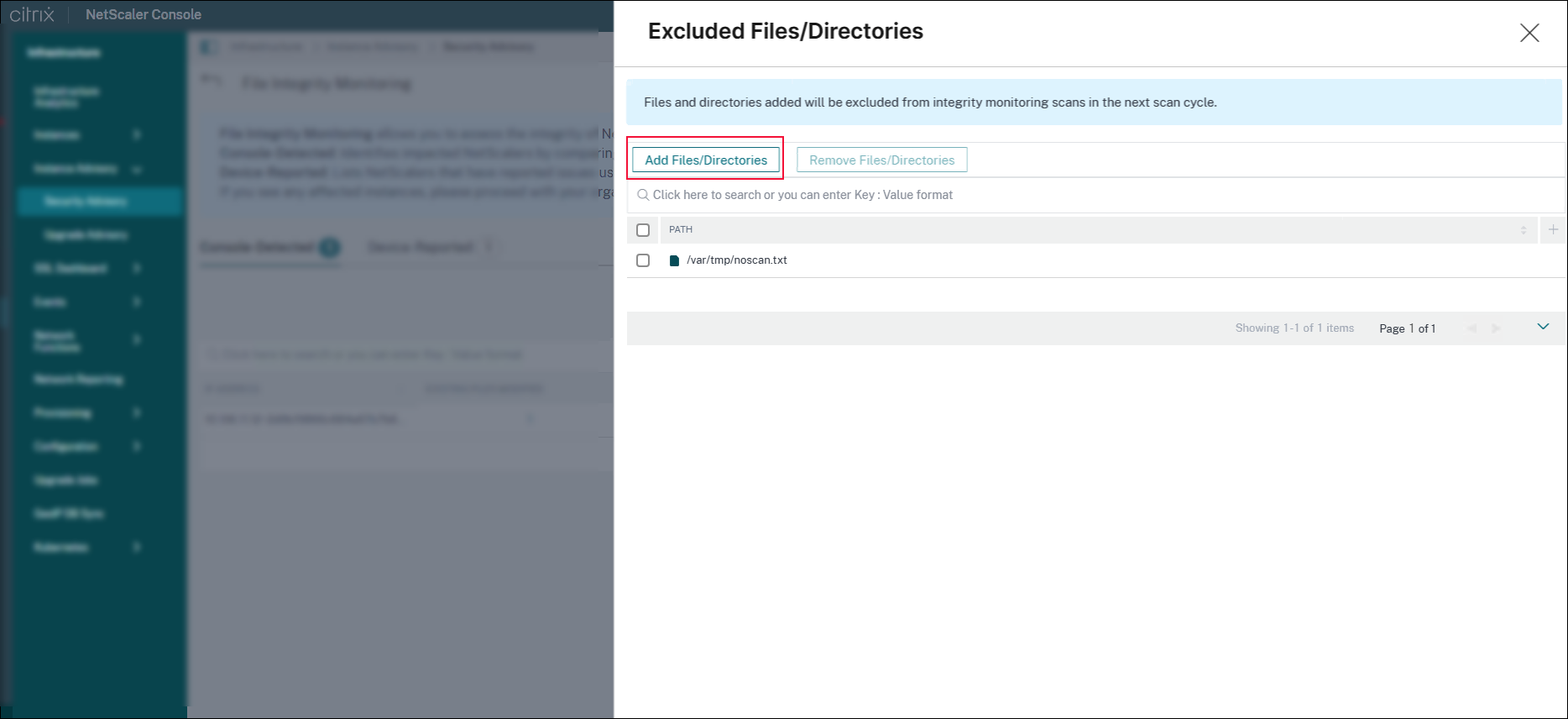
You can create a custom allow list and exclude specific files from file integrity monitoring scans. By defining which files to exclude from the scan, you can streamline monitoring and reduce unnecessary alerts for trusted files.
To exclude specific files from file integrity monitoring scans:
-
Click Exclude Files/Directories.
-
Select the required files or directories.
or
click Add Files/Directories to add new files. You can add standard shell glob patterns and exclude any paths that correspond to the defined criteria. When a directory is added, all its files are excluded from the scan. Click Add.
You can also perform a search to locate particular files or folders. You can also find the exclude list paths by entering a part of a file or folder in the search bar under the
pathoption. The search functionality makes managing and reviewing excluded paths easier.
If you do not want to exclude the files from scan, you can select the required files or directories and click Remove Files/Directories. The specified files or directories are included in the next scheduled scan.
Points to note
-
Instances supported for File Integrity Monitoring: MPX, VPX instances, and Gateway.
-
The following scan is available for File Integrity Monitoring:
- File Integrity Monitoring scan: This scan needs the NetScaler Console to connect with the managed NetScaler instance. NetScaler Console does a comparison of the hash values by running a script in NetScaler and collecting the current binary hash values for the NetScaler system files. After the comparison, NetScaler Console provides the result with total number of existing files modified and total number of newly added files. As an administrator, you can contact your organization digital forensics for further investigations on the scan results.
-
The following is the list of unsupported platforms: BLX
Device-Reported
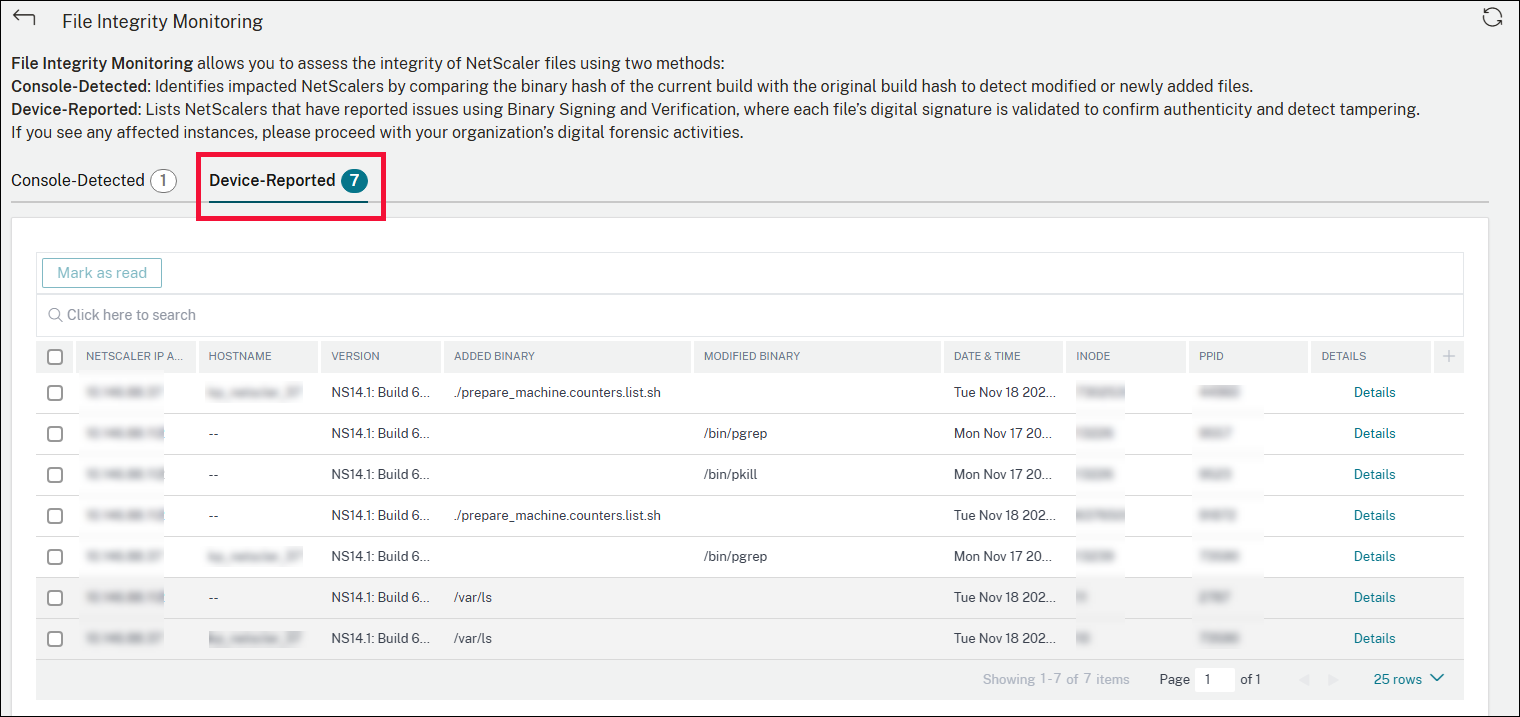
The Device-Reported tab lists the NetScaler instances that have reported issues using binary signing and verification. With this verification, each file’s digital signature is validated to confirm authenticity and detect tampering. If you see any affected instances, you can proceed with your organization’s digital forensic activities. The table lists the impacted NetScaler instances along with other details such as the host name, added binary, modified binary. You can click Details corresponding to the required instance to view detailed information.
Share
Share
In this article
This Preview product documentation is Cloud Software Group Confidential.
You agree to hold this documentation confidential pursuant to the terms of your Cloud Software Group Beta/Tech Preview Agreement.
The development, release and timing of any features or functionality described in the Preview documentation remains at our sole discretion and are subject to change without notice or consultation.
The documentation is for informational purposes only and is not a commitment, promise or legal obligation to deliver any material, code or functionality and should not be relied upon in making Cloud Software Group product purchase decisions.
If you do not agree, select I DO NOT AGREE to exit.