-
Low-touch onboarding of NetScaler instances using Console Advisory Connect
-
-
Importing and synchronizing StyleBooks from an external repository
-
Create and use custom StyleBooks
-
Create a StyleBook to upload files to NetScaler Console service
-
Create a StyleBook to upload SSL certificate and certificate key files to NetScaler Console service
-
Enable analytics and configure alarms on a virtual server defined in a StyleBook
-
Allow special characters with their literal form in StyleBooks
-
Use API to create configurations from StyleBooks
-
-
-
-
How to generate a technical support bundle for a NetScaler instance
-
This content has been machine translated dynamically.
Dieser Inhalt ist eine maschinelle Übersetzung, die dynamisch erstellt wurde. (Haftungsausschluss)
Cet article a été traduit automatiquement de manière dynamique. (Clause de non responsabilité)
Este artículo lo ha traducido una máquina de forma dinámica. (Aviso legal)
此内容已经过机器动态翻译。 放弃
このコンテンツは動的に機械翻訳されています。免責事項
이 콘텐츠는 동적으로 기계 번역되었습니다. 책임 부인
Este texto foi traduzido automaticamente. (Aviso legal)
Questo contenuto è stato tradotto dinamicamente con traduzione automatica.(Esclusione di responsabilità))
This article has been machine translated.
Dieser Artikel wurde maschinell übersetzt. (Haftungsausschluss)
Ce article a été traduit automatiquement. (Clause de non responsabilité)
Este artículo ha sido traducido automáticamente. (Aviso legal)
この記事は機械翻訳されています.免責事項
이 기사는 기계 번역되었습니다.책임 부인
Este artigo foi traduzido automaticamente.(Aviso legal)
这篇文章已经过机器翻译.放弃
Questo articolo è stato tradotto automaticamente.(Esclusione di responsabilità))
Translation failed!
How to generate a technical support bundle for a NetScaler® instance
For help with analyzing and resolving any issues with a NetScaler instance, you can generate a technical support bundle on the instance and send the bundle to Citrix technical support. The technical support bundle is a zipped tar archive of system configuration data and statistics. The technical support bundle collects the following data from the NetScaler instance on which you generate the bundle:
- Configuration files. All files in the /flash/nsconfig directory.
-
newnslogfiles. The currently runningnewnslogand some previous files. To minimize the archive file size, thenewnslogcollection is restricted to 500 MB, 6 files, or 7 days, whichever occurs first. If older data is needed, it might require manual collection. - Log files. Files in /var/log/messages, /var/log/ns.log, and other files under /var/log and /var/nslog.
- Application core files. Files created in the /var/core directory within the last week, if any.
- Output of some CLI show commands.
- Output of some CLI stat commands.
- Output of BSD shell commands.
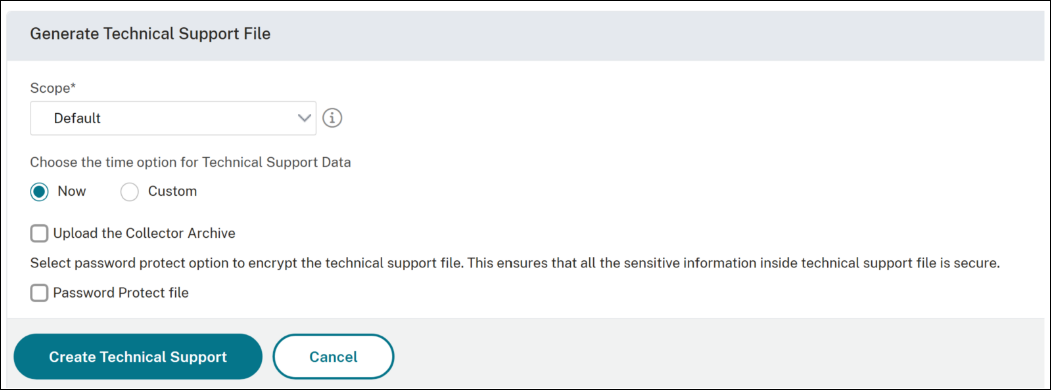
It is mandatory to specify the time for generating technical support files. You must explicitly choose a time reference when generating a technical support file. You can either select the custom option and specify a custom date and time or use the Now option. Specifying the time ensures that the exact time context is explicitly defined.
The time parameter specifies the reference time, in Common Log Format, used to locate newnslog files. The format is: DD/MMM/YYYY:HH:MM:SS.
When time is specified, up to four newnslog log files are collected:
- The
newnslogfile corresponding to the specified time range - The log file created immediately before the first file (if available)
- The log file created immediately after the first file (if available)
- The latest
newnslogdirectory
Note:
If the scope is set to cluster, the second and third log files are not collected on any node.
You can also securely upload the technical support bundle to the Citrix technical support server. Starting from NetScaler 14.1 release 8.x build, you must generate an authentication token before you upload the technical support bundle. In the previous builds, you can upload the technical support bundle using Citrix username and password.
To generate the authentication token:
- Launch a browser and enter the following URL - https://cis.citrix.com/auth/api/create_identity_v2/?expiration=3600.
-
Log in using multifactor authentication.
Note:
For information on how to enroll for multifactor authentication, see How to Enroll into multifactor authentication (MFA).
- Click Copy to copy the authentication token displayed on the screen. The token is valid for 3600 seconds (1 hour). The maximum allowed length for the token is 1023 characters.
After copying the authentication token, use the GUI to upload the file.
To upload the technical support bundle using the GUI:
- Navigate to Infrastructure > Instances > NetScaler.
- Select a NetScaler instance.
- Select Generate Technical Support File from Select Actions.
- Click Generate Technical Support File.
- Use the Scope option to specify if you want to gather data on the present node, all cluster nodes, or for the specified partitions.
-
Select one of the following options from Choose the time option for Technical Support Data:
- Now - Uses the current system time and preserves the behavior of earlier releases.
- Custom - Uses the specified date and time.
- Select Upload the Collector Archive.
- In the My Citrix Account section, enter the authentication token in the Citrix Authentication Token field.
- Click Create Technical Support.
Share
Share
In this article
This Preview product documentation is Cloud Software Group Confidential.
You agree to hold this documentation confidential pursuant to the terms of your Cloud Software Group Beta/Tech Preview Agreement.
The development, release and timing of any features or functionality described in the Preview documentation remains at our sole discretion and are subject to change without notice or consultation.
The documentation is for informational purposes only and is not a commitment, promise or legal obligation to deliver any material, code or functionality and should not be relied upon in making Cloud Software Group product purchase decisions.
If you do not agree, select I DO NOT AGREE to exit.