-
-
-
Importing and synchronizing StyleBooks from an external repository
-
Simplified migration of NetScaler application configuration using StyleBooks
-
-
-
-
Remediate vulnerabilities for CVE-2026-13474
-
Remediate vulnerabilities for CVE-2021-22927 and CVE-2021-22920
-
-
Scenarios for Flexed or Pooled license expiry and connectivity issues behavior
-
Configure NetScaler Console as the Flexed or Pooled license server
This content has been machine translated dynamically.
Dieser Inhalt ist eine maschinelle Übersetzung, die dynamisch erstellt wurde. (Haftungsausschluss)
Cet article a été traduit automatiquement de manière dynamique. (Clause de non responsabilité)
Este artículo lo ha traducido una máquina de forma dinámica. (Aviso legal)
此内容已经过机器动态翻译。 放弃
このコンテンツは動的に機械翻訳されています。免責事項
이 콘텐츠는 동적으로 기계 번역되었습니다. 책임 부인
Este texto foi traduzido automaticamente. (Aviso legal)
Questo contenuto è stato tradotto dinamicamente con traduzione automatica.(Esclusione di responsabilità))
This article has been machine translated.
Dieser Artikel wurde maschinell übersetzt. (Haftungsausschluss)
Ce article a été traduit automatiquement. (Clause de non responsabilité)
Este artículo ha sido traducido automáticamente. (Aviso legal)
この記事は機械翻訳されています.免責事項
이 기사는 기계 번역되었습니다.책임 부인
Este artigo foi traduzido automaticamente.(Aviso legal)
这篇文章已经过机器翻译.放弃
Questo articolo è stato tradotto automaticamente.(Esclusione di responsabilità))
Translation failed!
Remediate vulnerabilities for CVE-2026-13474
In the NetScaler Console security advisory dashboard, under Current CVEs > <number of> NetScaler instances are impacted by common vulnerabilities and exposures (CVEs), you can see all the instances vulnerable due to this specific CVE. To check the details of the CVE-2026-13474 impacted instances, select CVE-2026-13474 and click View Affected Instances.

The <number of> NetScaler instances impacted by CVEs window appears. Here you see the count and details of the NetScaler instances impacted by CVE-2026-13474.
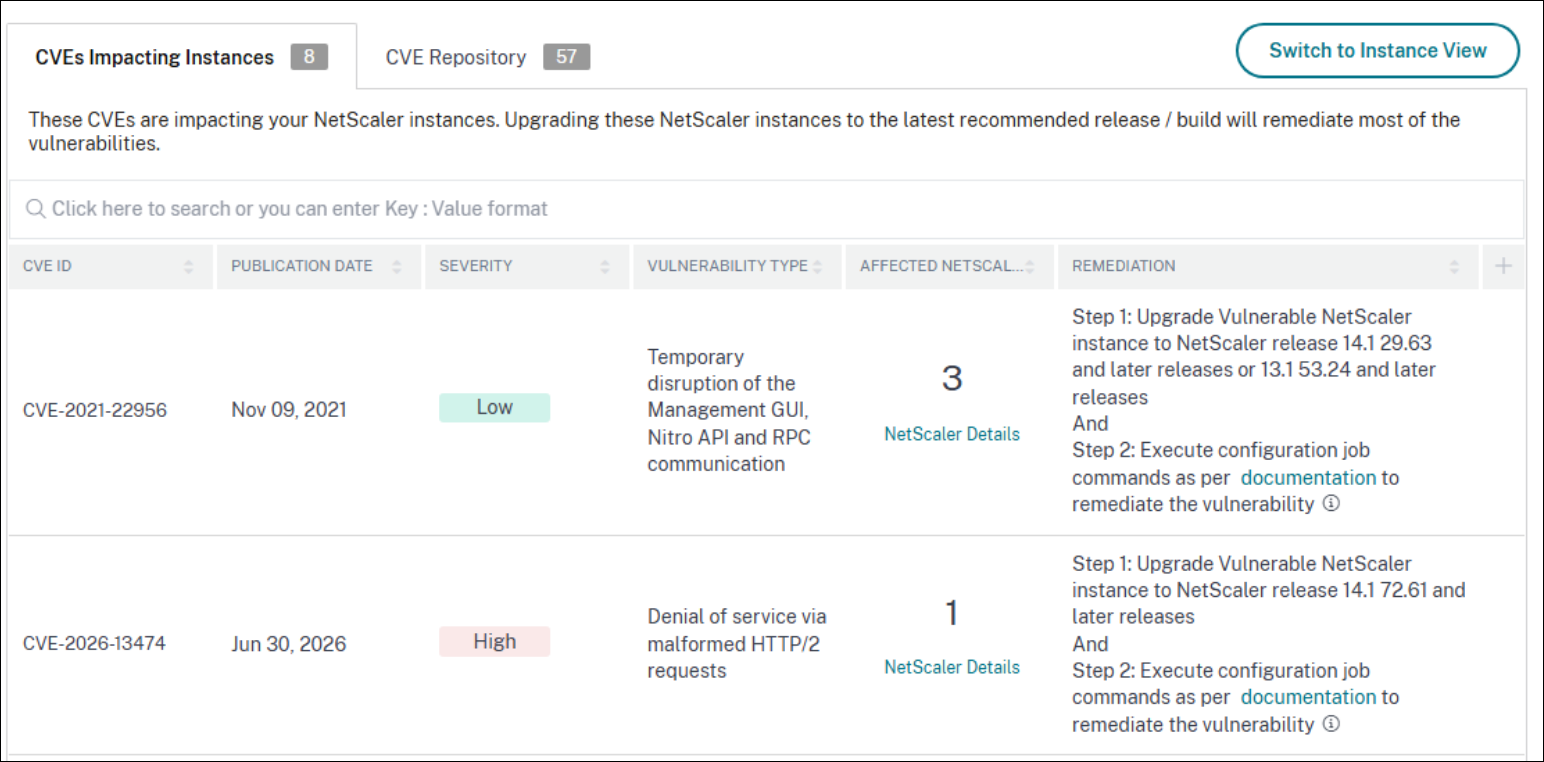
For more information about the security advisory dashboard see, Security Advisory.
Remediate CVE-2026-13474
For CVE-2026-13474 impacted NetScaler instances, the remediation is a two-step process. In the GUI, under Current CVEs > NetScaler instances are impacted by CVEs, you can see step 1 and 2.
The two steps include:
- Upgrading the vulnerable NetScaler instances to a release and build that has the fix.
- Applying the required configuration commands using the customizable built-in configuration template in configuration jobs.
Under Current CVEs > NetScaler instances impacted by CVEs, you see two separate workflows for this 2-step remediation process, which are Proceed to upgrade workflow and Proceed to configuration job workflow.
Step 1: Upgrade the impacted NetScaler instances
To upgrade the vulnerable instances, select the instances and click Proceed to upgrade workflow. The upgrade workflow opens with the vulnerable NetScaler instances already populated.
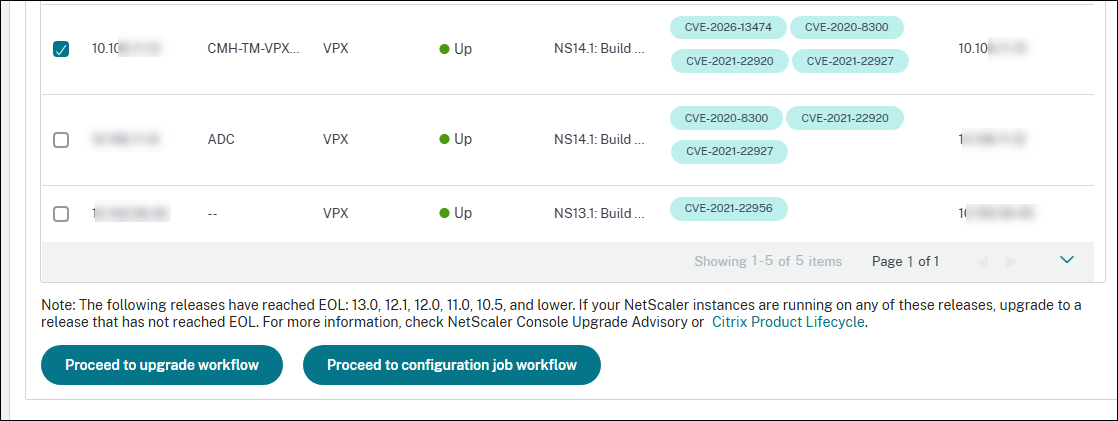
For more information on how to use NetScaler Console to upgrade NetScaler instances, see Create a NetScaler upgrade job.
Step 2: Apply configuration commands
After you’ve upgraded the impacted instances, in the <number of> NetScaler instances impacted by CVEs window, select the instance impacted by CVE-2026-13474 and click Proceed to configuration job workflow. The workflow includes the following steps.
- Customizing the configuration.
- Reviewing the auto-populated impacted instances.
- Specifying inputs for variables for the job.
- Reviewing the final config with variable inputs populated.
- Running the job.
Keep the following points in mind before you select an instance and click Proceed to configuration job workflow:
- For multiple NetScaler instances that are impacted by CVE-2026-13474 only: you can run config jobs on all instances at once. For example, you’ve NetScaler 1, NetScaler 2, and NetScaler 3, and all of them are impacted only by CVE-2026-13474. Select all these instances and click Proceed to configuration job workflow, and the built-in configuration template auto-populates under Select configuration.
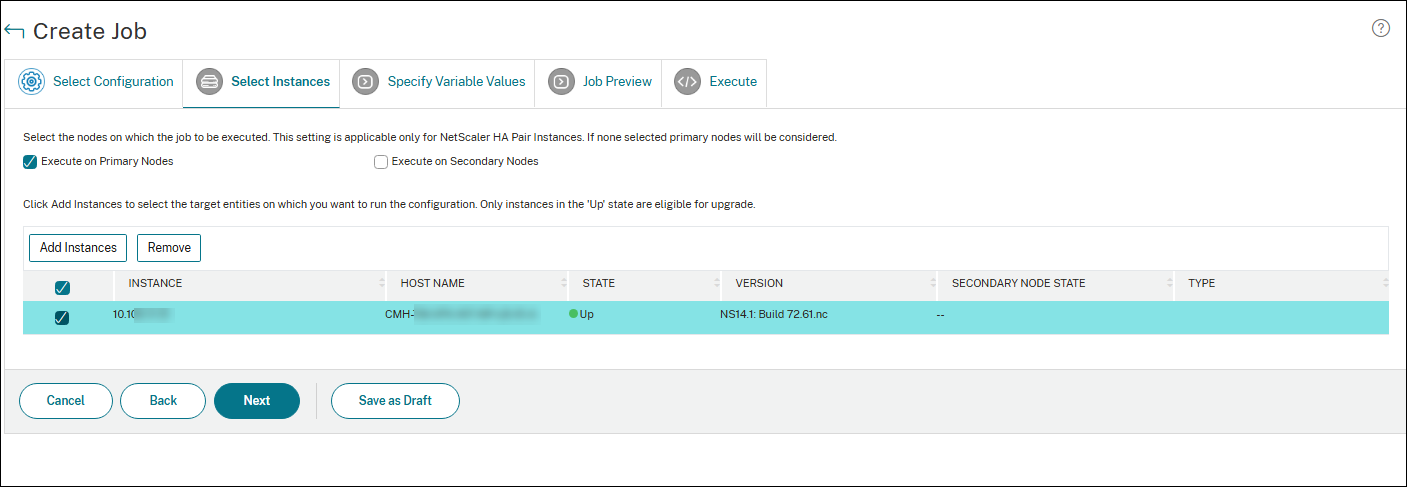
Step 1: Select configuration
In the configuration job workflow, the built-in configuration base template auto-populates under Select configuration.
Step 2: Select the instance
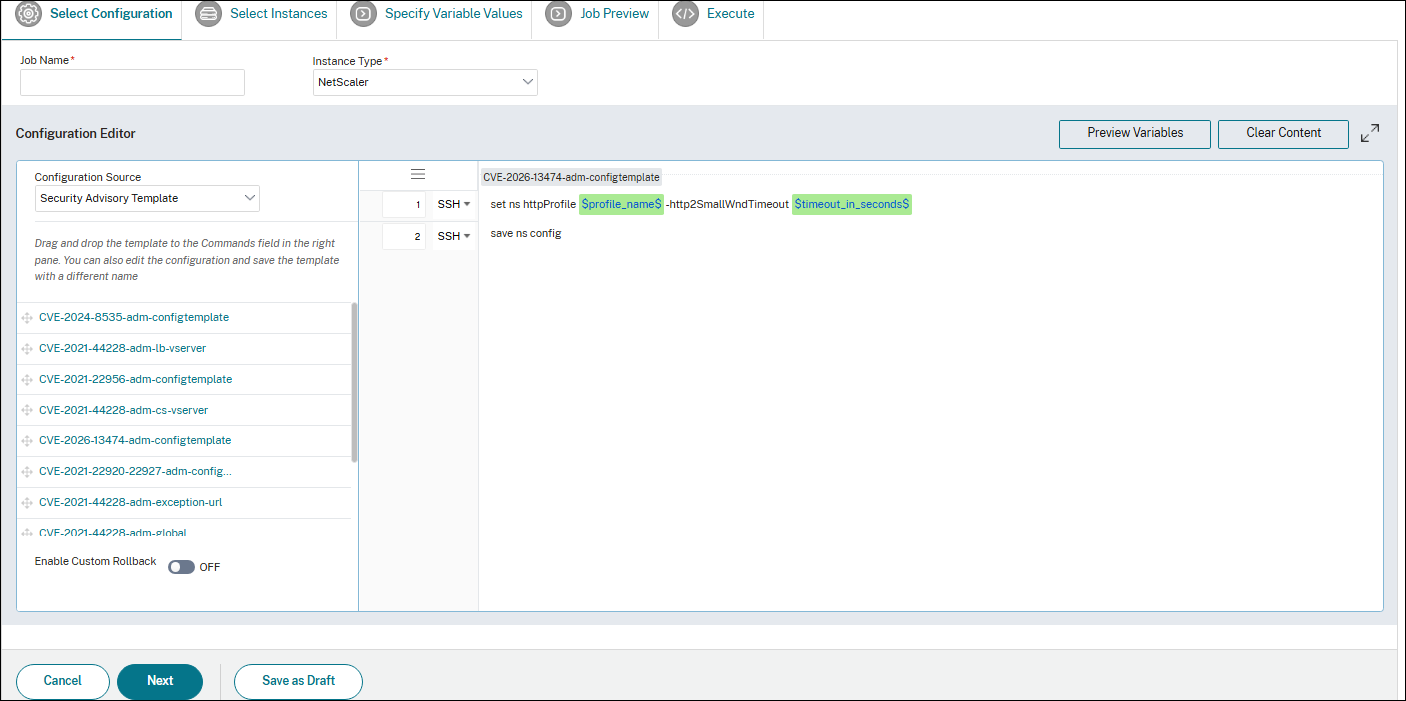
The impacted instance is auto-populated under Select Instances. Select the instances and click Next. In the next step, preview the configurations and click Next.
Note:
For NetScaler instances in cluster mode, using security advisory, the NetScaler Console supports running the config job only on the cluster configuration coordinator (CCO) node. Run the commands on non-CCO nodes separately.
Step 3: Run the configuration
Click Finish to run the configuration job.
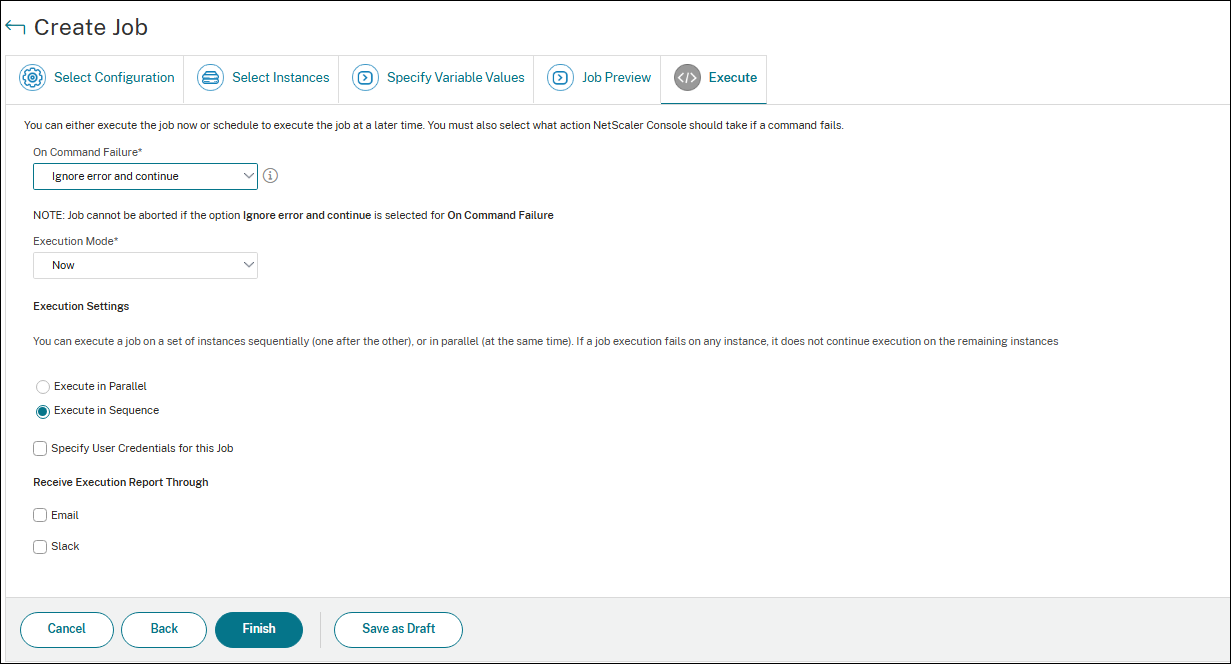
After the job is run, it appears under Infrastructure > Configuration > Configuration Jobs.
After completing the two remediation steps for all vulnerable NetScaler instances, you can run an on-demand scan to see the revised security posture.
Share
Share
In this article
This Preview product documentation is Cloud Software Group Confidential.
You agree to hold this documentation confidential pursuant to the terms of your Cloud Software Group Beta/Tech Preview Agreement.
The development, release and timing of any features or functionality described in the Preview documentation remains at our sole discretion and are subject to change without notice or consultation.
The documentation is for informational purposes only and is not a commitment, promise or legal obligation to deliver any material, code or functionality and should not be relied upon in making Cloud Software Group product purchase decisions.
If you do not agree, select I DO NOT AGREE to exit.