-
Low-touch onboarding of NetScaler instances using Console Advisory Connect
-
-
Importing and synchronizing StyleBooks from an external repository
-
Create and use custom StyleBooks
-
Create a StyleBook to upload files to NetScaler Console service
-
Create a StyleBook to upload SSL certificate and certificate key files to NetScaler Console service
-
Enable analytics and configure alarms on a virtual server defined in a StyleBook
-
Allow special characters with their literal form in StyleBooks
-
Use API to create configurations from StyleBooks
-
This content has been machine translated dynamically.
Dieser Inhalt ist eine maschinelle Übersetzung, die dynamisch erstellt wurde. (Haftungsausschluss)
Cet article a été traduit automatiquement de manière dynamique. (Clause de non responsabilité)
Este artículo lo ha traducido una máquina de forma dinámica. (Aviso legal)
此内容已经过机器动态翻译。 放弃
このコンテンツは動的に機械翻訳されています。免責事項
이 콘텐츠는 동적으로 기계 번역되었습니다. 책임 부인
Este texto foi traduzido automaticamente. (Aviso legal)
Questo contenuto è stato tradotto dinamicamente con traduzione automatica.(Esclusione di responsabilità))
This article has been machine translated.
Dieser Artikel wurde maschinell übersetzt. (Haftungsausschluss)
Ce article a été traduit automatiquement. (Clause de non responsabilité)
Este artículo ha sido traducido automáticamente. (Aviso legal)
この記事は機械翻訳されています.免責事項
이 기사는 기계 번역되었습니다.책임 부인
Este artigo foi traduzido automaticamente.(Aviso legal)
这篇文章已经过机器翻译.放弃
Questo articolo è stato tradotto automaticamente.(Esclusione di responsabilità))
Translation failed!
Use configuration jobs to replicate configuration from one instance to multiple instances
You might have configured both load balancing and AppFlow on a NetScaler instance for your deployment. However, now you want to replicate only the AppFlow configuration to other NetScaler instances.
You can use the Configuration Jobs feature of NetScaler Console to extract the AppFlow configuration from a NetScaler instance and replicate it on multiple instances.
To retrieve and replicate configuration from one instance to other NetScaler Instances:
-
Navigate to Infrastructure > Configuration > Configuration Jobs, and then click Create Job.
-
Specify the job name and the type of instance.
-
Select Instance as the Configuration Source and select the source instance whose configuration you want to replicate. Select the type of configuration that you want to extract. If you select the “Configuration by time duration,” set the time period when you had run this configuration, and then click Extract.
The number of commands run on that instance in the time duration you selected is displayed on the screen as highlighted in the image below.
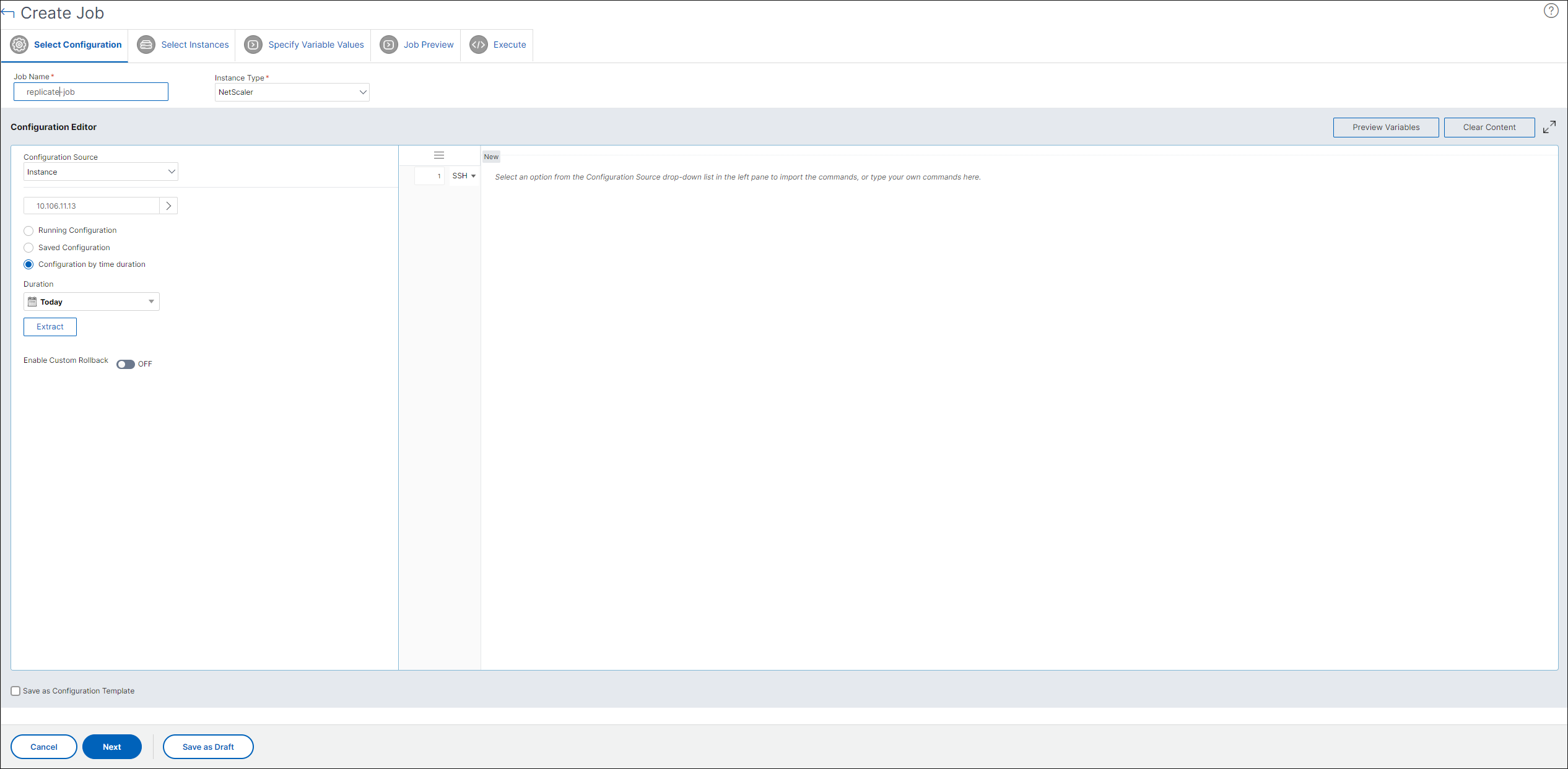
-
Drag the commands to the Commands field in the right pane.
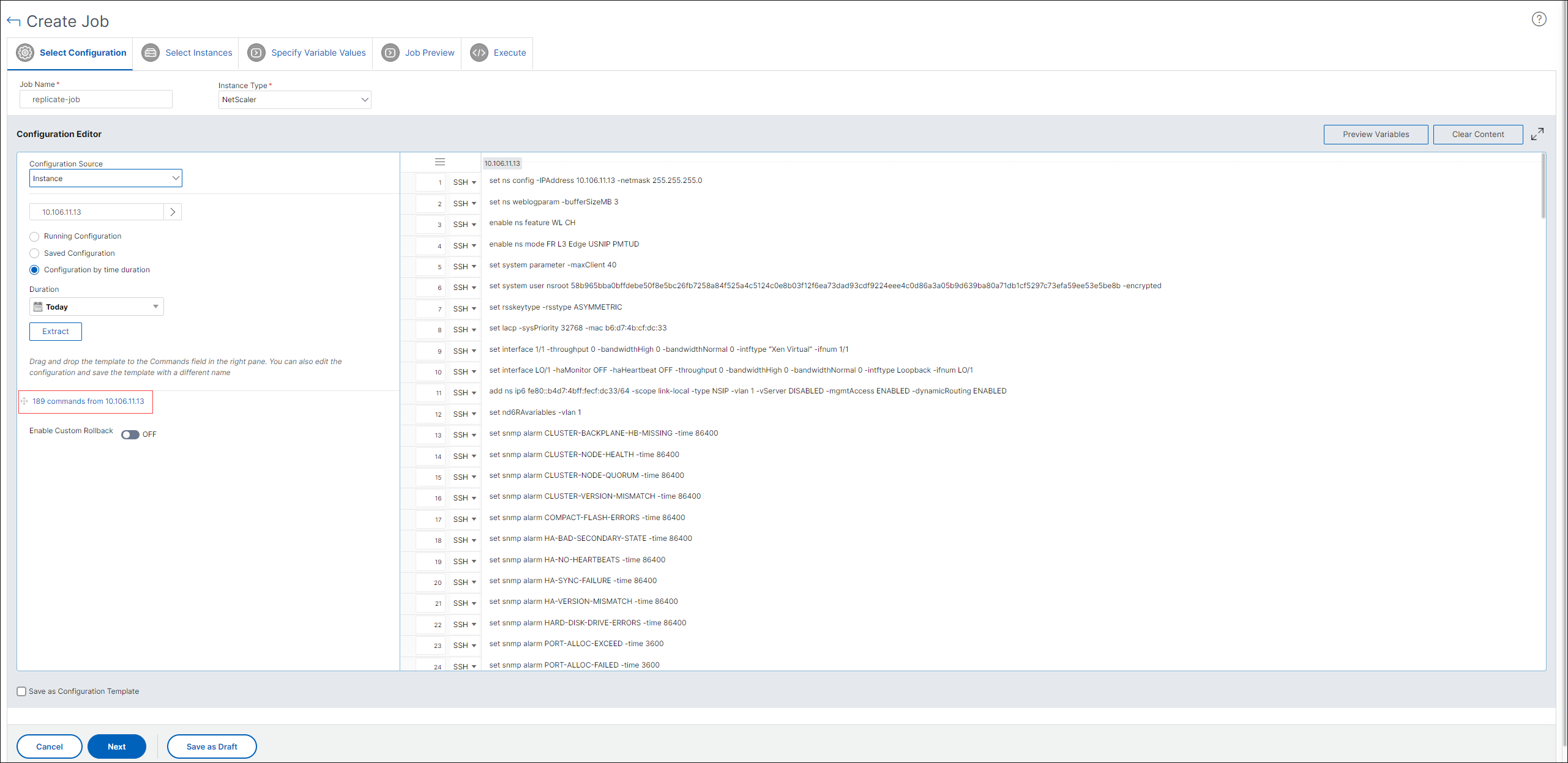
Retain only the commands related to FEO and manually delete the commands related to load balancing, or commands related to any other configuration, and then click Next.
-
Click Add Instances and add the instances on which you want to apply the FEO configuration. Click OK, and then. click Next.
If you have specified variables in the commands, on the Specify Variable Values tab, click Download Input Key File. In the downloaded file, specify values for the variables, and then upload the file to NetScaler Console.
On the Job Preview tab, you can evaluate and verify the commands to be run on each instance or instance group.
On the Execute tab, click Finish to run the job on the selected NetScaler instances.
Share
Share
In this article
This Preview product documentation is Cloud Software Group Confidential.
You agree to hold this documentation confidential pursuant to the terms of your Cloud Software Group Beta/Tech Preview Agreement.
The development, release and timing of any features or functionality described in the Preview documentation remains at our sole discretion and are subject to change without notice or consultation.
The documentation is for informational purposes only and is not a commitment, promise or legal obligation to deliver any material, code or functionality and should not be relied upon in making Cloud Software Group product purchase decisions.
If you do not agree, select I DO NOT AGREE to exit.