
Email OTP authentication
Email OTP is introduced with NetScaler 12.1 build 51.x. The Email OTP method enables you to authenticate using the one-time password (OTP) that is sent to the registered email address. When you try to authenticate on any service, the server sends an OTP to the registered email address of the user.
To use the Email OTP feature, you must first register your alternate email ID. An alternative email ID registration is needed so that the OTP can be sent to that mail ID since you would not be able to access the primary email ID if there was an account lockout or in the event of you forgetting the AD password.
You can use Email OTP validation without email ID registration if you have provided the alternate email ID already as part of some AD attribute. You can refer to the same attribute in the email action instead of specifying the alternate email ID in the email address section.
Prerequisites
Before you configure the Email OTP feature, review the following prerequisites:
-
NetScaler feature release 12.1 build 51.28 and above
-
Email OTP feature is available in nFactor authentication flow only
-
For more details, refer to
<https://support.citrix.com/pages/citrix-adc-authentication-how#nfactor> -
Supported for AAA-TM, NetScaler Gateway (Browser, Native plug-in, and Receiver).
-
Active Directory setting
-
Supported version is 2016/2012 and 2008 Active Directory domain function level
-
NetScaler ldapBind user name must have write access to the user's AD path
Email server
-
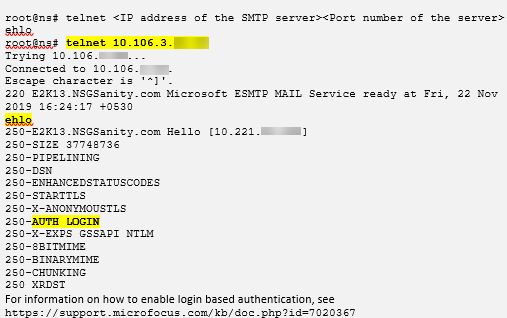
For the Email OTP solution to work, ensure that the login based authentication is enabled on the SMTP server. NetScaler supports only AUTH LOGIN based authentication for Email OTP to work.
-
To ensure that the AUTH LOGIN based authentication is enabled, type the following command on the SMTP server. If the login based authentication is enabled, you notice that the text AUTH LOGIN appears in bold in the output.
Limitations
-
This feature is supported only if the authentication back-end is LDAP.
-
Already registered alternate email ID cannot be seen.
-
Only the alternate email ID from the KBA Registration page cannot be updated.
-
Email OTP authentication cannot be the first factor in the authentication flow. This is by design to achieve a robust authentication.
-
If both Alternate email ID and KBA are configured using the same authentication action, the attribute must be the same for both.
-
For the native plug-in and Receiver, registration is supported only through a browser.
Active Directory configuration
-
Email OTP uses the Active Directory attribute as user data storage.
-
After you register the alternate email ID, the email ID is sent to the NetScaler appliance and the appliance stores it in the configured KB attribute in the AD user object.
-
The alternate email ID is encrypted and stored in the configured AD attribute.
When configuring an AD attribute, consider the following:
-
Attribute name length supported must be at least 128 characters.
-
Attribute type must be 'DirectoryString'.
-
Same AD attribute can be used for Native OTP and Email OTP registration data.
-
LDAP administrator must have write access to the selected AD attribute.
Using existing attributes
The attribute used in this example is
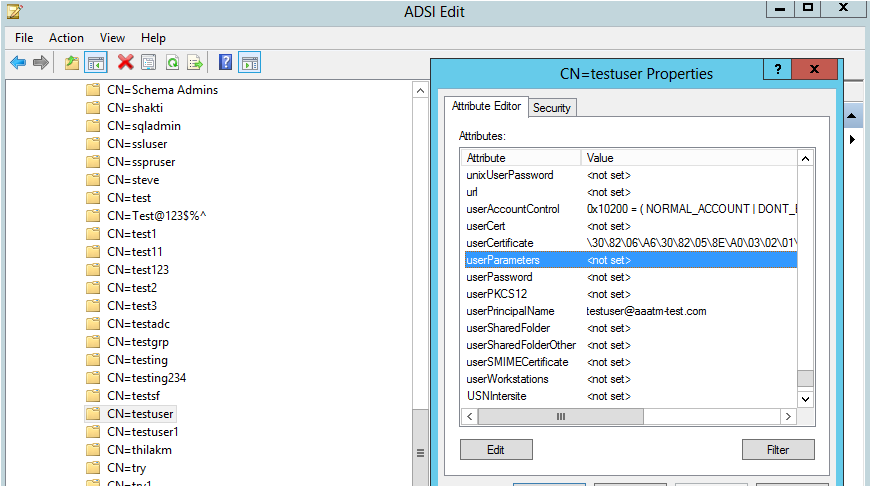
Userparameters. As this is an existing attribute within the AD user, you do not need to make any changes to the AD itself. However, you have to make sure that the attribute is not being used.
To ensure that the attribute is not used, navigate to ADSI and select user, right-click on the user, and scroll down to the attribute list. You must see the attribute value for UserParameters as not set. This indicates that the attribute is not being used at the moment.
Configure Email OTP
Email OTP solution consists of the following two parts:
-
Email registration
-
Email validation
Email ID registration
Do the following configuration by using the CLI after the KBA registration schema is created successfully:
-
Bind the portal theme and the certificate to VPN global.
bind authentication vserver authvs -portaltheme RfWebUI
bind vpn global -userDataEncryptionKey c1Note:Preceding certificate binding is required to encrypt the user data (KB Q&A and alternate mail ID Registered) stored in the AD attribute. -
Create an LDAP authentication policy.
add authentication ldapAction ldap -serverIP 10.102.2.2 -serverPort 636 -ldapBase "dc=aaatm-test,dc=com" -ldapBindDn administrator@aaatm-test.com -ldapBindDnPassword freebsd -ldapLoginName samAccountName -secType SSL
add authentication Policy ldap -rule "http.req.cookie.value(\"NSC_TASS\").contains(\"register\")" -action ldap -
Create an LDAP authentication policy for email registration.
add authentication ldapAction ldap_email_registration -serverIP 10.102.2.2 -serverPort 636 -ldapBase "dc=aaatm-test,dc=com" -ldapBindDn administrator@aaatm-test.com -ldapBindDnPassword freebsd -ldapLoginName samAccountName -secType SSL -KBAttribute userParameters -alternateEmailAttr userParameters
add authentication Policy ldap_email_registration -rule true -action ldap_email_registration -
Create an email registration login schema and policy label.
add authentication loginSchema onlyEmailRegistration -authenticationSchema /nsconfig/loginschema/LoginSchema/AltEmailRegister.xml
 add authentication policylabel email_Registration_factor -loginSchema onlyEmailRegistration
bind authentication policylabel email_Registration_factor -policyName ldap_email_registration -priority 1 -gotoPriorityExpression NEXT -
Bind the authentication policy to the authentication virtual server.
bind authentication vserver authvs –policy ldap -priority 1 -nextFactor email_Registration_factor -gotoPriorityExpression NEXT -
Once you have configured all the preceding steps, you must see the following GUI screen. If the URL path contains
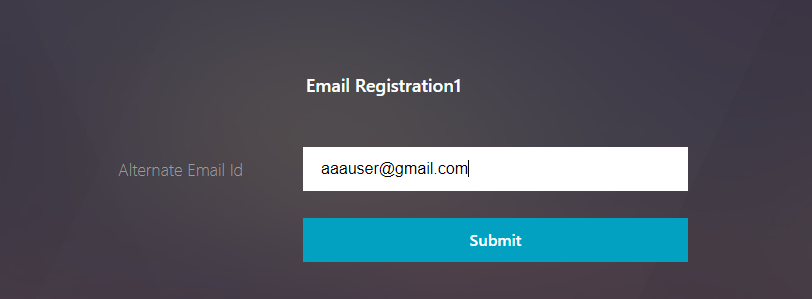
/register(for example,<https://lb1.server.com/register>), you are presented with an initial login page that only requires the LDAP logon credential followed by an alternate email registration page. Then the user registration page is displayed.Note: The domain<https://lb1.server.com/>can belong to either gateway or an authentication virtual server.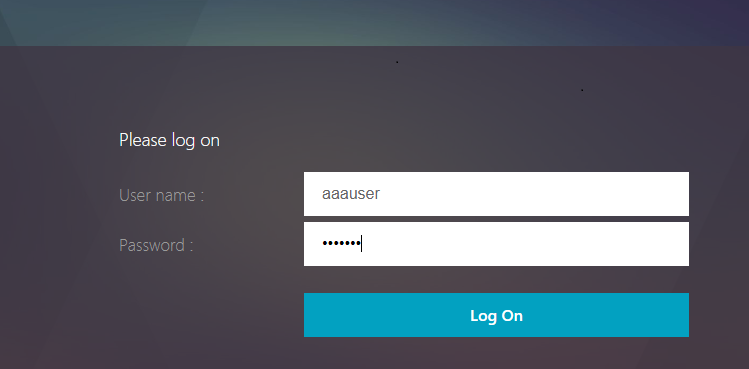
Note:
-
You can use the same authentication schema for both KBA registration and for Email ID registration.
-
While configuring KBA registration, you can select Register Alternate Email in the Email Registration section to register an alternate email ID.
Email validation
Do the following steps for Email validation.
-
Bind the portal theme and the certificate to VPN global
bind authentication vserver authvs -portaltheme RfWebUI
bind vpn global -userDataEncryptionKey c1Note:Preceding certificate binding is required to decrypt the user data (KB Q&A and alternate email ID registered) stored in the AD attribute. -
Create an LDAP authentication policy. LDAP must be a prior factor to the email validation factor because you need the user's email ID or alternate email ID for Email OTP Validation.
add authentication ldapAction ldap1 -serverIP 10.102.2.2 -serverPort 636 -ldapBase "dc=aaatm-test,dc=com" -   ldapBindDn administrator@aaatm-test.com -ldapBindDnPassword freebsd -ldapLoginName samAccountName -secType SSL -KBAttribute userParameters -alternateEmailAttr userParameters
add authentication Policy ldap1 -rule true -action ldap1 -
Create an email authentication policy.
add authentication emailAction email -userName sqladmin@aaa.com -password freebsd-encrypted -encryptmethod ENCMTHD_3 -serverURL "smtps://10.2.3.3:25" -content "OTP is $code" -defaultAuthenticationGroup emailgrp -emailAddress "aaa.user.attribute(\"alternate_mail\")"
 add authentication Policy email -rule true –action email
In the previously mentioned command, email address is the alternate email ID user provided during KBA Registration. -
Create an email OTP validation policy label.
add authentication policylabel email_Validation_factor
bind authentication policylabel email_Validation_factor -policyName email -priority 1 -gotoPriorityExpression NEXT -
Bind the authentication policy to the authentication virtual server.
bind authentication vserver authvs -policy ldap1 -priority 2 -nextFactor email_Validation_factor -gotoPriorityExpression NEXT -
Once you have configured all the steps mentioned in the previous sections, you must see the following GUI screen for EMAIL OTP Validation. Upon accessing via the URL for example,
<https://lb1.server.com/>you are presented with an initial login page that only requires the LDAP logon credential followed by the EMAIL OTP Validation page.Note:In the LDAP policy it is important to configurealternateEmailAttrto be able to query the user's email id from the AD attribute.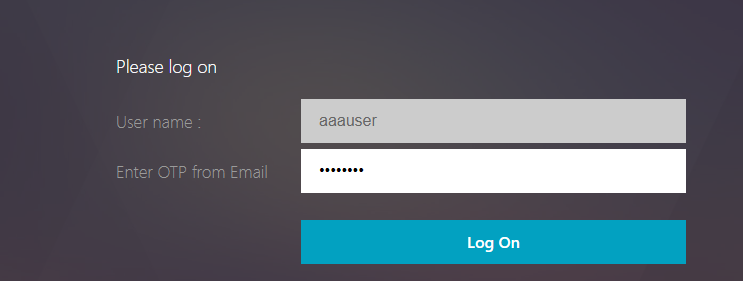
Troubleshooting
Before analyzing the log, it is better to set the log level to debug as follows.
set syslogparams -loglevel DEBUG
Registration - Successful scenario
The following entries indicate a successful user registration.
"ns_aaa_insert_hash_keyValue_entry key:kba_registered value:1"
 Nov 14 23:35:51 <local0.debug> 10.102.229.76 11/14/2018:18:05:51 GMT  0-PPE-1 : default SSLVPN Message 1588 0 :  "ns_aaa_insert_hash_keyValue_entry key:alternate_mail value:eyJ2ZXJzaW9uIjoiMSIsICJraWQiOiIxbk1oWjN0T2NjLVVvZUx6NDRwZFhxdS01dTA9IiwgImtleSI6IlNiYW9OVlhKNFhUQThKV2dDcmJSV3pxQzRES3QzMWxINUYxQ0tySUpXd0h4SFRIdVlWZjBRRTJtM0ZiYy1RZmlQc0tMeVN2UHpleGlJc2hmVHZBcGVMZjY5dU5iYkYtYXplQzJMTFF1M3JINFVEbzJaSjdhN1pXUFhqbUVrWGdsbjdUYzZ0QWtqWHdQVUI3bE1FYVNpeXhNN1dsRkZXeWtNOVVnOGpPQVdxaz0iLCAiaXYiOiI4RmY3bGRQVzVKLVVEbHV4IiwgImFsZyI6IkFFUzI1Nl9HQ00ifQ==.oKmvOalaOJ3a9z7BcGCSegNPMw=="
Registration - Failure scenario
On the user login page, you see the following error message, "Cannot Complete your request". This indicates that the cert-key to be bound to the VPN global for encrypting the user data is missing.
Jul 31 08:51:46 <local0.info> 10.102.229.79 07/31/2020:03:21:4 6 GMT  0-PPE-1 : default SSLVPN Message 696 0 :  "Encrypt UserData: No Encryption cert is bound to vpn global"
 Jul 31 08:51:46 <local0.info> 10.102.229.79 07/31/2020:03:21:46 GMT  0-PPE-1 : default SSLVPN Message 697 0 :  "KBA Register: Alternate email id Encrypted blob length is ZERO aaauser"
Email validation – Successful scenario
The following entries indicate a successful Email OTP Validation.
"NFactor: Successfully completed email auth, nextfactor is pwd_reset"
Email Validation – Failure scenario
On the user login page, the "Cannot Complete your request" error message is displayed. This indicates login based authentication is not enabled on the email server and the same needs to be enabled.
" /home/build/rs_130_36_15_RTM/usr.src/netscaler/aaad/pocomail.cpp[100]: void ThreadWorker_SendMailJob(SMTPJob*) 0-215: [POCO][JobID: 8]SMTP Configuration is Secure..
 /home/build/rs_130_36_15_RTM/usr.src/netscaler/aaad/pocomail.cpp[108]: void ThreadWorker_SendMailJob(SMTPJob*) 0-215: [POCO][JobID: 8] First login succeeded
 Wed Mar  4 17:16:28 2020
 /home/build/rs_130_36_15_RTM/usr.src/netscaler/aaad/naaad.c[697]: main 0-0: timer 2 firing...
 /home/build/rs_130_36_15_RTM/usr.src/netscaler/aaad/pocomail.cpp[127]: void ThreadWorker_SendMailJob(SMTPJob*) 0-0: [POCO-ERROR][JobID: 8] Poco SMTP Mail Dispatch  Failed. SMTP TYPE:1, SMTPException: Exception occurs. SMTP Exception: The mail service does not support LOGIN authentication: 250-smtprelay.citrix.com Hello [10.9.154.239]
 250-SIZE 62914560
 250-PIPELINING
 250-DSN
 250-ENHANCEDSTATUSCODES
 250-8BITMIME
 250-BINARYMIME
 250 CHUNKING